
SLIDE 1
for NM Department of Game and Fish Share with Wildlife Lesson 3 – Turning Data into Information page 1
Lesson 3: Turning Data Into Information by Creating Wetland Maps and Analyzing Water Quality Data
Objectives: Students will: Learn to create maps using Google Earth as a geographical information system (GIS). Learn to analyze field data and techniques to graph and report scientific data. Recommended duration: 2 classroom sessions Proposed method: Students will learn methods to analyze scientific data including graphing and reporting in poster format and PowerPoint. GPS data will be downloaded and imported to Google earth or similar mapping software to develop spatial maps of wetlands monitored. Materials:
- 1. GPS data that has been downloaded to a computer (need GPS and cable or a data file
from someone who has downloaded the data already).
- 2. Field data forms and Data to Information worksheet for water chemistry
- 3. Computer with Excel and Power point capabilities and internet access to load Google
- Earth. An alternative is to use Google Docs to create graphs and analyze water quality
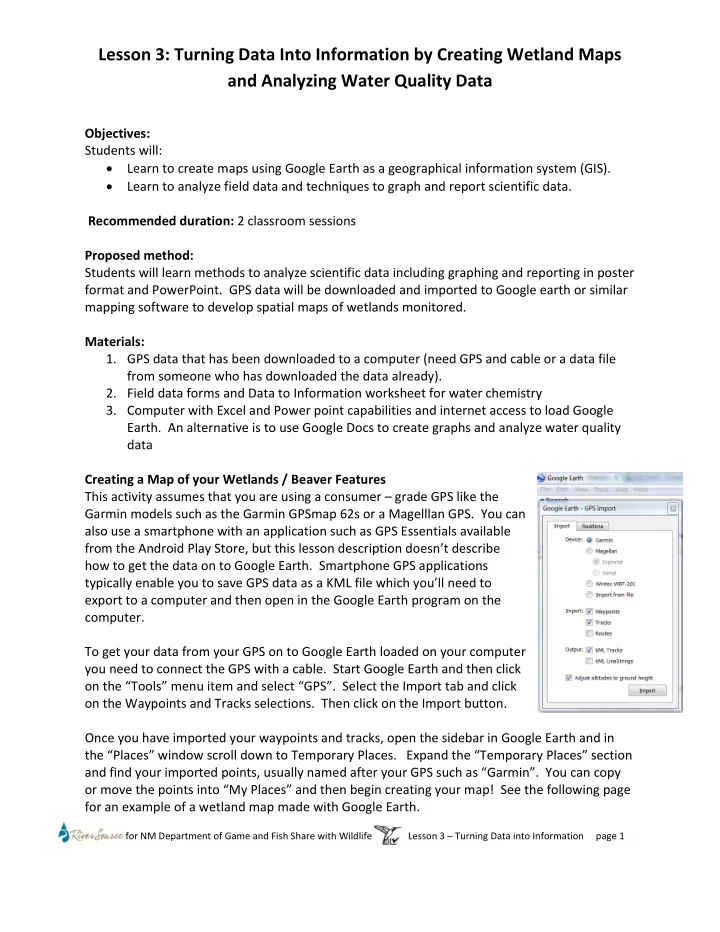
data Creating a Map of your Wetlands / Beaver Features This activity assumes that you are using a consumer – grade GPS like the Garmin models such as the Garmin GPSmap 62s or a Magelllan GPS. You can also use a smartphone with an application such as GPS Essentials available from the Android Play Store, but this lesson description doesn’t describe how to get the data on to Google Earth. Smartphone GPS applications typically enable you to save GPS data as a KML file which you’ll need to export to a computer and then open in the Google Earth program on the computer. To get your data from your GPS on to Google Earth loaded on your computer you need to connect the GPS with a cable. Start Google Earth and then click
- n the “Tools” menu item and select “GPS”. Select the Import tab and click
- n the Waypoints and Tracks selections. Then click on the Import button.
Once you have imported your waypoints and tracks, open the sidebar in Google Earth and in the “Places” window scroll down to Temporary Places. Expand the “Temporary Places” section and find your imported points, usually named after your GPS such as “Garmin”. You can copy
- r move the points into “My Places” and then begin creating your map! See the following page