Using Presentation Files in Blackboard Collaborate Ultra You will be - - PDF document

using presentation files in blackboard collaborate ultra
SMART_READER_LITE
LIVE PREVIEW

Using Presentation Files in Blackboard Collaborate Ultra You will be - - PDF document

Using Presentation Files in Blackboard Collaborate Ultra You will be facilitating your micro-teaching lesson using Blackboard Collaborate Ultra. This video provides an overview of the Collaborate Ultra platform and its features. If you created


slide-1
SLIDE 1

Page 1 of 5

Using Presentation Files in Blackboard Collaborate Ultra

You will be facilitating your micro-teaching lesson using Blackboard Collaborate Ultra. This video provides an overview of the Collaborate Ultra platform and its features. If you created presentation slides (e.g., a PowerPoint presentation) to accompany your 15-minute micro-teaching lesson, there are two ways you can display it in Blackboard Collaborate Ultra, depending

  • n the type of your presentation file:
  • A presentation file without animation
  • A presentation file with animation

A Presentation File without Animation If your presentation doesn’t make use of animations, you can upload it as a PDF in the Blackboard Collaborate session:

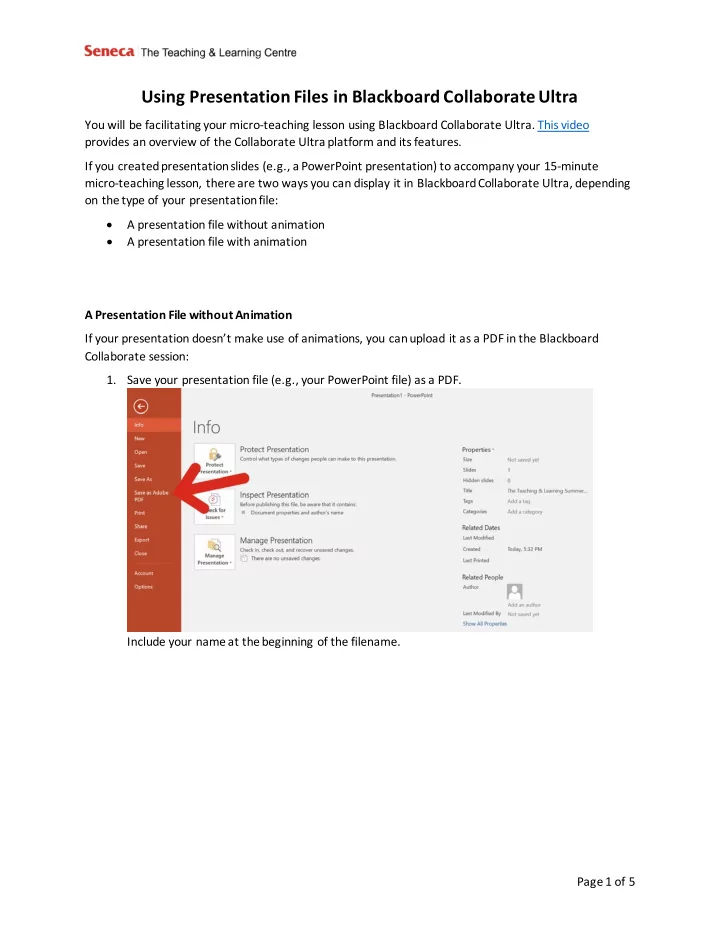
  • 1. Save your presentation file (e.g., your PowerPoint file) as a PDF.

Include your name at the beginning of the filename.

slide-2
SLIDE 2

Page 2 of 5

  • 2. When you enter Blackboard Collaborate Ultra for your micro-teaching session, expand the

collaborate panel at the bottom right of the session.

  • 3. Click on the Share Content panel.
  • 4. Click Share Files.
slide-3
SLIDE 3

Page 3 of 5

  • 5. Drag and drop your PDF into the Add Files space or click in the Add Files space to browse your

computer for your PDF. Maximum file size is 60MB.

  • 6. When it is your turn to present, select your file and click Share Now to display your PDF.
slide-4
SLIDE 4

Page 4 of 5 A Presentation File with Animation If your presentation uses animations, do not upload it in the Blackboard Collaborate session. It will not display properly this way. Instead, use the Share Application/Screen feature:

  • 1. Have your presentation open and ready display.
  • 2. When it is your turn to present, expand the collaborate panel at the bottom right of the session.
  • 3. Click on the Share Content panel.
slide-5
SLIDE 5

Page 5 of 5

  • 4. Click Share Application/Screen.
  • 5. Select the PowerPoint document you would like to share.

Tip: share only the screen or application you are working with. Sharing the “entire screen” can take a lot more bandwidth and may make the connection choppy.