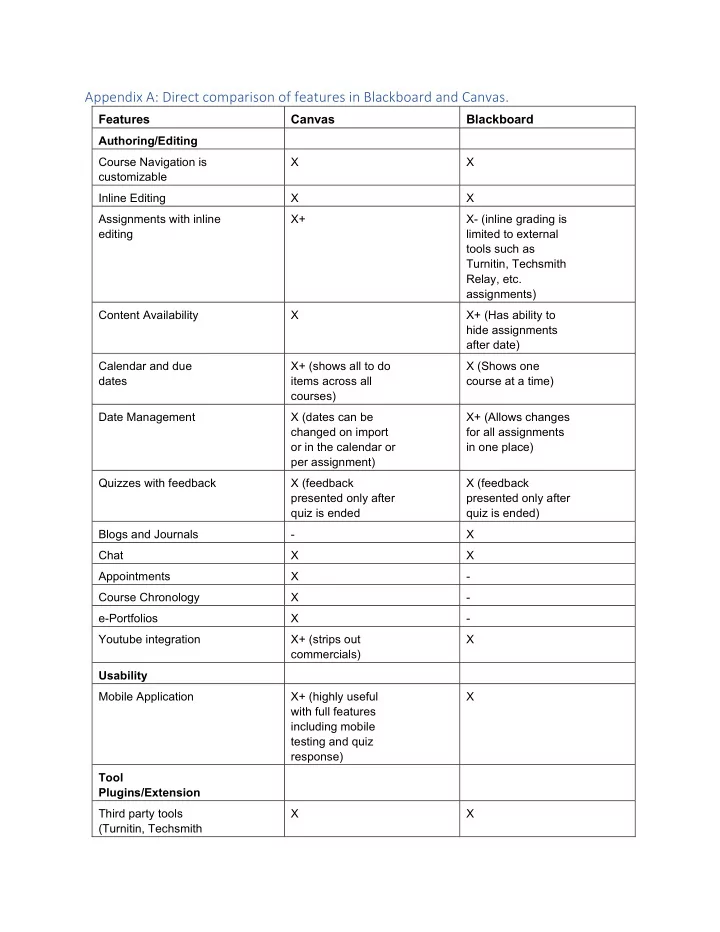
SLIDE 1 Appendix A: Direct comparison of features in Blackboard and Canvas.
Features Canvas Blackboard
Authoring/Editing Course Navigation is customizable X X Inline Editing X X Assignments with inline editing X+ X- (inline grading is limited to external tools such as Turnitin, Techsmith Relay, etc. assignments) Content Availability X X+ (Has ability to hide assignments after date) Calendar and due dates X+ (shows all to do items across all courses) X (Shows one course at a time) Date Management X (dates can be changed on import
per assignment) X+ (Allows changes for all assignments in one place) Quizzes with feedback X (feedback presented only after quiz is ended X (feedback presented only after quiz is ended) Blogs and Journals
Chat X X Appointments X
X
X
X+ (strips out commercials) X Usability Mobile Application X+ (highly useful with full features including mobile testing and quiz response) X Tool Plugins/Extension Third party tools (Turnitin, Techsmith X X
SLIDE 2
Relay, etc) APIs X+ (open source based) X- (proprietary) User Management SIS integration X X Course Sections X X Groups X X Accessibility X X Analytics User Behavior, completion X X Analytics web services X+ (can pull out data to inform active student success) X-
SLIDE 3 Appendix B: Costs
Costs Canvas Blackboard Base License $109,019 (5 year with a 3% annual increase) $118,755** reduced down to $85,000 Helpdesk Implementation,
$500 $15,000 24x7 Support (Stateside) $21,803 NA 24x7 Support (Non- stateside) $9000*** reduced to zero for two years. Tier 1 faculty support $22,677 Not available Performance Metrics Uptime 99.9% (43 minutes
month) 99.8% (1 hour, 26 minutes of downtime per month) 99.9% can be purchased ** Negotiated year over year. Currently negotiated down to $85,000 for two years. System working on a $9 a student license price.
SLIDE 4 Appendix C: Comparison and differences
To provide additional detail on the comparison we included above, we used the comparison guide that SDSU developed who took it and modified it from Montclair. Source: Montclair State University, https://www.montclair.edu/media/montclairedu/oit/tti/Canvas-vs-Blackboard-- Comparison- table-links-only.pdf (with some modifications)
Blackboard
Canvas
How is Canvas Different?
Make Course Available Publish Course
- Canvas courses are unpublished as a default. Instructors must "publish" their course
for students to access it.
Announcements Announcements
- Users can receive notifications via Facebook, Twitter, email & text.
- Canvas allows students to comment on an announcement if instructor allows.
- Announcements appear on the User Dashboard.
- Canvas has the ability to add RSS feeds.
Files Files
- Everything you upload or copy into Files is accessible to students by default.
- You can create folders to organize materials; folders and items can be locked.
- Drag & drop files into folders.
- All files in this area can be downloaded as a .zip file.
- You can upload a .zip file to this area and Canvas will unzip it for you.
Blackboard Content
Items Pages
- Pages are essentially a Wiki (you can edit and track their history). You can grant the
ability to edit the Page to students.
can include text, video, links to your files, YouTube, Kaltura video files and links to other course content such as assignments, discussion boards etc.
- If you customize the Home Page layout of your Canvas course, you'll be creating a
special page named Front Page.
- Pages can be linked to other Pages.
Discussion Forums Discussions
- Can require users to post to the discussion before viewing other replies.
- Instructors and students can easily view/filter posts.
- Receive notifications via social web services, text, etc.
- Group Discussions are seamlessly integrated into Group Pages.
Send Email Messages/Conver
sati
- Private messages appear in your Inbox; Notifications will push out to Email,
Twitter,
- ns
- Facebook, Text Message depending upon your selection.
- Discussion responses can be accessed from Inbox.
- Messages can include file attachments, webcam recordings, audio or video
uploads, or just text.
- Conversation messages are also generated by a comment made by a student or
instructor on an assignment.
- By default, students will receive an email for every announcement and message.
Assignments Assignments
- Canvas uses a SpeedGrader. It gives the instructor the ability to comment/markup
a document, without downloading the student’s submission.
- When an Assignment is created, it is added to the Assignment page, Syllabus and
- Calendar. If updated, all links are updated.
- You must create an assignment to create a column in the Gradebook. Interactive
rubrics can be used for grading.
- Students can submit multimedia assignments or submit document from external
services like Google Drive.
- Instructors can limit the type of file allowed to be uploaded.
- Instructors can leave multimedia comments.
- Peer Review assignments can be created.
SLIDE 5 Tests/Quizzes/Surv eys Quizzes/Surveys
- Quizzes/Tests/Surveys are automatically submitted if it is a timed assessment.
- Timer can be adjusted for individual students to allow for extended time.
- Instructor can selectively allow an additional attempt for a student.
- Tests can be edited after student submissions and are automatically regraded.
- Instructor can add Fudge Points.
- Test questions and answers can contain audio/video/images.
- Canvas does not have “Hot Spot” questions types available at this time.
- Quizzes can be graded or not graded.
- Surveys (also found here) can be graded or not graded.
No Equivalent SpeedGrader
- Grade/give feedback on all submissions for an assignment/test quickly in one
place
- You can mark up the submitted file by adding comments, drawing, highlighting or
text; this is the same service (Crocodocs) as Blackboard.
- Able to download file as annotated PDF.
- iPad app is available for the SpeedGrader (Free).
- Record audio and video feedback for each student assignment.
- Use speech-to-text to give feedback.
- Sort students in various ways so that you work on them alphabetically, or by
submission date, or anonymously (their names can be hidden from the teacher),
- r by whether or not they’ve submitted the assignment.
Grade Center Grade Book
- You must create an assignment to create a column in the Gradebook.
- The SpeedGrader tool displays submitted assignments, grading rubric, and media
comment options all in one interface without downloading files.
- Grades can be weighted.
- Easily sort columns in one click by due date or assignment group.
- Instructors can curve grades.
- Instructors can Mute assignments.
- Students can message instructor within the grade column.
- Columns for assignment groups are shaded, and appear at far right of Gradebook
by default.
- Students can enter“what---if”scenarios to calculate hypothetical grades.
Rubrics Rubrics
- Integrates with gradable items.
- Ability to add media comments and integration with SpeedGrader interface.
- You can override the grade the rubric produces.
- Student viewable.
Modify Course Menu Modify Course Menu
- At this time, Canvas does not allow you to create unique course navigation menu
links nor rename existing menu links.
- You can hide menu items from students (recommended to hide Files and Pages)
- Modules are used in Canvas for organizing content.
- You can also rearrange the order in which these navigation menu items are
displayed.
Calendar Calendar
- You can copy the calendar feed link into any calendar app that takes iCal feeds
- (Google Calendar, iCal, Outlook, etc.)
- Calendar is automatically populated with items that have Due Dates.
- Drag & drop items on calendar to make changes in dates. Any change made is
applied automatically to all objects associated with that item in various areas of the course.
- Instructors and students can view multiple course calendars in one view.
- All dates can be changed at once when importing course from Canvas/Bb.
- Each user also has a personal calendar (listed as his/hername) for events that
aren’tclass---related.
- Calendar items will be listed in the Syllabus page automatically.
SLIDE 6
- The calendar has a scheduling tool.
Learning Units Modules
- Modules are similar to folders/Learning Modules/lesson plans in Blackboard.
- Drag & drop for ordering Modules and module content.
- Can set Module prerequisites and Module completion requirements.
- Can require students to go through Module requirements sequentially.
- Modules can be "locked" until a given date.
- Modules appear on the Modules page.
Groups Groups
- Groups have access to many similar course tools including Announcements, Pages,
Files, Discussion, Conferences and Collaboration.
Notification Dashboard Recent Activity
- Recent Activity links allow you to expand, remove or navigate to that item within
the course.
SLIDE 7
Appendix D: Survey Data
The LMS Eval committee conducted three survey’s during each of the pilot terms: 1) Faculty Course Creation Survey – tracks effort and comments on either conversion of a course or creation of a course from scratch 2) Faculty Course Instruction Survey - feedback on teaching a course within Canvas 3) Student Learning Survey – Using Canvas during the term The LMS Eval committee collected data during: 1) Winter 2019 2) Spring 2019 3) Summer 2019 4) Fall 2019 Faculty Course Creation Survey – Combined
SLIDE 8
Faculty Course Instruction Survey – Combined
SLIDE 9
Student Learning Survey – Combined
SLIDE 10
SLIDE 11
Appendix C.1: Migration of LMS from 2017-2019 (500+ FTE)
SLIDE 12
Appendix C.2: Decision Making Timeline If campus decides to move forward with Canvas. Date Action Outcome June 1, 2020 Start contract negotiations with Canvas for a full production license Campus has a contract with Canvas June 30, 2020 Current contract for Canvas limited production expires None as long as contract has been approved. July 15, 2020 Start contract negotiations with Blackboard to extend license to August 2021 Campus has a contract with Blackboard August 30, 2020 – August 30, 2021 Convert remaining courses to Canvas Courses now in Canvas June 30, 2021 Turn off Blackboard No more access to Blackboard If campus decides to not move forward with Canvas. Date Action Outcome March 1, 2020 – June 30, 2020 Migrate courses from Canvas to Blackboard No more courses in Canvas. June 30, 2020 Current contract for Canvas limited production expires None as long as contract has been approved. July 15, 2020 Start contract negotiations with Blackboard to extend license to August 2021 Campus has a contract with Blackboard January 1, 2021 Start RFP negotiations for a 5-year term Winner of RFP will become new LMS. New timeline will need to be developed based on Blackboard, Canvas, or other LMS winning RFP
SLIDE 13 EDCI 6100: Research Methods for Educational Leaders (Spring 2018) Summary from Bre Evans-Santiago regarding migrating her course from Blackboard to Canvas When the course was migrated over, I needed to do minimal organizing. It was so visibly appealing and clear, so I was able to adjust it quickly. I loved that the assignments directly connected with the calendar and syllabus links. The students were able to see what assignment was next very easily. Also, at first because I did not go through the training right away, I had some questions about how to do certain tasks when polishing up my canvas page. I received help right away by looking on the community help discussion board. I was also able to speak directly to a faculty support person via canvas help, and I got all of my questions
- answered. I am very comfortable and appreciative of canvas and the ease of use and accessibility for my students. Whether teaching my online course or my
face to face course, I utilized Canvas and know that there is so much I can still do with this platform.
Kwa Amani,
(she/her/hers) why pronouns? Assistant Professor for Teacher Education, Community Engagement Coordinator for Center for Career Education and Community Engagement, Co-Chair for LGBTQ+Pride Affinity Group California State University, Bakersfield Teacher Education Department EDUC 120 661-654-3958
SLIDE 14
Blackboard Course by Bre: EDCI 6100: Research Methods for Educational Leaders (Spring 2018) Homepage in Blackboard
SLIDE 15
Blackboard Course by Bre: EDCI 6100: Research Methods for Educational Leaders (Spring 2018) Syllabus, Schedule, and Course Policies in Blackboard
SLIDE 16
Blackboard Course by Bre: EDCI 6100: Research Methods for Educational Leaders (Spring 2018) Module 1 – What is Action Research? In Blackboard
SLIDE 17
Blackboard Course by Bre: EDCI 6100: Research Methods for Educational Leaders (Spring 2018) Inside Module 1 Content Folder in Blackboard
SLIDE 18
Blackboard Course by Bre: EDCI 6100: Research Methods for Educational Leaders (Spring 2018) Inside the 1. Introductions link in Module 1 in Blackboard
SLIDE 19
Blackboard Course by Bre: EDCI 6100: Research Methods for Educational Leaders (Spring 2018) Course Calendar for May 2018 in Blackboard
SLIDE 20
Blackboard Course by Bre: EDCI 6100: Research Methods for Educational Leaders (Spring 2018) Discussion Board in Blackboard
SLIDE 21
Blackboard Course by Bre: EDCI 6100: Research Methods for Educational Leaders (Spring 2018) Announcements in Blackboard
SLIDE 22
Blackboard Course by Bre: EDCI 6100: Research Methods for Educational Leaders (Spring 2018) Grading Rubrics in Blackboard
SLIDE 23
Blackboard Course by Bre: EDCI 6100: Research Methods for Educational Leaders (Spring 2018) Full Grade Center in Blackboard
SLIDE 24
(Un-edited) Before Canvas Course Re-organization and Development by Bre: EDCI 6100: Research Methods for Educational Leaders (Spring 2018) Homepage in Canvas
SLIDE 25
(Un-edited) Before Canvas Course Re-organization and Development by Bre: EDCI 6100: Research Methods for Educational Leaders (Spring 2018) Home Page from Home Page Module in Canvas
SLIDE 26
(Un-edited) Before Canvas Course Re-organization and Development by Bre: EDCI 6100: Research Methods for Educational Leaders (Spring 2018) Modules in Canvas
SLIDE 27
(Un-edited) Before Canvas Course Re-organization and Development by Bre: EDCI 6100: Research Methods for Educational Leaders (Spring 2018) Module 1 – What is Action Research? In Canvas
SLIDE 28
(Un-edited) Before Canvas Course Re-organization and Development by Bre: EDCI 6100: Research Methods for Educational Leaders (Spring 2018) Introductions in Canvas
SLIDE 29
(Un-edited) Before Canvas Course Re-organization and Development by Bre: EDCI 6100: Research Methods for Educational Leaders (Spring 2018) Calendar in Canvas
SLIDE 30
(Un-edited) Before Canvas Course Re-organization and Development by Bre: EDCI 6100: Research Methods for Educational Leaders (Spring 2018) Discussions in Canvas
SLIDE 31
(Un-edited) Before Canvas Course Re-organization and Development by Bre: EDCI 6100: Research Methods for Educational Leaders (Spring 2018) Announcements in Canvas
SLIDE 32
(Un-edited) Before Canvas Course Re-organization and Development by Bre: EDCI 6100: Research Methods for Educational Leaders (Spring 2018) Rubrics in Canvas
SLIDE 33
(Un-edited) Before Canvas Course Re-organization and Development by Bre: EDCI 6100: Research Methods for Educational Leaders (Spring 2018) Gradebook in Canvas
SLIDE 34
After Canvas Course Re-organization and Development by Bre: EDCI 6100: Research Methods for Educational Leaders (Spring 2018) Homepage in Canvas using Modules
SLIDE 35
After Canvas Course Re-organization and Development by Bre: EDCI 6100: Research Methods for Educational Leaders (Spring 2018) Welcome Letter Page in the Home Page Module in Canvas
SLIDE 36
After Canvas Course Re-organization and Development by Bre: EDCI 6100: Research Methods for Educational Leaders (Spring 2018) Course Policies and Instructions in Canvas
SLIDE 37
After Canvas Course Re-organization and Development by Bre: EDCI 6100: Research Methods for Educational Leaders (Spring 2018) Module 1 in Canvas
SLIDE 38
After Canvas Course Re-organization and Development by Bre: EDCI 6100: Research Methods for Educational Leaders (Spring 2018) In the Module 1 – What is Research? In Canvas
SLIDE 39
After Canvas Course Re-organization and Development by Bre: EDCI 6100: Research Methods for Educational Leaders (Spring 2018) In the Introduction Blog in Canvas
SLIDE 40
After Canvas Course Re-organization and Development by Bre: EDCI 6100: Research Methods for Educational Leaders (Spring 2018) Calendar in Canvas
SLIDE 41
After Canvas Course Re-organization and Development by Bre: EDCI 6100: Research Methods for Educational Leaders (Spring 2018) Discussions in Canvas
SLIDE 42
After Canvas Course Re-organization and Development by Bre: EDCI 6100: Research Methods for Educational Leaders (Spring 2018) Announcements in Canvas
SLIDE 43
After Canvas Course Re-organization and Development by Bre: EDCI 6100: Research Methods for Educational Leaders (Spring 2018) Grading Rubrics in Canvas
SLIDE 44
After Canvas Course Re-organization and Development by Bre: EDCI 6100: Research Methods for Educational Leaders (Spring 2018) Gradebook in Canvas