UTIA 3.0 Ultrasonic Imaging and Analysis (1) Advanced Automated UT - - PowerPoint PPT Presentation

utia 3 0 ultrasonic imaging and analysis 1
SMART_READER_LITE
LIVE PREVIEW

UTIA 3.0 Ultrasonic Imaging and Analysis (1) Advanced Automated UT - - PowerPoint PPT Presentation

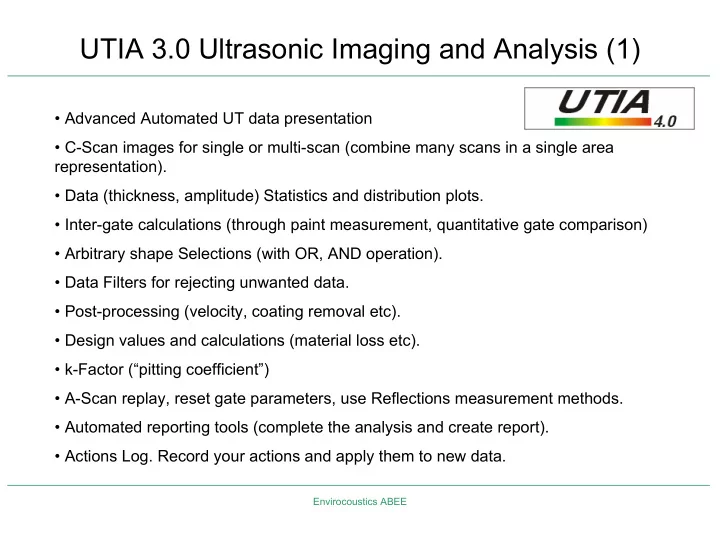
UTIA 3.0 Ultrasonic Imaging and Analysis (1) Advanced Automated UT data presentation C-Scan images for single or multi-scan (combine many scans in a single area representation). Data (thickness, amplitude) Statistics and distribution


slide-1
SLIDE 1

Envirocoustics ABEE

UTIA 3.0 Ultrasonic Imaging and Analysis (1)

  • Advanced Automated UT data presentation
  • C-Scan images for single or multi-scan (combine many scans in a single area

representation).

  • Data (thickness, amplitude) Statistics and distribution plots.
  • Inter-gate calculations (through paint measurement, quantitative gate comparison)
  • Arbitrary shape Selections (with OR, AND operation).
  • Data Filters for rejecting unwanted data.
  • Post-processing (velocity, coating removal etc).
  • Design values and calculations (material loss etc).
  • k-Factor (“pitting coefficient”)
  • A-Scan replay, reset gate parameters, use Reflections measurement methods.
  • Automated reporting tools (complete the analysis and create report).
  • Actions Log. Record your actions and apply them to new data.
slide-2
SLIDE 2

Envirocoustics ABEE

UTIA 3.0 Ultrasonic Imaging and Analysis (2)

  • Export results (graphs, stats, plots, data) to any

Windows application.

  • Save everything (data, RF, user input, graph

customization etc) to a single file: UTIA Document (UDO).

  • View B-Scans of single or composite images including Min/Max/Ave lines.
  • SNR. Signal to noise ratio for selected indications.
  • Clustering with high/low threshold and transfer cluster to selection for reviewing

statistics and distributions of specific clusters.

  • Edge detection for a graphical overview of boundaries and edges in scans.
  • Trace the local and global position with the respective value in composite scans.
  • Import simple CSV files (ASCII) as Amplitude C-Scans.
slide-3
SLIDE 3

Envirocoustics ABEE

C-Scan Representations

Typical C-Scan and 3D C-Scan

  • presentation. The

3D image shows the selection. Typical C-Scan screen with Distribution plots etc. More than one gate or feature can be compared (upper – lower plots)

slide-4
SLIDE 4

Envirocoustics ABEE

Statistics and Distribution Plots

Statistics and distribution plots are created as the user interacts with the data. A selection on a C-Scan will immediately result in the statistics and distribution to be computed for the data that the selection was made. The distribution plot holds a lot of statistical information. Statistics and distributions apply to all data for single or composite C-Scans.

Distribution plot of a single or composite C- Scan.

slide-5
SLIDE 5

Envirocoustics ABEE

Full Statistics

Full statistics for a single C- Scan Statistics per file in a composite area analysis. Data can easily be copied to any Windows application.

slide-6
SLIDE 6

Envirocoustics ABEE

A/B-Scan Views

Load any file with RF save and view the A-Scans. For all files (with RF or not) the user can trace the C-Scan and get the corresponding B-Scans. The Min/Max/Ave B-Scan lines can also be displayed. All can be fully customized (color palette, zoom, size etc). The actual gate and trigger points for the current channel/gate are shown on the A-Scan view.

Trace the C-Scan and see the A-Scan and B-Scans on adjacent plots.

slide-7
SLIDE 7

Envirocoustics ABEE

A-Scans

Apart from viewing the user can change the gate setup and re-do the C-Scan with the new gate settings. The user can also use a unique to UTIA measurement method called REFLECTION method. This method is not based on strict gates but can see the entire “time window” after the first echo.

slide-8
SLIDE 8

Envirocoustics ABEE

Composite Area (Multiple C-Scans)

Positions any number of C-Scans to achieve complete C-Scan picture of tested structures (see example of 3.5m height vertical vessel). Get rotations of the entire composite area. Add Plates so as to get a better structure representation. Use plate design values to get realistic pictures of Nominal-Caution-Reject limits for the entire structure. C-Scans can even have different

  • rientation and direction of scan.

Data can be treated in UTIA as if they were a single scan.

slide-9
SLIDE 9

Envirocoustics ABEE

Composite Area (Multiple C-Scans)

Composite C-Scan shown with design values colors. Problematic areas can immediately be identified. Different design values per plate can be used.

slide-10
SLIDE 10

Envirocoustics ABEE

Data Processing

  • Velocity Change (per channel, per

gate). The user can set a global velocity for all data. This can also be done in composite C-Scans.

  • Remove a uniform coating from any C-

Scan per gate or from the entire data.

  • Units change (metric, english)
slide-11
SLIDE 11

Envirocoustics ABEE

Data Processing

  • Change gates size without RF save!

(Thickness Limits).

  • Filter data (NRI). Filters can even be

geometric (filter-out a certain area).

  • Delete Data. Completely removes the

data.

slide-12
SLIDE 12

Envirocoustics ABEE

Clustering

  • Right-click on any C-Scan and choose

Clustering to view the Clustering Properties dialog.

  • Set the parameters and press Apply to

immediately view the results on the C- Scan.

  • Go-to the Clustering Results tab of the

dialog to view details about each cluster (position, size, min, max, ave).

  • Select Clusters from the table and

press the Select button to convert the cluster(s) area into a selection and view statistical distribution etc.

slide-13
SLIDE 13

Envirocoustics ABEE

Through Paint Calculations

UTIA can utilize its gate calculations to produce through paint measurements. In the example on the right the user has set gate 1 to monitor the 1st back wall echo (Gate synchro on the 1st front wall echo) and Gate 2 to monitor the 2nd back wall echo. The difference of the two gates provides a paint-free measurement of the base material. The data created are placed in a new gate as if they were collected normally. The data can be exported to a new DAT file as well. Gate 1 Gate 2 New Gate (difference)

slide-14
SLIDE 14

Envirocoustics ABEE

Gate Comparison

UTIA can utilize its gate calculations to produce complex gate comparisons. In the example below data were treated (fill missing values) from both Gates 1 and 2. The new data were created in Gates 3 and 4. These new gates were used to generate the difference between them and produce a color coded gate comparison C-Scan in Gate 5. The new palette reflects the range of thickness differences. Such complex operations take minutes to generate in UTIA.

slide-15
SLIDE 15

Envirocoustics ABEE

Actions Log

ACTIONS LOG

  • The user can start recording actions and UTIA will keep track of what he is doing.
  • To stop logging the actions simply press the stop button.
  • The log can be changed (double-click on any item to edit it) and saved.
  • All actions logged can be re-applied to any other file. Because files may be incompatible UTIA will apply

all actions possible. To do this simply load a saved log file and press the apply button from the dialog.

slide-16
SLIDE 16

Envirocoustics ABEE

Automated Reporting

UTIA can produce automated reports for single and multi-scan analysis. A report page has been added to review the report upto that point. Automatically add to a report any of the following:

  • Settings table. A table with file settings. The user has control over what settings to report.
  • Overview C-Scan with distribution.
  • Files Table. A table with all files and their geometry (size, step etc).
  • Statistics table. A table with full statistics for each file (min, max, average etc.)
  • C-Scan/Distribution Table. A table with all C-Scans and their respective thickness

distribution.

  • Min A/B-Scan. Create a table and find the minimum in each scan, report its position and

thickness and show the B-Scans and the A-Scan (if any) at that position. Each of the above items can be added to the report so as to create a large report almost automatically. The report can then be saved as an RTF file and used in any word processor (OpenOffice, MS Word etc.)

slide-17
SLIDE 17

Envirocoustics ABEE

Automated Reporting

Report page showing the indications automatically found and reported by UTIA. Position, min thickness, local C-Scan with indication boundary and other relevant info are reported. Settings report for all files in the current composite.

slide-18
SLIDE 18

Envirocoustics ABEE

Analysis Example I. Tank Walls.

Tank wall top Tank wall bottom

Continuous palette composite C- Scan image of the entire area. Relevant B- Scan at dashed line. Data quality is also defined by the data presentation Composite C-Scan with Nominal-Caution-Reject limits coloring. Problematic areas are immediately obvious.

slide-19
SLIDE 19

Envirocoustics ABEE

Analysis Example II. Annular Plates.

  • In March 2006 opened to clean and change product.
  • Some manual UT indications of low thickness at the annular ring.
  • Full AUT (LSI) test ordered for annular plates.
  • Results of AUT show extensive local corrosion at the annular ring

caused by water seeping under the tank at certain location around its

  • perimeter. Rest of the floor near nominal.

Significant thinning near the annular ring (0-20cm max from wall weld).

7.79 8.94 4.09 260 4 8.38 8.89 7.28 84 3 8.13 8.97 6.94 280 2 7.71 8.98 5.62 348 1 Ave Max Min Mm2 Cluster ID

Detail of significant thinning at annular ring (nominal=9mm).

slide-20
SLIDE 20

Envirocoustics ABEE

Analysis Example II. Annular Plates.

  • In this test extensive use of the following UTIA functions was made:
  • Find Minimum to report min thickness in each scan.
  • Clustering, to automatically find problem areas.
  • Reporting-Min A/B-Scans, to show the results of Find Minimum

functions.

  • Report-Indications Table, to show in a report the details (stats,

zoomed C-Scan etc) of the problem areas.

slide-21
SLIDE 21

Envirocoustics ABEE

Analysis Example III. Tank Floor.

  • In April 2006 opened.
  • Some manual UT indications of low

thickness at various locations.

  • Full AUT (LSI) test ordered for

entire floor.

  • AUT revealed interesting results:

Thin areas in certain plates (small plates). Thinned areas not representative of corrosion damage during service (sudden jump to low thickness from nominal, sharp reflections, thinned areas appear in certain plates only). Possible ‘bad’ material at construction.

Certain plates had thinned areas. Problematic plates shown with hatch. Thickness statistical distribution showing abrupt changes to lower thickness with no intermediate values.

slide-22
SLIDE 22

Envirocoustics ABEE

Analysis Example III. Tank Floor.

  • In this test extensive use of the following UTIA functions was made:
  • Composite C-Scan generation to visually represent the actual floor

(more than 150 files combined).

  • Import background images for improved visual data presentation.
  • Data Re-processing, to improve data quality due to signal loss from

floor being uneven and near weld areas.

  • Data Statistics, to properly report thinned areas.
  • Report-Statistics Table to report stat results
  • Report-Indications Table, to show in the report the details of the thin

areas.

slide-23
SLIDE 23

Envirocoustics ABEE

UTIA Analysis Advantages

  • Easy recovery of the “as saved” status of work.
  • Impressive data presentations.
  • Automated reporting tools.
  • Easy export for images and statistics.
  • Better analysis.
  • Boosts analysis in difficult cases.
  • Quick reporting.