1
TEXTURE MAPPING 1 OUTLINE Implementing Texturing What Can Go - - PowerPoint PPT Presentation
TEXTURE MAPPING 1 OUTLINE Implementing Texturing What Can Go Wrong and How to Fix It Mipmapping Filtering Perspective Correction 2 BASIC STRAGEGY Three steps to applying a texture 1. specify the texture read or
OUTLINE
- Implementing Texturing
- What Can Go Wrong and How to Fix It
- Mipmapping
- Filtering
- Perspective Correction
2
3
BASIC STRAGEGY
Three steps to applying a texture 1. specify the texture
- read or generate image
- assign to texture
- enable texturing
2. assign texture coordinates to vertices
- Proper mapping function is left to application
3. specify texture parameters
- wrapping, filtering
SPECIFY THE TEXTURE
- Data and mechanisms needed:
- A Texture object – to hold the texture image
- Uniform sampler variable in the vertex shader – so shader can access texture
- Buffer to hold texture coordinates
- Vertex attribute to pass texture coordinates through pipeline
- Texture unit on the graphics card
TEXTURE OBJECT
- The loadTexture method from the Java/JOGL example code
public Texture loadTexture(String textureFileName) { Texture tex = null; try { tex = TextureIO.newTexture(new File(textureFileName), false); } catch (Exception e) { e.printStackTrace(); } return tex; }
SETTING UP THE TEXTURE AS AN OPENGL TEXTURE
- Instance variables:
private int brickTexture; private Texture joglBrickTexture;
- In init():
joglBrickTexture = loadTexture("brick1.jpg"); brickTexture = joglBrickTexture.getTextureObject();
TEXTURE COORDINATES
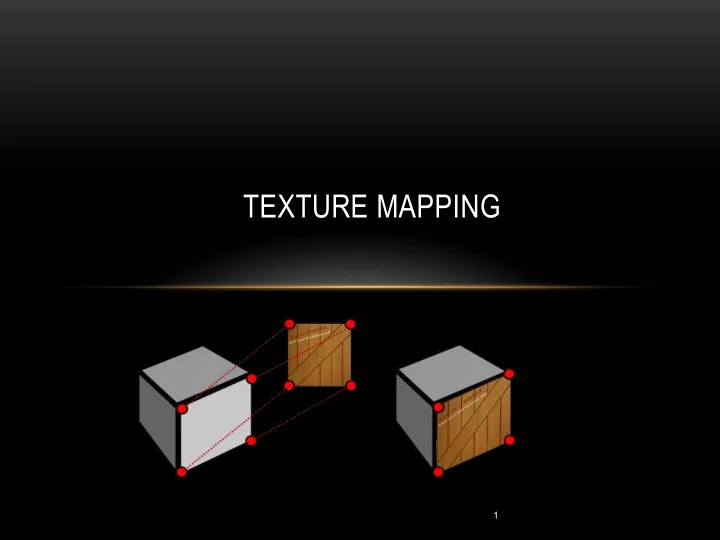
- Need to specify texture coordinates for each vertex in our object(s)
- Two buffers for each set of vertex coordinates
- Vertex coordinates in 3D space (x, y, z)
- Texture coordinates in 2D space (s, t)
- Assumption is that texture image is rectangular with 0, 0 in the lower left
and 1,1 in the upper right.
- Coordinates should all be between 0 and 1
- Texture coordinates are stored in a vertex attribute so they are also interpolated by the
rasterizer
- Difficult to specify by hand for complex objects
- If built in an object modeling tool, often they provide “UV-mapping” for this purpose
TEXTURE MAPPING GONE WRONG
We saw this mapping last time – specifying coordinates incorrectly can have bad results
TEXTURE MAPPING
Specifying them correctly can look realistic
TEXTURE MAPPING – THE PYRAMID
Vertices Texture Coordinates
- 1.0
- 1.0
1.0 front face 1.0
- 1.0
1.0 1 0.0 1.0 0.0 .5 1 1.0
- 1.0
1.0 right face 1.0
- 1.0
- 1.0
1 0.0 1.0 0.0 .5 1 1.0
- 1.0
- 1.0
back face
- 1.0
- 1.0
- 1.0
1 0.0 1.0 0.0 .5 1 …
TEXTURE MAPPING – THE PYRAMID CODE, SETUPVERTICES() METHOD
float[] pyramid_positions = {-1.0f, -1.0f, 1.0f, 1.0f, -1.0f, 1.0f, 0.0f, 1.0f, 0.0f, //front 1.0f, -1.0f, 1.0f, 1.0f, -1.0f, -1.0f, 0.0f, 1.0f, 0.0f, //right 1.0f, -1.0f, -1.0f, -1.0f, -1.0f, -1.0f, 0.0f, 1.0f, 0.0f, //back
- 1.0f, -1.0f, -1.0f, -1.0f, -1.0f, 1.0f, 0.0f, 1.0f, 0.0f, //left
- 1.0f, -1.0f, -1.0f, 1.0f, -1.0f, 1.0f, -1.0f, -1.0f, 1.0f, //LF
1.0f, -1.0f, 1.0f, -1.0f, -1.0f, -1.0f, 1.0f, -1.0f, -1.0f //RR }; float[] texture_coordinates = {0.0f, 0.0f, 1.0f, 0.0f, 0.5f, 1.0f, 0.0f, 0.0f, 1.0f, 0.0f, 0.5f, 1.0f, 0.0f, 0.0f, 1.0f, 0.0f, 0.5f, 1.0f, 0.0f, 0.0f, 1.0f, 0.0f, 0.5f, 1.0f, 0.0f, 0.0f, 1.0f, 1.0f, 0.0f, 1.0f, 1.0f, 1.0f, 0.0f, 0.0f, 1.0f, 0.0f };
LOADING TEXTURE COORDINATES INTO BUFFERS
- Instance variables:
private int vao[] = new int[1]; private int vbo[] = new int[2];
- In display():
gl.glBindBuffer(GL_ARRAY_BUFFER, vbo[0]); gl.glVertexAttribPointer(0, 3, GL_FLOAT, false, 0, 0); gl.glEnableVertexAttribArray(0); gl.glBindBuffer(GL_ARRAY_BUFFER, vbo[1]); gl.glVertexAttribPointer(1, 2, GL_FLOAT, false, 0, 0); gl.glEnableVertexAttribArray(1);
GLSL CODE
- Vertex shader needs coordinates
- Fragment shader needs access to the texture object
VERTEX SHADER
#version 430 layout (location=0) in vec3 pos; layout (location=1) in vec2 texCoord;
- ut vec2 tc;
uniform mat4 mv_matrix; uniform mat4 proj_matrix; layout (binding=0) uniform sampler2D samp; void main(void) { gl_Position = proj_matrix * mv_matrix * vec4(pos,1.0); tc = texCoord; }
FRAGMENT SHADER
#version 430 in vec2 tc;
- ut vec4 color;
uniform mat4 mv_matrix; uniform mat4 proj_matrix; layout (binding=0) uniform sampler2D samp; void main(void) { color = texture(samp, tc); }
BACK TO JAVA/JOGL CODE
- After binding buffers with vertices and texture coordinates in display():
gl.glActiveTexture(GL_TEXTURE0); gl.glBindTexture(GL_TEXTURE_2D, brickTexture);
- Recall that brickTexture is an integer that holds the pointer to the OpenGL texture object
we created in init()
WHAT CAN GO WRONG
- Differences between texture image size and object image size
- Texture image resolution less than that of object
- Can stretch texture across image region
- May become blurry and possibly distorted
- Texture image resolution higher than that of object
- Aliasing – caused by sampling errors
- Can cause false patterns or shimmering in moving objects
WHAT CAN GO WRONG
False patterns Shimmering
MIPMAPPING
- Can often correct aliasing errors
- Different versions (sizes) of the image stored in the texture buffer
- The one closest to the size of the region is used for texturing
- Separate RGB versions of the image are stored at each resolution
- Several ways to sample a mipmap
- GL_NEAREST_MIPMAP_NEAREST
- GL_LINEAR_MIPMAP_NEAREST
- GL_NEAREST_MIPMAP_LINEAR
- GL_LINEAR_MIPMAP_LINEAR
MIPMAPPING
Linear filtering (GL_LINEAR_MIPMAP_NEAREST) Trilinear filtering (GL_LINEAR_MIPMAP_LINEAR)
MIPMAPPING
- In the Java/JOGL code, after loading the texture object:
gl.glBindTexture(GL_TEXTURE_2D, brickTexture); gl.glTexParameteri(GL_TEXTURE_2D, GL_TEXTURE_MIN_FILTER, GL_LINEAR_MIPMAP_LINEAR); gl.glGenerateMipmap(GL.GL_TEXTURE_2D);
FILTERING
- Mipmapped images can appear more blurry
- Anisotropic filtering uses rectangular resolutions of the image as well as the square
versions in mipmapping
- More computationally expensive (of course)
- Java/JOGL code in init():
if (gl.isExtensionAvailable("GL_EXT_texture_filter_anisotropic")) { float anisoset[] = new float[1]; gl.glGetFloatv(GL_MAX_TEXTURE_MAX_ANISOTROPY_EXT, anisoset, 0); gl.glTexParameterf(GL_TEXTURE_2D, GL_TEXTURE_MAX_ANISOTROPY_EXT, anisoset[0]); }
PERSPECTIVE CORRECTION
- OpenGL applies perspective correction
by default
- Corrects for distortion caused by
perspective projection
- If you don’t want this, can turn
it off by including the following in both the vertex and fragment shaders:
noperspective out vec2 texCoord;
SUMMARY
- Implementing Texturing
- What Can Go Wrong and How to Fix It
- Mipmapping
- Filtering
- Perspective Correction
24