SLIDE 1
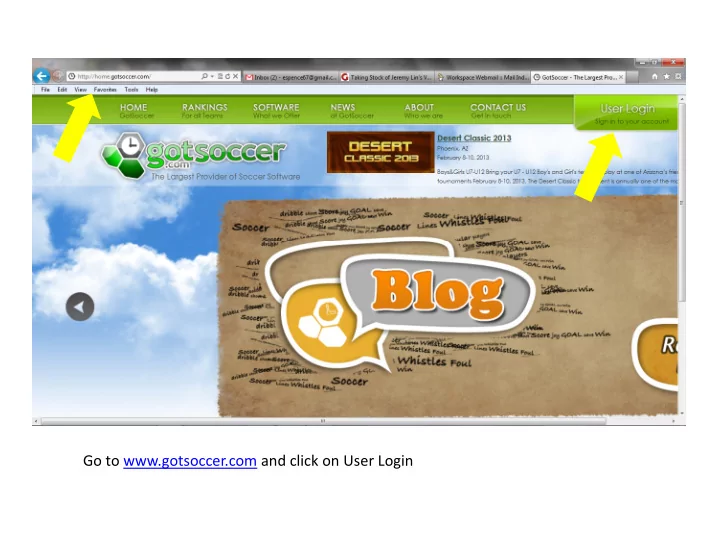
Go to www.gotsoccer.com and click on User Login
SLIDE 2
Click on Teams & Team Officials Login
SLIDE 3
Enter your team Login Username and Password and click Login
SLIDE 4
Click on Team profile
SLIDE 5
Click on Documents tab to see FYSA Rosters. On this page you can also change your team login information if you desire and upload a Team photo – (Smaller than 500 KB in size) Enter Team Contact Information and Hotel Coordinator Information is recommended.
SLIDE 6
In here you will find the latest FYSA Official Roster to be used for tournaments , State Cup and Region Cup and selected Leagues.
SLIDE 7
Click on Roster. On this page you can see the different rosters by event: FYSA, Tournament, etc. You can also email your players/parents from this page by clicking on Email Players. When you Email players only the main email will receive the email and it will also include the username And password of the player.
SLIDE 8
When you click on a player while inside the roster, you will be able to update the jersey number, Upload a photo, update address, telephone, email. Click Update to save the info. You can also update parent info, college recruiting, event attendance, Emergency information and/or reset their username and password. NEVER REMOVE A PLAYER FROM THE FYSA REGISTRATION EVENT.
SLIDE 9
In Events you will see all the future and past gotsoccer events that your team has applied for, and or are Pending for. You can click on the Event to see more options.
SLIDE 10
This is the only way to add guest players for any gotsoccer event, whether they are from within Or outside the club. Players have to login to their account, search the event and apply as a guest To be able to be seen in the guest player pool. You just go to the player in the guest pool, select Them by clicking on their name and then add them as a guest to your team in the dropdown menu.