Webpages & ADA Compliance The Web Content Accessibility 4 - - PowerPoint PPT Presentation

webpages ada compliance
SMART_READER_LITE
LIVE PREVIEW

Webpages & ADA Compliance The Web Content Accessibility 4 - - PowerPoint PPT Presentation

Webpages & ADA Compliance The Web Content Accessibility 4 Principles of Accessibility Guidelines (WCAG) 2.0 are Perceivable becoming the industry standard Operable for accessible websites. It outlines Understandable standards


slide-1
SLIDE 1

Webpages & ADA Compliance

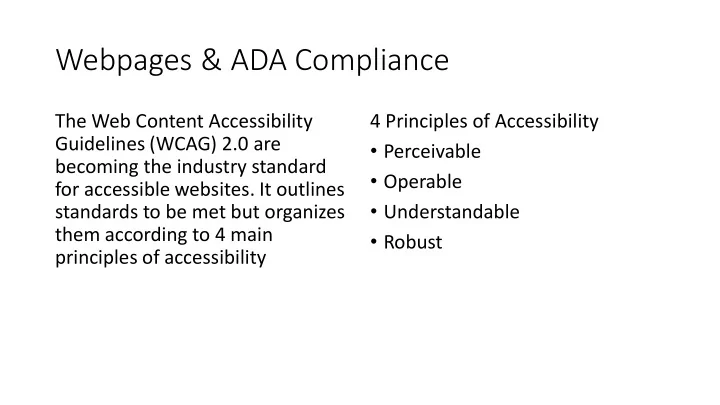
The Web Content Accessibility Guidelines (WCAG) 2.0 are becoming the industry standard for accessible websites. It outlines standards to be met but organizes them according to 4 main principles of accessibility 4 Principles of Accessibility

  • Perceivable
  • Operable
  • Understandable
  • Robust
slide-2
SLIDE 2

Headings

  • The header tags (<h1><h2> etc)

should be used instead of style elements like font size and bolding.

  • Headers must also be used

logically with only one Heading 1 per page and the rest of the headers ordered logically by number

  • In the CMS, don’t use Heading 1
slide-3
SLIDE 3

Images

  • Alt tags provide text to describe

images on your web page

  • Make sure to convey any

meaning in the alt tag that the picture would provide for a sighted user.

slide-4
SLIDE 4

Links

  • Links should be accessible for users

not using a mouse

  • Link text should use words that

briefly convey what the person will get if they click the link.

  • Don’t use “Click Here,” “More” or

the URL as link text

  • Always fill out the Title field for

each link you create

  • Content from Title field will hover

above link when moused over.

slide-5
SLIDE 5

Tables

  • Tables that present data in a

column and row format must be appropriately marked up in the CMS.

  • Include a Caption Tag for the

whole table

  • Insert/Edit Table > Select Table

Caption check box

  • Insert Caption on New Table
slide-6
SLIDE 6

Tables, again.

  • Tables are read from left to right

and line by line

  • Any column or row headers

must be marked so the content is read correctly

  • Right-click in the header
  • Select Cell > Table Cell Properties
  • Set Cell Type to Header
  • Set Scope to Either Column or

Row

slide-7
SLIDE 7

ADA Compliance Resources

Academic Accommodation Services: http://www.kumc.edu/accessibility Download a Copy of this Presentation: http://www.kumc.edu/cms-training