SLIDE 1
Online Enrollment Wizard
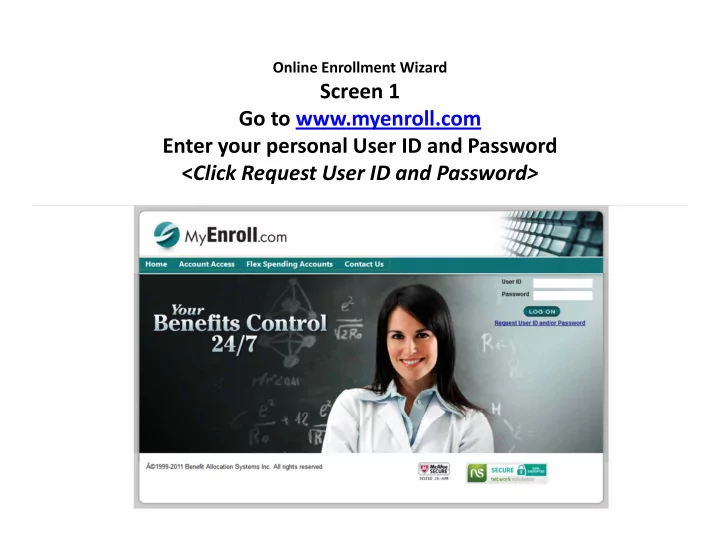
Screen 1 Go to www.myenroll.com Enter your personal User ID and Password <Click Request User ID and Password>
SLIDE 2
Online Enrollment Wizard
Screen 2 – Personal Information <Click Begin Your Enrollment>
SLIDE 3
Online Enrollment Wizard
Screen 3 – Instructions Page 1 <Click Begin Your Enrollment>
SLIDE 4
Online Enrollment Wizard
Screen 4 – Instructions Page 2 <Click Save & Next>
SLIDE 5
Online Enrollment Wizard
Screen 5 ‐ Personal Information
Click <Save & Next>
SLIDE 6
Online Enrollment Wizard
Screen 6 – Dependent Information <Click Submit>
SLIDE 7
Online Enrollment Wizard
Screen 7 – Medical Information
<Click Save & Next>
SLIDE 8
Online Enrollment Wizard
Screen 8 – Dental Information <Click Save & Next >
SLIDE 9
Online Enrollment Wizard
Screen 9 – Life Insurance Information <Click Save & Next>
SLIDE 10
Online Enrollment Wizard
Screen 10 – Short Term Disability <Click Save & Next>
SLIDE 11
Online Enrollment Wizard
Screen 11 ‐ Beneficiary Information <Click Save & Next >
SLIDE 12
Online Enrollment Wizard
Screen 12 – Enrollment Summary Check “I Agree”
SLIDE 13
Online Enrollment Wizard
Screen 13 – Enrollment Summary Check “I Accept”
SLIDE 14
Acquire USER ID and Password
Screen 14 – Enrollment Summary <Click “Finalize”>
SLIDE 15
Online Enrollment Wizard
Screen 15 – Enrollment Completed <Click “Continue”> to return to Home Page
SLIDE 16
Online Enrollment Wizard
Home Page