Plotting Basics: Scatterplot Dataset: Two working memory tasks - - PowerPoint PPT Presentation

plotting basics scatterplot
SMART_READER_LITE
LIVE PREVIEW

Plotting Basics: Scatterplot Dataset: Two working memory tasks - - PowerPoint PPT Presentation

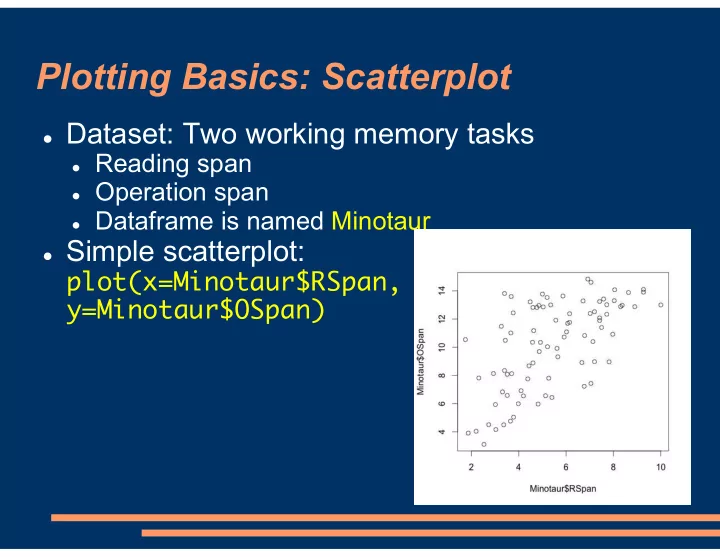
Plotting Basics: Scatterplot Dataset: Two working memory tasks Reading span Operation span Dataframe is named Minotaur Simple scatterplot: plot(x=Minotaur$RSpan, y=Minotaur$OSpan) Saving Plots In RStudio: Plots will

slide-1
SLIDE 1

Plotting Basics: Scatterplot

Dataset: Two working memory tasks

Reading span Operation span Dataframe is named Minotaur

Simple scatterplot:

plot(x=Minotaur$RSpan,
 y=Minotaur$OSpan)

slide-2
SLIDE 2

Saving Plots

In RStudio: Plots will appear in lower-right corner

Click the Export button

above the plot

Can save in a variety

  • f formats

Or, copy to the clipboard

and paste into Word

In R: Plot will appear in a separate window

File -> Save As…

slide-3
SLIDE 3

Plots: Axis Labels

Default axis labels are just the names of the

variables in R—not too helpful for other readers

Let’s change them and add a title:

plot(x=Minotaur$RSpan,


y=Minotaur$OSpan,
 xlab='Reading span',
 ylab='Operation span',
 main='Working memory
 tasks')

slide-4
SLIDE 4

par()

To look at all of the options for plots and how to

use them, do ?par

These settings are listed in the help files for par

(= “parameters”) rather than plot because most of the settings apply to multiple kinds of plots, not just the scatterplot we’re looking at right now

slide-5
SLIDE 5

Plots: Axis Limits

R usually figures out good axis scales on its own

Fit in all the observations Use nice round numbers

But, here, we might want to force the x-axis and

y-axis to be on the same scale

plot(x=Minotaur$RSpan,


y=Minotaur$OSpan,
 xlab='Reading span',
 ylab='Operation span',
 main='Working memory
 tasks', xlim=c(0,15),
 ylim=c(0,15))

Force the x-axis limits and the

y-axis limits to each be 0 to 10

slide-6
SLIDE 6

Plots: Colors

Let’s make the plot more colorful (and patriotic!) Use ?par to see how to change the color of other

parts of the plot

plot(x=Minotaur$RSpan,


y=Minotaur$OSpan,
 xlab='Reading span',
 ylab='Operation span',
 main='Working memory
 tasks', xlim=c(0,15),
 ylim=c(0,15),
 col='blue',
 col.axis='red')

slide-7
SLIDE 7

Plots: Shapes

We can also change the plotting character (shape) Use ?points to see the numerical codes that

correspond to different shapes

plot(x=Minotaur$RSpan,


y=Minotaur$OSpan,
 xlab='Reading span',
 ylab='Operation span',
 main='Working memory
 tasks', xlim=c(0,15),
 ylim=c(0,15),
 col='blue',
 col.axis='red’,
 pch=8)

slide-8
SLIDE 8

More Than One Series of Data

Sometimes, we want to superimpose more than

  • ne plot

Example: The Reading Span and Operation Span

scatterplot for females, and the Reading Span and the Operation Span scatterplot for males

We use par(new=TRUE) to tell R to start a new plot

  • n top of the existing one

Important notes:

You probably want to use different colors and/or

plotting characters so that you can tell the plots apart

Important to manually set the axis limits if you

want them to be the same on each of the two plots you’re superimposing

slide-9
SLIDE 9

More Than One Series of Data: Example

  • plot(Minotaur[Minotaur$Gender=='F',]$RSpan,

Minotaur[Minotaur$Gender=='F',]$OSpan, xlab='Reading span', ylab='Operation span', main='Working memory tasks', xlim=c(0,15), ylim=c(0,15), col='blue', col.axis='red', pch=8)

  • par(new=TRUE)
  • plot(Minotaur[Minotaur$Gender=='M',]$RSpan,

Minotaur[Minotaur$Gender=='M',]$OSpan, xlab='Reading span', ylab='Operation span', main='Working memory tasks', xlim=c(0,15), ylim=c(0,15), col='red', col.axis='red', pch=16)

slide-10
SLIDE 10

Plotting: Legend

Let’s add a legend to tell the M vs F points apart

legend(x=10, y=5, legend=c('Female', 'Male'),

col=c('blue', 'red'), pch=c(8,16))

x and y describe where

  • n the plot to put the

legend

legend= is the text on

the legend

col and pch are the colors and

plotting characters corresponding to each of the items in the legend, in order

  • Females: Blue, plotting character 8
  • Males: Red, plotting character 16
slide-11
SLIDE 11

abline: Horizontal & Vertical Lines

Can draw straight lines with abline() Reading span had a maximum score of 10; let’s

indicate that on the plot:

abline(v=10, lwd=5, lty=2) v=10 for a vertical line at x=10

  • Could instead use h= for a

horizontal line

lwd is line width / thickness

(larger = thicker line)

lty=2 for a dashed line rather

than solid (lty=1). See ?par for all line types

Other sample uses of abline():

  • Indicating chance performance
  • Indicating a score of 0 when scores

can be either positive or negative

  • Indicating the mean or median
slide-12
SLIDE 12

abline: Regression Lines

We can also use abline() to draw a regression

line:

abline(lm(OSpan ~ 1 + RSpan, data=Minotaur))


Or by specifying slope

and intercept:

abline(a=DesiredSlope,


b=DesiredIntercept)

slide-13
SLIDE 13

Adding an Additional Label

Let’s label the vertical line we drew:

text(x=10.5, y=10, labels=c('Max Rspan'))


See ?text for more

detailed settings for font, positioning, etc.

slide-14
SLIDE 14

Adding Multiple Labels

Can give text() vectors of coordinates & labels:

text(x=Minotaur$RSpan, y=Minotaur$OSpan,

labels=Minotaur$SubjNo)

Labels each point

with its subject number

A lot more convenient

than labeling each one individually!

Useful for detecting or

labeling outliers

slide-15
SLIDE 15

Plots: Resizing

Oops! That text was somewhat large; everything

was overlapping

text(x=Minotaur$RSpan, y=Minotaur$OSpan,

labels=Minotaur$SubjNo,
 cex=0.75)

cex (“character

expansion factor”) controls size

Default is 1 0.75 = 75% of the

default size

Can also use cex as

an argument to plot()
 to change size of dots

slide-16
SLIDE 16

Plots: Custom & Additional Axes

axis() lets us draw new or additional axes on

the plot, labeled however we want

Examples:

Two different y-axis labels—one on the left and one

  • n the right

Each x-axis position is a different sentence position,

and we want to write an example sentence (or sentence) below the x-axis

See ?axis for all of the settings If we’re drawing our own axis, we might want to

tell R not to draw the default axis

plot(x=Minotaur$RSpan, y=Minotaur

$Ospan, xaxt='n')

slide-17
SLIDE 17

Bar Plots

Bar plots work slightly differently:

In a scatterplot, the points are individual observations In a bar plot, each bar is a mean or median

So, we first need to calculate and store the

means that we want to use

GenderMeans <- tapply(Minotaur$RSpan,

Minotaur$Gender, mean)

slide-18
SLIDE 18

Bar Plots

Stored means can then be used with barplot():

barplot(GenderMeans, col=c('red', 'blue'))

Most of the same

parameters for setting the colors, axis labels, axis scales, etc., also can be used with

barplot()

slide-19
SLIDE 19

Line Plots

For line plots, we’ll also often want to precalculate

means:

TrialMeans <- tapply(Minotaur$RT,


Minotaur$TrialNumber, mean)

Then, plot with plot() and type='l' for line

plot(TrialMeans,


type='l', 
 xlab='Trial
 number',
 ylab='RT')

Can set lwd (line

width), lty (line type), col (color), etc., as we’ve already seen

slide-20
SLIDE 20

Line Plots

Can also do type='b' for both the points (at the

means) and the lines connecting the points

plot(TrialMeans, type='b', xlab='Trial


number', ylab='RT’)

slide-21
SLIDE 21

ggplot2

Another way to do visuals in R is with the add-on

package ggplot2

Gaining in popularity Has a different syntax