SciENcv Overview The Science Experts Network Curriculum Vitae - - PDF document

sciencv overview
SMART_READER_LITE
LIVE PREVIEW

SciENcv Overview The Science Experts Network Curriculum Vitae - - PDF document

SciENcv & SUMMIT Creating & Maintaining Biosketches Made Easy Department of Medicine Research Faculty Meeting February 3, 2015 SciENcv Overview The Science


slide-1
SLIDE 1

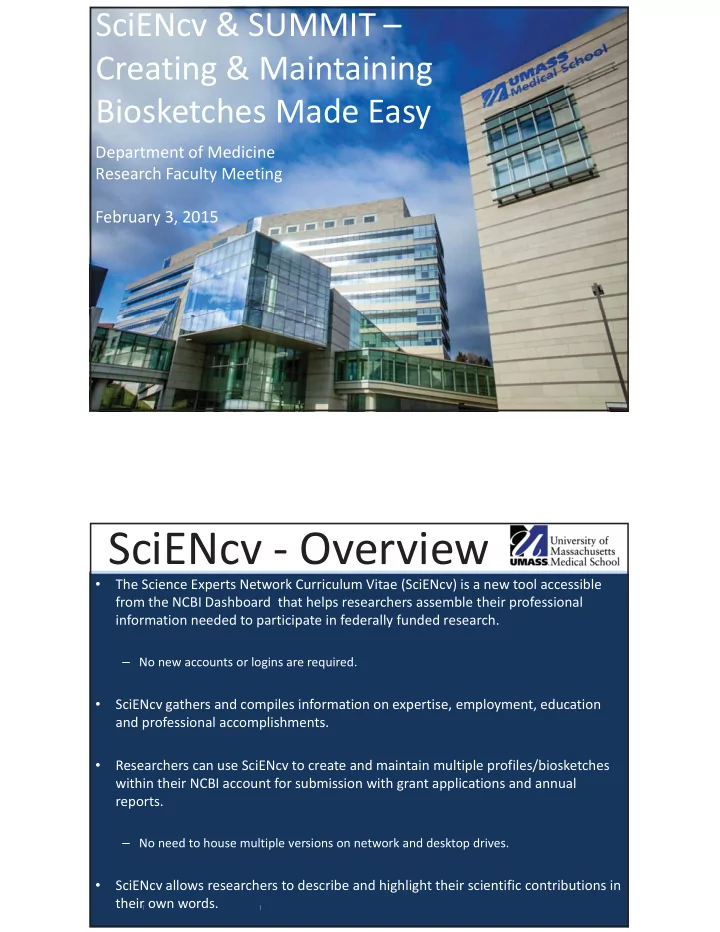
SciENcv&SUMMIT– Creating&Maintaining BiosketchesMadeEasy

DepartmentofMedicine ResearchFacultyMeeting February3,2015

| |

SciENcv Overview

  • TheScienceExpertsNetworkCurriculumVitae(SciENcv)isanewtoolaccessible

fromtheNCBIDashboardthathelpsresearchersassembletheirprofessional informationneededtoparticipateinfederallyfundedresearch.

– Nonewaccountsorloginsarerequired.

  • SciENcvgathersandcompilesinformationonexpertise,employment,education

andprofessionalaccomplishments.

  • ResearcherscanuseSciENcvtocreateandmaintainmultipleprofiles/biosketches

withintheirNCBIaccountforsubmissionwithgrantapplicationsandannual reports.

– Noneedtohousemultipleversionsonnetworkanddesktopdrives.

  • SciENcvallowsresearcherstodescribeandhighlighttheirscientificcontributionsin

theirownwords.

slide-2
SLIDE 2

| |

SciENcv Benefits

  • Eliminatestheneedtorepeatedlyenterbiosketch

information.

  • Reducestheadministrativeburdenassociatedwith

federalgrantsubmissions.

  • Allowresearcherstodescribetheirscientific

contributionsintheirownlanguage.

  • Allowsresearcherstodelegateaccessto

administratorssotheycanupdatebiosketchesfor theresearchers.

| |

SciENcv&eRACommons

  • eRACommonsaccountholderswhohave

linkedtheiraccountstoNCBIcanpopulate theirSciENcvprofileswithinformationstored intheireRACommonsaccount.

  • TheinformationtransferredtoSciENcvcanbe

edited,hidden,augmentedordeleted.

  • SciENcvuserscontrolthecontentdisplayedin

theirSciENcvprofilesevenwhenitisimported fromothersources.

slide-3
SLIDE 3

| |

SettingupSciENcv Recommendations

  • LinkyoureRACommonsaccounttoNCBI.

– ThiswillpopulateSciENcvwithdatafromyourCommonsprofile.

  • CreateanORCID(OpenResearcherandContributorID)and

linktoNCBI.

– TheORCIDisanonproprietaryalphanumericcodethatuniquely identifiesscientific/academicauthorsandwillallowyoutoassociate nonNCBIpublications withyourSciENcvaccount. – Visithttp://orcid.org/toregisterforanORCID,orcontacttheLibrary (RebeccaReznikZellen)forassistance. – TheLibrarywillprovideguidanceonhowtopopulateyourSciENcvusing ORCIDwithScopusbibliographicdata.

  • UsetheUMMSSUMMITBiosketchDashboardtogetnon

eRACommonsawardinformationforongoingand completedresearchprojects.

| |

AccessingSciENcvviaNCBI

  • Goto:https://www.ncbi.nlm.nih.gov/
  • ClickonSignintoNCBIlinkinrighthandcorner
  • Thefollowingboxwillappear
  • Select“SigninwitheRACommons”
  • Thiswilltakeyouintotheloginscreenbelow
  • LoginwithyoureRACommonscredentials

1 2 3

slide-4
SLIDE 4

| |

UsingtheSUMMIT BiosketchDashboard

  • UMMS’sreportingtoolallowsresearchersand

stafftoaccessnoneRACommonsaward informationtopopulateresearchsupport sectionofthebiosketch.

  • Thejobaidonhowtousetheaccessanduse

thedashboardisbeingsharedasahandout today.

Questions?

Pleasecontact:

RebeccaReznikZellen HeadofResearch&ScholarlyCommunicationServices LamarSoutterLibrary Phone:508.856.6810 email:rebecca.reznikzellen@umassmed.edu DiegoR.Vazquez AssistantViceProvost ResearchFundingServices Phone:508.856.5600 email:diego.vazquez@umassmed.edu

slide-5
SLIDE 5

SUMMIT Biographical Sketch Dashboard University of Massachusetts Medical School Worcester Campus Job Aid

(Jan 2015)

slide-6
SLIDE 6

SUMMIT BioSketch Dashboard

2

Table of Contents

Summit Overview ..................................................................................................................................................... 3 What is Summit? What are Dashboards? What are Widgets? Logging into Summit General Navigation ..................................................................................................................................................... 4 Prompts/Filters ........................................................................................................................................................... 5 Biographical Sketch Reports Descriptions .................................................................................................................. 7

slide-7
SLIDE 7

SUMMIT BioSketch Dashboard

3

Summit Overview Job Aid

What is Summit?

The UMass SUMMIT Program is a partnership with the business community to coordinate and manage the Enterprise Reporting efforts at the University. SUMMIT is a business intelligence and report inquiry tool that transforms volumes of data into valuable, actionable information. Summit incorporates leading practices and tools widely accepted in the industry for the summarization and presentation of data.

What are Dashboards?

Dashboards are intended to provide decision-makers with an understanding of relevant data in support of the business operations. It tracks key performance indicators and provides warnings, action alerts and next steps when areas of the business fail to meet pre- determined metrics. An effective Dashboard is integrated with visual analytics to provide a single tool for rapid, insightful decision making.

What are Widgets?

Widgets are presentations of data within a Dashboard. Data within a widget may be presented as an alert, in graphical and/or table format. Widgets can be customized based upon the business question it is intended to answer. Widgets can present data in multiple views i.e. pie graph, bar graph or line graph.

Logging into Summit

1. Navigate to the intranet (http://inside.umassmed.edu). 2. Click Financial Services then click Summit from the left navigation bar. 3. Click SUMMIT Sign on to access the login screen. 4. Enter your School Network User ID, Password & Campus 5. Click the Login button.

Internet Settings are required for your desktop to work properly with Summit. The document: “Internet Browser Settings” is found on the school website, under Financial Services/Systems Support webpage and should be set-up prior to accessing Summit: http://inside.umassmed.edu/financialservices/systemssupport/index.aspx

slide-8
SLIDE 8

SUMMIT BioSketch Dashboard

4

General Navigation Upon Logging into Summit, the following Home Page view displays. Available Dashboards can be accessed via the Dashboard Drop Down Menu Option at the top of the Home Page. Click on FDM:BioSketch to access the BioSketch Dashboard. NOTE: There is also a link to the BioSketch Dashboard within the REPORTS section of both the Academic Admin Worcester Dashboard and the PI Worcester Dashboard.

slide-9
SLIDE 9

SUMMIT BioSketch Dashboard

5

Prompts/Filters A Prompt/Filter Box is located on the left hand side of the BioSketch Dashboard. To retrieve information you must first enter in an investigator. Choose the arrow to the right of “Select an Investigator” a drop down list will appear; All Users have access to all Investigators. To narrow your search click the More/Search option at the bottom of the box.

slide-10
SLIDE 10

SUMMIT BioSketch Dashboard

6

A Select Values box will open. Type in all or a portion of the Investigator’s name and the options will

  • display. Click on the name of the appropriate Investigator and click the right arrow to move the

Investigator’s name to the right hand side. Then choose OK. The data on the Right Side of the Dashboard will return information for the selected Investigator. You can also choose the date range for the Investigator’s Completed Research. Do this by choosing an Award End Date to go back through using the Award End Date Filter. By default this date will display three years from the current date. Note: Every time you change your date criteria, you must click Apply.

slide-11
SLIDE 11

SUMMIT BioSketch Dashboard

7 Available Biographical Sketch SUMMIT Reports

These reports will assist you in completing the Research Support Section of the Biographical Sketch.

  • Ongoing Research Support - includes current research where the Award End Date is in the future.
  • Completed Research Support - includes research where the Award End Date has passed and defaults to go back

three years from the current date. To change the default date use the completed research support date filter. Below is an example of what will display. The award ID is not included in the default view, if you require the award ID number click on the Award Title and then choose the option – Click for Award ID. To download the Data choose the Export Link and choose Export to Excel 2003.