Lecture Notes on Subversion (COMP 303) Subversion is a - - PDF document

lecture notes on subversion comp 303 subversion is a free
SMART_READER_LITE
LIVE PREVIEW

Lecture Notes on Subversion (COMP 303) Subversion is a - - PDF document

Lecture Notes on Subversion (COMP 303) Subversion is a free/open-source version control system These slides extracted from material at http://svnbook.red-bean.com/ by Ben Collins-Sussman, Brian W. Fitzpatrick and C. Michael Pilato. Subversion


slide-1
SLIDE 1

Lecture Notes on Subversion (COMP 303)

These slides extracted from material at http://svnbook.red-bean.com/ by Ben Collins-Sussman, Brian W. Fitzpatrick and C. Michael Pilato. The license accompanying the original work can be found at "http://svnbook.red-bean.com/en/1.0/ape.html" and any work derived must also obey this license. Slides compiled by Laurie Hendren, McGill University.

next .... [Slide 1] ....

Subversion is a free/open-source version control system

Subversion manages files and directories over time. It is like a file system but it remembers all the changes you made; so you can recover older versions (i.e. a "time machine") Subversion allows concurrent access of its repository over the network; so you can work on shared projects and enhance collaboration.

previous | start | next .... [Slide 2] ....

History of Subversion

Started in 2000 by, and still partly funded by, CollabNet Inc. Goal was to make a "clean" CVS, fixing shortcomings of CVS. Open-source project, license is fully compliant with Debian Free Software Guidelines. Source and precompiled binaries available for a large number of systems; See subversion.tigris.org .

previous | start | next .... [Slide 3] ....

Basics: the Repository

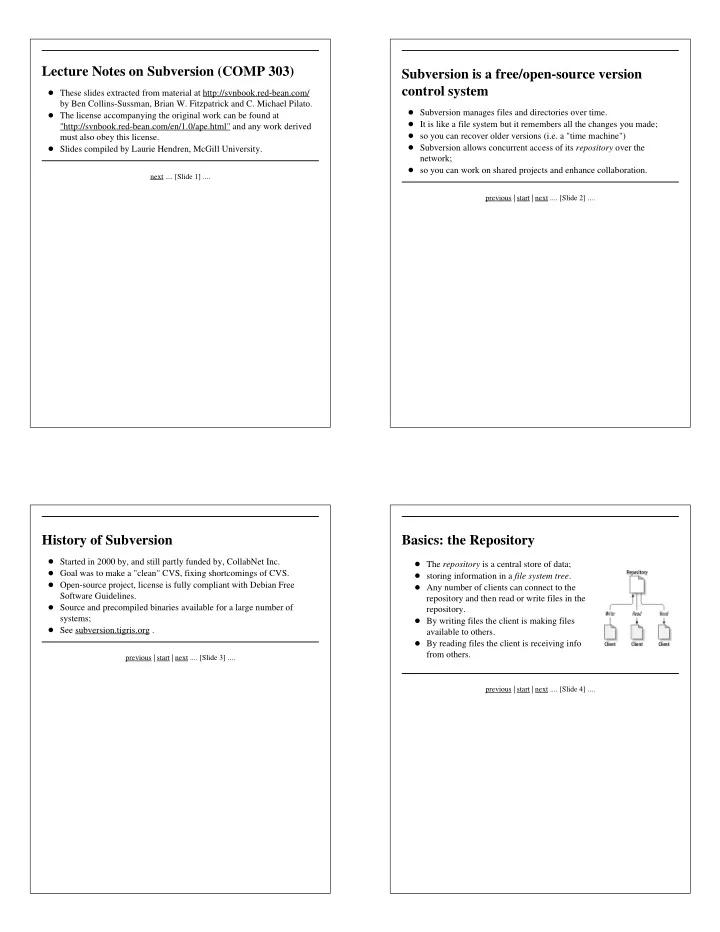
The repository is a central store of data; storing information in a file system tree. Any number of clients can connect to the repository and then read or write files in the repository. By writing files the client is making files available to others. By reading files the client is receiving info from others.

previous | start | next .... [Slide 4] ....

slide-2
SLIDE 2

Basics: the Repository (2)

The repository remembers every change to every file and even additions and deletions in the directory tree. When a client reads from the repository, normally it only sees the latest version of the filesytem; but client can also view previous states of the filesystem. What did this directory contain last Wednesday? Who was the last person to change this file? What changes did Laurie make to this file? Give me the version of my code that worked yesterday.

previous | start | next .... [Slide 5] ....

Versioning Models -Problem to avoid

previous | start | next .... [Slide 6] ....

Lock-Modify-Unlock Solution

But, may cause admin problems, unnecessary serialization and a false sense

  • f security.

previous | start | next .... [Slide 7] ....

The Copy-Modify-Merge Solution

previous | start | next .... [Slide 8] ....

slide-3
SLIDE 3

The Copy-Modify-Merge Solution (2)

users can work in parallel most concurrent changes don’t overlap don’t get a false sense of security

previous | start | next .... [Slide 9] ....

Working Copies

working copy is an ordinary directory on your local system you edit these files, test when you are ready you publish your changes by writing to the repository if someone else has already changed a file or files, you will have to merge the newer one with yours before being allowed to write working copy has extra files in .svn directory known as the working copy administrative directory a typical Subversion repository contains files for several projects, a working copy for a specific project will only have the relevant subtree.

previous | start | next .... [Slide 10] ....

Working Copies (2)

To get an initial working copy you must check out some subtree of the repository. To get a working copy of the calc project:

$ svn checkout http://svn.example.com/repos/calc A calc A calc/Makefile A calc/integer.c A calc/button.c $ ls -A calc Makefile integer.c button.c .svn/

There are several ways of accessing a repository, the two you might use are: file:/// (direct access on a local disk) svn+ssh:// (using custom protocol of svnserve via an SSH tunnel) Once you checkout a project, subsequent accesses do not need the full specifier, the information needed is in the local working copy. previous | start | next .... [Slide 11] ....

Making a change

Suppose you want to change button.c . You edit the file as normal. The new modification time and date will be more recent than the time and date of the file in the repository. You publish your change by committing your file to the repository:

$ svn commit button.c Sending button.c Transmitting file data . Committed revision 57. previous | start | next .... [Slide 12] ....

slide-4
SLIDE 4

What if someone else had a working copy?

Suppose Sally was also working on the project. Now her copy of the button.c file will be

  • ut of date.

Sally can ask to bring her working copy up to date by:

$ pwd /home/sally/calc $ ls -A .svn/ Makefile integer.c button.c $ svn update U button.c

Subversion only updates those files that have been changed. Update often if working on a group project!

previous | start | next .... [Slide 13] ....

Revisions

an svn commit operation can publish changes to any number of files and directories as a single atomic transaction. you can work on with your local copy, change files, add files, add directories and so on, and then commit (note that adding and deleting files must be made explicit using svn commands). Each time the repository accepts a commit, it creates a new state of the file system tree. Each revision is assigned a new number. Revision numbers are associated with a state of the whole repository, not individual files.

previous | start | next .... [Slide 14] ....

Revisions (2)

previous | start | next .... [Slide 15] ....

The states of files in your working directory

unchanged and current (no changes to the file in the repository since you got it) local changed and current (your local copy has changed, but the repository copy is the same as when you got it) unchanged and out-of-date (the copy in the repository has changed, but your copy has not, an svn update command will work to get you a new copy) locally changed and out-of-date (the file has changed in both your local working copy and the repository, if you try to do svn commit , you will get an "out-of-date" error, you must update first and if subversion can’t resolve the merge you will have to help) You can use svn status to see the state of any item in your working directory.

previous | start | next .... [Slide 16] ....

slide-5
SLIDE 5

Subversion Architecture

previous | start | next .... [Slide 17] ....

Creating your repository on the teaching labs at McGill

You must create your own repository. You must never explicitly write or delete files in this repository. You must only change working copies of the repository. Since we are using a network shared file system, you must use the fsfs style of repository. Here is an example command that creates a repository called SVN in the current directory.

svnadmin create --fs-type fsfs SVN

You should do this on any linux machine. A list of lab machines running linux can be found at: http://www.cs.mcgill.ca/socsinfo/labs/ You can add subdirectories directly to your repository (for different projects) by using:

svn mkdir svn+ssh://lab9-9.cs.mcgill.ca/home/user/hendren/SVN/cs303

  • r, if you are on a lab machine, the following will do:

svn mkdir file:///home/user/hendren/SVN/cs303 previous | start | next .... [Slide 18] ....

Creating your working copy

You can make working copies both on the lab machines or on a remote machine at home. If you make multiple working copies, then make sure that: at the beginning of each session you use: svn update to make sure you have the most current version at the end of each session you commit your changes by: svn commit Of course, it is always a good idea to commit during a session too, because then you have older versions that have been saved in the repository in case you need to revert to an older "working" copy. If creating a new working copy from a remote machine use something like:

svn checkout svn+ssh://lab9-9.cs.mcgill.ca/home/user/hendren/SVN/cs303 my303copy

where this checks out the whole subdirectory of the repository and puts it in a local directory called 303copy . (Remember to use a linux machine name, not a freeBSD machine) If you create a new working copy on a lab machine, then you can just create it using the following:

svn checkout file:///home/user/hendren/SVN/cs303 my303copy previous | start | next .... [Slide 19] ....

After you have your working directory, some useful commands are:

add Adds files and directories. blame Shows detailed author and revision information for file(s). commit Send changes from working copy to the repository. delete Delete item from working copy or repository. export Create a clean copy of the repository. import Recursively commit a copy of a local directory to a repository. log Display commit log messages. move Move a file or directory. status Print status of working copy. diff Display difference between working copy and remote repository. update Update working copy from repository. Note that you can use svn help commandname to get details on each command. For example, svn help import . Googling svn import also works well.

previous | start | next .... [Slide 20] ....

slide-6
SLIDE 6

Some more tips

You can use the svn import command to import a local directory into a repository. If you plan on making branches in your repository, then you should start each project with the following structure:

/project/branches/ /tags/ /trunk/ foo.c bar.c Makefile

If you have added or deleted files/directories to your working copy, and you want to publish those additions/deletions to the repository, you must give explicit svn add and svn delete commands. additions and deletions will be reflected at the time of the next commit. Don’t store generated files in the Repository. For example, if your project is mostly Java source code, you would store the .java source files and any .xml files used by ant, but you wouldn’t store the generated .class or .jar files.

previous | start .... [Slide 21] ....