
SLIDE 1
Inserting a YouTube video into a PowerPoint Presentation
Follow these steps to embed a YouTube video into a PowerPoint slide that will play when you run your
- presentation. This tutorial is using PowerPoint 2010.
- 1. Open the YouTube video you wish to add to your PowerPoint slide. Copy the YouTube link
from the address bar in your browser.
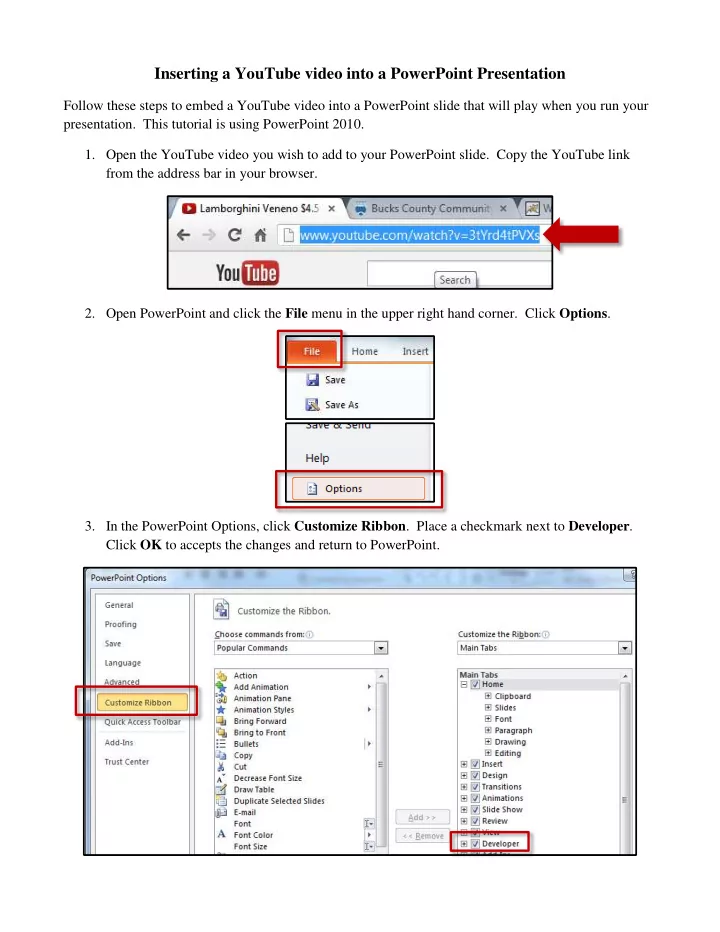
- 2. Open PowerPoint and click the File menu in the upper right hand corner. Click Options.
- 3. In the PowerPoint Options, click Customize Ribbon. Place a checkmark next to Developer.