SLIDE 1
Em bedding a Video Intro Into a Powerpoint 2016 Presentation - 1
Embedding a Video Intro Into a Powerpoint 2016 Presentation
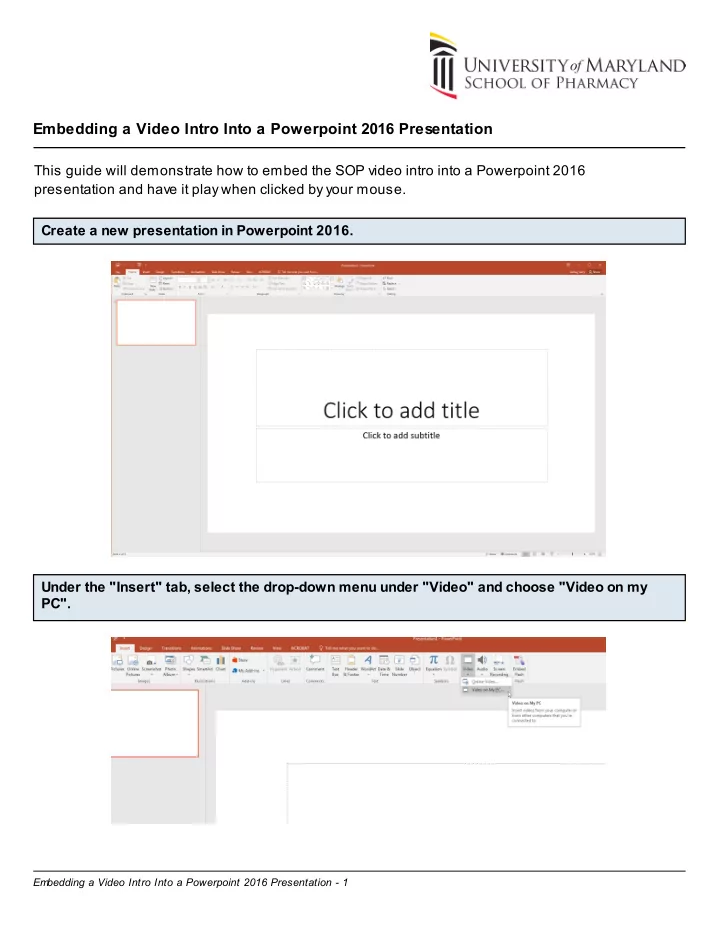
This guide will demonstrate how to embed the SOP video intro into a Powerpoint 2016 presentation and have it play when clicked by your mouse. Create a new presentation in Powerpoint 2016. Under the "Insert" tab, select the drop-down menu under "Video" and choose "Video on my PC".
SLIDE 2
Em bedding a Video Intro Into a Powerpoint 2016 Presentation - 2
Navigate to the folder where you have saved the SOP-intro video file and select it.
SLIDE 3
Em bedding a Video Intro Into a Powerpoint 2016 Presentation - 3
Drag the corners of the video to fill the entire slide window.
SLIDE 4
Em bedding a Video Intro Into a Powerpoint 2016 Presentation - 4
Under the "Video Tools" tab, select "Playback", and in the "Start:" drop-down menu, choose "On Click".
SLIDE 5
Em bedding a Video Intro Into a Powerpoint 2016 Presentation - 5
Navigate back to the "Home" tab and continue adding your slides.
SLIDE 6
Em bedding a Video Intro Into a Powerpoint 2016 Presentation - 6
The video slide should be the first slide in your deck. When you run your slideshow, the first screen will be blank until you click on the screen, at which time, the video will start to play.
SLIDE 7
Em bedding a Video Intro Into a Powerpoint 2016 Presentation - 7
Once the video has finished playing, press the right-arrow key to advance to your first slide and begin your presentation. If you would like to add the video intro to an existing slideshow, simply add a new blank slide at the beginning of the presentation, and follow the same steps to embed the video file.