How to use Microsoft Teams to participate in the CASE 2020 online - - PDF document

how to use microsoft teams to participate in the case
SMART_READER_LITE
LIVE PREVIEW

How to use Microsoft Teams to participate in the CASE 2020 online - - PDF document

How to use Microsoft Teams to participate in the CASE 2020 online conference 1. Click this link to pay your registration fee. 2. Use your email to create a Microsoft Account if you dont already have one. 3. Use your Microsoft Account to sign into


slide-1
SLIDE 1

How to use Microsoft Teams to participate in the CASE 2020 online conference

  • 1. Click this link to pay your registration fee.
  • 2. Use your email to create a Microsoft Account if you don’t already have one.
  • 3. Use your Microsoft Account to sign into Teams.
  • 4. Once you have signed into Teams successfully, write us an email through

case@gaics.org to tell us the email that you will use to sign in Teams.

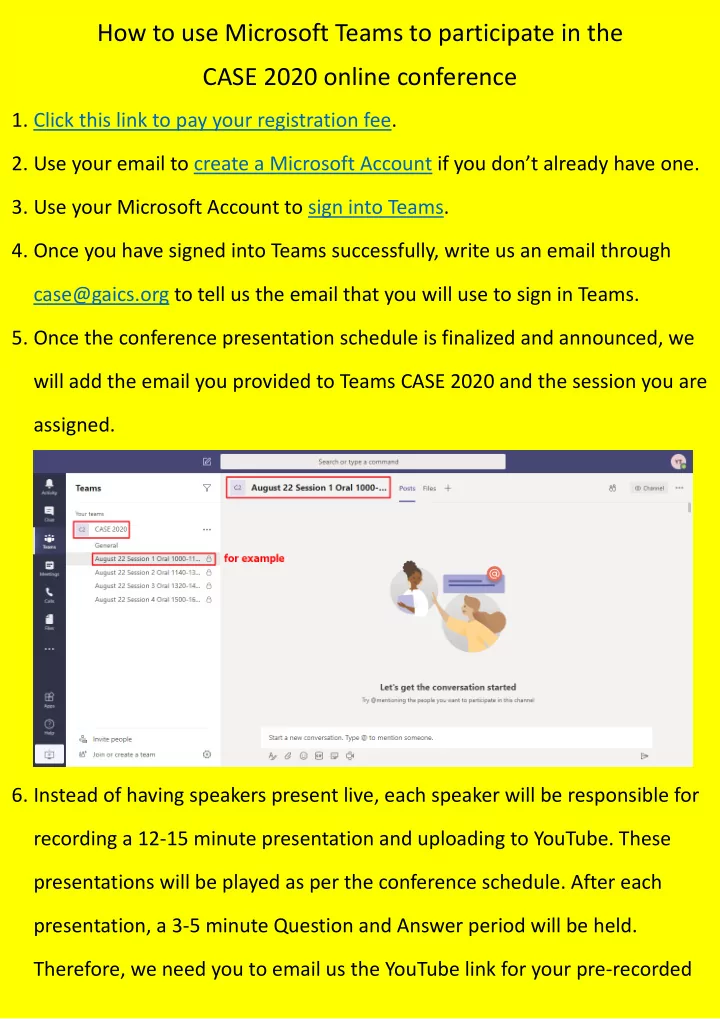
  • 5. Once the conference presentation schedule is finalized and announced, we

will add the email you provided to Teams CASE 2020 and the session you are assigned.

  • 6. Instead of having speakers present live, each speaker will be responsible for

recording a 12-15 minute presentation and uploading to YouTube. These presentations will be played as per the conference schedule. After each presentation, a 3-5 minute Question and Answer period will be held. Therefore, we need you to email us the YouTube link for your pre-recorded

slide-2
SLIDE 2

presentation video by August 15. The length of your pre-recorded presentation video is limited to 12-15 minutes. Note: You must upload your video to YouTube in order to get a sharable link.

  • 7. On the day of your presentation, you need to sign into Teams 10 minutes

before your scheduled session. A conference staff member will call up the meeting and you will receive notification to join. Click on “Meet now” to join the session.

  • 8. When presenters of the session are all online, the session chair will play

each pre-recorded presentation video according to the order on the conference schedule. (Presenters do not need to worry about playing their

  • video. The session chair will take care of this.) Each presenter will need to

make sure they are available for their Q & A session, which will be limited to 3-5 minutes.

  • 9. After all of the presentations and discussion are completed, the session

chair will close the online conference meeting and the conference staff will

slide-3
SLIDE 3

hang up the phone.