
SLIDE 1
Updated May 2020
How to Narrate Your Power Point Presentation- PowerPoint 2018
These instructions were developed using Windows 10. For Mac computers, we advise you to use Keynote or QuickTime instead of PowerPoint for Mac which omits audio from the final video
Check Your Microphone
- Make sure your headset or external microphone
is plugged into the computer.
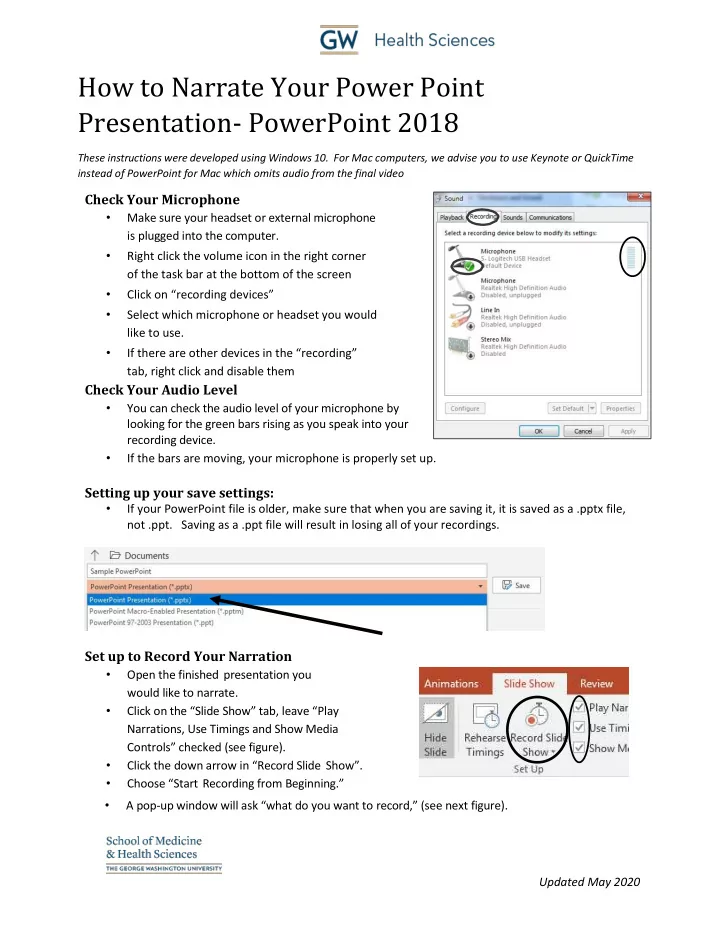
- Right click the volume icon in the right corner
- f the task bar at the bottom of the screen
- Click on “recording devices”
- Select which microphone or headset you would
like to use.
- If there are other devices in the “recording”
tab, right click and disable them
Check Your Audio Level
- You can check the audio level of your microphone by
looking for the green bars rising as you speak into your recording device.
- If the bars are moving, your microphone is properly set up.
Setting up your save settings:
- If your PowerPoint file is older, make sure that when you are saving it, it is saved as a .pptx file,
not .ppt. Saving as a .ppt file will result in losing all of your recordings.
Set up to Record Your Narration
- Open the finished presentation you
would like to narrate.
- Click on the “Slide Show” tab, leave “Play
Narrations, Use Timings and Show Media Controls” checked (see figure).
- Click the down arrow in “Record Slide Show”.
- Choose “Start Recording from Beginning.”
- A pop-up window will ask “what do you want to record,” (see next figure).