
SLIDE 1
Updated December 2016
How to Narrate Your PowerPoint Presentation – PowerPoint 2010
These instructions were developed using PowerPoint 2010 on Windows 7. For Mac computers, we advise you to use Quicktime or Keynote instead of PowerPoint for Mac which omits audio from the final video.
Check Your Microphone
- Make sure your headset or external microphone
is plugged into the computer.
- Click the Windows “Start” button and choose
“Control Panel.”
- Click “Hardware and Sound” and then “Manage
Audio Devices.”
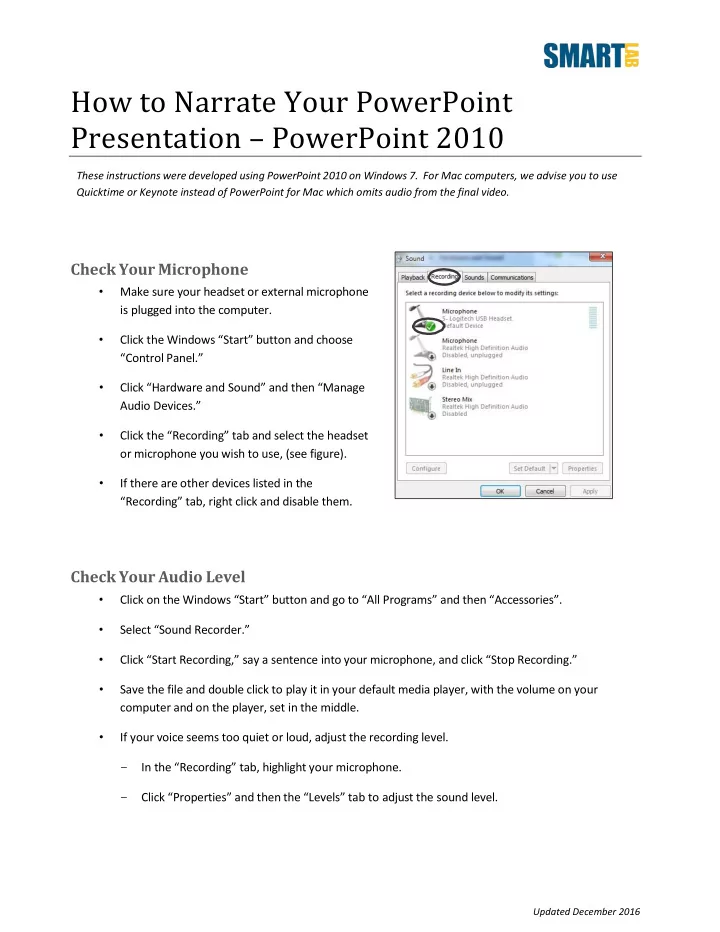
- Click the “Recording” tab and select the headset
- r microphone you wish to use, (see figure).
- If there are other devices listed in the
“Recording” tab, right click and disable them.
Check Your Audio Level
- Click on the Windows “Start” button and go to “All Programs” and then “Accessories”.
- Select “Sound Recorder.”
- Click “Start Recording,” say a sentence into your microphone, and click “Stop Recording.”
- Save the file and double click to play it in your default media player, with the volume on your
computer and on the player, set in the middle.
- If your voice seems too quiet or loud, adjust the recording level.
- In the “Recording” tab, highlight your microphone.
- Click “Properties” and then the “Levels” tab to adjust the sound level.