Browser DLI Western Training ACCOLEDS Grant MacEwen University - - PDF document

browser
SMART_READER_LITE
LIVE PREVIEW

Browser DLI Western Training ACCOLEDS Grant MacEwen University - - PDF document

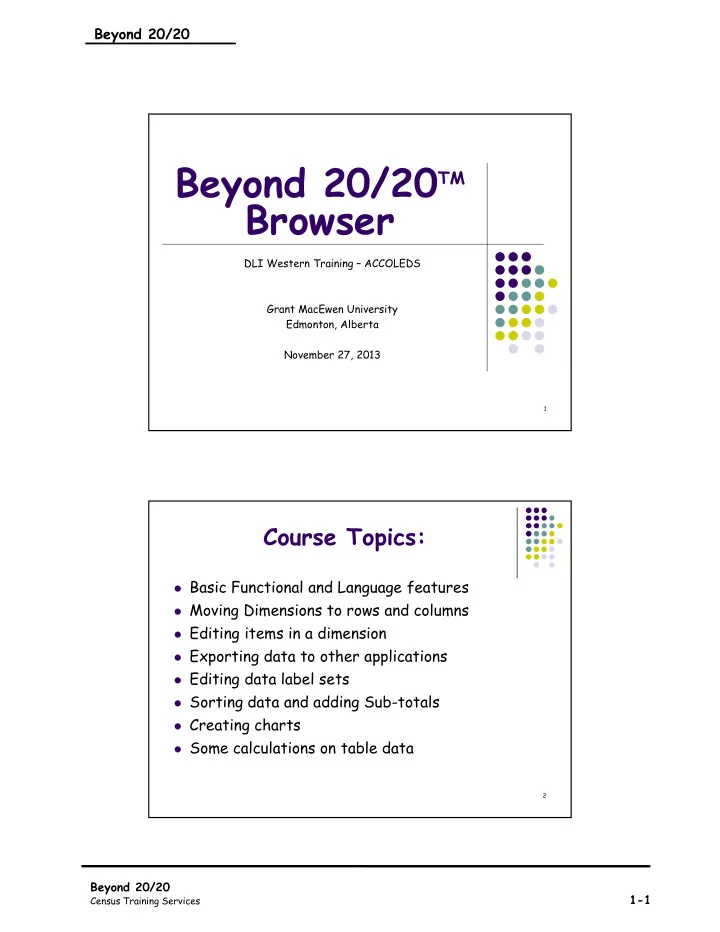
Beyond 20/20 Beyond 20/20 TM Browser DLI Western Training ACCOLEDS Grant MacEwen University Edmonton, Alberta November 27, 2013 1 Course Topics: Basic Functional and Language features Moving Dimensions to rows and columns


slide-1
SLIDE 1

Beyond 20/20

Beyond 20/20

Census Training Services

1-1

Beyond 20/20TM Browser

DLI Western Training – ACCOLEDS Grant MacEwen University Edmonton, Alberta November 27, 2013

1

Course Topics:

 Basic Functional and Language features  Moving Dimensions to rows and columns  Editing items in a dimension  Exporting data to other applications  Editing data label sets  Sorting data and adding Sub-totals  Creating charts  Some calculations on table data

2

slide-2
SLIDE 2

Beyond 20/20

Beyond 20/20

Census Training Services

1-2

Beyond 20/20 Browser Benefits

 Simple user interface  Rapid creation of new tables from

multidimensional data tables

 Rapid switching between languages  Exports to other applications

3

The Find Dialog Box

 In this section our objectives are:

 Find and open tables  Search for tables

4

slide-3
SLIDE 3

Beyond 20/20

Beyond 20/20

Census Training Services

1-3

How to Find a Table

 In the Find window:

 Specify the directory containing the B20/20

tables.

 Highlight categories to display all files (tables) for

those categories.

 Highlight a table. Use Summary button to display

all the table information plus the Table Notes.

 Open and View the highlighted table with the OK

button.

 If needed use the Search feature to find

specified tables.

5

How to Search for a Table

The Find window on

Beyond 20/20 allows

quick browsing of a data directory.

OR

Use the Search button to find tables matching special user input criteria.

Products

Tables

Search

Open directory to locate B20/20 file

Directory

6

slide-4
SLIDE 4

Beyond 20/20

Beyond 20/20

Census Training Services

1-4

The Search Window Options

 Text to Find in the

  • ptions

(Text is not case sensitive)  Title/Description  Notes  Dimension/Source

Field Names

 Codes  Labels .

7

Browser Overview

 Our objectives are:

 Learn more Beyond 20/20 terminology  Understand contents of the Menus  Learn how tables appear in the table view  Learn what dimensions are  Move dimensions around to change the table

view

8

slide-5
SLIDE 5

Beyond 20/20

Beyond 20/20

Census Training Services

1-5

Beyond 20/20 Terminology

 Item = Category/Stub  Dimension = Variable/Stubset  Tile = Dimensions not in the table

(parked on the tile bar)

 Summary = Table Special Notes

9

Table Title Column Item Labels Dimension Tiles Row Item Labels Data Cells

10

slide-6
SLIDE 6

Beyond 20/20

Beyond 20/20

Census Training Services

1-6

Table Summary

 Contains the

general information about a table

 It can include:

 Table title in full  Census year  Notes  Table statistics

11

Table Summary

 It may also

describe how the data were collected and special notes and anomalies in the data

12

slide-7
SLIDE 7

Beyond 20/20

Beyond 20/20

Census Training Services

1-7

Menu Bar

 File  Edit  View  Dimension  Item  Window  Help

13

Status Bar

Indicators for number of items: (Highlighted) Showing / Total in the dimension

Cell Name

Language Indicator

14

slide-8
SLIDE 8

Beyond 20/20

Beyond 20/20

Census Training Services

1-8

Nesting

 Nesting is defined as one variable

crossed with another

 View more than one dimension along

columns or rows

 It involves positioning a dimension tile

  • ver the border of existing headings in

the column or row dimension

15

Nesting

 Drag and drop the dimension tile onto the

top or bottom of the border or column headings to nest along the rows

 Drag and drop the dimension tile onto the

  • uter or inner border of the row headings

to nest along the columns

16

slide-9
SLIDE 9

Beyond 20/20

Beyond 20/20

Census Training Services

1-9

17 18

slide-10
SLIDE 10

Beyond 20/20

Beyond 20/20

Census Training Services

1-10

Arranging your Table View

 The Table View can be changed by:

 Changing the language of the table*. F9  Using other label sets.  Dragging dimension tiles to Rows or

Columns

 Nesting dimension tiles

*Note: The F9 key changes only the table language while the icon changes both the tool and the table language.

19

Exercise

 Open the 98F0312XCB11041 table  Place Geography in the rows  Place Legal Marital Status in the columns  Nest Years under Geography  Change the Geography label set to geocodes (01

and 10)

 Change the table language to French

20

slide-11
SLIDE 11

Beyond 20/20

Beyond 20/20

Census Training Services

1-11

Customizing Tables

 Our objectives are to learn:

 How dimensions not in the columns or rows affect the

table counts

 How to display only selected items of a dimension

21

All Dimensions Affect Table Data

 Counts in the table

are determined by:

 dimensions in the rows

and columns and by

 dimensions not in the

rows and columns

 In this table all counts

are for female since that is the active item

  • f the Sex dimension

22

slide-12
SLIDE 12

Beyond 20/20

Beyond 20/20

Census Training Services

1-12

Changing a Dimension’s Active Item

  • 1. Highlight the

dimension, then

  • 2. Use the arrow buttons

to cycle through the items.

  • 3. Active item of the

dimension is then indicated by:

item label on the ‘parked’ tile

  • r the cursor position in

the table when the dimension is in the row or columns.

23

How to Customize the View of a Table Using HIDE and SHOW

HIDE removes selected items from a view

SHOW keeps only selected items in a view

SHOW ALL and RESET clears the HIDE or SHOW

REVERSE shows the hidden items

24

slide-13
SLIDE 13

Beyond 20/20

Beyond 20/20

Census Training Services

1-13

Exercise

 Open the 97F0009X2001043 table (Employment

Income Groups)

 Place Geography in the rows  SHOW only the counts for Canada, Manitoba,

Saskatchewan, Alberta and BC.

 REVERSE the Geography dimension to show the

  • ther provinces and territories

25

Saving Customized Tables

 In this section our objectives are to:

 Create B20/20 Worksheets  Export tables to other applications or save as

customized B20/20 tables

 Copy and Paste into other applications

26

slide-14
SLIDE 14

Beyond 20/20

Beyond 20/20

Census Training Services

1-14

Beyond 20 / 20 Worksheets

 Worksheets are temporary views that:

 permit fast copying of a Read-only table,  allow customizing of the table,  can be saved as a permanent file type.

27

How to Create a Worksheet

 In the View menu,

select Worksheet

 In the View

Worksheet window include the dimensions not in the table if desired.

 (Note the datapoints

computed.)

 Select OK

28

slide-15
SLIDE 15

Beyond 20/20

Beyond 20/20

Census Training Services

1-15

Saving Customized Table Views as a Multidimensional Files

 Save your table as an .ivt file to retain

multidimensionality and compatibility with Beyond 20/20 browser.

 Remember that the saved table will be

minus hidden items.

29

Exporting your Customized Tables to Other Applications

 Nest all dimensions you want to export  Arrange table view as it should appear  Export to EXCEL using .xls or .csv  Export to ACCESS as .dbf or .csv

30

slide-16
SLIDE 16

Beyond 20/20

Beyond 20/20

Census Training Services

1-16

Beyond 20/20 Output Formats

 Save As Exports data in these

formats:

*.ivt Beyond 20/20 compatible file type *.xls Excel Worksheet [available in version 6.0 +] *.csv Comma-separated value *.txt Text file *.htm HTML Files [available in version 6.0 +] *.wks WKS worksheet *.wk1 WK1 worksheet *.dbf dBASE File *.tsd Aremos TSD

31

How to Copy and Paste Data into Other Applications

 Select the columns and rows to copy

using the control click technique.

 Use <control C>

  • r from the Edit menu use “Copy”

 Open the target application, e.g. EXCEL  Paste (<control V>) the data.

32

slide-17
SLIDE 17

Beyond 20/20

Beyond 20/20

Census Training Services

1-17

Changing Labels on Dimensions

 In this section our objectives are to:

 Edit item labels of a dimension  Create a new label set (field) for a dimension  Import labels

33

Editing Existing Item Labels

 If table is read-only make a worksheet of

it.

 Highlight the Dimension.  Click Display Active Dimension on the icon

toolbar.

 Select the item label to edit.  Press the F2 key.  Edit the label and press Enter.

34

slide-18
SLIDE 18

Beyond 20/20

Beyond 20/20

Census Training Services

1-18

Adding a New Label Set

 Highlight the Dimension to modify.  Click Display Active Dimension icon on the

icon toolbar.

 From the Dimension menu select Add Field.  In the Add Field window specify the name,

type, and language of the new field.

 In the Dimension window enter new item

labels using F2.

35

Importing a New Label Set

A set of labels can be created outside of Beyond 20/20 and then imported as a .csv file.

 Step 1 Open the

Dimension and add a new label field (Chart Labels in this example).

 Step 2 Create an Excel

file of the new label (Chart Labels) and the lookup field (Code). Make sure the lookup field and new label field are the same.

Continued…

36

slide-19
SLIDE 19

Beyond 20/20

Beyond 20/20

Census Training Services

1-19

Importing a New Label Set

 Step 3 Import the

new labels into the

  • Dimension. Select

the Input Filename.

Continued…

37

Importing a New Label Set

Continued…

 Step 4 Select the

.csv file to import and the lookup field (Code in this example).

Here is the result of the Import

38

slide-20
SLIDE 20

Beyond 20/20

Beyond 20/20

Census Training Services

1-20

Rules for Creating a .csv Label File

 The field name for the new labels in the .csv file

labels must be identical to the new field name in the dimension.

 A field must be selected and copied to the .csv file to

act as a lookup field to control the position of the imported labels.

 The lookup field name and labels must be identical

between the dimension and the .csv file.

 The .csv file must have the same number of labels as

the lookup field.

39

How to Search and Sort Data

 In this section our objectives are to:

 Search the labels for a name.  Search the data by specifying a value range.  Sort the data or labels.

40

slide-21
SLIDE 21

Beyond 20/20

Beyond 20/20

Census Training Services

1-21

How to Search the Labels

 Highlight the dimension.  Use the Search icon or from the Dimension

menu choose Search.

 Select the field which has the item labels.  Type in the text to find.  Select Find Next to move the cursor to the item  or select Reduce to show only the findings.

41

How to Search the Data

 Highlight the dimension.  Put the cursor in the data row or column which are to

be searched.

 Open the Search window and select the Data field.  Enter the data range Min’ and/or Max’ values.  Select Reduce to show only the findings.

42

slide-22
SLIDE 22

Beyond 20/20

Beyond 20/20

Census Training Services

1-22

How to Sort the Dimension Labels

 Highlight the dimension.  Use the Sort icon

  • r from the Dimension

menu choose Sort.

 Select the field which

contains the item labels.

 Select one of the sort options. Click Ok.

43

How to Sort the Dimension Data

 Highlight the dimension.  Put the cursor in the

data row or column to be sorted.

 Open the Sort window

and select the data field.

 Select one of the

  • ptions and click OK.

44

slide-23
SLIDE 23

Beyond 20/20

Beyond 20/20

Census Training Services

1-23

Using Beyond 20/20 Groups

 In this section our objectives are

to:

 Create groups  Calculate totals on groups  Position the group within the item list

45

Properties of Beyond 20/20 Groups

 Groups cannot be created on Read-only tables.  Primarily used for inserting sub-totals.  Groups can hold simple sums or be calculated from a

formula or can represent a hierarchy of their items.

 Status bar indicates the type of group highlighted.  Default group position is at end of a dimension.  Groups can be inserted into new items.

46

slide-24
SLIDE 24

Beyond 20/20

Beyond 20/20

Census Training Services

1-24

How to Create a Group

 Highlight row or

column items to be grouped.

 From the Item menu

choose Define Group.

47

How to Create a Group

 Specify the Group

Code and Group Type.

 Click OK.  Select Yes to

calculate now

48

slide-25
SLIDE 25

Beyond 20/20

Beyond 20/20

Census Training Services

1-25

How to Create a Group

 New group

appears at the end of the items in the dimension.

49

Define Group window

 Maximum 16 characters for Group Code  Total sums the highlighted items whose codes are

displayed

50

slide-26
SLIDE 26

Beyond 20/20

Beyond 20/20

Census Training Services

1-26

Charting Table Data

 In these sections our objectives

are:

 Understand the chart view  Create and customize charts

51

The Chart View

 A Chart contains:

 Table title  Data representations  Vertical axis (auto-

scaled)

 Horizontal axis (with

item labels)

 A Legend when multiple

dimensions are charted.

 Title and list of the

  • ther table dimensions

52

slide-27
SLIDE 27

Beyond 20/20

Beyond 20/20

Census Training Services

1-27

Creating a Chart

 Highlight the desired Row and Column items

using the control click technique.

 Click on the Chart icon

OR

 From the View menu choose Chart.

53

Chart Legends

 Legends are created when multiple items are selected

for charting.

 Legends can be dragged by click and hold to different

positions in the chart view.

 When multiple columns are selected column labels

appear in the legend.

 When multiple rows are selected OR multiple columns

and rows are selected, row labels appear in the legend.

54

slide-28
SLIDE 28

Beyond 20/20

Beyond 20/20

Census Training Services

1-28

Changing the Chart Type

 Click the right mouse

button with the cursor in the Chart window.

OR

 From the VIEW menu

choose Chart Options.

 Then in the Chart

Options window select the type of chart and click OK.

55

What are Data Distributions?

 Distributions are percentages of a total.  For example the question “What percentage of the

total population does each age group represent?” could be answered by a distribution calculation on the Age dimension in Beyond 20/20.

56

slide-29
SLIDE 29

Beyond 20/20

Beyond 20/20

Census Training Services

1-29

Data Distributions in Beyond 20/20

 Based on the current table view. (hidden items will

not be included.)

 Calculated on the cells in rows, columns, and/or the

whole table.

 Calculation produces a new table view with a new

dimension tile called Distributions.

 Distribution tile can show original cell counts.  New table view can include the dimensions on the tile

bar.

57

Displaying Decimal Resolution

 After calculating distributions or opening a table

which has fractional results (an average for example) you can specify the display of decimal places in a B20/20 view.

 From the View menu select Decimals.  Choose the number of decimals.  Note: that data not having fractional values will be

displayed with decimal zeros.

58

slide-30
SLIDE 30

Beyond 20/20

Beyond 20/20

Census Training Services

1-30

In conclusion, we have studied:

 How to browse, search for, and open tables.  How to change the language and label sets.  How to move and nest dimensions.  How dimensions not in the table effect data.  How to Hide / Show items in a dimension.  How to Save your tables in other formats.

59

We have also studied:

 How to edit and add label sets to a Dimension.  How to Search and Sort the data.  How to create and use Groups.  How to Chart table data.  How to create and use Distributions.

60

slide-31
SLIDE 31

Beyond 20/20

Beyond 20/20

Census Training Services

1-31

 This ends the course

61