The Game Development Process Visual Design and Production New - - PDF document

the game development process
SMART_READER_LITE
LIVE PREVIEW

The Game Development Process Visual Design and Production New - - PDF document

The Game Development Process Visual Design and Production New Artistic Courses AR 1100. ESSENTIALS OF ART. This course provides an introduction to the basic principles of two and three-dimensional visual organization. The course focuses on


slide-1
SLIDE 1

1

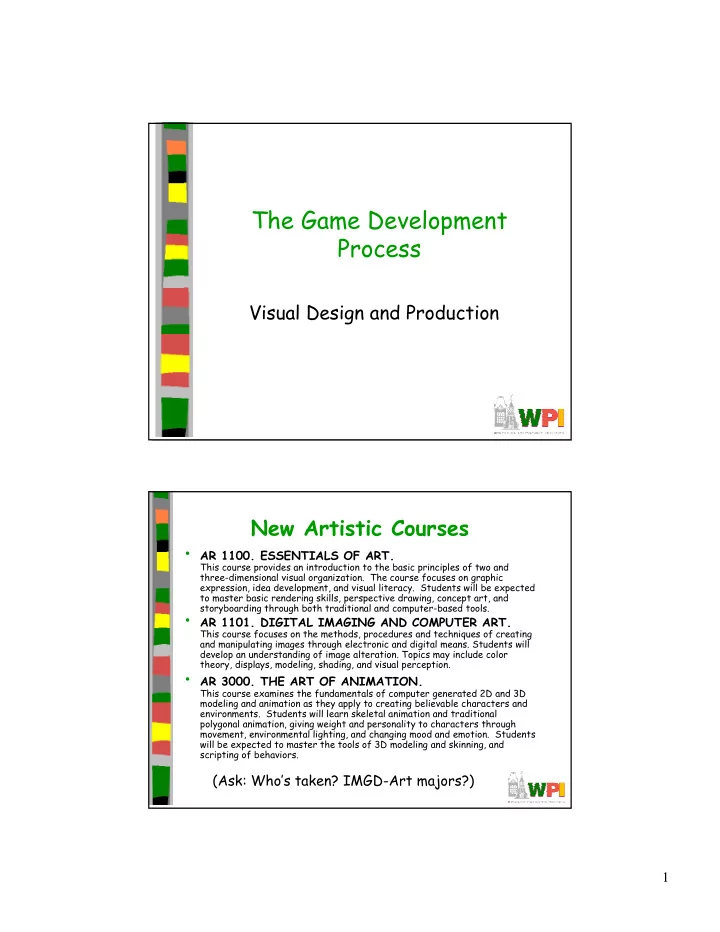
The Game Development Process

Visual Design and Production

New Artistic Courses

  • AR 1100. ESSENTIALS OF ART.

This course provides an introduction to the basic principles of two and three-dimensional visual organization. The course focuses on graphic expression, idea development, and visual literacy. Students will be expected to master basic rendering skills, perspective drawing, concept art, and storyboarding through both traditional and computer-based tools.

  • AR 1101. DIGITAL IMAGING AND COMPUTER ART.

This course focuses on the methods, procedures and techniques of creating and manipulating images through electronic and digital means. Students will develop an understanding of image alteration. Topics may include color theory, displays, modeling, shading, and visual perception.

  • AR 3000. THE ART OF ANIMATION.

This course examines the fundamentals of computer generated 2D and 3D modeling and animation as they apply to creating believable characters and

  • environments. Students will learn skeletal animation and traditional

polygonal animation, giving weight and personality to characters through movement, environmental lighting, and changing mood and emotion. Students will be expected to master the tools of 3D modeling and skinning, and scripting of behaviors.

(Ask: Who’s taken? IMGD-Art majors?)

slide-2
SLIDE 2

2

Introduction

  • Computer artist is modern-day alchemist

– (Creating the Art of the Game, by Matthew Omernick)

– Turn polygons and pixels into wondrous worlds

  • Job of artist is to interpret world
  • Quality toolset can empower, but doesn’t

make you an artist

– Need passion, talent and practice

  • Sources of inspiration

Based on Foreword, Creating the Art of the Game, by Matthew Omernick

Introduction: Inspiration from Playing Games

  • Duh, but many don’t … (Ask: how many

played computer game this weekend?)

  • Easy trap to fall into when busy
  • But need to play games for comparison of

competitive products, seeing other solutions to problems, etc.

  • Plus, how can make fun game if not having

fun yourself?

Based on Foreword, Creating the Art of the Game, by Matthew Omernick

slide-3
SLIDE 3

3

Introduction: Inspiration from Real World

  • Tenet of Game Design: “The real world is

always more interesting than anything we can make up”

– Ex: even Dark Forces II: Jedi Knight, environment made real-world sense

  • Spaceport had entertainment area for pilots,

cluttered maintenance bays, refueling pipes …

  • And all was dirty
  • (More examples later)

Based on Foreword, Creating the Art of the Game, by Matthew Omernick

Introduction: Remember the Constraints

  • Year 2098, Macrosoft will release

FunStation 3000, 14 million terabytes of RAM, quantum-holographic drive with near infinite storage, processors at the speed

  • f light

– Game developers complain not fast enough

  • Game artists must be creative inside

confines of technology

– All disciplines: engineering, design, sound – But often constraints biggest on artist

Based on Foreword, Creating the Art of the Game, by Matthew Omernick

slide-4
SLIDE 4

4

Outline

  • Introduction
  • Terminology

(next)

  • 2D animation (for project 2)
  • 3D Art

– Modeling, Texturing, Lighting

Visual Design

  • The management and presentation of visual

information

– Two dimensional & three dimensional communication – The “Look and Feel” of the game

Based on Chapter 6.1, Introduction to Game Development

slide-5
SLIDE 5

5

Terminology for Graphic Design Principles

  • Balance – visual equilibrium
  • Symmetrical balance
  • Asymmetrical balance
  • Rhythm – pattern created by repeating
  • Emphasis – created when movement

interrupted, focal point. Can also be done with color, shape, size

  • Unity – common

harmony of all elements

Based on Chapter 6.1, Introduction to Game Development

Elements of Graphic Design

  • Line
  • Shape
  • Space - + or -
  • Texture – look and feel
  • Size – use to create

perspective, sense of importance

  • Color

Line Shape Space Texture Size

Q Q

Based on Chapter 6.1, Introduction to Game Development

slide-6
SLIDE 6

6

Color Theory (1 of 2)

  • The Visible Spectrum

– “Roy G. Biv” (Red, Orange, Yellow, Green, Blue, Indigo, Violet)

  • Hue

– Describes the distinct characteristic of color that distinguishes red from yellow from blue.

  • Saturation

– The strength of a color with respect to its value

  • Value

– The amount of white or black a color, also known as its brightness

Based on Chapter 6.1, Introduction to Game Development

Color Theory (2 of 2)

  • Subtractive Color

– Reflected light such as printing (CMYK) & painting

  • Additive Color

– Emissive light such as computer screens (RGB) or television. – Typical for game artists

Based on Chapter 6.1, Introduction to Game Development

slide-7
SLIDE 7

7

Outline

  • Introduction
  • Terminology
  • 2D animation

(next)

  • 3D Art

– Modeling, Texturing, Lighting

2D Animation

  • Animation produces the illusion of movement
  • Display a series of frames with small differences

between them

  • Done in rapid succession, eye blends to get motion
  • Unit is Frames Per Second (fps)

– 24-30 fps: full-motion (Game Maker does 30) – 15 fps: full-motion approximation – 7 fps: choppy – 3 fps: very choppy – Less than 3 fps: slide show

  • To do successfully, need to keenly observe, focus
  • n differences in movement

– Apply basic principles (next)

Based on Chapter 9, Designing Arcade Computer Game Graphics, by Ari Feldman

slide-8
SLIDE 8

8

Motion Line

  • Invisible line created by object as moves

– Locate in center of gravity

  • Straight if flying

– Ex: bullet

  • Up and down if bounces

– Ex: rubber ball

  • Depends upon speed and desire for

exaggeration

– Ex: Human sprinting versus walking – Ex: Warcraft III

Based on Chapter 9, Designing Arcade Computer Game Graphics, by Ari Feldman

Key Frames

  • Images at extremes in movement

– Most noticeable to observer – Ex: for flight wings up and wings down – Ex: for walking, right leg forward, leg together

  • The more the better?

– Smoother, yes – But more time to develop (tradeoffs) – And more prone to errors, “bugs” that interfere with the animation

Based on Chapter 9, Designing Arcade Computer Game Graphics, by Ari Feldman

slide-9
SLIDE 9

9

In-Between Frames

  • Generated to get smooth motion between

key-frames

– Can be tedious and time consuming to make – Most software allows duplication

Based on Chapter 9, Designing Arcade Computer Game Graphics, by Ari Feldman

Frame Animation Guidelines

Based on Chapter 9, Designing Arcade Computer Game Graphics, by Ari Feldman

(See GameMaker tutorial shooter for examples of Enemy Planes, Explosions)

slide-10
SLIDE 10

10

Secondary Actions

  • Animation part that does not lead

movement, but follows it

– Add extra dimension of reality – Ex: Hair moving in wind – Ex: Cape billowing backward

Based on Chapter 9, Designing Arcade Computer Game Graphics, by Ari Feldman

Steps in Creating Animation Sequences (1 of 3)

  • Conceptualize – have vision (in mind or on paper) of what

animation will look like

  • Decide on object behavior

1. Animated once (no looping)

  • 2. Animated continuously (using cycles)

– 2nd choice means must make last key frame blend with first

  • Choose a grid size – will contain and constrain object

– Test and experiment briefly to have plenty of room

  • Design key-frames - drawing the motion extremes

– Use simple shapes to represent main actions

  • Ex: stick figures or basic shapes (circles, squares)

Based on Chapter 9, Designing Arcade Computer Game Graphics, by Ari Feldman

slide-11
SLIDE 11

11

Steps in Creating Animation Sequences (2 of 3)

  • Estimate the in-betweens – think of how many you

will need to complete the sequence smoothly

– Be conservative. Easier to add additional transition frames than remove them

  • Create object motion lines - trace the motion line

and motion angles for the sequence. Make sure properties are consistent with object, else adjust

– Use your painting program’s “line tool” – If not, make the appropriate adjustments to the sequence and repeat

  • Apply secondary enhancements - Embellish to look

convincing and enticing

Based on Chapter 9, Designing Arcade Computer Game Graphics, by Ari Feldman

Steps in Creating Animation Sequences (3 of 3)

  • Test each movement

– Can be done with ‘copy’ and ‘undo’ in tool – Others have animation rendering (ex- Game Maker) – Look for flaws (movement, discolored pixels …)

  • Repeat - Repeat for all animations

Based on Chapter 9, Designing Arcade Computer Game Graphics, by Ari Feldman

slide-12
SLIDE 12

12

General Animation Tips (1 of 3)

  • Remember the relationship between frames and

animation smoothness

– More frames, more smoothness (but more time)

  • Always account for color

– Primary actions and secondary actions should be rendered in colors that make them easy to see. – Otherwise, the effectiveness of the animation can be compromised (ch 7 and ch 8)

  • Use tempo wisely- Never too fast or too slow

– Try to mimic nature. Observe yourself. Study the speed at which different types of objects move in different situations.

Based on Chapter 9, Designing Arcade Computer Game Graphics, by Ari Feldman

General Animation Tips (2 of 3)

  • Try to individualize your objects

– Unique and individualized touches make seem real. “Personality” that distinguishes it – Easiest, use exaggeration and embellishment (i.e., secondary actions)

  • Keep it simple - Unnecessary complexity

can ruin animation

– Stick with primitives and minimal frames – Don’t do any more work than you have to!

Based on Chapter 9, Designing Arcade Computer Game Graphics, by Ari Feldman

slide-13
SLIDE 13

13

General Animation Tips (3 of 3)

  • Use exaggerated elements - as an

animation device, adds depth

– Especially important for short animation sequences to make convincing

  • Constantly observe - study of the objects

around you. Study how different things

  • move. Study books on animation. Observe

your favorite games

– Will give insights into animation techniques, make better animations yourself

Outline

  • Introduction
  • Terminology
  • 2D animation
  • 3D Art

(next)

– Modeling, Texturing, Lighting

slide-14
SLIDE 14

14

Sub-Outline

  • Preparing to Create
  • Modeling Theory
  • Example
  • Texturing
  • Lighting

Preparing to Create

  • Using reference essential

– Difference between mediocre and exceptional game – Gives you goals, direction, clues, motivation

  • Ex: portrait of friend

– Could: sit down, imagine friend, draw – Or, could: use photo and draw – Latter will include details didn’t think of – Same holds for buildings, cars, etc.

  • Reference is not “cheating”

– Yeah, many want to create directly in minds, but using the right reference a skill in itself!

Based on Chapter 1, Creating the Art of the Game, by Matthew Omernick

slide-15
SLIDE 15

15

How and Where to Collect Reference

  • Search ‘net – Google image search (show demo)

– Ex: Couch, lazy-boy, lounge chair – 2 minutes can provide a lot of details

  • Books

– Ex: on submarines for U-boat

  • Movies

– Ex: U-571

  • Physical location

– Ex: visit U-boat tour, tour country/climate of game. Even fantasy world has trees, etc.

Based on Chapter 1, Creating the Art of the Game, by Matthew Omernick

Concept Art

  • Pre-visualize art for communication, color,

inspiration

– Establish “look and feel”, like storyboarding for film – Saves time and money since iterate before rendering

  • Even if company has concept artists, digital artists

should still do their own

– Remember, computer is just another tool – Figure drawing helps understand shape and line

  • And often required for portfolio!

We need a happy, purple dinosaur to sell more widgets!

  • Paolo Piselli

Based on Chapter 1, Creating the Art of the Game, by Matthew Omernick

slide-16
SLIDE 16

16

Blocking Out Your Scene (1 of 3)

  • Mantra: “Broad strokes, then add detail”

– Ex: painting mountain scene.

  • Start with blue sky, define brown mountains,
  • lake. Finer brush for trees, clouds. Finer

for rocks, birds in sky …

  • Start in corner. Paint all details and move
  • ver. You’d go crazy! Would be skewed.

– Ex: animating a character.

  • Set two keyframes, point A and point B. Get

speed right, basic idea. Add frames for up and down. Then legs and arms swing …

  • When done, smooth walk

Based on Chapter 1, Creating the Art of the Game, by Matthew Omernick

Blocking Out Your Scene (2 of 3)

  • For scene, use simple primitives to define scale

and layout

  • Ex: create village.

– Working with designer, create plane (crudely drawn map) of layout

  • Scan and import into 3D tool (say, Maya)

– Import 5’11” character (just shape)

  • Use to decide how tall building or how wide door

– Add objects in right scale – Quickly basic, functional scene of right size and

  • scale. Broad stroke number 1!

Tip: get artists & designers to agree upon measurement units & heights of characters

Based on Chapter 1, Creating the Art of the Game, by Matthew Omernick

slide-17
SLIDE 17

17

Blocking Out Your Scene (3 of 3)

  • If game engine working, can export into

game and run around

– Often designer will do this, anyway, but artist should have input

  • Can throw in some lighting (later) and

colors (later)

  • Add a few textures (not final ones, but

canned that show right feel)

– Can even add text saying “brick”

  • (Like Van Helsing demo shown earlier)

Based on Chapter 1, Creating the Art of the Game, by Matthew Omernick

Sub-Outline

  • Preparing to Create
  • Modeling Theory

(next)

  • Example
  • Texturing
  • Lighting
slide-18
SLIDE 18

18

Intro to Modeling Theory

  • Understand core philosophy of3d modeling for

games

  • Want to do it fast and efficiently

– Allow “broad strokes” in model early – More time (and polygon resources) for refinement later

  • If quick, but sloppy, end up with stray vertices,
  • verlapping faces …

– Wasted resources – Plus bugs! For collision detection

  • Modeling Types (talk about each a bit, next)

– NURBS – Subdivision Surfaces – Polygon (is king in game development)

Based on Chapter 6.2, Introduction to Game Development

Non-Uniform Rational Basis Spline (NURBS)

  • Uses curved surfaces based on a few points
  • Strengths:

– Great for cut-scenes – Resolution independent – Inherent mapping coordinates

  • Weaknesses:

– More difficult to learn – Difficult transitioning between high and low density areas – Seams are complicated to overcome – Not supported by many game engines

Based on Chapter 6.2, Introduction to Game Development

slide-19
SLIDE 19

19

Subdivision Surfaces

  • Strengths

– Has polygonal ease of editing (can manipulate points) with NURBS smoothness – Very efficient way to work – Great for cut-scenes or as the basis for high resolution normal map source models

  • Weaknesses

– Almost no game engines support this geometry type

Based on Chapter 6.2, Introduction to Game Development

Polygonal

  • Strengths:

– Very straightforward, easy to troubleshoot, easy to modify – Supported by all 3D game engines

  • Weaknesses:

– A technical process

  • Constantly manipulating topology

– Faceting

  • Rough around the edges

– Fixed Resolution

  • Unless level of detail models are created
  • Polygons preferred since most used (talked about rest of

section)

– By polygons, we mean triangles – Face may have triangles that share vertices (Ex: square down middle) – Software may hide shared edge for cleaner look

Based on Chapter 6.2, Introduction to Game Development

slide-20
SLIDE 20

20

Polygonal Modeling Basics: Primitives

  • Primitives are basic shapes
  • Most 3d packages have same primitives:

– Sphere, Cube, Cylinder, Plane – Use for “broad strokes”

  • Concentrate on primitives within object

– Ex: human body (ovals for shoulders, cylinders for legs, sphere for head…)

  • Components are parts that make up primitive

– Ex: vertices, edges, triangles, faces, elements – Similar across all packages but terminology can vary

  • Transformation allows moving, rotating, scaling
  • bject or component

Polygonal Modeling Basics: Normals

  • Face normals are at right angle to polygon

– Tell what direction if facing, how to render, how light will react

  • Viewed from other side, is invisible

– Fine if on inside (say, of solid cube)

  • When debugging, pay attention to normals

as well as polygons

slide-21
SLIDE 21

21

Polygonal Modeling Basics: Backface Culling

  • Toggles display of faces that point away

from view

– When on, see through wireframe – When off, looks solid (not drawn)

  • Makes look less cluttered

Polygons and Limits

  • 3d Software renders scene of triangles like game

– But 3d software slow (Toy Story 1 frame / 15 hrs) – Game is real time (30 frames / second)

  • Need to limit polygons. How spent depends upon world size

and where needed. – Ex: Medal of Honor versus Soul Caliber 2. MH details spread across world, less on avatars. SC can have detailed avatars since only 2 in one ring.

  • Think of how many polygons each item needs. Estimates,

educated guesses. Then, make pass. (Tools will give count) – Used wisely, can make detailed scenes with few (Ex: 2.5, page 24) – Ch 6.2 assumes 4000 (typical for PS2 street fighting game or hero in third-person action game)

Based on Chapter 2, Creating the Art of the Game, by Matthew Omernick

slide-22
SLIDE 22

22

Polygon Reduction

  • Being able to model without wasting

polygons important takes practice

  • Ask if a player will see face?

– Ex: oil barrel as cylinder. Will see bottom? Nope, then delete.

  • Are all faces necessary? Looks great,

yeah, but some can be removed.

– Ex: 12-sided cylinder still looks “round” with 8 sides? Then do it.

  • (Example exercise p30-31)

Based on Chapter 2, Creating the Art of the Game, by Matthew Omernick

Modeling Tools

  • Certain tools and techniques used 80-90% of the time

– (Bottom 3 used for next example)

  • Line Tool:

– Draw outline of object and extrude to get 3-d shape

  • Ex: profile of car. Use line tool. Then, extrude outward to get
  • shape. “Broad stroke”

– Some risk in may have vertices and faces you don’t need, but careful planning and practice helps

  • Extrude:

– Take component (often face), duplicating it, pulling pushing or scaling to refine model

  • Ex: take cube. Extrude face outward and smaller
  • Ex: take cube. Extrude part of face to make window
  • Cut:

– Subdivides faces and adds new faces

  • Adjust:

– The artistic part of modeling. Try to capture form, profile and character by moving vertices

  • “Vertex surgery”

Based on Chapter 6.2, Introduction to Game Development

slide-23
SLIDE 23

23

Sub-Outline

  • Preparing to Create
  • Modeling Theory
  • Example

(next)

  • Texturing
  • Lighting

Box Modeling: Reference

  • Decide on polygon limits
  • Posed and turnaround sketches of a

character

– Can often be imported into 3d tool

Based on Chapter 6.2, Introduction to Game Development

slide-24
SLIDE 24

24

Box Modeling: Start With A Box

  • Begin with a box
  • Cut it in half
  • Approximate the torso shape
  • Cut it in half (will do half well, then mirror)

Based on Chapter 6.2, Introduction to Game Development

Box Modeling : Extrude The Torso And Neck

  • Extrude the box several times

– 3 times for the top, 2x for the bottom

  • Adjust to simulate a rough torso (with

bulge)

  • Do the same for the neck

Based on Chapter 6.2, Introduction to Game Development

slide-25
SLIDE 25

25

Box Modeling : Extrude The Head

  • Extrude from the neck

– First to eye level, then to top of head

  • Extrude the head

– Adds volume to the head

  • Edit into a roughed out head

– Cuts above eye line for brow and under for nose

Based on Chapter 6.2, Introduction to Game Development

Box Modeling: Create Rough Arms

  • Here, only one of two arms
  • Extrude the upper side of the torso for

the shoulder area

  • Extrude several times for the arm
  • Manipulate into rough arm shapes

– Bend at elbow

Based on Chapter 6.2, Introduction to Game Development

slide-26
SLIDE 26

26

Box Modeling: Create Rough Hands

  • Extrude a few times for basic hand volume

– 3, in this example

  • Cut and extrude the thumb volume
  • Note: refer to own hands for proportions

Based on Chapter 6.2, Introduction to Game Development

Box Modeling: Time For Legs

  • Again, create only one of the legs
  • Extrude and edit
  • Extrude feet forward from stump

Based on Chapter 6.2, Introduction to Game Development

slide-27
SLIDE 27

27

Box Modeling: Mirror

  • Delete half of the model
  • Mirror the other side
  • Attach and weld the seam

Based on Chapter 6.2, Introduction to Game Development

Next up, refining the model!

Box Modeling: Proportions Match

  • Bring the turnaround sketches into the

viewport on a textured plane

  • Manipulate until the model matches up

– Important things: head right size, extremity lengths, eye level.

Based on Chapter 6.2, Introduction to Game Development

slide-28
SLIDE 28

28

Box Modeling : Begin Adding Detail

  • Square legs and shoes are especially

prominent

– Will look blocky in game engine

  • Add a few more segments to support more

curvature for the legs

Based on Chapter 6.2, Introduction to Game Development

Box Modeling : Cuffs

  • Cut faces into feet to get curvature,

adjust as necessary

– Constantly compare to sketches

  • A simple extrude to create the cuffs of

the pants

Based on Chapter 6.2, Introduction to Game Development

slide-29
SLIDE 29

29

Box Modeling: Gimme A Hand (1 of 2)

  • Often the most difficult

– Use own hand constantly for proportions

  • Slightly curved, so natural, middle finger higher
  • Cut where fingers begin
  • Extrude outward for 4 fingers
  • Fingers will need joints if animated

Based on Chapter 6.2, Introduction to Game Development

Box Modeling : Gimme A Hand (2 of 2)

  • Same buildup, but from underneath

Based on Chapter 6.2, Introduction to Game Development

slide-30
SLIDE 30

30

Box Modeling: More Arm Please

  • Cut in more detail for the arm, and

manipulate for better form and curvature

Based on Chapter 6.2, Introduction to Game Development

Box Modeling: The Torso

  • Cut in to support relevant detail
  • Additional polygons at shoulder to support

deformation

Based on Chapter 6.2, Introduction to Game Development

slide-31
SLIDE 31

31

Box Modeling : The Back

  • Add polygons for the back, and the bevel
  • f the shirt

Based on Chapter 6.2, Introduction to Game Development

Box Modeling : The Face, Head And Hair

  • Phases

– Major structures: brow, eye, cheekbone, mouth nose hairline – Extrude volume for hair – Adjust bottom for extruding ponytails – Cut in polygons around eyes, mouth, nose – Once done, add some asymmetry (part off center)

Based on Chapter 6.2, Introduction to Game Development

slide-32
SLIDE 32

32

Box Modeling: Done

  • The completed model in wireframe and

shaded

Images courtesy of WildTangent, modeled by David Johnson. Based on Chapter 6.2, Introduction to Game Development

Box Modeling: Summary

  • Done for character, but can apply to pply

to other things

  • General

– Start with box, cylinder – Cut, extrude, adjust – Get topology, proportions right – Once happy, refine until details complete

slide-33
SLIDE 33

33

Other Modeling Techniques: 3D Sculpting

  • A low resolution model can be sculpted into a very

detailed mesh

  • This can be used in game via normal maps

– (Calculate lighting on each pixel, gives illusion of more polygons of fidelity)

Images courtesy of Pixolgic. Based on Chapter 6.2, Introduction to Game Development

Other Modeling Techniques: Reverse Engineering

  • Real world objects or sculptures can be scanned or

digitized

  • This may not save time because of complicated

polygon cleanup, but will ensure high fidelity

Image courtesy of FARO Technologies, Inc. Based on Chapter 6.2, Introduction to Game Development

slide-34
SLIDE 34

34

Other Modeling Techniques: BSP

  • BSP stands for Binary Space Partition
  • It’s a coding term that is a method for organizing

data

  • BSP modeling is like cutting away a mineshaft

– Start inside solid room – Cut away chunks with primitives

  • Satisfying since can make space quickly
  • BSP Editors come with many games like Quake,

Unreal and Half-Life

Based on Chapter 6.2, Introduction to Game Development

Low Poly Modeling (1 of 3)

  • Again, too many polygons results in lower frame

rates

  • To keep frame rates consistent, use level-of-

detail (LOD) meshes

– Multiple versions of object, progressively lower levels

  • When far away, use low level

– Assume more objects in Field of View

  • When close, use higher level

– Assume fewer objects in Field of View

Based on Chapter 6.2, Introduction to Game Development

slide-35
SLIDE 35

35

Low Poly Modeling (2 of 3)

  • For entire level (ie- map with environment), entire

polygon count matters

– Impacts amount of memory needed

  • But only visible polygons rendered

– Rest are “culled” and not computed

Based on Chapter 6.2, Introduction to Game Development Images courtesy of WildTangent

Low Poly Modeling (3 of 3)

  • With low polygon modeling, much of the

detail is painted into the texture (next topic!)

Images courtesy of WildTangent, model and texture by David Johnson. Based on Chapter 6.2, Introduction to Game Development

slide-36
SLIDE 36

36

Mini-Outline

  • Preparing to Create
  • Modeling Theory
  • Texturing

(next)

  • Lighting

Texturing

  • Motivation

– Games rely heavily for realism – Important to compensate for low geometry – Challenging, yet rewarding

  • Distinction between texture and shader

– Shader – define surface property of object – how shiny, bumpy, how light effects – Texture – bitmap plugged into shader that defines image we want to appear on object

Based on Chapter 6.4, Introduction to Game Development

slide-37
SLIDE 37

37

Detail in Texture

  • Add depth, lines, etc. without polygons.
  • Box is 12 polygons, bricks would take many

more

(Taken from http://www.mostert.org/3d/3dpdzscenem.html) Based on Chapter 6.4, Introduction to Game Development

Breaking Down Mesh Object for Mapping

  • Evaluate the 3D model for common areas
  • Avoid duplication

– Simplifies the work – Saving valuable texture space – Reduce the amount of texture borders

(Example on CD-ROM for 3DS max .. case study)

Based on Chapter 6.4, Introduction to Game Development

slide-38
SLIDE 38

38

A Brief Word on Alpha Channels

  • Grayscale image embedded in extra 8 bits
  • f 32-bit image (24 bits gives true color)
  • Use for:

– Transparency – Reflection – Bump maps

Based on Chapter 6.5, Introduction to Game Development

Alpha Channel - Transparency

  • Used to create transparency
  • White means opaque, black means transparent, grey are

values of opacity (semi-transparency)

Images courtesy

  • f WildTangent.

Based on Chapter 6.5, Introduction to Game Development

slide-39
SLIDE 39

39

Alpha Channel - Reflection

  • Define what areas reflect light most – human face

shiny where oil, water ripples

  • Three common types of reflection

– Camera projected – always the same, but can be unrealistic – Cubemap – 6 sides, but predefined – Dynamic – sides computed on the fly

Images courtesy

  • f WildTangent.

Based on Chapter 6.5, Introduction to Game Development

Alpha Channel - Bump Map

  • Use to create illusion of varying heights
  • Light is protrusion, dark is recession
  • Tweaks each pixel based on grayscale value

Based on Chapter 6.5, Introduction to Game Development

slide-40
SLIDE 40

40

Alpha Channel - Normal map

  • A variant of bump mapping
  • Uses color images (RGB) instead of grayscale

– Still tweak each pixel

Images courtesy

  • f WildTangent.

Based on Chapter 6.5, Introduction to Game Development

Mini-Outline

  • Preparing to Create
  • Modeling Theory
  • Texturing
  • Lighting

(next)

slide-41
SLIDE 41

41

Lighting

  • Can conjure feelings, emotions, even change what

you are seeing

– Reveal (or hide) depth – (Many books on traditional lighting)

– AR/ID 3150. LIGHT, VISION AND UNDERSTANDING

  • Remember, when see things is really reflection of

light

  • Sub-outline

– Color – Mood – Setup – 3-D lights

Based on Chapter 6.6, Introduction to Game Development

Color Indicates Danger

RTX Red Rock

http://www.informit.com/articles/article.asp?p=174370

slide-42
SLIDE 42

42

Color

  • Powerful in setting mood
  • Move beyond cliché

– Green is ok, Red is danger

  • Culture specific

– Red danger, but in China red happy – White purity, but in China white death

  • Powerful associations

– Ex: The Matrix

  • Green is in Matrix
  • Blue is in real-world
  • Balance –
  • too many and chaotic, over-stimulation
  • too little and drab and boring
  • color theory classes can help

Based on Chapter 6.6, Introduction to Game Development

Pleasing Colors

Star Wars: Knights of the Old Republic

http://www.informit.com/articles/article.asp?p=174370

slide-43
SLIDE 43

43

Mood

  • Intensity, direction, angle, number of

lights, and shadows all affect mood

  • Even humidity, dust, air quality

Based on Chapter 6.6, Introduction to Game Development

Mood by Lighting Example (1 of 3)

A calming outdoor scene using simple, yet effective, lighting

http://www.informit.com/articles/article.asp?p=174370

slide-44
SLIDE 44

44

Mood by Lighting Example (2 of 3)

Long shadows not only add to the atmosphere, but also help break up repetition

http://www.informit.com/articles/article.asp?p=174370

Mood by Lighting Example (3 of 3)

Light beams and rays give clues as to the humidity, dust, and air quality in a scene

http://www.informit.com/articles/article.asp?p=174370

slide-45
SLIDE 45

45

Lighting Setup (1 of 3)

  • Traditional lighting

– Key light, Fill light, Back light

  • Key light – main light source. Most intense

and majority. Put at angle to define 3-D forms.

Based on Chapter 6.6, Introduction to Game Development

Lighting Setup Example (1 of 3)

A sphere lit only by a key light positioned at an angle. The detail and form of the sphere are not as clear as if we added another light source.

http://www.informit.com/articles/article.asp?p=174370

slide-46
SLIDE 46

46

Lighting Setup (2 of 3)

  • Fill light – Brings out some details out of
  • shadow. Works well at angle.

Based on Chapter 6.6, Introduction to Game Development

Lighting Setup Example (2 of 3)

A fill light brings out more

  • form. Notice the point light

has been added to the left

  • f the sphere.

http://www.informit.com/articles/article.asp?p=174370

slide-47
SLIDE 47

47

Lighting Setup (3 of 3)

  • Backlight – Placed behind and slightly above
  • r below object to help define shape.

Highlights edges, pulls away from background.

Based on Chapter 6.6, Introduction to Game Development

Lighting Setup Example (3 of 3)

The addition of the third light highlights the edge, helping give the sphere more dimension.

http://www.informit.com/articles/article.asp?p=174370

slide-48
SLIDE 48

48

Working with 3D lights (1 of 4)

  • 3-D lighting different than traditional

lighting

– Start with traditional and modify until you get desired affect (broad strokes)

  • Tools give different kinds of lights

– (next)

  • A few effective practices

– (after)

Based on Chapter 6.6, Introduction to Game Development

Working with 3D lights (2 of 4)

  • Directional Lights – used for sunlight or
  • moonlight. Often as key light. Predictable.

By the time the sun's rays reach the earth, they are nearly parallel to one another.

Based on Chapter 6.6, Introduction to Game Development

slide-49
SLIDE 49

49

Working with 3D lights (3 of 4)

  • Ambient Lights – spread everywhere,
  • equally. Uniform diffuse lights.
  • Spot Lights – focus beam on single location.

Great control.

  • Point Lights – single point in all directions.

Light bulbs, candles, etc.

Based on Chapter 6.6, Introduction to Game Development

Working with 3D lights (4 of 4)

  • Global

Illumination - attempt to mimic real- world lighting by calculating bouncing, etc.

– Can be expensive to compute – May be limiting

A room lit without

  • radiosity. Bottom

The same room with a radiosity solution.

Based on Chapter 6.6, Introduction to Game Development

slide-50
SLIDE 50

50

Effective Lighting Practices (1 of 3)

Pools of light – Don’t always try to light evenly.

  • Gives sense of

mystery

Pools of light in Indiana Jones: The Emperor's Tomb

Based on Chapter 6.6, Introduction to Game Development

Effective Lighting Practices (2 of 3)

Using light to guide the player. Helps highlight areas that are accessible and important to the

  • bjectives.

Based on Chapter 6.6, Introduction to Game Development

slide-51
SLIDE 51

51

Effective Lighting Practices (3 of 3)

  • Be Creative

– Try not to stick to the standard solutions – Tell a story with your lights – Talk to level designer about scenes, even – Ex: Maybe your level harder than last, convey that tension

  • Experiment

– Start simple, add detail. – Experiment at early stages. – Try crazy combinations of color, reverse the intensities, or reposition lights in unorthodox places.

Based on Chapter 6.6, Introduction to Game Development

Lighting Summary

  • Study real-world light carefully to

understand 3D light

– 3D is at best only an approximation

  • Study different conditions – rain, sunny,

indoor, outdoor….

  • Study lights from photos
  • The key to developing skills as lighting

artist observe and re-create what you see

Based on Chapter 6.6, Introduction to Game Development

slide-52
SLIDE 52

52

Bit Bucket Make Interesting Textures

  • Consider story behind object
  • Consider door (contoured, so

could do geometry, but cheaper to put picture up)

  • Could just take one on Internet

and put up

  • But can make more believable

– How old? Who uses it? Repainted? How long ago?

  • Add grunge around knob, show

nicks at bottom, flecks of color where repainted …

Based on Chapter 3, Creating the Art of the Game, by Matthew Omernick

slide-53
SLIDE 53

53

Textures are Their Own Artwork

  • Rarely ready to go … spend time in Photoshop

massaging, customizing

  • Think of each texture as custom artwork
  • Before and after page 49

– Wood with coffee mug stain, nicks and scratches – Window depth in reflections, uneven opacity – Concrete cracks, discoloration

  • Need to be aware if tiled and reused

– Interesting textures harder to re-use since noticeable

Based on Chapter 3, Creating the Art of the Game, by Matthew Omernick

Resolution

  • Analogy:

– Smiley face with 15 rocks

  • Hard to make out

– Smiley face with 30 rocks

  • Looks Better

– Smiley face with sand

  • Looks great
  • So, always use high resolution for

textures? Not necessarily. Takes more video memory.

Based on Chapter 3, Creating the Art of the Game, by Matthew Omernick

slide-54
SLIDE 54

54

Where To Use Pixels?

  • Think about

– Physical size – actual size of object relative to character – Distance – how far away and how close can character get to it

  • Consider: room with box, window, clock
  • Each has a different resolution texture applied to it

– Box not much (on floor and can’t crawl) 128x128 – Wall more since big (but still uninteresting) 512x512 – Clock small and high, but numbers so 64x64 – Window has picture of lighthouse but far so 32x32

Based on Chapter 3, Creating the Art of the Game, by Matthew Omernick

Color Depth

  • How many bits to use to color each pixel

– Ex: 16 colors (4-bit) lot less memory than 65,536 colors (16-bit) – Recommendation, try low and see if holds

  • Sometimes low-bit gives “washed out” look

that can be desired

  • In fact, T.V. and real-world have lower

color depth than most computer monitors

– Try for yourself – Vibrant on computer may not be realistic – Worse, if port to T.V. reds bleed together

Based on Chapter 3, Creating the Art of the Game, by Matthew Omernick

slide-55
SLIDE 55

55

Misc

  • The rest of the topics are to be covered on

students own time

  • Or, possibly in class, as time allows

Sprites

  • Graphic objects that can move separately

from background

  • Often animated
  • Topics:

– Grid Squares – Primitives

Based on Chapter 9, Designing Arcade Computer Game Graphics, by Ari Feldman

slide-56
SLIDE 56

56

Grid Squares

  • “Mini-Screen” to

depict

– Individual pixel modifications

  • Help observe

animation progression

  • (Show Game Maker

image editor example)

  • Strips for tools

http://www.flyingyogi.com/fun/download.cgi?spritelib

Based on Chapter 9, Designing Arcade Computer Game Graphics, by Ari Feldman

Primitives

  • Used in many games. If identify, can apply

primitive rules and use:

– Cylindrical primitive – Rotational primitive – Disintegration primitive – Color flash primitive – Scissors primitive – Growing primitive – Shrinking primitive – Minor primitives (used less often)

Based on Chapter 9, Designing Arcade Computer Game Graphics, by Ari Feldman

slide-57
SLIDE 57

57

Cylindrical Primitive

  • Spinning, rotating objects (hulls, wheels,

logs…)

  • Easy to master since doesn’t require major

changes

  • Instead, uses markers that change

– Show go from one end to another

  • Need at least 3 frames

Based on Chapter 9, Designing Arcade Computer Game Graphics, by Ari Feldman

Rotational Primitive

  • Object moving in place

(gun turret, asteroid…)

  • Again, easy since rotate picture fixed degrees

Based on Chapter 9, Designing Arcade Computer Game Graphics, by Ari Feldman

slide-58
SLIDE 58

58

Disintegration Primitive

  • Remove object from screen (character

dies, explosion…)

– Melting – reduce vertical area – Dissolving – remove random pattern – Color fading – extreme color change

  • Take fixed percentage out for smooth

Based on Chapter 9, Designing Arcade Computer Game Graphics, by Ari Feldman

Color Flash Primitive

  • Flickering behind object (flash of jewel,

sparkle of torch, pulse behind rocket…)

– Usually intense, contrast color – Usually short animation (but can be complex)

Based on Chapter 9, Designing Arcade Computer Game Graphics, by Ari Feldman

slide-59
SLIDE 59

59

Scissors Primitive

  • One of most popular (walking, biting)
  • Few key frames, large changes in between

Based on Chapter 9, Designing Arcade Computer Game Graphics, by Ari Feldman

Growing/Shrinking Primitive

  • For explosion, growth/reduction potion
  • Pay attention to scale (ex: 2 works well)

Based on Chapter 9, Designing Arcade Computer Game Graphics, by Ari Feldman

slide-60
SLIDE 60

60

Minor Primitives (1 of 3)

Based on Chapter 9, Designing Arcade Computer Game Graphics, by Ari Feldman

Minor Primitives (2 of 3)

Based on Chapter 9, Designing Arcade Computer Game Graphics, by Ari Feldman

slide-61
SLIDE 61

61

Minor Primitives (3 of 3)

Based on Chapter 9, Designing Arcade Computer Game Graphics, by Ari Feldman