The Eclipse Programming Environment Eclipse Widely used in both - - PowerPoint PPT Presentation

the eclipse programming environment eclipse widely used
SMART_READER_LITE
LIVE PREVIEW

The Eclipse Programming Environment Eclipse Widely used in both - - PowerPoint PPT Presentation

Consider the following simple problem. (We will extend this example substantially within a few days.) I want to build a directory of people (e.g., students, faculty, sta ff ) at the University of Puget Sound. A natural structure might involve two


slide-1
SLIDE 1

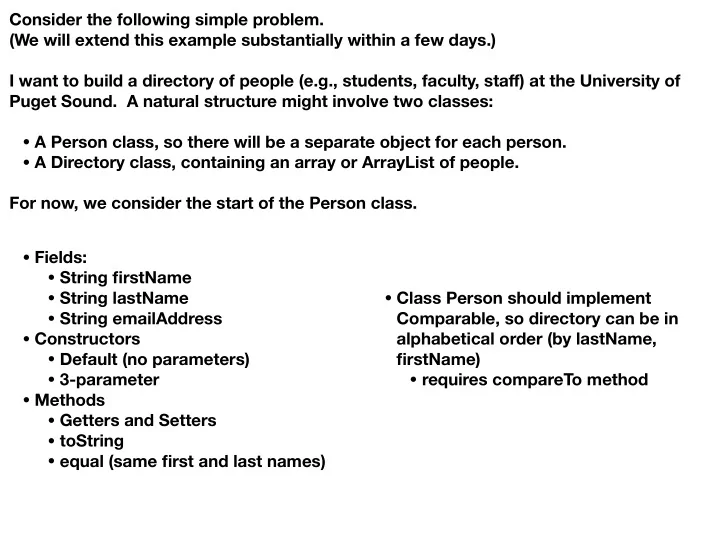
Consider the following simple problem. (We will extend this example substantially within a few days.) I want to build a directory of people (e.g., students, faculty, staff) at the University of Puget Sound. A natural structure might involve two classes:

  • A Person class, so there will be a separate object for each person.
  • A Directory class, containing an array or ArrayList of people.

For now, we consider the start of the Person class.

  • Fields:
  • String firstName
  • String lastName
  • String emailAddress
  • Constructors
  • Default (no parameters)
  • 3-parameter
  • Methods
  • Getters and Setters
  • toString
  • equal (same first and last names)
  • Class Person should implement

Comparable, so directory can be in alphabetical order (by lastName, firstName)

  • requires compareTo method
slide-2
SLIDE 2

The Eclipse Programming Environment Eclipse

  • Widely used in both academia and industry
  • Eclipse (and Java) designed for large-scale software development
  • Editor of choice for CSCI 261
  • Introduced in all sections at some point
  • Introduced from the start in this CSCI 261 section

Quick overview

  • Very powerful
  • Remarkable number of options
  • Capable of providing substantial help
  • Capable of overwhelming the user, so need to be cautious!
  • May be intimidating at first, but COURAGE—pieces will fit together with practice

As we begin:

  • Consider start-up activities
  • Review some basic capabilities to write a simple class
  • Illustrate how to compile and run programs
slide-3
SLIDE 3

Java File Structure

  • Directories organized into a hierarchy
  • Project (top-level directory)
  • Packages (subdirectories containing conceptually similar material)
  • Classes (subdirectories of packages)
  • Eclipse expands this hierarchy to gather projects into workstations
  • Recent versions of Java allow finer organization of materials (e.g., classes and

packages) into modules For now, we'll [almost] ignore modules in this course, as modules are designed to support applications with many (e.g., dozens, hundreds) of packages and classes. Workspace project1 project2 Class1_1_1 package1_1 package1_3 package1_2 package2_1 package2_2 Class1_1_2 Class2_2_1 Class2_2_2 Class2_2_3 . . . Good News: Eclipse handles most [or all] of this for you!

slide-4
SLIDE 4

Getting Started with Eclipse For our application problem, we'll let Eclipse do as much work for us as possible.

  • Identify workspace (when Eclipse starts)
  • Create new project (e.g., examples or myExamples)—use File menu
  • A new module-info.java file is displayed—ignore it
  • Create new package (e.g., myDirectory)—use File menu
  • Create new Person class—use File Menu
  • Use option to set to include basic comments
  • After creating the class, a new editing window appears

Let's start our development work:

  • Define 3 String fields: firstName, lastName, emailAddress
  • Define constructors—try source menu
  • Define getters and setters—try source menu
  • Define toString method—try source menu
  • Just for fun, let's define when two people are equal (same first and last names)

What about making this implement Comparable?

  • Add "extends Comparable"
  • Start required compareTo method—click on red "x" on class-definition line

Let's do some testing with a PersonTest class

  • Create new PersonTest class (in same package)
  • Set to include main template
  • Fill in a few tests
  • To run test, use Run (as Java Application) option