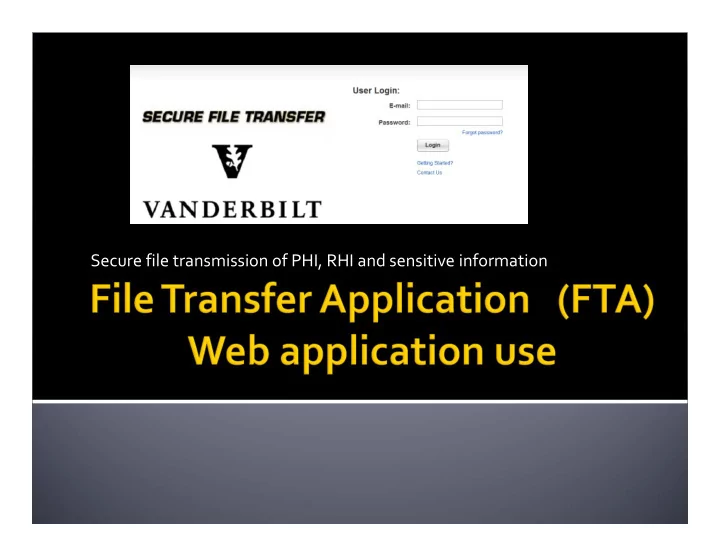
Secure file transmission of PHI, RHI and sensitive information - - PowerPoint PPT Presentation

secure file transmission of phi rhi and sensitive
SMART_READER_LITE
LIVE PREVIEW

Secure file transmission of PHI, RHI and sensitive information - - PowerPoint PPT Presentation

Secure file transmission of PHI, RHI and sensitive information Background File Transfer Application (FTA) Web Application Use Outlook Plug In Use Workspace Use 2 Information Privacy & Security Executive Committee


slide-1
SLIDE 1

Secure file transmission of PHI, RHI and sensitive information

slide-2
SLIDE 2

 Background  File Transfer Application (FTA)  Web Application Use  Outlook Plug‐In Use  Workspace Use

2

slide-3
SLIDE 3

Information Privacy & Security Executive Committee

  • VUMC, through its IPSEC

▪ Regularly assesses the operating and computing environment ▪ Identifies risk factors ▪ Defines safeguards against intentional or unintentional disclosure of Protected Health Information (PHI), Research Health Information (RHI), person‐identifiable,

  • r other confidential or proprietary information created,

used, or maintained by Vanderbilt.

3

slide-4
SLIDE 4

Electronic Messages Containing Sensitive Information

  • Electronic messages (e.g. email, text messaging, or instant

messaging) may contain information that is regarded as sensitive by either the sender or receiver

  • Individually identifiable Sensitive Information is not to be transmitted

by Vanderbilt Workforce Members over electronic communication systems without taking appropriate measures to safeguard the security of the information against message interception, content alteration, or unauthorized disclosure.

  • The File Transfer Application is a tool workforce members can use with

email to transfer files of information securely

4

slide-5
SLIDE 5

What is the File Transfer Application (FTA) and when should it be used?

  • FTA is an application allowing a user to securely

transfer a file from one email user to another.

  • It is the File that is secured, rather than the text of

the email.

  • The FTA should be used for transferring

confidential or sensitive information as indicated in the policy

▪ but not for general file attachment use.

5

slide-6
SLIDE 6

What is the File Transfer Application (FTA) and when should it be used?

  • The FTA is a companion process to support

compliance of the Electronic Messaging of Individual Identifiable Patient and Other Sensitive Information policy OP 10‐40.37 to assist in secure file transfer.

▪ According to the 10‐40.37 policy ‐ Use of secure messaging via the StarPanel message basket system is the preferred mode of electronic messaging among and between VUMC clinical staff and faculty about a specific patient. ▪ MHAV is the preferred mode of electronic messaging between a patient and a provider

6

slide-7
SLIDE 7

Who will use the FTA?

  • There are two classifications of users: (Internal &

External)

▪ Internal:

▪ 1. The Web Application user ‐ a user whose position requires transfer

  • f secure files internally or externally, less than 10 times per month.

▪ 2. The Outlook Plug‐in Key Function User ‐ a user whose position requires multiple occurrences of secure file transfers in excess of 10 times per month.

▪ External:

▪ User will be Web Application User by receiving an email from an internal user only.

7

slide-8
SLIDE 8

How do I begin using the Web version of FTA?

  • For Vanderbilt Users – an account already exists

and logging in will activate your account

  • Your User ID is user’s Vanderbilt Email Address

firstname.lastname@vanderbilt.edu The email address is utilized because it is easily recognizable.

  • Your Password is your ePassword (the one that is

normally used with the users VUnetID)

8

slide-9
SLIDE 9

 The follow are the instructions on how to use secure file

transfer with the web application.

 If you experience ANY difficulties, please contact the VUMC

Help Desk at 3‐HELP (3‐4357) and have them open a ticket for Network Security

 Click on this link to navigate to the website

https://accellion.mc.vanderbilt.edu/courier/1000@/mail_user_login.html

 It is recommended that the user bookmark the link for future

reference.

9

slide-10
SLIDE 10

10

Login In User ID is the user’s Vanderbilt Email address firstname.lastname@vanderbilt.edu The email address is utilized because it is easily recognizable and the VUnetID is not used due to security measures. The Password is your ePassword (the one that is normally used with the users VUnetID)

slide-11
SLIDE 11

11

Send a file Select Send File from Menu

slide-12
SLIDE 12

12

TO: Enter the recipient email address. Us comma

  • r semicolon to separate multiple recipients and

maximum number of recipients should not exceed

  • 40. Use auto complete feature to send to email

addresses that have already been sent files using

  • Accellion. Click on “Add CC” and/or “Add BCC” as

desired. SUBJECT/BODY/TEXT: Enter the subject and body text you want for the email – subject and body are not secured. Rather it Is the attachment that is

  • secured. Therefore, sensitive information should

be included in the attachment rather than in the subject or body of the email ATTACHMENTS: Select the files to send using the steps outlined below: 1. Click Choose file or Choose from File Manager 2. Choose the file(s) 3. Click Open to attach 4. Click on the red X to the right of the file if you wish to remove a file Click on Send to transmit the message and a progress bar will display briefly

slide-13
SLIDE 13

13

A Sent Mail Confirmation will appear upon completion of file(s) upload and message sent Once you click on “ok” the screen will return to Send File. If you do not have any

  • ther files to securely transmit, choose to

Sign Out

slide-14
SLIDE 14

14

Sample of COPY the sender will receive indicating that the message was sent and what files were sent.

slide-15
SLIDE 15

15

Sample of RECIEPT the sender will receive when the recipient retrieves the file. Sender will receive a receipt for each file

slide-16
SLIDE 16

When I am finished sending files from the Web Application, how do I know I have closed my connection to the FTA?

  • The user needs to make sure they have

completely closed their Web Browser (i.e. close all Internet Explorer ‐ pages, windows, tabs)

  • This is applicable also if you are the receiver and

going to the web to retrieve file(s)

16

slide-17
SLIDE 17

 What is the experience for the receiving person?

  • The Internal user (VU/VUMC) will click on the link

to the file in their email and sign in with their email address and VUnet epassword

  • The External user will receive an email form a

Vanderbilt Workforce Member and be required to set up an account for the Web Application

17

slide-18
SLIDE 18

 What is the Maximum File Attachment size

in the Web Application?

  • There is no Maximum file size for the Web

Application.

18

slide-19
SLIDE 19

 How long does the Web Application

retain files and messages?

  • The files and messages sent from the Web Application are

currently retained for 30 days. 7 days for files over 2GB.

 How long are Web Application

Accounts Retained?

  • Internal accounts are set to expire after 120 days of inactivity.
  • External accounts are set to expire after 45 days of inactivity

19

slide-20
SLIDE 20

Information Privacy & Security Website

http://www.mc.vanderbilt.edu/root/vumc.php?site=InfoPrivacySecurity&doc=30530

20