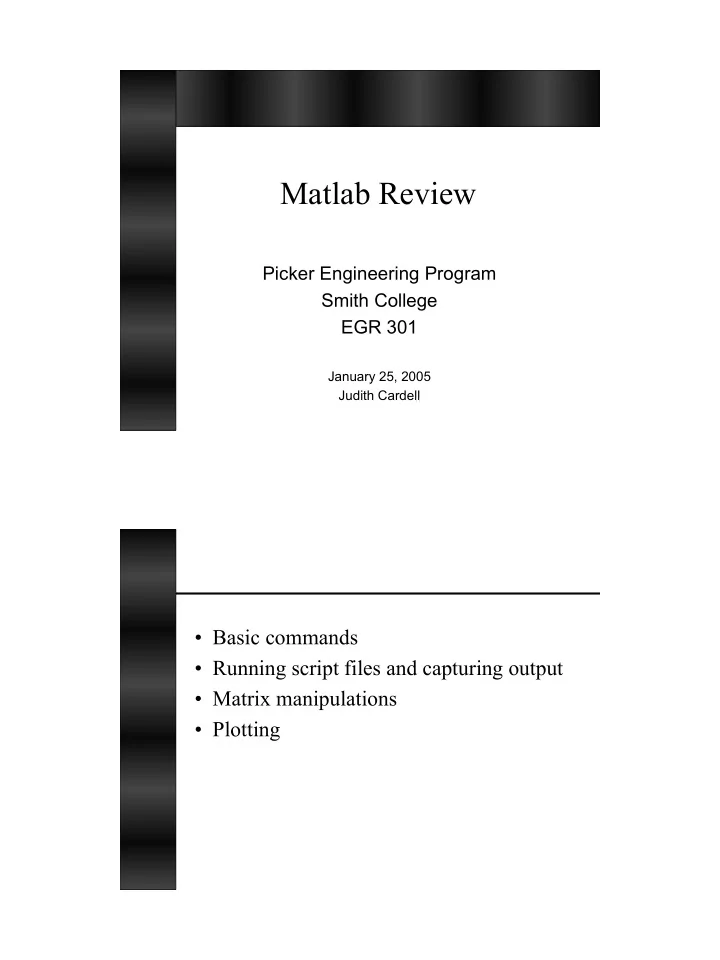
Matlab Review Picker Engineering Program Smith College EGR 301 - - PDF document

matlab review
SMART_READER_LITE
LIVE PREVIEW

Matlab Review Picker Engineering Program Smith College EGR 301 - - PDF document

Matlab Review Picker Engineering Program Smith College EGR 301 January 25, 2005 Judith Cardell Basic commands Running script files and capturing output Matrix manipulations Plotting Matlab Hints Matlab is available on


slide-1
SLIDE 1

Matlab Review

Picker Engineering Program Smith College EGR 301

January 25, 2005 Judith Cardell

  • Basic commands
  • Running script files and capturing output
  • Matrix manipulations
  • Plotting
slide-2
SLIDE 2

Matlab Hints

  • Matlab is available on the EGR, and

most other, computers on campus

  • Icon:

MATLAB 6.5.lnk

Matlab Commands

  • pwd
  • ls
  • cd
  • edit
  • help command
  • See also webpage links and Appendix E
  • f the EGR 220 text
slide-3
SLIDE 3

Matlab Hints

slide-4
SLIDE 4

Matlab Script File

  • Create a ‘.m’ file in the editor

– Type “ edit filename ” in Matlab

  • Include comments!!

– Header

  • Filename
  • Assignment and brief description
  • Your name and date

– Comments throughout

  • ‘%’ is used to indicate a comment line
  • The semicolon tells Matlab not to echo the

information on the given line to the screen Node-voltage equations by inspection

  • Find i1, i2, i3 and i (problem 3.41)
slide-5
SLIDE 5

Analysis by Inspection

Ohm’s law V = IR RI = V

– Rkk = sum of R in mesh k – Rjk = negative sum of R in common between meshes j and k

% % MatlabSample1.m % Your name, date ... % % Problem number 3.41

R = [ 12 -2 0

  • 2 7 -1

0 -1 6]; % The ; tells Matlab ... V = [6 -8 2]'; % Note the '

% % Our equation is R I = V % Solve for I by solving I = inverse(R) V %

I = inv(R)*V % There is no ; here i = I(3) - I(2)

slide-6
SLIDE 6

Running MatlabSample1.m

  • Run your script (.m) file in Matlab

–Once it does what you want, record your results

  • To record your results, type

diary filename.txt name-of-.m-file (note, the output will scroll across the screen when you run your script. The name-of- .m-file in this example is MatlabSample1) diary off

>> diary Sample1Out.txt >> MatlabSample1 I = 0.3291

  • 1.0256

0.1624 i = 1.1880 >> diary off

slide-7
SLIDE 7

Problem 3.41, output from MatlabSample1.m I = % Current vector, i1, i2 and i3 0.3291

  • 1.0256

0.1624 i = % Current through 1Ω resistor 1.1880

EDIT Your Diary File!!!! General Matrix Manipulations

  • Matrix

– An m x n collection of data – (rows x columns)

  • Vector

– An m x 1 array, or – A 1 x n array

  • Matrix manipulation in Matlab

– The ‘:’ operator to select rows, columns or subsets of rows and columns

slide-8
SLIDE 8

>> A = [ 1 2 3 4 ; 5 6 7 8 ; 3 4 5 6 ; 2 6 4 5] A = 1 2 3 4 5 6 7 8 3 4 5 6 2 6 4 5 >> B = [A(1,:)] B = 1 2 3 4 >> C = [A(:,2)] C = 2 6 4 6 >> D = [A(1:2,2)] D = 2 6 >> A = [ 1 2 3 4 ; 5 6 7 8 ; 3 4 5 6 ; 2 6 4 5] A = 1 2 3 4 5 6 7 8 3 4 5 6 2 6 4 5 >> F = [A(1,:) A(3,:)] F = 1 2 3 4 3 4 5 6 >> G = [A(1,:) ; A(3,:)] G = 1 2 3 4 3 4 5 6

slide-9
SLIDE 9

Matrix Multiplication

  • Standard matrix multiplication

– A * B

  • Element-wise multiplication

– Do Not mistake this for matrix multiplication – A .* B

>> A = [ 1 1 ; 1 1; 1 1] A = 1 1 1 1 1 1 >> B = A‘ ( Matrix transpose ) B = 1 1 1 1 1 1 >> C = B * A C = 3 3 3 3 >> D = B .* A ??? Error using ==> .* Matrix dimensions must agree. >> D = B(:,1:2) .* A(1:2,:) D = 1 1 1 1

slide-10
SLIDE 10

Plotting

  • 2-D plots

– Input or create x- and y- axis data sets – plot (x, y, ‘b--’) – Also contour(), based on x, y, z data

  • 3-D plots

– Input or create x-, y- and z- axis data sets – mesh (x, y, z) – Or, setup x- and y-axes with meshgrid() – Also:

surf()

slide-11
SLIDE 11
slide-12
SLIDE 12

Plotting

  • Scale axes with axis() command
  • To create time step data for x-axis

t = [start-value: step-size: end-value]

>> t = [0:0.5:5] t = 0.0 0.5 1.0 1.5 2.0 2.5 3.0 3.5 4.0 4.5 5.0

  • Label axes and plots

– title(), xlabel(), ylabel()

  • For plotting more than one line ‘hold on’

and ‘hold off’ can be useful