How to Make Texture Animation and Dynamic Background 1. In the 3D - - PDF document

how to make texture animation and dynamic background
SMART_READER_LITE
LIVE PREVIEW

How to Make Texture Animation and Dynamic Background 1. In the 3D - - PDF document

How to Make Texture Animation and Dynamic Background 1. In the 3D Presentation, Maybe we need make some animation effects, but we don t want the Text or shape move. No problem, we can use the Texture Animation function. First: set a texture on


slide-1
SLIDE 1

How to Make Texture Animation and Dynamic Background

  • 1. In the 3D Presentation, Maybe we need make some animation effects, but we don’t want the

Text or shape move. No problem, we can use the Texture Animation function. First: set a texture on the text and text-bevel. Sure, if you want, you can blend a color for it.

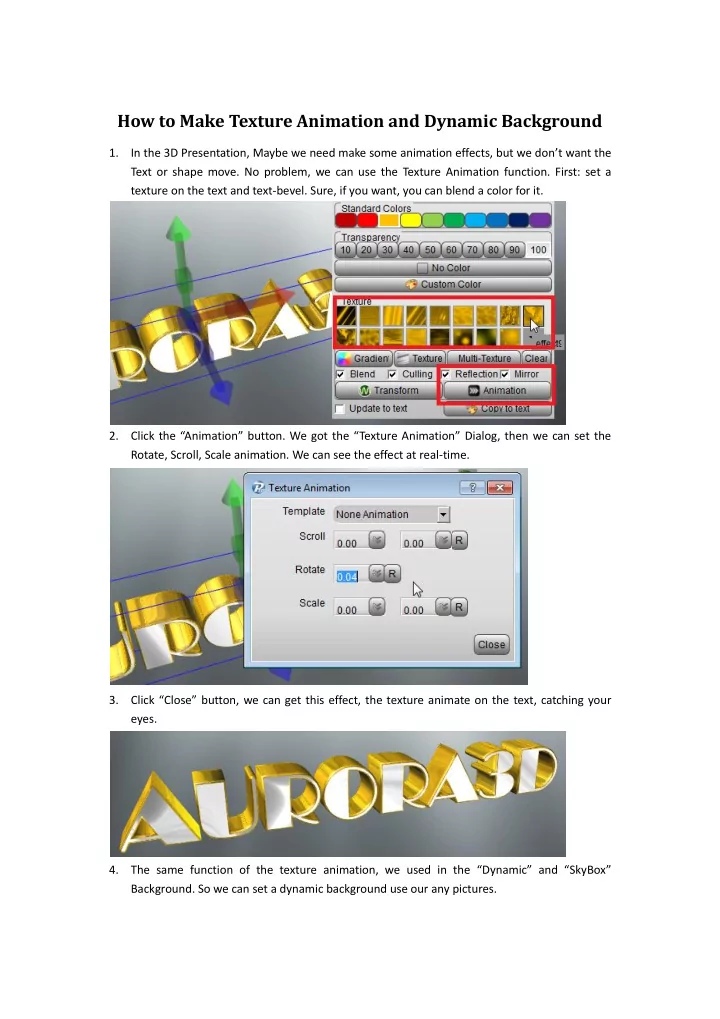
  • 2. Click the “Animation” button. We got the “Texture Animation” Dialog, then we can set the

Rotate, Scroll, Scale animation. We can see the effect at real-time.

  • 3. Click “Close” button, we can get this effect, the texture animate on the text, catching your

eyes.

  • 4. The same function of the texture animation, we used in the “Dynamic” and “SkyBox”
  • Background. So we can set a dynamic background use our any pictures.
slide-2
SLIDE 2
  • 5. Click “Dynamic”, get the “Dynamic Background Setup” dialog. You can set 1 or 2 images to

mix this background animation.

  • 6. Select the background image or you can make this image by yourself.
  • 7. As same as the “Texture Animation” dialog, set Scroll, Rotate or Scale animation based on

your image.

slide-3
SLIDE 3
  • 8. Look this effects. If you want use your imagination, you can make more background effects.
  • 9. The “Skybox Background Setup” is similar the “Dynamic Background”.
  • 10. Set different image, we can get different effects.

Contact us: support@presentation-3d.com website: www.presentation-3d.com