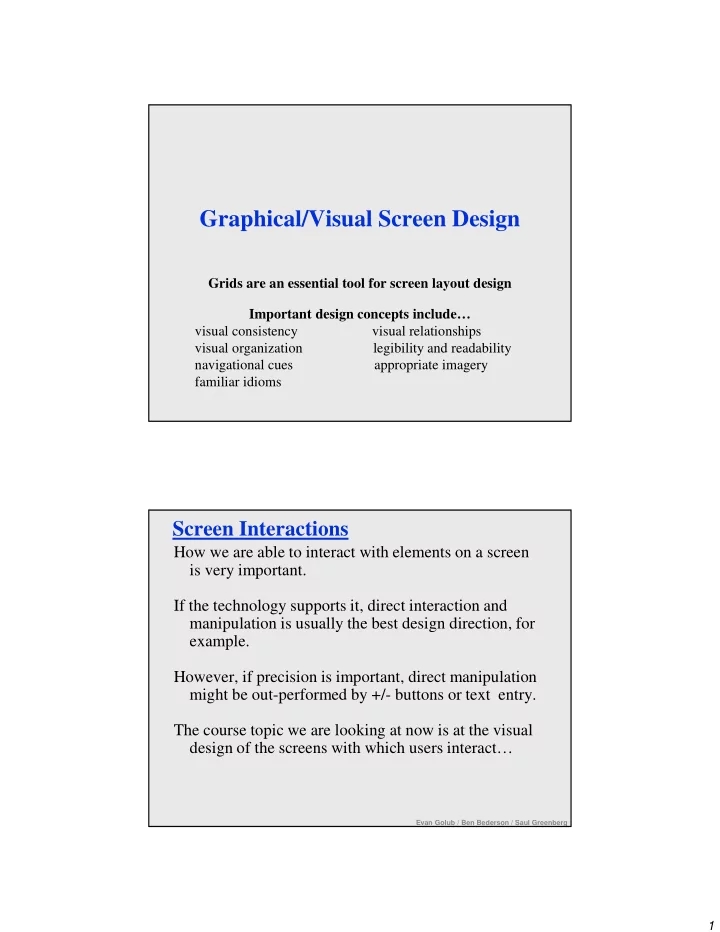
Graphical/Visual Screen Design Grids are an essential tool for - - PDF document

graphical visual screen design
SMART_READER_LITE
LIVE PREVIEW

Graphical/Visual Screen Design Grids are an essential tool for - - PDF document

Graphical/Visual Screen Design Grids are an essential tool for screen layout design Important design concepts include visual consistency visual relationships visual organization legibility and


slide-1
SLIDE 1

1

Graphical/Visual Screen Design

Grids are an essential tool for screen layout design Important design concepts include… visual consistency visual relationships visual organization legibility and readability navigational cues appropriate imagery familiar idioms

Screen Interactions

How we are able to interact with elements on a screen is very important. If the technology supports it, direct interaction and manipulation is usually the best design direction, for example. However, if precision is important, direct manipulation might be out-performed by +/- buttons or text entry. The course topic we are looking at now is at the visual design of the screens with which users interact…

Evan Golub / Ben Bederson / Saul Greenberg

slide-2
SLIDE 2

2

Graphical Design

Good GUI design must account for:

  • comprehensible mental images

– eg: good use of metaphors

  • appropriate organization of data, functions, tasks and roles

– eg: support a reasonable cognitive model

  • quality appearance characteristics

– sometimes called the “look” of a UI

  • effective interaction sequencing

– sometimes called the “feel” of a UI

These ideas are not new…

– “Macintosh Human Interface Guidelines” – “Principle of Effective Visual Communication for GUI design” Marcus article in “Human-computer interaction: toward the year 2000” by Baecker, Grudin, Buxton and Greenberg – “Designing Visual Interfaces” (1994) - Mullet & Sano, Prentice Hall

Evan Golub / Ben Bederson / Saul Greenberg

Components of Visible Language

Layout

  • formats, proportions, and grids

Typography

  • typefaces and typesetting

Imagery

  • signs, icons, symbols; concrete to abstract

Sequencing

  • how the interface unfolds

Visual identity

  • unique appearance

Animation

  • dynamics of display

Color and Texture

  • convey complex information and pictorial reality

scarves: 10.75 hats: 5.43 bold serif fixed italic sans-serif variable

Evan Golub / Ben Bederson / Saul Greenberg

slide-3
SLIDE 3

3

Use of Grids

Horizontal and vertical lines to locate window components

  • aligns related components

Organization

  • contrast to bring out dominant elements
  • grouping of elements by proximity
  • show organizational structure
  • alignment

Consistency

  • location
  • format
  • repetition
  • organization

Window to widget spacing Widget to widget spacing Cancel Ok Message text in Arial 14, left adjusted Standard icon set Fixed components Format of variable contents

Evan Golub / Ben Bederson / Saul Greenberg

Using same Grid-Based Template across project

Cancel Ok Message text in Arial 14, left adjusted Standard icon set

  • Apply

Cancel

The file was destroyed

Cancel Ok Do you really want to delete the file “myfile.doc” from the folder “junk”?

  • Ok

Cannot move the file “myfile.doc” to the folder “junk” because the disc is full.

slide-4
SLIDE 4

4

Generic Grid to Specific Use

Two-level Hierarchy

  • indentation
  • contrast

Grouping by white space Alignment connects visual elements in a sequence Logic of organizational flow

Classic Mac Guidelines (the 1980s)

slide-5
SLIDE 5

5

Classic Mac Guidelines (the 1980s)

Evan Golub / Ben Bederson / Saul Greenberg

Classic Mac Guidelines (the 1980s)

Evan Golub / Ben Bederson / Saul Greenberg

slide-6
SLIDE 6

6

Visual Consistency

Internal consistency

– same conventions and rules for all elements of the GUI unless strong reason – having a set of application-specific grids can help enforce this

Package/Suite consistency

– in a “family” of products, a consistent look and feel (this can be important for users and transfer effects)

External (“platform”) consistency

– follow platform and interface style conventions – use platform and widget-specific grids – deviate from conventions only when it provides a clear benefit to user

Help mmmm mmm mmm mmm Okay

?

Warning mmmm mmm mmm Okay

!

  • Tip of the day: Monday, Mar 12

mmmm mmm mmm

Dismiss

  • Relationships between screen elements (Grouping)

Link related elements, disassociate unrelated elements

  • proxemic clusters
  • white (negative) space
  • alignment
  • explicit structure

Mmmm: Mmmm: Mmmm: Mmmm: Mmmm:

  • Mmmm:

Mmmm: Mmmm: Mmmm: Mmmm:

  • Mmmm:

Mmmm: Mmmm: Mmmm: Mmmm:

Evan Golub / Ben Bederson / Saul Greenberg

slide-7
SLIDE 7

7

Using explicit structure as a crutch from Mullet & Sano

Explicit Structure via Lines can get cluttered

slide-8
SLIDE 8

8

Navigational cues are good because they…

  • provide initial focus
  • direct attention to important, secondary, or peripheral items as

appropriate

  • assist in navigation through material
  • order should follow a user’s conceptual model of sequences
  • Evan Golub / Ben Bederson / Saul Greenberg

Evan Golub / Ben Bederson / Saul Greenberg

Economy of visual elements

  • General philosophy sometimes expressed as “Make simple

things simple, and hard things hard.”

  • Try to minimize number of controls
  • Include only those controls that are necessary

– eliminate, or relegate others to secondary windows

  • Minimize clutter/overload (don’t fear multiple windows)

– so information is not hidden/obscured

NNNN MMMM xxx: ____ xxx: ____ xxx: ____ xxx: ____ xxx: ____ xxx: ____ xxx: ____ xxx: ____ xxx: ____ xxx: ____ xxx: ____ xxx: ____ xxx: ____ xxx: ____ xxx: ____ MMMM NNNN

slide-9
SLIDE 9

9

Tabs to help Visual Economy

Excellent means for factoring/grouping related items. However, can be overdone or not taken far enough, so think it out!

Evan Golub / Ben Bederson / Saul Greenberg

Tree Views to help Visual Economy

Another excellent means for factoring/grouping/clustering related items. However, these can be difficult for some users to know how to use them.

Evan Golub / Ben Bederson / Saul Greenberg

slide-10
SLIDE 10

10

Legibility and readability (I)

Characters, symbols, graphical elements should be easily noticeable and distinguishable.

  • Text set in

Helvetica Text set in Courier TEXT SET IN CAPITALS

  • Text set in

Times Roman

Evan Golub / Ben Bederson / Saul Greenberg

Legibility and readability (II)

Proper use of typography

  • 1-2 typefaces (3 max)
  • normal, italics, bold
  • 1-3 sizes max

Large

Medium

Small

Large

Medium

Small

  • Readable

Design components to be inviting and attractive Design components to be inviting and attractive

Unreadable

  • Design components to be

inviting and attractive

Evan Golub / Ben Bederson / Saul Greenberg

slide-11
SLIDE 11

11

Legibility and readability (III)

Typesetting

– point size – word and line spacing – line length – indentation

Readable Design components to be inviting and attractive Design components to be inviting and attractive

  • Unreadable: Design components

to be easy to interpret and

  • understand. Design components to

be inviting and attractive

Evan Golub / Ben Bederson / Saul Greenberg

Imagery

Signs, icons, symbols

  • right choice within spectrum from concrete to abstract

Icon design very hard

  • except for most familiar, always label them

Image position and type should be related

  • image “family”
  • don’t mix metaphors

Consistent and relevant image use

  • not gratuitous
  • identifies situations, offerings...

Partial icon family

Evan Golub / Ben Bederson / Saul Greenberg

slide-12
SLIDE 12

12

Accurate/Appropriate Imagery

What does that icon in the upper-right corner mean on this event scheduling page?

Evan Golub / Ben Bederson / Saul Greenberg

Visual Identity

Think about the GUI of systems such as the various “generations” of Windows (eg: 3.1/95/XP/7), MacOS (eg: 6/7/8/9/X), NeXT, mobile, etc. and how easily you could spot them in a visual line-up.

slide-13
SLIDE 13

13

Motion/Animation: Many forms…

Some examples are fading transitions such as some menu animations as sub-menus open, directional effects such as minimizing in OS X using the genie effect, fisheye effects such as the magnification option on the MacOS X docking bar, zooming such as pinching (or unpinching?) on mobiles, and “traditional” animations (like animated gifs) to name a

  • few. There can be both good and bad consequences. Here

are some examples:

  • Pro: Could provide more visual cues about a transition.
  • Pro: Could inform a user that they can interact with an item.
  • Pro: Could give sense of locality and/or relationships within data or documents.
  • Con: Could make the process slower overall.
  • Con: Could be visually distracting.
  • Con: Could become “annoying” to the user.

Evan Golub / Ben Bederson / Saul Greenberg

slide-14
SLIDE 14

14

Color

The selection of the “right” color scheme can be important in design. Some things to consider include:

  • metaphor issues: red=bad, green=good
  • psychological issues: light blue-green=tranquil, red=take a risk
  • conflicting colors:
  • vs-

Some Examples of Web resources (there are far many more): http://www.colorschemer.com/online.html http://www.colormatch.dk/

dark blue on black blue on yellow

Evan Golub / Ben Bederson / Saul Greenberg

Some Examples of Color Use

Visual Cue for Current Position Below is what I would call a poorly designed menu. Everything looks inactive, but they were actually live links. There are no actual visual cues until mouse-over. What do you think these colors mean here?

slide-15
SLIDE 15

15

An example of using gradation

Can you see relative levels for the states at a glance?

Evan Golub / Ben Bederson / Saul Greenberg

Universal Usability

Something that in some ways is a topic of its

  • wn, but that is strongly tied to this topic is

universal usability, but I will discuss that more in the “Web Design” slides.

Evan Golub / Ben Bederson / Saul Greenberg

slide-16
SLIDE 16

16

What you now know

Grids are an essential tool for graphical design Important visual concepts include

  • visual consistency

– repetition

  • visual organization

– contrast, alignment and navigational cues

  • visual relationships

– proximity and white space

  • familiar idioms
  • legibility and readability

– typography

  • appropriate imagery

The use of color and animation needs to be considered carefully

Evan Golub / Ben Bederson / Saul Greenberg