SLIDE 1
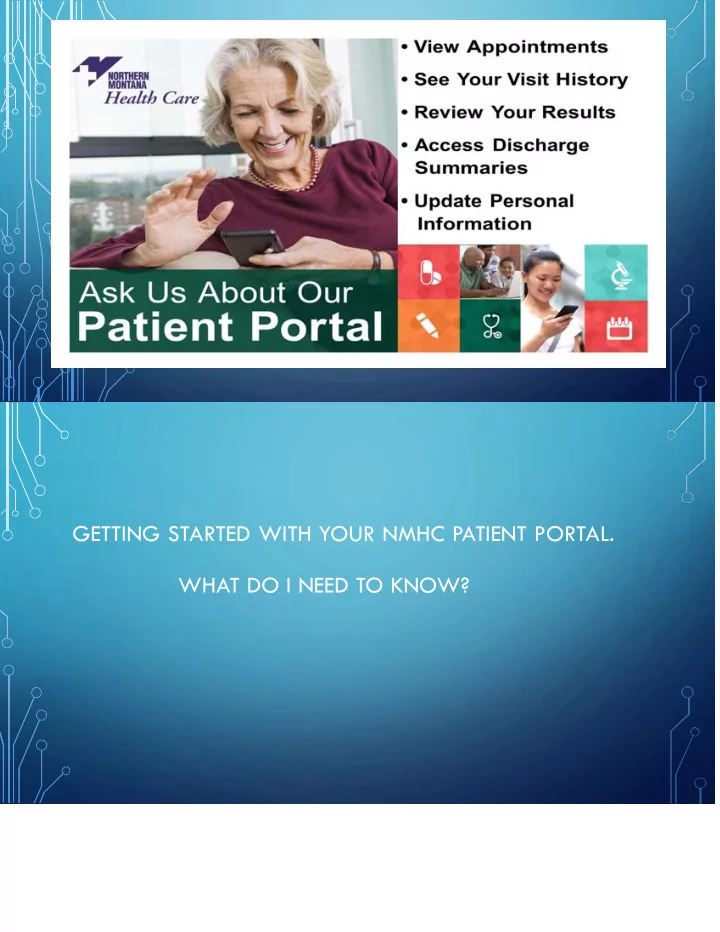
GETTING STARTED WITH YOUR NMHC PATIENT PORTAL. WHAT DO I NEED TO KNOW?
SLIDE 2
How to self enroll? Go to the Patient Portal on www.nmhcare.org and click on “Sign Up Here”. You can now do Self Enrollment. To enroll you will need your Medical Record Number and an Active Email Address. To register with paper forms, contact the HIM (Health Information Management) at 262-1226 and request them to be sent to you.
SLIDE 3
(EXAMPLE) DEAR PAMELA PETUNIA, ***ONE TIME PASSWORD EMAIL*** HTTP://NMH-WEB-WS01:82/PHM- PHMHOME.HOMEPAGE.WR.MTHR?HCIS+MDEWEB.TEST S5.67&APPLICATION+PHM LOGON ID: SJ1134477084 ONE TIME PASSWORD: SJ22A8972 After self enrollment is completed, you will receive an email with a logon id and one time password. Click within the web link to complete registration. Enter the Logon ID and Temporary Password.
SLIDE 4 Change Log On ID to your name or simple name to
- remember. Enter the temporary one time use password then
enter a new password twice. The new password must be 6-10 characters in length. Next choose a security question and enter the answer. Click Submit to file. Once you click Submit it will ask you to sign completely off. Then sign back in using your new sign on and password.
SLIDE 5 When you first log into your portal, you’ll arrive at the HOME
- PAGE. It includes links leading to your Messages (2017),
Health Record, Medications, Appointments and your Profile.
Below the buttons is a section for WHAT’S NEW to let you know there has been new activity since your last log in. The UPCOMING APPOINTMENTS section lists all future appointments by date, time, description, and location of appointment.
SLIDE 6
To the upper right of the navigation buttons are the LOG OFF and CHANGE PERSON buttons. If you are a proxy, meaning you have been given permission to view another person’s information, you can switch to that person. Clicking HEALTH RECORD will take you to a page where you can view a summary of your medical information. You will see allergies, medications, conditions and immunizations.
SLIDE 7
Clicking on VISIT HISTORY will take you to a review of visits within our hospital and clinics. You can see a history of your visits in the hospital and clinics. Click HOME to return to previous screen.
SLIDE 8
Click on RESULTS to view lab test results. You can view your latest results. If you want to see a history of a certain lab test, click on the desired test.
SLIDE 9
After viewing your results, click BACK TO LIST OF TESTS and BACK TO HEALTH RECORDS. Next click on MEDICATIONS.
SLIDE 10
You will see a list of current medications. Click on a specific medication to view detailed prescription information. You may also print your medication list by clicking printer/print. After reviewing your medication detail, click BACK TO LIST OF MEDICATIONS and BACK TO HEALTH RECORD.
SLIDE 11
Click on ALLERGIES AND CONDITIONS. You can select an allergy or condition to view more details. Click BACK TO HEALTH RECORD.
SLIDE 12
Click on REPORTS to see all imaging reports. Click on the desired report to view. Click BACK TO HEALTH RECORD.
SLIDE 13
Click on LETTERS to view any letters sent by your provider, results letters and reminder letters. Click on desired letter to view.
SLIDE 14
After reviewing the letter, click on RETURN TO LIST OF LETTERS and BACK TO HEALTH RECORD. Click HOME. Clicking on PROFILE will allow you to make changes in your personal information; address, marital status, phone numbers, email address, next of kin and more.
SLIDE 15
Click UPDATE PROFILE. Make any changes on the allowed 2 pages and click SUBMIT. These changes will go to HIM, Health Information Management, for review to enter into your demographic information. Return to HEALTH RECORD.
SLIDE 16
Click on HEALTH SUMMARY to view a complete summary of your information that can be printed, downloaded or sent by email. Select a Facility, HOSPITAL or PROVIDER OFFICE PRACTICES.
SLIDE 17
A CONTINUITY OF CARE DOCUMENT is displayed. Click CREATE NEW HEALTH SUMMARY if it is not the most current information. You can now review, print, download or send.
Hope you enjoyed viewing NMHC Patient Portal. Are you ready to SIGN UP? We would love to help you.