16/04/2018 What is Allegro? Allegro is an open source graphic - - PDF document

16 04 2018
SMART_READER_LITE
LIVE PREVIEW

16/04/2018 What is Allegro? Allegro is an open source graphic - - PDF document

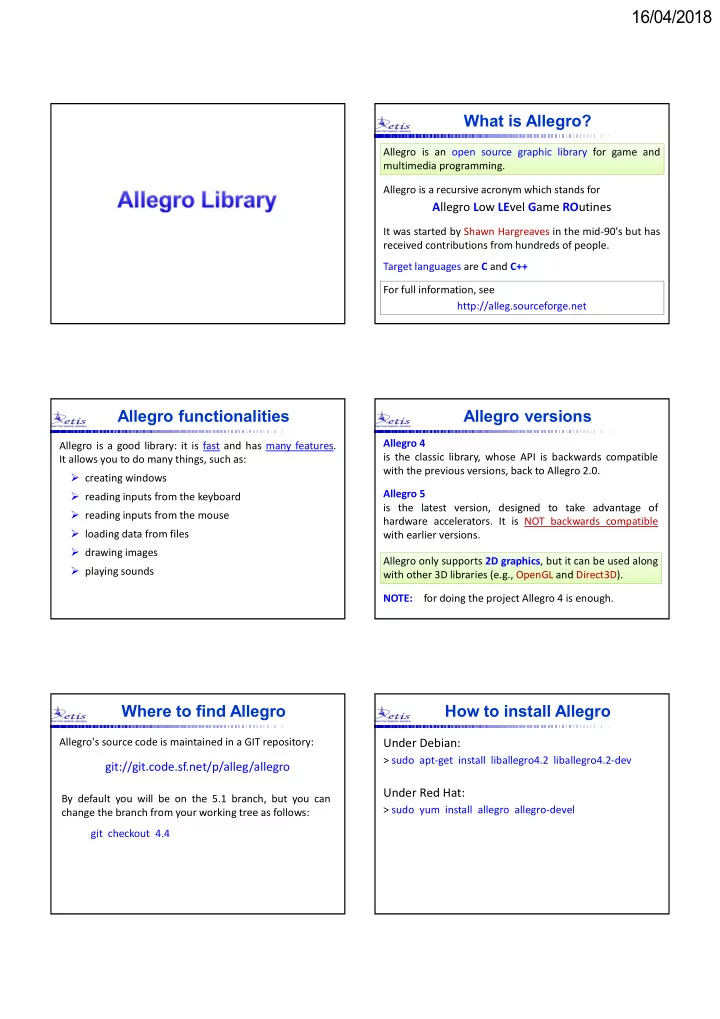
16/04/2018 What is Allegro? Allegro is an open source graphic library for game and multimedia programming. Allegro is a recursive acronym which stands for A llegro L ow LE vel G ame RO utines It was started by Shawn Hargreaves in the mid-90's


slide-1
SLIDE 1

16/04/2018

What is Allegro?

Allegro is a recursive acronym which stands for

Allegro Low LEvel Game ROutines

It was started by Shawn Hargreaves in the mid-90's but has received contributions from hundreds of people. Target languages are C and C++ For full information, see http://alleg.sourceforge.net Allegro is an open source graphic library for game and multimedia programming.

Allegro functionalities

Allegro is a good library: it is fast and has many features. It allows you to do many things, such as:

  • creating windows
  • reading inputs from the keyboard
  • reading inputs from the mouse
  • loading data from files
  • drawing images
  • playing sounds

Allegro versions

Allegro 4 is the classic library, whose API is backwards compatible with the previous versions, back to Allegro 2.0. Allegro 5 is the latest version, designed to take advantage of hardware accelerators. It is NOT backwards compatible with earlier versions. Allegro only supports 2D graphics, but it can be used along with other 3D libraries (e.g., OpenGL and Direct3D). NOTE: for doing the project Allegro 4 is enough.

Where to find Allegro

Allegro's source code is maintained in a GIT repository:

git://git.code.sf.net/p/alleg/allegro

By default you will be on the 5.1 branch, but you can change the branch from your working tree as follows: git checkout 4.4

How to install Allegro

Under Debian:

> sudo apt-get install liballegro4.2 liballegro4.2-dev

Under Red Hat:

> sudo yum install allegro allegro-devel

slide-2
SLIDE 2

16/04/2018

How to compile with Allegro

Source files must contain the directive: #include <allegro.h>

Compiling and linking

> gcc test.c

  • o test

`allegro-config --libs`

Execution

> ./test compile test.c links with the Allegro library produce test as output file

NOTE: these are not apostrophes but grave accents (ALT 96)

Initializing Allegro

allegro_init()

initializes graphics data structures

allegro_exit()

closes the graphic mode and returns in text mode

set_gfx_mode(GFX_AUTODETECT, w, h, vw, vh)

Enters the graphic mode (full screen) with resolution (w, h). If vw and vh are non zero, it defines a larger virtual screen with extra dimensions (vw, vh).

set_gfx_mode(GFX_AUTODETECT_WINDOWED, w, h, 0, 0)

Same as the previous function, but in a window. Valid screen dimensions include: 320 x 240, 640 x 480, 800 x 600 and 1024 x 768.

Graphic coordinates

(0, 0) (639, 479)

set_gfx_mode(GFX_AUTODETECT_WINDOWED, 640, 480, 0, 0);

(0, 479) (639, 0) X Y

Graphic Window

Colors

set_color_depth(n)

Specifies the number n of bits to be used for colors. Possible values of n are: 8 (default) 256 colors - standard VGA 15 RGB: 5 bits for each component 16 RGB: 5-red, 5-blue, 6-green 24 RGB: 8 bits for each component (slow, not aligned) 32 RGB: 8 bits for each component (faster, aligned)

Before entering the graphic mode with set_gfx_mode, you should set the color depth using:

Colors

  • 15, 16, 24, 32-bit modes are called truecolor modes,

because a color is directly represented by the corresponding number. For example, in 16-bit mode, we have:

15 14 13 12 11 10 9 8 7 6 5 4 3 2 1

1 1 1 1 1 1 1

RED GREEN BLUE

1 5 F Exa: Dec: 351

Making colors

color = makecol(red, green, blue); Combines the RGB components (in the range [0, 255]) and returns an integer representing the corresponding color code to be used in the drawing functions. r = getr(color); g = getg(color); b = getb(color); These functions can be used to decompose the color value returned by getpixel into its RGB components. color = getpixel(screen, x, y); Returns the color code corresponding to the pixel at position (x, y) on the screen.

slide-3
SLIDE 3

16/04/2018

Colors

int r, g, b; // range [0, 255] int color; r = 6; g = 42; b = 255; color = makecol(r, g, b); NOTE: In 15- and 16-bit modes, most significant bits are considered for the color.

15 14 13 12 11 10 9 8 7 6 5 4 3 2 1

1 1 1 1 1 1 1

RED GREEN BLUE

6/8 = 0 42/4 = 10 255/8 = 31

Colors

  • In the 8-bit mode (standard VGA) colors are treated as

indexes of a table of 256 elements, (color palette), containing the RGB values in the range [0, 63].

1 2 3 4 255

  

R G B RGB black = {0, 0, 0 }; RGB white = {63, 63, 63}; RGB green = {0, 63, 0 }; RGB grey = {32, 32, 32};

Allegro defines the following types: RGB a struct of 3 unsigned char. PALETTE an array of 256 RGB entries. For example, you can define:

Standard VGA

black blue green cyan red magenta brown light gray

1 2 3 4 5 6 7 8 9 10 11 12 13 14 15

dark gray light blue light green light cyan light red light magenta yellow white

In the 8-bit mode, the first 16 colors in the palette are: clear_to_color(screen, 14) clear the screen making all pixels yellow.

RGB vs. HSV

HSV (Hue, Saturation, Value) is a color representation meant to be more intuitive than RGB, mapping color values into a cylinder: Value represents the perceived luminance in relation to saturation.

RGB vs. HSV

rgb_to_hsv(r, g, b, &h, &s, &v); Converts a color from RGB to HSV: (r, g, b) values range in [0, 255], h is from 0 to 360, s and v are from 0 to 1. hsv_to_rgb(h, s, v, &r, &g, &b); Converts a color from HSV to RGB: (r, g, b) values range in [0, 255], h is from 0 to 360, s and v are from 0 to 1. Allegro provides the following functions to convert colors between the two representations: int r, g, b; // RGB components float h, s, v; // HSV components

Drawing functions

putpixel(screen, x, y, col); col = getpixel(screen, x, y); line(screen, x1, y1, x2, y2, col); rect(screen, x1, y1, x2, y2, col); rectfill(screen, x1, y1, x2, y2, col);

(x, y)

(x2, y2) (x1, y1) (x2, y2) (x1, y1) (x2, y2) (x1, y1)

slide-4
SLIDE 4

16/04/2018

Drawing functions

ellipse(screen, x, y, rx, ry, col);

(x, y) rx

ellipsefill(screen, x, y, rx, ry, col);

ry (x, y) rx ry

circle(screen, x, y, r, col); circlefill(screen, x, y, r, col);

(x, y) r (x, y) r

Drawing functions

int points[10] = {100, 200, 200, 100, 400, 100, 500, 200, 300, 300}; P1 P2 P3 P4 P5

polygon(screen, 5, points, col);

P1 P2 P3 P4 P5 P1 P2 P3 P4

polygon(screen, 4, points, col); triangle(screen, x1, y1, x2, y2, x3, y3, col);

(x2, y2) (x1, y1) (x3, y3) #define RADIUS 50 // disc radius int main() { int x = 100, y = 100, col = 4; // RED color allegro_init(); install_keyboard(); set_color_depth(8); // VGA mode (8 bits) set_gfx_mode(GFX_AUTODETECT,640,480,0,0); clear_to_color(screen, 0); // black background circlefill(screen, x, y, RADIUS, col); readkey(); // wait for any key allegro_exit(); return 0; }

Draws a red disc with radius R:

Drawing functions Text functions

textout_ex(screen, font, s, x, y, col, bg);

writes string s from coordinates (x,y) with color col and background bg. If bg = -1, background is made transparent.

textout_ex(screen, font, "Table", 300, 200, 12, 14);

Table (300,200) (0,0) (0,479) (639,479) (639,0)

Text functions

textout_centre_ex(screen, font, s, x, y, col, bg);

like textout_ex, but the coordinates (x,y) are interpreted as the center of the string, rather than the left edge.

textout_centre_ex(screen, font, "Table", 300, 200, 12, 14);

(0,0) (0,479) (639,479) (639,0) Table (300,200)

Printing variables

sprintf(s, "format", var, …);

like printf, but puts the output in string s.

Combining sprintf with textout_ex we can write anything in graphic mode.

char s[20]; float x = 3.14159; sprintf(s, "x = %5.2f\n", x); textout_ex(screen, font, s, 5, 8, 4, -1); The following code prints 3.14 starting from coordinate (5,8) with red color (4) on transparent background (-1): prints only two digits after the decimal point

slide-5
SLIDE 5

16/04/2018

Keyboard functions

install_keyboard() install the keyboard manager keypressed() returns a positive value (true) if there are characters in the keyboard buffer, or zero (false) otherwise. This function does not block the program execution. a = readkey() returns an integer coding the next character found in the keyboard buffer. If there are no characters. It blocks the execution until a key is pressed.

readkey

int a; char ascii, scan; a = readkey(); ascii = a & 0xFF; scan = a >> 8; scancode ASCII code high byte low byte The ASCII code is a code of 7 bits identifying the pressed character. The scancode is a code of 1 byte identifying the key pressed or

  • released. Such a code is the same for all PCs and it is independent of

the symbol printed on the keyboard. Its most significant bit is 0 if the key is pressed, 1 if it is released.

The following function waits for a key pressed and extracts the corresponding ascii code and scan code:

A useful input function

void get_keycodes(char *scan, char *ascii) { int k; k = readkey(); // block until a key is pressed *ascii = k; // get ascii code *scan = k >> 8; // get scan code }

Scancode Keys

KEY_A ... KEY_Z KEY_0 ... KEY_9 KEY_F1 ... KEY_F12 KEY_ESC, KEY_TAB, KEY_BACKSPACE KEY_ENTER KEY_SPACE KEY_END KEY_HOME KEY_LEFT KEY_RIGHT KEY_UP KEY_DOWN KEY_LSHIFT KEY_RSHIFT KEY_ALT KEY_ALTGR KEY_LCONTROL KEY_RCONTROL KEY_PGUP KEY_PGDN key[] array of flags automatically updated by Allegro. For instance, key[KEY_ESC] is 1 (true) if the ESC key is pressed, 0 (false) otherwise.

int x, y, col; char c; srand(time(NULL)); do { x = rand()%XMAX; y = rand()%YMAX; col = rand()%16; putpixel(screen, x, y, col); } while (!key[KEY_ESC]);

The following code draws some pixels of random color in random points of the screen, until the ESC key is pressed:

Exiting by pressing ESC

void get_string(char *str, int x, int y, int c, int b) { char ascii, scan, s[2]; int i = 0; do { get_keycodes(&scan, &ascii); if (scan != KEY_ENTER) { s[0] = ascii; // put ascii in s for echoing s[1] = '\0'; textout_ex(screen, font, s, x, y, c, b); // echo x = x + 8; str[i++] = ascii; // insert character in string } } while (scan != KEY_ENTER); str[i] = '\0'; }

The following function reads a string from the keyboard and displays the echo in graphic mode at position (x,y), color c and background b:

Another useful function

slide-6
SLIDE 6

16/04/2018

Reading variables

sscanf(s, "format", var, …);

like scanf, but reads data from string s and stores them according to parameter format in the subsequent variables.

In graphic mode, numeric data must be first read as a string and then converted into variables using sscanf.

In graphic mode, the string s can be read using the function get_string() previously shown. NOTE: get_keycodes() and get_string() are NOT Allegro functions and must be explicitly defined.

Reading variables

char str[20]; // string for data input float x; // float to be read as input textout_ex(screen, font, "x: ", 10, 30, 3, 0); // prompt get_string(str, 34, 30, 3, 0); // read data with echo sscanf(str, "%f", &x); // convert string into float

The following code reads a float from the keyboard and stores it in the variable x:

Mouse functions

install_mouse() installs the Allegro mouse manager, which updates the following global variables:

bit 0  Left button bit 1  Right button bit 2  Middle button

mouse_x mouse x coordinate mouse_y mouse y coordinate mouse_b state of the buttons:

2 1 0 M R L mouse_b int x, y; int col = 14; // yellow color install_keyboard(); install_mouse(); do { if (mouse_b & 1) { x = mouse_x; y = mouse_y; putpixel(screen, x, y, col); } } while (!key[KEY_ESC]);

The following code draws a yellow trace when we press the left button of the mouse, until the ESC key is pressed:

Mouse functions Mouse functions

show_mouse(screen) displays the mouse on the screen. show_mouse(NULL) disables the mouse visualization. position_mouse(x, y) set the mouse to the specified screen position. It does not work if hardware cursor is enabled. enable_hardware_cursor() The mouse cursor is drawn by the operating system (not by Allegro). This way is faster, but some Allegro functions cannot be used.

Mouse functions

NOTE: Mouse visualization can interfere with graphics functions, hence when drawing graphics it is better to disable mouse visualization using scare_mouse() and unscare_mouse():

if (mouse_b & 1) { x = mouse_x; y = mouse_y; scare_mouse(); putpixel(screen, x, y, col); unscare_mouse(); }

slide-7
SLIDE 7

16/04/2018

Changing the mouse icon

set_mouse_sprite(myicon) replace the mouse icon with the specified BITMAP.

BITMAP* mic; // load the new icon from file mic = load_bitmap("newicon.bmp", NULL); // set the new icon and focus set_mouse_sprite(mic); set_mouse_sprite_focus(MFX, MFY); position_mouse(MX0, MY0); show_mouse(screen);

set_mouse_sprite_focus(x, y) set the mouse focus at the specified position (x, y).

Bitmaps

A bitmap is block of memory used as a virtual screen with a given width and height. Allegro functions are not restricted to write to the screen; they can write to a bitmap. To create a bitmap you have to:

  • 1. create a pointer to the BITMAP type defined in Allegro;
  • 2. allocate the memory using create_bitmap.

BITMAP *buffer; // pointer to the bitmap int width = 640; int height = 480; buffer = create_bitmap(width, height);

Using bitmaps

When a bitmap is created, it is not empty (black), so it needs to be initialized: clear_bitmap(buffer); clear_to_color(buffer, color); They clear the bitmap with color 0, or with a given color. Then, a bitmap can be written like the screen. For example: putpixel(buffer, x, y, color); circle(buffer, x, y, r, color); line(buffer, x1, y1, x2, y2, color);

Bitmap dimensions

Once created, the dimensions of a bitmap can be accessed through its pointer by reading the corresponding fields of the BITMAP structure: buffer->w contains the bitmap width buffer->h contains the bitmap height The dimensions of the screen bitmap can be accessed by: SCREEN_W contains the screen width SCREEN_H contains the screen height

Destroying bitmaps

After usage, the bitmap memory can be de-allocated by: destroy_bitmap(buffer); The

  • perating

system automatically reclaims bitmap memory on exit, so you do not need to call destroy_bitmap

  • n every bitmap that has been created or loaded.

However, it is very important to call destroy_bitmap on temporary bitmaps created within functions, otherwise the application may run out of memory.

Copying bitmaps

blit(source, dest, xs, ys, xd, yd, w, h); BLIT stands for "BLock Image Transfer", hence this function copies a rectangular area of the source bitmap to the dest bitmap:

(xd, yd)

dest bitmap source bitmap

(xs, ys) w h

slide-8
SLIDE 8

16/04/2018

Copying bitmaps

In this example, a buffer is first created with the same size

  • f the screen. Then, we can draw everything on the buffer

and then copy it to the screen:

BITMAP *buf; // pointer to the buffer buf = create_bitmap(SCREEN_W, SCREEN_H); // after writing something on the bitmap // you can copy it on the screen by blit(buf, screen, 0, 0, 0, 0, buf->w, buf->h);

This technique, known as double buffering, is used to avoid flickering due to the video refresh mechanism.

Sprites

If you have a file called fish.bmp, you can load the image into a bitmap using load_bitmap: A sprite is a small bitmap that is part of a bigger bitmap.

fish.bmp

BITMAP *load_bitmap(char *filename, NULL); It creates a bitmap (allocating memory) and writes it with the contain of the specified file. It returns the pointer to the bitmap, or NULL if there is an error. The second argument is a pointer to the color palette, but can be set to NULL if not used.

BITMAP *fish; // pointer to bitmap int x = 300; int y = 200; fish = load_bitmap("fish.bmp", NULL); if (fish == NULL) { printf("file not found\n"); exit(1); } blit(fish, screen, 0, 0, x, y, fish->w, fish->h);

The following code loads a sprite from the file fish.bmp and displays it on the screen at position (x, y):

Loading sprites Loading sprites

The result of the previous piece of code is the following:

(300,200)

FILE fish.bmp

screen

load_bitmap blit BITMAP fish

Saving sprites

Saves a sprite pointed by bmp and the corresponding palette pal into the specified file. int save_bitmap(char *file, BITMAP *bmp, RGB *pal);

BITMAP *bmp; PALETTE pal; get_palette(pal); // get current palette mysprite = create_bitmap(width, height); // draw something in mysprite save_bitmap("mysprite.bmp", mysprite, pal);

In many cases, we would like some pixels of the sprite to be transparent, so we can see the background scene:

Handling transparency

slide-9
SLIDE 9

16/04/2018

draw_sprite(screen, fish, x, y); Draws the fish bitmap on the screen at position (x, y). It is similar to blit(fish, screen, 0, 0, x, y, fish->w, fish->h), but it uses a masked drawing mode where transparent pixels are skipped, so the background image will show through the masked parts of the sprite.

  • In 8-bit (VGA) mode, transparent pixels are marked by 0.
  • In truecolor modes they are marked with the color

makecol(255, 0, 255), corresponding to bright pink.

Handling transparency

BITMAP *fish, *fishp; // pointers to bitmap PALETTE pal; // color palette int x, y, c; int pink, white; white = makecol(255, 255, 255); pink = makecol(255, 0, 255); fish = load_bitmap("fish.bmp", NULL); fishp = create_bitmap(fish->w, fish->h); for (x=0; x<fish->w; x++) for (y=0; y<fish->h; y++) { c = getpixel(fish, x, y); if (c == white) c = pink; putpixel(fishp, x, y, c); } get_palette(pal); save_bitmap("fishp.bmp", fishp, pal);

This code loads a sprite with white background, converts white pixels into pink, and saves the new sprite into a file:

How to make pink background

int x, y, c; int pink; float hue, sat, val; for (x=0; x<fish->w; x++) for (y=0; y<fish->h; y++) { c = getpixel(fish, x, y); rgb_to_hsv(getr(c), getg(c), getb(c), &hue, &sat, &val); val = val * 255; if (val >= 240) c = pink; putpixel(fishp, x, y, c); } get_palette(pal); save_bitmap("fishp.bmp", fishp, pal);

If the background is not perfectly white, you can convert the colors in HSV and replace them depending on the value V:

How to make pink background

BITMAP *fish; // pointer to bitmap int x = 300; int y = 50; fish = load_bitmap("fishp.bmp", NULL); if (fish == NULL) { printf("file not found\n"); exit(1); } blit(fish, screen, 0, 0, x, y, fish->w, fish->h); draw_sprite(screen, fish, x, y+200);

The following code loads the sprite from the file fishp.bmp and displays it on the screen in two different modes:

Visualizing sprites

FILE fishp.bmp

screen

load_bitmap draw_sprite BITMAP fish

Handling transparency

Here is the result: while blit prints all pixels as they are, draw_sprite interprets pink pixels as transparent.

blit

Other functions on bitmaps

draw_sprite_v_flip(bmp, sprite, x, y); draw_sprite_h_flip(bmp, sprite, x, y); draw_sprite_vh_flip(bmp, sprite, x, y); stretch_sprite(bmp, sprite, x, y, width, height); They are similar to draw_sprite, but in addition flip the image vertically, horizontally, or both, respectively. It is similar to draw_sprite, but stretches the image to the specified width and height.
slide-10
SLIDE 10

16/04/2018

Other functions on bitmaps

rotate_sprite(bmp, sprite, x, y, angle); It draws the sprite image on the bitmap. The image is first placed with its top-left corner at the specified position, then rotated by the specified angle around its centre. For efficiency reasons, the angle is specified as a fixed point number, where 256 is equal to a full circle.

rotate_sprite(screen, fish, x, y, itofix(32));

Conversion can be done by itofix(n) or ftofix(x). Positive angles correspond to clockwise rotations. For example the following function makes a clockwise rotation of 45 degrees:

Sprite sequences

Playing cyclic sequences of sprites can make effects like this:

Sprite sequences

#define N 12 // number of images BITMAP *earth[N]; // array of bitmap pointers char filename[N][20]; // array of strings of 20 chars int i; for (i=0; i<N; i++) // load images earth[i] = load_bitmap(filename[i], NULL); i = 0; while (1) { draw_sprite(screen, earth[i], x, y); i = (i+1)%N; wait_for_period(task_index); } }

The following code draws a new sprite every period in a cyclic sequence of N images:

Playing sound

int install_sound(int digi, int midi, const char *cfg_path);

Initializes the sound module. The first two parameters are normally DIGI_AUTODETECT and MIDI_AUTODETECT. This allows the user to select different values with the setup utility. The cfg_path parameter is only present for compatibility with previous versions of Allegro and has no effect, so can be set to 0. It returns 0 if the sound is successfully installed, -1 on failure. Allegro allows you to play two types of audio files:

  • wave files (consisting in a sequence of audio samples);
  • MIDI files (consisting in a sequence of MIDI commands).

To do that, you have to initialize the sound module: SAMPLE *load_sample(const char *filename);

Loads a sequence of audio samples from the specified file, allocates into memory and returns its pointer. It supports both mono and stereo WAV and mono VOC files, in 8 or 16-bit formats, as well as formats handled by functions register_sample_file_type().

int play_sample(SAMPLE *s, int vol, int pan, int freq, int loop);

Plays sample s at the specified volume, pan, and frequency. Volume and pan values range from 0 (min/left) to 255 (max/right). Frequency value is relative: 1000 represents the frequency that the sample was recorded at, 2000 is twice this, etc. If loop is not zero, the sample will repeat until you call stop_sample(), and can be manipulated while it is playing by calling adjust_sample().

Playing samples

void set_volume(int digi_volume, int midi_volume);

Specifies volumes for both digital samples and MIDI playback, as integers from 0 to 255. A negative value leaves it unchanged.

int adjust_sample(SAMPLE *s, int vol, int pan, int freq, int loop);

Alters the parameters of a sample while it is playing. You can alter the volume, pan, and frequency, and can also clear the loop flag, which will stop the sample when it next reaches the end of its loop. The parameters are same as those used in play_sample(). If the sample is not playing it has no effect.

Playing samples

void stop_sample(SAMPLE *s);

Stops playing a sample.

slide-11
SLIDE 11

16/04/2018

SAMPLE *sample; allegro_init(); install_sound(DIGI_AUTODETECT, MIDI_AUTODETECT, 0); sample = load_sample("tune.wav"); if (tune == NULL) { printf("ERROR ON LOADING WAVE FILE\n"); exit(1); } play_sample(sample, 255, 128, 1000, 0);

Playing samples

The following code loads the file “tune.wav” and start playing it. To play MIDI files you first need to do the following:

  • 1. Download the file:

http://www.eglebbk.dds.nl/program/download/digmid.dat

  • 2. Copy it into the directory of your program
  • 3. Rename it into patch.dat

Playing MIDI

MIDI *load_midi(const char *filename);

Loads a MIDI file, allocates it into memory ad returns its pointer, or NULL on error. Remember to free this MIDI file later to avoid memory

  • leaks. It handles both Type 0 and Type 1 MIDI formats.
  • In Type 1 file parts are saved on different tracks in the sequence.
  • In Type 0 file everything is merged onto a single track.

Playing MIDI

int play_midi(MIDI *m, int loop);

Starts playing the specified MIDI file, first stopping whatever music was previously playing. If the loop flag is set to non-zero, the data will be repeated until replaced with something else, otherwise it will stop at the end of the file. Passing a NULL pointer will stop whatever music is currently playing. It returns non-zero if an error occurs.

MIDI *tune; allegro_init(); install_sound(DIGI_AUTODETECT, MIDI_AUTODETECT, 0); tune = load_midi("tune.mid"); if (tune == NULL) { printf("ERROR ON LOADING MIDI\n"); exit(1); } play_midi(tune, 0);

Playing MIDI

The following code loads the file “tune.mid” and start playing it.

Playing MIDI

void midi_out(unsignedchar *data, int length);

Streams a block of MIDI commands into the player, allowing you to trigger notes over the MIDI file that is currently playing.

void load_midi_patches();

Forces the MIDI driver to load the entire set of patches ready for use. It has to be called before sending any program change messages via the midi_out() command.

void stop_midi();

Stops playing a midi

  • sequence. It has the same

effect as play_midi(NULL, 0).