Todays lecture Recap of yesterdays lecture Databases 2 Retrieving - - PowerPoint PPT Presentation

today s lecture
SMART_READER_LITE
LIVE PREVIEW

Todays lecture Recap of yesterdays lecture Databases 2 Retrieving - - PowerPoint PPT Presentation

Todays lecture Recap of yesterdays lecture Databases 2 Retrieving Using Queries to retrieve information from database information Using Reports to retrieve information from a database Lecture 15 COMPSCI111/111G S1


slide-1
SLIDE 1

Databases 2 – Retrieving information

Lecture 15 – COMPSCI111/111G S1 2019

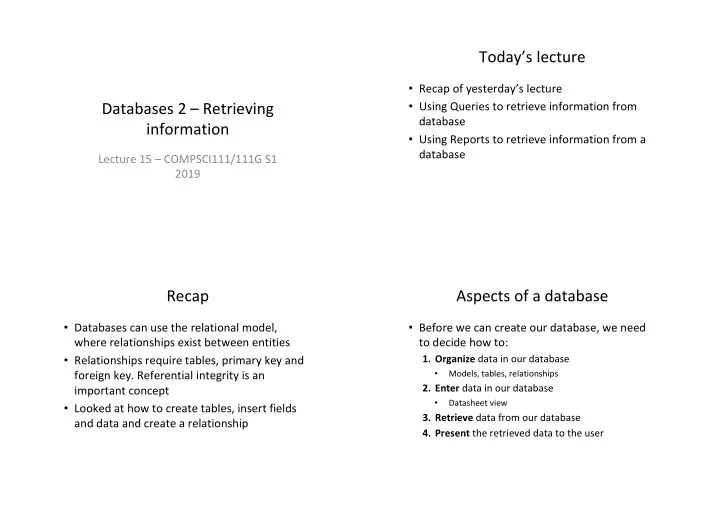
Today’s lecture

  • Recap of yesterday’s lecture
  • Using Queries to retrieve information from

database

  • Using Reports to retrieve information from a

database

Recap

  • Databases can use the relational model,

where relationships exist between entities

  • Relationships require tables, primary key and

foreign key. Referential integrity is an important concept

  • Looked at how to create tables, insert fields

and data and create a relationship

Aspects of a database

  • Before we can create our database, we need

to decide how to:

  • 1. Organize data in our database
  • Models, tables, relationships
  • 2. Enter data in our database
  • Datasheet view
  • 3. Retrieve data from our database
  • 4. Present the retrieved data to the user
slide-2
SLIDE 2

Retrieving data - queries

  • Queries allow you to retrieve certain records

from your database

  • Two kinds of queries in Access:

– Query by example (QBE):

  • Visual way of designing queries
  • Access converts your QBE queries into SQL

– SQL (Structured Query Language):

  • Uses commands to retrieve data from databases
  • Developed by IBM in the late 1970’s
  • Access creates a table containing the results of

the query

QBE queries QBE queries

QBE grid Choosing fields Adding criteria to the field

QBE queries

‘Run’ button Query results

slide-3
SLIDE 3

QBE queries - sorting

  • Results from QBE queries can be sorted in

ascending and descending order

QBE queries - expressions

  • Fields can be combined together to create an

expression with the Expression Builder

[reserves]![Num_Reptiles]+ [reserves]![Num_Amphibians]

QBE queries

  • A Totals QBE query allows us to group data using

functions such as Min, Max, Avg, Sum etc.

‘Totals’ button

QBE queries

slide-4
SLIDE 4

QBE Exercise

  • Complete this QBE grid so that it will return the first names,

surname and grade (in that order) of all students who have received an A+. Sort the results by surname in alphabetical

  • rder

QBE Exercise SQL introduction

  • Structured Query Language (SQL) was

developed by IBM in the 1970s and is commonly used today

  • It uses text commands to perform operations
  • n databases, such as inserting and removing

records and running queries

QBE queries

slide-5
SLIDE 5

SQL queries

  • Four clauses that can be part of a simple SQL

query:

– SELECT – FROM – WHERE – ORDER BY

  • Construct a SQL query that will return the first

names, surname, and grade (in that order) of all students who have received an A+. Sort the results by surname in alphabetical order

SQL queries - SELECT

  • Selects fields from the tables that we want to

display in our results table

  • Syntax:

SELECT [comma separated list]

  • SELECT [First Names], Surname,

Grade

– Note the square brackets around ‘First Names’ needed because of the space

SQL queries - FROM

  • Specifies the table which holds the field(s)

listed in the SELECT clause

  • Syntax

FROM [comma separated list]

  • SELECT [First Names], Surname,

Grade FROM Students

SQL queries - WHERE

  • Optional; used to provide criteria that limit the

records displayed in the results table

  • Syntax

WHERE [criteria]

  • There are a range of criteria we can use:

– Comparisons (=, >, <, <=, >=, <>)

  • e.g., WHERE [Land Area] < 50000

– BETWEEN … AND …

  • e.g., WHERE Price BETWEEN 10 AND 20

– LIKE (some pattern)

  • e.g., WHERE [City] LIKE ‘San *'

– AND, NOT, OR (combined with any of above)

  • e.g., WHERE Country = ‘New Zealand' AND City = ‘Auckland'

– IS NULL, IS NOT NULL

  • e.g., WHERE [Postal Code] IS NOT NULL
slide-6
SLIDE 6

SQL queries - WHERE

  • SELECT [First Names], Surname,

Grade FROM Students WHERE Grade = ‘A+’

SQL queries – ORDER BY

  • Optional; allows us to sort our data in ascending
  • r descending order
  • Syntax:

ORDER BY [name of field] [ASC/ DESC]

  • SELECT [First Names], Surname,

Grade FROM Students WHERE Grade = ‘A+’ ORDER BY Surname ASC

SQL queries

  • You need to ensure that you put a semi-colon
  • n the last clause of your SQL query:
  • SELECT [First Names], Surname,

Grade FROM Students WHERE Grade = ‘A+’ ORDER BY Surname ASC;

SQL queries

  • We run a SQL query in the same way that we run a

QBE query

‘Run’ button

slide-7
SLIDE 7

SQL exercise

  • Write an SQL command that will only display the first

name, surname and grade of students whose Total mark was greater than 70. Order the results table by ID number in ascending order

SQL exercise

  • SELECT [First Names], Surname, Grade

FROM Students WHERE Total > 70 ORDER BY ID ASC;

Aspects of a database

  • Before we can create our database, we need

to decide how to:

  • 1. Organize data in our database
  • Models, tables, relationships
  • 2. Enter data in our database
  • Datasheet view
  • 3. Retrieve data from our database
  • QBE and SQL queries
  • 4. Present the retrieved data to the user

Reports

  • Reports allow you to present the contents of a

table, query etc. in a nicely formatted table

  • There are two ways of creating Reports:

– Report Tool (show entire table, some formatting control) – Report Wizard (table/field selection, grouping, sorting)

slide-8
SLIDE 8

The Report Wizard

  • Select the tables and fields you want to display in

your report

The Report Wizard

  • You can group records in the report using particular

fields

The Report Wizard

  • You can sort records in the report by one or more

fields

The Report Wizard

  • You can set certain aspects
  • f your report’s formatting

in the Wizard

  • The final step involves

giving the report a name and clicking on ‘Finish’

slide-9
SLIDE 9

The Report Wizard

  • The finished report, ready for printing
  • You can continue to modify the report’s formatting

at this point

Summary

  • 1. Organize data in our database

– Models, tables, relationships

  • 2. Enter data in our database

– Datasheet view

  • 3. Retrieve data from our database

– QBE and SQL queries

  • 4. Present the retrieved data to the user

– Report Wizard