Si-Fo The Universal Signs Follower Izhar Shaikh Intelligent Machine - - PDF document

si fo
SMART_READER_LITE
LIVE PREVIEW

Si-Fo The Universal Signs Follower Izhar Shaikh Intelligent Machine - - PDF document

Formal Proposal (Special Sensor) [NOTE: Jump to Experimental Layout & Result Section] Si-Fo The Universal Signs Follower Izhar Shaikh Intelligent Machine Design Lab EEL 4665, Fall 2015 Professors: Dr. A. Antonio Arroyo, Dr.


slide-1
SLIDE 1

1

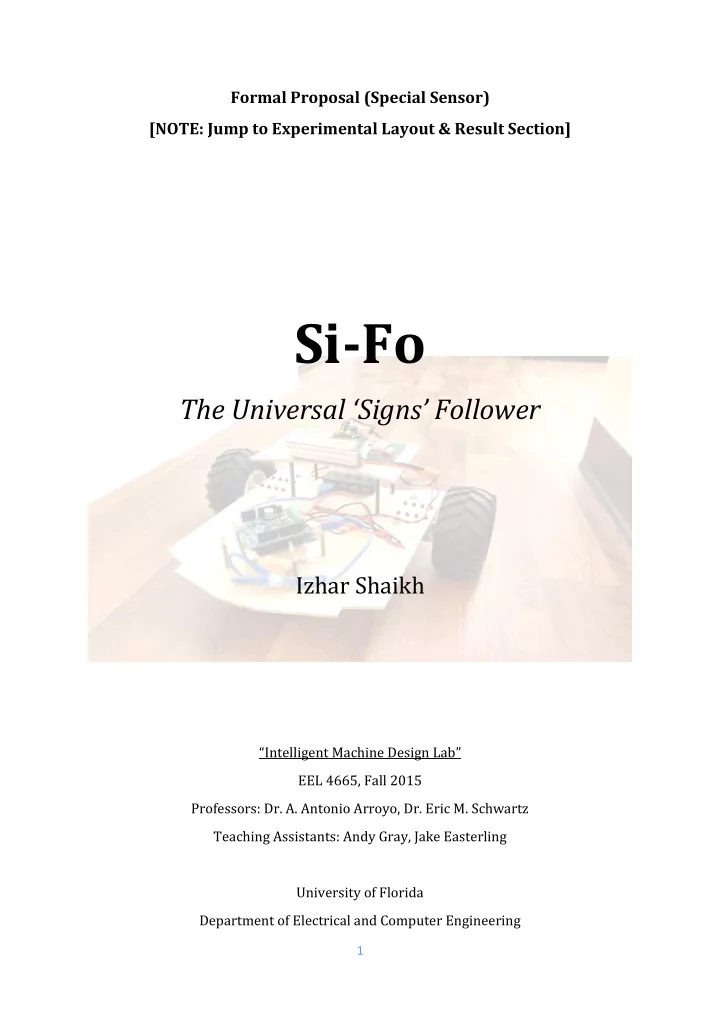
Formal Proposal (Special Sensor) [NOTE: Jump to Experimental Layout & Result Section]

Si-Fo

The Universal ‘Signs’ Follower

Izhar Shaikh

“Intelligent Machine Design Lab” EEL 4665, Fall 2015 Professors: Dr. A. Antonio Arroyo, Dr. Eric M. Schwartz Teaching Assistants: Andy Gray, Jake Easterling University of Florida Department of Electrical and Computer Engineering

slide-2
SLIDE 2

2

Table of Contents

Abstract…………………………………...................................................................................................................3 Executive Summary………................................................................................................................................4 Introduction.........................................................................................................................................................5 Integrated System.............................................................................................................................................7 Mobile Platform..................................................................................................................................................8 Actuation...............................................................................................................................................................9 Sensors.................................................................................................................................................................11 Behaviors.............................................................................................................................................................12 Experimental Layout and Results..(SPECIAL SENSOR)...................................................................13 Conclusion...........................................................................................................................................................22

slide-3
SLIDE 3

3

Abstract

The humans have the ability to perceive (look), identify (to know what it actually is), recognize (compare it to something similar in brain) and follow (act accordingly). They not only can do this, but can do it with the most possible efficient manner. I’m planning to implement the same kind of pattern in a robot. The idea is to design and construct an autonomous robot, which will perceive (look in the real world through a special sensor e.g. camera), identify (know there is an object of interest), recognize (find out the ‘actual’ meaning of the object by Object Recognition) and follow (plan a movement according to what the object ‘means’). In this case, the objects will be signs e.g. a sign which consists of an Arrow which points in the ‘left direction’ or ‘right direction’ or ‘U turn’ etc. There will be a planned course which will include at least 4 signs and the last sign will be a circular ball. The signs will have fixed places in arena and once the robot begins it’s navigation, it will recognize the signs and plan it’s route accordingly. After recognizing the first sign say ‘Turn Left’, the robot will a 90 degree turn towards left and will move forward looking for other signs. After it finds a new sign, it will track the sign and move towards the sign until the sign is big enough for it to recognize and this process will repeat itself until robot reaches the last sign – a circular ball. After that, robot will move in a quest of finding the circular object – the ball, and once it reaches there, it will sound the buzzer and blink an led indicating the status that it has reached it’s destination.The robot will make use of computer vision techniques to find the exact meaning

  • f objects.
slide-4
SLIDE 4

4

Executive Summary

Not Applicable [Final Report Only]

slide-5
SLIDE 5

5

Introduction

What is Computer Vision?

According to Wikipedia, “Computer vision is a field that includes methods for acquiring, processing, analyzing, and understanding images and, in general, high-dimensional data from the real world in

  • rder to produce numerical or symbolic information, e.g., in the forms of decisions. A theme in the

development of this field has been to duplicate the abilities of human vision by electronically perceiving and understanding an image. This image understanding can be seen as the disentangling

  • f symbolic information from image data using models constructed with the aid of geometry, physics,

statistics, and learning theory. Computer vision has also been described as the enterprise of automating and integrating a wide range of processes and representations for vision perception.”

Scope and Objectives

The Intelligent Machine Design Lab class is structured such that system integration and end functionality is valued above subsystem design. With this in mind, almost none of the software or hardware solutions will be designed and implemented from the ground up. For example, the entire OpenCV library is available as an open-source software package and many reliable, tested motor controllers are available for purchase. The scope of the project is to get all of these subsystems to function cohesively together with minimal customization. The objectives of the project are as follows:  Use OpenCV with Python to Object (i.e. Sign) Locating & Tracking  Tracking the object until it is close enough  Compare the object image to reference images and detect the sign from a list of signs  Choose the necessary action after recognizing a particular sign (i.e. Turn Left, Right, Backwards or Stop etc.)  Complete the planned course in efficiently

slide-6
SLIDE 6

6

Walk-Through

The report is broken down into the following nine sections:

  • Integrated System – High-level organization of robot and accessory systems
  • Mobile Platform – Physical robot frame that holds the sensors, batteries, etc.
  • Actuation – Components that move or effect the pose of the platform or sensors
  • Sensors – Components that provide information about the surrounding environment
  • Behaviors – Breakdown of tasks and operations to complete while running
  • Experimental Layout and Results – System setup and data presentation
  • Conclusion – Summary and lessons learned
  • Documentation – References and bibliography
  • Appendices – Code, circuit diagrams, and supplementary material
slide-7
SLIDE 7

7

Integrated System

The robot will have two main processors on board.

  • 1. The main processor will be a Raspberry Pi 2 (Model B). This board will be

responsible for vision processing and behavioral algorithms.

  • 2. The other processor will be an Arduino Uno. It will have a serial communication

with Raspberry Pi and will be used to send commands to the drive motors. The Arduino will also read inputs from the ultrasonic sensors and relay that information to the Raspberry Pi.

Raspberry Pi 2 (Master) Raspberry Pi Camera with Pan-Tilt Servo Mechanism Ultrasonic Sensors LCD (16 x 2) for Feedback Arduino Uno (Slave) DC Motors for wheels LiPo Batteries

slide-8
SLIDE 8

8

Mobile Platform

Since time is a very real constraint to this project (four months to complete), the goal of the mobile platform is to be as mechanically simple as possible. The lack of sophistication was chosen in order to maximize time spent on developing the software functionality instead of debugging and optimizing mechanical systems. With that in mind, the mobile platform will be defined by the following features:

  • Simple wooden rectangular base approximately 25cm wide and 18cm long to house

Raspberry Pi, Arduino, Batteries etc.

  • Total height approximately 30cm
  • Two driven wheels and one simple caster wheels to provide pitch stability
  • Wheels driven by two DC Gearmotors without encoders
  • Brackets attached to base to provide increased support for motors
  • Sonar sensors fixed to front of wooden base
slide-9
SLIDE 9

9

Actuation

Cytron 12V 26RPM 83oz-in Spur Gearmotor

  • Output power: 1.1 Watt
  • Rated speed: 26RPM
  • Rated current: 410mA
  • Rated torque: 588mN.m
  • Gear ratio: 120:1

Pololu 37D mm Metal Gearmotor Bracket (Pair)

  • Twelve M3 screws (six for each bracket)
  • Each bracket features seven mounting holes for M3 or #4-size screws (not included)
  • Light-weight
slide-10
SLIDE 10

10

Lynxmotion Off Road Robot Tire - 4.75"D x 2.375"W (pair)

  • Proline Masher 2000 (Soft)
  • Diameter: 4.75"
  • Width: 2.375"
  • Weight: 6.40 oz.
  • Required Hubs: 6mm Mounting Hub (HUB-12:

Lynxmotion Hex Mounting Hub HUB-12 - 6mm (Pair)

  • Required Motor: Any 6mm output shaft

Lynxmotion Hex Mounting Hub HUB-12 - 6mm (Pair)

  • High quality RC truck (12mm hex pattern) tire hub
  • Works with any motor with a 6mm shaft
  • For mounting Lynxmotion Off Road Robot Tire - 4.75"D x

2.375"W (pair)

  • Dimensions: 22 mm long x 16 mm diameter
  • Weight: 13 g
slide-11
SLIDE 11

11

Sensors

Raspberry Pi Camera

Small board size: 25mm x 20mm x 9mm A 5MP (2592×1944 pixels) Omnivision 5647 sensor in a fixed focus module Support 1080p30, 720p60 and 640x480p60/90 video record

Ultrasonic Sensors

 Provides precise, non-contact distance measurements within a 2 cm to 3 m range  Ultrasonic measurements work in any lighting condition, making this a good choice to supplement infrared object detectors  Simple pulse in/pulse out communication requires just one I/O pin  Burst indicator LED shows measurement in progress  3-pin header makes it easy to connect to a development board, directly or with an extension cable, no soldering required

slide-12
SLIDE 12

12

Behaviors

1. Search the sign: At first, the robot will start revolving about itself in search of a sign at the location where it started. The Pi camera will check if it sees any sign by looking for the blue rectangle around the sign, every time it pauses revolving for a short time. If it won’t find the sign within a certain amount of rotation it will translate some finite distance and again start searching. It will start approaching the sign after detecting it. 2. Approach towards sign: Once the robot has found a sign, it needs to approach it. It will do this by first centring the sign in the view. Once it centres the sign, it will drive straight towards it. Every now and then, it will check again to make sure the sign is still at the centre of the view and adjust if it isn’t. Also, it will constantly check distance to the sign. Once it reaches a distance where the sign is close enough, it will proceed to the next stage of colour detection. 3. Detect shape of the sign and move towards it: Once the robot is close enough to look at the sign, it will need to figure out the meaning of the

  • sign. It will use image thresholding and contour detection to determine the shape. Once it detects

the sign, it will make a move according to the sign. 4. Search for the new sign and repeat behaviors 2 and 3 until it finds the last sign. 5. Do the last part: After recognizing the last sign (i.e. a sign of a ball), the bot will move in search of a spherical ball and when the ball is identified, the bot will be go to the ball and play a buzzer at the end indicating the completion of the route.

slide-13
SLIDE 13

13

Experimental Layout & Research (Only Special Sensor)

  • 1. The Algorithm

Detect Edges Find Counters Approximate Contours & Check for Squares/Rectangles Isolate The Sign & Correct The Perspective Binarize & Match

slide-14
SLIDE 14

14 When it is close to the sign it performs the next steps to read it:

  • 1. Find image contours

Apply GaussianBlur to get a smooth image an then use Canny to detect edges. Now use this image to find countour using OpenCV method findContours. The Canny output looks like this:

  • 2. Find approximate rectangular contours

All the signs have a black rectangle around them so the next step is to find rectangular shaped

  • contours. This is performed using approxPolyDP method in OpenCV. At this point found

polygons are filtered by number of corners (4 corners) and minimum area.

slide-15
SLIDE 15

15

  • 3. Isolate sign and correct perspective

Because the robot moves it will not find perfectly aligned signs. A perspective correction is necessary before try to match the sign with the previous loaded reference images. This is done with the warpPerspective method. In the next image you can see the result of the process, in "B" is showed the corrected image.

  • 4. Binarize and match

After isolate and correct the interest area, the result image is binarized and a comparison is performed with all the reference images to look for a match. At the moment the system has 8 reference images to compare. Comparison is performed using a binary XOR function (bitwise_xor). In the next images is showed the comparison result for match and not match, using countNonZero method is possible to detect the match sign. Match image Not match image

slide-16
SLIDE 16

16

slide-17
SLIDE 17

17

Final Signs

Turn Right Turn Left Stop Turn Around Search for the ball Start the run

slide-18
SLIDE 18

18

# import the necessary packages import time import cv2 import numpy as np #Difference Variable minDiff = 10000 minSquareArea = 5000 match = -1 #Frame width & Height w=640 h=480 #Reference Images Display name & Original Name ReferenceImages = ["ArrowL.jpg","ArrowR.jpg","ArrowT.jpg","Ball.jpg","Go.jpg","Stop.jpg"] ReferenceTitles = ["Turn Left 90","Turn Right 90","Turn Around","Search for Ball","Start..","Stop!"] #define class for References Images class Symbol: def __init__(self): self.img = 0 self.name = 0 #define class instances (6 objects for 6 different images) symbol= [Symbol() for i in range(6)] def readRefImages(): for count in range(6): image = cv2.imread(ReferenceImages[count], cv2.COLOR_BGR2GRAY) symbol[count].img = cv2.resize(image,(w/2,h/2),interpolation = cv2.INTER_AREA) symbol[count].name = ReferenceTitles[count] #cv2.imshow(symbol[count].name,symbol[count].img); def order_points(pts): # initialzie a list of coordinates that will be ordered # such that the first entry in the list is the top-left, # the second entry is the top-right, the third is the # bottom-right, and the fourth is the bottom-left rect = np.zeros((4, 2), dtype = "float32") # the top-left point will have the smallest sum, whereas # the bottom-right point will have the largest sum s = pts.sum(axis = 1) rect[0] = pts[np.argmin(s)] rect[2] = pts[np.argmax(s)] # now, compute the difference between the points, the # top-right point will have the smallest difference, # whereas the bottom-left will have the largest difference diff = np.diff(pts, axis = 1) rect[1] = pts[np.argmin(diff)] rect[3] = pts[np.argmax(diff)] # return the ordered coordinates return rect

slide-19
SLIDE 19

19

def four_point_transform(image, pts): # obtain a consistent order of the points and unpack them # individually rect = order_points(pts) (tl, tr, br, bl) = rect maxWidth = w/2 maxHeight = h/2 dst = np.array([ [0, 0], [maxWidth - 1, 0], [maxWidth - 1, maxHeight - 1], [0, maxHeight - 1]], dtype = "float32") # compute the perspective transform matrix and then apply it M = cv2.getPerspectiveTransform(rect, dst) warped = cv2.warpPerspective(image, M, (maxWidth, maxHeight)) # return the warped image return warped def auto_canny(image, sigma=0.33): # compute the median of the single channel pixel intensities v = np.median(image) # apply automatic Canny edge detection using the computed median lower = int(max(0, (1.0 - sigma) * v)) upper = int(min(255, (1.0 + sigma) * v)) edged = cv2.Canny(image, lower, upper) # return the edged image return edged def resize_and_threshold_warped(image): #Resize the corrected image to proper size & convert it to grayscale #warped_new = cv2.resize(image,(w/2, h/2)) warped_new_gray = cv2.cvtColor(image, cv2.COLOR_BGR2GRAY) #Smoothing Out Image blur = cv2.GaussianBlur(warped_new_gray,(5,5),0) #Calculate the maximum pixel and minimum pixel value & compute threshold min_val, max_val, min_loc, max_loc = cv2.minMaxLoc(blur) threshold = (min_val + max_val)/2 #Threshold the image ret, warped_processed = cv2.threshold(warped_new_gray, threshold, 255, cv2.THRESH_BINARY) #return the thresholded image return warped_processed

slide-20
SLIDE 20

20

def main(): #Font Type font = cv2.FONT_HERSHEY_SIMPLEX # initialize the camera and grab a reference to the raw camera capture video = cv2.VideoCapture(0) # allow the camera to warmup time.sleep(0.1) #Windows to display frames cv2.namedWindow("Main Frame", cv2.WINDOW_AUTOSIZE) cv2.namedWindow("Matching Operation", cv2.WINDOW_AUTOSIZE) cv2.namedWindow("Corrected Perspective", cv2.WINDOW_AUTOSIZE) cv2.namedWindow("Contours", cv2.WINDOW_AUTOSIZE) #Read all the reference images readRefImages() # capture frames from the camera while True: ret, OriginalFrame = video.read() gray = cv2.cvtColor(OriginalFrame, cv2.COLOR_BGR2GRAY) blurred = cv2.GaussianBlur(gray,(3,3),0) #Detecting Edges edges = auto_canny(blurred) #Contour Detection & checking for squares based on the square area cntr_frame, contours, hierarchy = \ cv2.findContours(edges,cv2.RETR_TREE,cv2.CHAIN_APPROX_SIMPLE) for cnt in contours: approx = cv2.approxPolyDP(cnt,0.01*cv2.arcLength(cnt,True),True) if len(approx)==4: area = cv2.contourArea(approx) if area > minSquareArea: cv2.drawContours(OriginalFrame,[approx],0,(0,0,255),2) warped = four_point_transform(OriginalFrame,\ approx.reshape(4, 2)) warped_eq = resize_and_threshold_warped(warped) for i in range(6): diffImg = cv2.bitwise_xor(warped_eq,symbol[i].img) diff = cv2.countNonZero(diffImg); if diff < minDiff: match = i #print symbol[i].name, diff cv2.putText(OriginalFrame,symbol[i].name,\ (10,30), font, 1, (255,0,255), 2, cv2.LINE_AA) diff = minDiff break;
slide-21
SLIDE 21

21

cv2.imshow("Corrected Perspective", warped_eq) cv2.imshow("Matching Operation", diffImg) cv2.imshow("Contours", edges) #Display Main Frame cv2.imshow("Main Frame", OriginalFrame) k = cv2.waitKey(1) & 0xFF if k == 27: break video.release() cv2.destroyAllWindows() #Run Main if __name__ == "__main__" : import cProfile cProfile.run('main()', 'main.profile') import pstats stats = pstats.Stats('main.profile') stats.strip_dirs().sort_stats('time').print_stats()

slide-22
SLIDE 22

22

Conclusion

Not Applicable [Final Report Only]