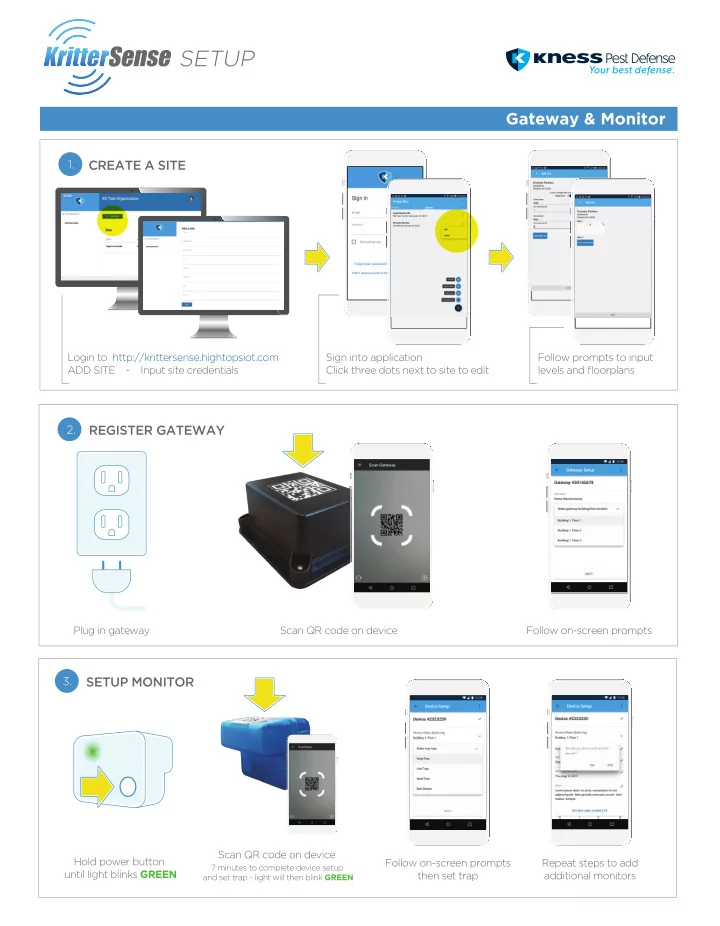
SETUP Gateway & Monitor 1. CREATE A SITE Login to - - PDF document

setup
SMART_READER_LITE
LIVE PREVIEW

SETUP Gateway & Monitor 1. CREATE A SITE Login to - - PDF document

SETUP Gateway & Monitor 1. CREATE A SITE Login to http://krittersense.hightopsiot.com Sign into application Follow prompts to input ADD SITE - Input site credentials Click three dots next to site to edit levels and floorplans 2.


slide-1
SLIDE 1

Gateway & Monitor

SETUP

1.

CREATE A SITE

Login to http://krittersense.hightopsiot.com ADD SITE - Input site credentials Sign into application Click three dots next to site to edit Follow prompts to input levels and floorplans Follow on-screen prompts

3.

SETUP MONITOR

2.

REGISTER GATEWAY

Plug in gateway Scan QR code on device Hold power button until light blinks GREEN Scan QR code on device

7 minutes to complete device setup and set trap - light will then blink GREEN

Follow on-screen prompts then set trap Repeat steps to add additional monitors

slide-2
SLIDE 2

Snap Trap

SETUP

1 2 4 3

1.

Power monitor on

  • Hold power button down until green light illuminates

Correctly Attaching the Trigger Arm

Gently stretch and slide trigger arm harness on to bottom of the monitor. Harness strap should rest between power button and indicator light Be sure trigger arm harness lays flat against monitor and there are no twists in the rubber.

5.

Place trigger arm in position

  • Precaution: Make sure LED turns GREEN.

If turns RED, the magnet is out of position

4.

Set the trap

2.

Place monitor in snap trap harness

3.

Bait the trap

5

Trigger Arm

slide-3
SLIDE 3

Snap Trap Cont...

6.

Place trap in trapping zone

  • Reminder: If the magnet is knocked out
  • f place, just put it back into place until

you see the GREEN LED

7.

7 minutes from the time magnet is in place, a GREEN LED will flash for 5 seconds

  • Reminder: If the magnet gets knocked out
  • f place the 7 minutes, the timer starts over
slide-4
SLIDE 4

SNAP TRAP SERVICE WHEN TRIGGERED

  • 1. Remove rodent
  • 2. Clean trap
  • 3. Bait the trap
  • 4. Reset trap
  • 5. Place trigger arm back into position
  • GREEN LED turns on / RED if out of position
  • 6. Place trap in trapping zone
  • Reminder: If the magnet is knocked out of place, just put it back into place until you see the GREEN LED
  • 7. 7 minutes from the time magnet is in place, you will see a GREEN LED flash for 5 seconds
  • Reminder: If the magnet is knocked out of place, the 7 minute timer starts over

Snap Trap Cont...

a b c d

slide-5
SLIDE 5

SNAP TRAP SERVICE WHEN NOT TRIGGERED & NEEDS CLEANING OR REBAITING

  • 1. Move trigger arm out of position, RED LED will flash
  • 2. Clean Trap
  • 3. Put new bait on trap
  • 4. Reset trap
  • 5. Place trigger arm back into position
  • GREEN LED turns on / RED if out of position
  • 5. Place trap in trapping zone
  • Reminder: If the magnet is knocked out of place, just put it back into place until you see the GREEN LED
  • 6. 7 minutes from the time magnet is in place, a GREEN LED will flash for 5 seconds
  • Reminder: If the magnet gets knocked out of place the 7 minutes, the timer starts over

Snap Trap Cont...

a b c d

slide-6
SLIDE 6

Multi Trap

SETUP

2.

Place monitor in multi trap harness

3.

Place trap in trapping zone

2 1

5

4

1.

Power monitor on

  • Hold power button down until green

light illuminates

5.

7 minutes from the time the keyfob is scanned, a GREEN LED will flash for 5 seconds

  • Reminder: If you need more time before

the monitor activates, re-scan keyfob and the 7 minute timer will start over.

4.

Scan keyfob over monitor to activate

  • Reminder: A RED LED will blink if the scan is
  • unsuccessful. Re-scan until GREEN LED blinks
slide-7
SLIDE 7

MULTI TRAP SERVICE WHEN TRIGGERED

  • 1. Scan keyfob over monitor to deactivate
  • 2. Open lid and remove rodents
  • 3. Clean trap
  • 4. Close lid
  • 5. Place trap in trapping zone
  • 6. Scan keyfob over monitor to activate
  • Reminder: A RED LED will blink if the scan is unsuccessful. Re-scan until GREEN LED blinks
  • 7. 7 minutes from the time the keyfob is scanned, a GREEN LED will flash for 5 seconds
  • Reminder: If you need more time before the monitor activates, re-scan keyfob and the 7 minute timer will start over.

Multi Trap

SETUP

slide-8
SLIDE 8

MULTI TRAP SERVICE WHEN NOT TRIGGERED & NEEDS CLEANING OR REBAITING

  • 1. Scan keyfob over monitor to deactivate
  • Reminder: A RED LED will blink if the scan is unsuccessful. Re-scan until GREEN LED blinks
  • 2. Open lid and clean trap
  • 3. Close lid
  • 4. Place trap in trapping zone
  • 5. Scan keyfob over monitor to activate
  • Reminder: A RED LED will blink if the scan is unsuccessful. Re-scan until GREEN LED blinks
  • 6. 7 minutes from the time the keyfob is scanned, a GREEN LED will flash for 5 seconds
  • Reminder: If you need more time before the monitor activates, re-scan keyfob and the 7 minute timer will start over.

Multi Trap

SETUP

slide-9
SLIDE 9
  • 1. Bait the trap
  • 2. Set the trap
  • 3. Place trigger arm in position
  • Precaution: Make sure LED turns GREEN. If turns RED, the magnet is out of position
  • 4. Place trap in trapping zone
  • Reminder: If the magnet is knocked out of place, just put it back into place until you see the GREEN LED
  • 5. 7 minutes from the time magnet is in place, a GREEN LED will flash for 5 seconds
  • Reminder: If the magnet gets knocked out of place the 7 minutes, the timer starts over

CAGE TRAP SERVICE WHEN TRIGGERED

  • 1. Remove rodent
  • 2. Clean trap
  • 3. Bait the trap
  • 4. Reset trap
  • 5. Place trigger arm back into position
  • GREEN LED turns on / RED if out of position
  • 6. Place trap in trapping zone
  • Reminder: If the magnet is knocked out of place, just put it back into place until you see the GREEN LED
  • 7. 7 minutes from the time magnet is in place, you will see a GREEN LED flash for 5 seconds
  • Reminder: If the magnet is knocked out of place, the 7 minute timer starts over

CAGE TRAP SERVICE WHEN NOT TRIGGERED & NEEDS CLEANING OR REBAITING

  • 1. Move trigger arm out of position, RED LED will flash
  • 2. Clean Trap
  • 3. Put new bait on trap
  • 4. Reset trap
  • 5. Place trigger arm back into position
  • GREEN LED turns on / RED if out of position
  • 5. Place trap in trapping zone
  • Reminder: If the magnet is knocked out of place, just put it back into place until you see the GREEN LED
  • 6. 7 minutes from the time magnet is in place, a GREEN LED will flash for 5 seconds
  • Reminder: If the magnet gets knocked out of place the 7 minutes, the timer starts over

Cage Trap

SETUP

slide-10
SLIDE 10

1) FCC Interference Statement (Part 15.105 (b)) This equipment has been tested and found to comply with the limits for a Class B digital device, pursuant to Part 15 of the FCC Rules. These limits are designed to provide reasonable protection against harmful interference in a residential

  • installation. This equipment generates uses and can radiate radio frequency energy and, if not installed and used in

accordance with the instructions, may cause harmful interference to radio communications. However, there is no guarantee that interference will not occur in a particular installation. If this equipment does cause harmful interference to radio or television reception, which can be determined by turning the equipment off and on, the user is encouraged to try to correct the interference by one of the following measures: Reorient or relocate the receiving antenna. Increase the separation between the equipment and receiver. Connect the equipment into an outlet on a circuit different from that to which the receiver is connected. Consult the dealer or an experienced radio/TV technician for help. 2) FCC Part 15 Clause 15.21 [ Do not Modify warning ]: “Changes or modifications not expressly approved by the party responsible for compliance could void the user's authority to

  • perate the equipment”

3) FCC Part 15.19(a) [interference compliance statement], unless the following statement is already provided on the device label:- “This device complies with part 15 of the FCC Rules. Operation is subject to the following two conditions: (1) This device may not cause harmful interference, and (2) this device must accept any interference received, including interference that may cause undesired operation.” 4) ISED RSS-Gen Notice (in English and French): “This device complies with Industry Canada’s licence-exempt RSSs. Operation is subject to the following two conditions: (1) This device may not cause interference; and (2) This device must accept any interference, including interference that may cause undesired operation of the device.” “Le présent appareil est conforme aux CNR d’Industrie Canada applicables aux appareils radio exempts de licence. L’exploitation est autorisée aux deux conditions suivantes : 1) l’appareil ne doit pas produire de brouillage; 2) l’appareil doit accepter tout brouillage radioélectrique subi, même si le brouillage est susceptible d’en compromettre le fonctionnement.”