
SLIDE 1
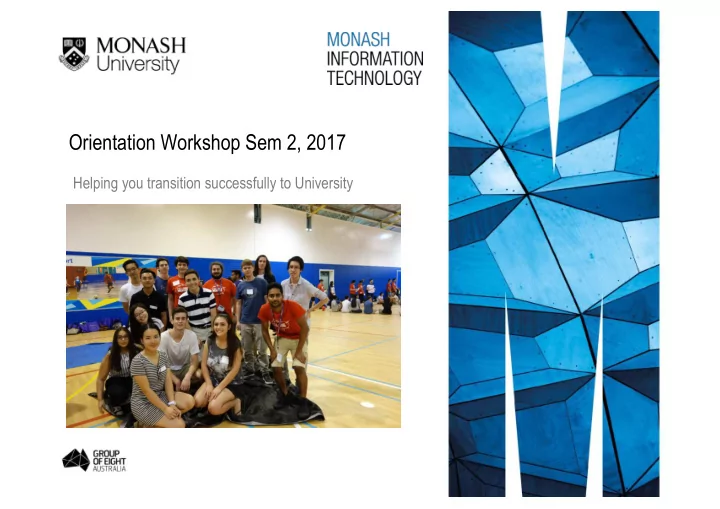
Orientation Workshop Sem 2, 2017
Helping you transition successfully to University
Orientation Workshop Sem 2, 2017 Helping you transition successfully - - PowerPoint PPT Presentation
Orientation Workshop Sem 2, 2017 Helping you transition successfully to University 1. Orientation Tutorial Information Please open this Shared Presentation for the Tutorial information in a new TAB http://tinyurl.com/ITCL-Orientation We
Orientation Workshop Sem 2, 2017
Helping you transition successfully to University
2
❖ Please open this Shared Presentation for the Tutorial information in a new TAB
http://tinyurl.com/ITCL-Orientation
We would like you to try to find and navigate some of these sites yourself rather than link through using the tutorial documentation.
4
❖ Log into my.monash - https://my.monash.edu.au – use email or user name in a new TAB – Please keep it
Explore the different navigation tiles ❖ Email ❖ Moodle ❖ My course ❖ My timetable ❖ Campus Life Just for international students ❖ International Students ❖ Life Cycle – for international students in their first semester
5
❖ A single site for IT students with helpful information for:
some students face ❖ Open the Moodle tile via my.monash – and then the IT STUDENT PORTAL in Moodle – Let’s explore Before we do that - What’s Moodle? Open the portal in a new TAB and keep it open – we will need it for this tutorial session
6
Everything that you need to know for now
❖ Go to Monash 101 via your IT Student Portal or Moodle You are already enrolled in it ❖ Make sure to complete what Faculty you are in for access to the information ❖ Let us watch the introductory video together
7
❖ Go to the Monash ‘Get Started’ website via your IT Student Portal – Let’s explore
8
❖ Go to the Faculty of IT website http://www.monash.edu/it ❖ Go to these TABS and explore CURRENT STUDENTS, STUDENT EXPERIENCE These are the most important for you
9
❖ Go to IT Student Portal - New to IT section ❖ Consider Orientation activities to help you settle into Uni Click on Semester 2 Orientation E-planner ❖ For our Faculty Orientation site where the presentation, recording and this workshop will be available by the end of this week Click on IT Sem 2 Orientation and choose your campus
11
❖ How do semesters work? Orientation 1 week for new students before classes begin to help you settle in Semester Consists of 12 weeks academic study ▪ 1 week break (semester break) … matches secondary school holidays so not in the middle ▪ 1 week of Swot Vac – end of semester, time to prepare for the exams ▪ 3 weeks of Exams Many, many wonderful weeks of holidays before it starts again Only time in your life when you will have SO MANY HOLIDAYS
12
Tips to help you plan your course: Faculty website> Current Students> Planning your Course Information about your course: Faculty website> Current Students> Course Information ❖ Find your Course map ❖ Pre-requisites – What are they?
13
Firstly, we call subjects “UNITS” ❖ To find information about our units: Faculty website> Current Students> Units Click on ‘Browse Information Technology Units’ ❖ To find information about any University units Go to the University’s handbook site: http://www.monash.edu.au/pubs/2017handbooks/
14
All units are in MOODLE
▪ Access all your unit/s lectures, resources, assignments, forums, outline, assessment
❖ Open the Moodle tile via my.monash
▪ Click on one of your units ▪ Can you find the Unit Guide … one of the first few things on the top of the page ▪ Open the Unit Guide – look at all the different sections ▪ Find your lecturer / tutor details – you can also use the Staff Directory in my.monash to find general staff details ▪ See your assessment schedule – Plan assessment schedule for the semester for all units ▪ Recorded lectures are available in the unit Moodle site – BEWARE easy to get behind and never listen to them
– Sometimes technical issues and they are not recorded
15
a physical assignment
not enough to succeed in a unit
specified on the Unit Moodle website
17
WES – Web Enrolment System
❖ Find WES tile in my.monash Enrolment / Re-Enrolment
❖ manage your enrolment ❖ add or discontinue a unit ❖ apply for intermission/deferment (leave of study) ❖ view your approved credit (advance standing) outcomes You can also do other things such as:
Fees / Scholarships
❖ view fee statements and payment history ❖ make fee payments ❖ apply for fee extension or refund ❖ view your scholarship status and details
Student Services
❖ submit your photo for an ID Card ❖ apply and view students letter or
❖ update your personal details ❖ contact Monash Connect
18
❖ Open the Important Dates tile via my.monash ❖ Also available on the Principal dates website
https://www.monash.edu/students/dates/principal-dates
PRIZES – Are you ready? ❖ Find the last day to add a unit Important – try and finalise your enrolment as quickly as possible as the later you join a unit the harder it is to catch up ❖ Find the last day to discontinue a unit without withdrawn showing on your academic record
19
Exams and Re-Enrolment
❖ Find when exams start and end Only book holidays/flights after end date ❖ Finds when the last day is for re-enrolment for next year Late fines apply after if you don’t re-enrol by the deadline. International students have to make sure they are enrolled full-time as per their visa requirements. Don’t worry you can keep changing your units until the start of semester.
20
❖ Open ‘Allocate+’ via the Timetabling tile in my.monash ❖ Let’s explore using the Left Hand navigation menu How to use Allocate+ (note the Help section at the bottom of the screen) Allocate+ dates Fix Timetable problems
Lecture & Tutorial allocation
21
❖ What should you do if all your classes are full?
classes – they will sort it out ❖ Managing timetable problems such as wanting to change your tutorial time
form
Timetable Problems’ web page
Solving Tutorial problems
22
❖ Open Class Timetable via My timetable in my.monash ❖ Find classes for FIT2001
23
Finding your way to your classes ❖Don’t wait until the last minute – find all classrooms this week ❖Open ‘Maps and locations’ via my.monash
You can also use: ❖ Monash App ❖ Google ❖ Lost on campus App
Lots of resources to help you with your studies They will help you succeed if you make the time to use them. A little time spent looking at these resources at the start of semester, will save you a lot of time later, and make a huge difference to your results. Student Resources:
https://www.monash.edu/it/current-students/resources-and-support
Let’s explore
26
Team Leader and Learning Skills Adviser: Noriaki Sato Contact Librarian: Sara Miranda Faculty of Information Technology affiliated libraries on campus Hargrave Andrew Library Clayton Campus Caulfield Library Caulfield Campus Learning Skills Advisers: Anita Dewi, Damian Gleeson, Contact Librarian: Andrew Dixon …. Much, much more than just books – check out our library website: Open Library tile via my.monash
27
http://guides.lib.monash.edu/ http://guides.lib.monash.edu/information-technology Library guides provide information about locating Information Technology resources at Monash University. This includes unit coverage, topic and book search, classes to develop your study skills and some helpful tutorials to help you avoid plagiarism and site and reference information correctly. Login using your Monash email to get free access to lots of services.
28
❖ English Connect will help with a range of programs Let’s explore English Connect via IT Student Portal – Study Resources Highly recommended for student to improve their English language skills – very positive feedback from students Why wait – Register for Let’s Chat at the website right now
Go through the scrolling banner until you get to “Let’s Chat in Semester 2” – then click on the banner to register.
29
❖ What is Academic Integrity?
Let’s take a look at the video https://www.youtube.com/watch?v=MWxK7nWUwrg Before semester starts you must familiarise yourself with the policies and practice that students need to be aware of Let’s explore Cheating, Collusion Plagiarism via IT Student Portal Go through the modules to familiarise yourself with academic integrity practices at Monash University. If you cheat, collude or plagiarise it will result in VERY SERIOUS CONSEQUENCES
A SERIOUS ISSUE
Clic
st Im en Th yo pr Mo
30
for all Monash University business
and the units you are asking about if applicable (in the body)
problem can be solved via email.
❖Email – main communication method at University
31
To: John Smith Subject: FIT9999 – Problem attending tutorial in Week 3 Hi John, My name is Jane Smith, ID:12345678, Course: Bachelor of Computer Science I am unable to attend the tutorial for FIT9999 in Week 3 because I have a medical appointment. Can I please organise to sit the tutorial test at another
Regards, Jane
❖ Send a sample email to your personal email account
32
Helpful Tip: Your inbox can become very full quickly, especially with Moodle forum posts. Your are able to daily digest new posts from the Monash University forums. This will reduce the number of email and simplify your inbox.
“Complete daily email”
33
Add your student email to your phone / laptop so you can manage your inbox anywhere and receive important notifications.
https://www.monash.edu/esolutions/new-to-monash/connecting-google-apps-to-mobile-devices
34
❖ Library Study spaces
http://www.monash.edu/library/services/facilities
❖ IT Student Computer Labs – Locate a Lab
http://locate-a-lab.apps.monash.edu/
35
Monash eSolutions looks after all our IT Services
software and printing. Open the IT Support tile via my.monash
https://www.monash.edu/esolutions/home ❖ Go to the eSoultions site and explore the “New to Monash” button:
https://www.monash.edu/esolutions/browse
36
Many opportunities for fun, self improvement and career development ❖ Go to Faculty website>Student Experience TAB ❖ Explore what is available for you to do Must read our newsletter THE BYTE Comes to you via email during semester
38
▪ Ask.monash - an online help service where you can search for information, find answers to frequently asked questions or submit your
right person in the Faculty
❖ Open the ask.monash tile via my.monash – explore
▪ Peer Mentors ▪ Tutors & Lecturers about units ▪ Course Advisers ▪ Reception Desk
Do not be afraid to ask. Not asking will usually result in many more issues, which will be much harder to sort out the later it gets.
39 Participate and achieve better results in these units FIT1045, FIT1047 & FIT1048
▪ Support from a successful student who has already achieved a great mark in the unit ▪ Help with key content and concepts, and study skills for academic success ▪ A network of students who all want to do well
https://www.monash.edu/students/resources/study-programs/pass
THE PASS EQUATION
1 hour of PASS = 3 hours struggling on your own Sign up for PASS via Allocate+ in Week 2 If class is full, sign up to the waitlist – VERY IMPORTANT
40
Give yourself a head start with Programming There are some websites and pre-reading material that may give you a head start in learning programming: FIT1045 – Introductions to algorithms and programming Codecademy python course (https://www.codecademy.com/learn/python): Familiarise yourself with Python by completing interactive lessons for parts 1 (syntax)-8 (loops) and 12 (file input and output). FIT1051 – Programing fundamentals in java Familiarise yourself with Java by viewing online videos or tutorials https://www.lynda.com/Java-tutorials/Up-Running-Java/184457-2.html https://docs.oracle.com/javase/tutorial/ FIT1048 - Fundamentals of C++ Familiarise yourself with C++ by doing some pre reading. Visit your module unit for FIT1048 and download eBook/PDF provided on the site. Can also be found on the following site: https://www.alexandriarepository.org/syllabus/fit1048-foundations-of-cpp/
41
exam – Special Consideration
You can apply for special consideration for assessments or exams which you were unable to complete for reasons that were out of your control. This does not always guarantee a mark adjustment however it may result in you being granted an extension, another form of assessment or a deferred exam. All Special Consideration applications require supporting documentation. You can assess special consideration information via WES (course progression) or via our Faculty website resources page ❖ Go to the Special Consideration page via: Faculty website> Current Students> Resources and Support Assessment, exams and results column There are strict time constraints you must follow
42
semester
next
progress – THIS IS VERY IMPORTANT
43
Monash has a procedures that you need to follow for any grievances or complaints. ❖ Go to the Student Complaints and Grievances page via: Faculty website> Current Students> Resources and Support Student Support column
45
your first semester - lots of fun and support
The first one – Thursday 27 July “TRIVIA NIGHT”
Check Facebook page for details – coming soon
…. if you haven’t already
46
community
We are very keen to get your feedback so that we can continue to improve the Orientation experience.
CLAYTON: http://goo.gl/forms/GQGGJznoYxwn24Gt1