
SLIDE 1
National Fish and Wildlife F Foundation New Grantee Webinar
Pronghorn
National Fish and Wildlife Foundation Post Award Grantee Webinar
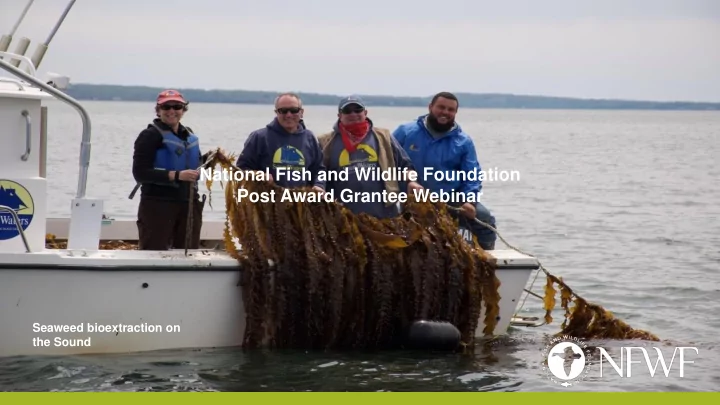
Seaweed bioextraction on the Sound
New Grantee Webinar National Fish and Wildlife Foundation Post - - PowerPoint PPT Presentation
National Fish and Wildlife F Foundation New Grantee Webinar National Fish and Wildlife Foundation Post Award Grantee Webinar Seaweed bioextraction on the Sound Pronghorn AGENDA YOUR NFWF WF CONTACTS Your Grants Administrator Current: Nic
Pronghorn
Seaweed bioextraction on the Sound
Your Grants Administrator Current: Nic icole Thompson Your Program Team Lynn Dwyer & Erin rin Le Lewis
Nic icole le.Thompson@nfwf.o .org 202/8 /857-0166
Lynn.Dwyer@nfwf.o .org 631/3 /312-8999 Erin.L .Lewis@nfwf.o .org 202/8 /857-0166
Program Review
Programmatic, Fiscal, and Compliance Review
Award Agreement Activation Email Final Reports Final Disbursement Final Closure Payment Requests Amendments Reports
La Laysan alb lbatross ss
Share the shore with shorebirds around the Sound
NFWF PROPOSAL RESUBMISSION PROCESS
resubmissions.
Budget modif ific ication (Detailed Bu Budget and Narr rrative Guid ide)
inancia ial documentation
Scope of f work modific ication
trics
ing contributions
lease respond wit ithin two weeks. . Your proposal edits will be used for grant selection decisions.
resubmis ission re request does not constitute an award notif ification. .
Program Review Programmatic and Fiscal Review – Proposal Resubmissions Award Notification Compliance Review – Proposal Resubmissions Grant Agreement Executed Grant Activated
NFWF PROPOSAL RESUBMISSION PROCESS
proposal resubmission process)
information:
this date has passed. Plan to attend this “virtual” event ☺ 11 to Noon, 12/7/2020. And video Celebrating LISFF grantees 2020. More details to come.
icole Thompson (Nic icole.Thompson@NFWF.o .org)
Program Review Programmatic and Fiscal Review – Proposal Resubmissions Award Notification Compliance Review – Proposal Resubmissions Grant Agreement Executed Grant Activated
NFWF PROPOSAL RESUBMISSION PROCESS
type of changes to be made. The quicker you respond to these requests, the quicker you’ll have your grant agreement!
long as your start date has passed, you can begin project work and start in incurring exp xpenses before executio ion of a grant agreement at your own ris isk.
Program Review Programmatic and Fiscal Review – Proposal Resubmissions Award Notification Compliance Review – Proposal Resubmissions Grant Agreement Executed Grant Activated
NFWF PROPOSAL RESUBMISSION PROCESS
iance department for review and approval.
inancia ial documentation (you may be assigned additional reporting requirements)
lease respond wit ithin two weeks. . The quicker you respond to these requests, the quicker you’ll have your grant agreement!
Program Review Programmatic and Fiscal Review – Proposal Resubmissions Award Notification Compliance Review – Proposal Resubmissions Grant Agreement Executed Grant Activated
NFWF PROPOSAL RESUBMISSION PROCESS
access the agreement. These e-mails ls will ill arrive via ia easygrants@nfwf.o .org, so make sure not to filt ilter the address!
info@nfwf.o .org and easygrants@nfwf.o .org are added to your safe senders list.
locker.
, ple lease email l one sig igned copy to NFWF for counter-sig ignature. . Your Grants Adminis istrator will ill return one full lly-executed copy for your records.
in additio ion to emaili ling a sig igned copy to NFWF
Program Review Programmatic and Fiscal Review – Proposal Resubmissions Award Notification Compliance Review – Proposal Resubmissions Grant Agreement Executed Grant Activated
NFWF PROPOSAL RESUBMISSION PROCESS
Program Review Programmatic and Fiscal Review – Proposal Resubmissions Award Notification Compliance Review – Proposal Resubmissions Grant Agreement Executed Grant Activated
NFWF PROPOSAL RESUBMISSION PROCESS
Program Review Programmatic and Fiscal Review – Proposal Resubmissions Award Notification Compliance Review – Proposal Resubmissions Grant Agreement Executed Grant Activated
NFWF PROPOSAL RESUBMISSION PROCESS
ill not receive the activatio ion e-mail until il at le least 30 days before your project start date. .
Program Review Programmatic and Fiscal Review – Proposal Resubmissions Award Notification Compliance Review – Proposal Resubmissions Grant Agreement Executed Grant Activated
NFWF PROPOSAL RESUBMISSION PROCESS
Easygrants problems?
bottom of any Easygrants page Forgot your lo log in in? Request log in information from the Easygrants login page
Program Review Programmatic and Fiscal Review – Proposal Resubmissions Award Notification Compliance Review – Proposal Resubmissions Grant Agreement Executed Grant Activated
Milf ilford Poin int
Program Review
Programmatic, Fiscal, and Compliance Review
Award Agreement Activation Email Final Reports Final Disbursement Final Closure Payment Requests Amendments Reports
MANAGING YOUR ACTIVE GRANT
rimaril ily reim imbursable le
administratively possible
Make sure you hit it th the SUBMIT button on all ll requests – you wil ill r l receiv ive an email il confi firmatio ion when a request has gone through successfu full lly. Step-by by-step in instru ructio ions for submit ittin ing a p payment request through Easygrants can be f found here: https:/ ://www.n .nfwf.org/apply ly-grant/recip ipie ient-in informatio ion/requestin ing-payment
MANAGING YOUR ACTIVE GRANT
From the homepage, click the “My Grants” tab at the top of the page, next to the “My Tasks” tab. St Step-by by-step ins instructions s for r su submitting a payment request th through Easygrants can be found here: : https:/ ://www.nfw fwf.org/apply-grant/recip ipient-information/requesting-payment
MANAGING YOUR ACTIVE GRANT
Click the grant number for the grant you want to submit a payment request for. St Step-by by-step ins instructions s for r su submitting a payment request th through Easygrants can be found here: : https:/ ://www.nfw fwf.org/apply-grant/recip ipient-information/requesting-payment
MANAGING YOUR ACTIVE GRANT
From the dropdown menu under Grantee Requests/Action, select “Submit Reimbursement Request” and click “Request” Only click once, and only click when you are ready to request payment. St Step-by by-step ins instructions s for r su submitting a payment request th through Easygrants can be found here: : https:/ ://www.nfw fwf.org/apply-grant/recip ipient-information/requesting-payment
MANAGING YOUR ACTIVE GRANT
This is the main page of the payment request task. The Validation Summary must show that everything is complete before allowing you to submit St Step-by by-step ins instructions s for r su submitting a payment request th through Easygrants can be found here: : https:/ ://www.nfw fwf.org/apply-grant/recip ipient-information/requesting-payment
MANAGING YOUR ACTIVE GRANT
Please read the certification statement and click “I agree”, then click “Save and Continue” St Step-by by-step ins instructions s for r su submitting a payment request th through Easygrants can be found here: : https:/ ://www.nfw fwf.org/apply-grant/recip ipient-information/requesting-payment
MANAGING YOUR ACTIVE GRANT
Click the blue text “Payment Request Template” to download the Payment Request Form St Step-by by-step ins instructions s for r su submitting a payment request th through Easygrants can be found here: : https:/ ://www.nfwf.org/apply-grant/recip ipient-information/requesting-payment
MANAGING YOUR ACTIVE GRANT
MANAGING YOUR ACTIVE GRANT
On the uploads page, choose “Payment Request Form” as the upload type, then click on “Add files” and navigate to the location on your computer where the payment request is saved. Click “Start” after adding the payment request form to the task. Click “Continue” after the form has been uploaded. Only attach one payment request form per task. Use the “Other Documents” upload type to provide any additional documentation as required by NFWF. St Step-by by-step ins instructions s for r su submitting a payment request th through Easygrants can be found here: : https:/ ://www.nfwf.org/apply-grant/recip ipient-information/requesting-payment
MANAGING YOUR ACTIVE GRANT
Enter a note in the budget for any new line items added, explaining the purpose of the line item and how it ties in with the overall project goals Use the pencil icon next to each line item to add expenses The green plus icon can be used to add new line items that were not part
Anytime a line item exceeds its budgeted amount, the variance column will show the amount exceeded in red Line item or budget category increases that exceed 10% of the total award amount will require program approval or a budget amendment before your payment request can be processed
MANAGING YOUR ACTIVE GRANT
Report all match expended and any accompanying notes. *If If th this is is is th the fin final payment request: make sure to update the match and that it agrees with the match reported in the Fina inal l Fina inancia ial Report rt St Step-by by-step ins instructions s for r su submitting a payment request th through Easygrants can be found here: : https:/ ://www.nfw fwf.org/apply-grant/recip ipient-information/requesting-payment
MANAGING YOUR ACTIVE GRANT
Make sure to click the blue “Submit” button to submit the payment request! If correctly submitted, you will receive a confirmation e-mail and the task will disappear from your homepage. If If your payment is is not received wit ithin 30 days: s:
the task is on your homepage, it was not submitted, or resubmission was requested.
your payment method on your vendor setup form, the funds will be put into the specified bank account via direct deposit.
St Step-by by-step ins instructions s for r su submitting a payment request th through Easygrants can be found here: : https:/ ://www.nfw fwf.org/apply-grant/recip ipient- in inform rmation/r /requesting-payment
1. 1. If If you think you need an amendment, contact your Grants Adminis istrator. . Your Grants Administrator may also contact you if, based on your reporting, they think you may need an amendment. They will create the amendment task for you in Easygrants. 2. You will log into Easygrants and find the amendment task on your homepage and click on the blue link that is the title of the task, then complete the following sections. 3. On the Amendment Type page, indicate the type(s) of amendment that you would like to request:
xtension: If you would like to request an extension for your project end date, enter a proposed new end date and an explanation.
ing Co Contributions: If you would like to request a change to your matching contributions requirement enter the proposed new Federal and Non-federal match requirements and an explanation.
Budget Ch Change: If you and your Grants Administrator decide that a Budget amendment is appropriate, this page will be included in your amendment task. Budget amendments are required if you need to move more than 10% of the total NFWF award amount between budget categories, for certain new expenses such as an equipment purchase or a real estate acquisition, or for a change in indirect rate.
4. On the Matching Contributions page, review your sources of matching contributions for accuracy and update the Status for each source as applicable. 5. On the Uploads page, include any backup documentation requested by NFWF. 6. On the Certification page, check the box to certify your submission. 7. On the Review and Submit page, you can generate a PDF summary of your amendment request to check your work. When your request is ready, send it to NFWF by clicking the Submit button. 8. Once you have hit "Submit", we will be prompted to review the request. If the amendment is approved, you will receive an email from Easygrants@nfwf.org. If you have requested an extension to the end date of the project, you will be notified of new reporting due dates. All ll amendment re requests re require ju justificatio ion and are re gra ranted at the dis iscretio ion of NFWF staff.
You will ill be responsible for completing four types of reports. Two are required during the project period: 1. 1. In Interim Programmatic Report:
You will be asked to provide brief descriptions of "Summary of Accomplishments" and "Lessons Learned" and updates on the metrics from your full proposal. You will also be asked to complete a brief narrative report that you will download, complete and upload into the reporting task. Program Staff will review the report and follow up with you if there are any questions.
2. 2. Annual Fin inancial l Report:
This report will show you what NFWF has disbursed for the project between the project start date and September 30th of the reporting year. You will be prompted to enter how much of the disbursed amount you have actually spent, and provide an explanation for any variance between the disbursed amount and spent amount. NFWF will review the report and follow up with you about next steps if a significant amount of funds remains unspent. Note that you will not see this link on your homepage until October 1st. You will likely receive an email in September reminding you about this report.
The reporting requirements will be detailed in the “Reporting Due Dates” section of your Grant Agreement.
Two reports are required at the completion of the project: 3. 3. Fin inal Programmatic Report:
The report will prompt you for brief descriptions of "Summary of Accomplishments" and "Lessons Learned“. The report will also show you any metrics that were provided in the Full Proposal for the project. Please update this information as appropriate. You will also be asked to upload certain documents, including a completed narrative report (for which you will download a template from the reporting task) and photographs.
4. 4. Fin inal Fin inancial Report:
The report will show you the budget that was approved for the project, and you will be asked to enter actual amounts spent by line item. If there were changes from the originally approved line-item amounts, that is fine; please enter the actual amounts spent in each line item, describing any changes that were needed. The report also shows you the matching contributions that were listed in your full proposal - you will be asked to update/add/delete contributions as appropriate. The status of any matching contributions actually received and spent should have a status of "Received." Th These ese rep eports s are e due e 90 days ys aft fter er th the e en end of f yo your proje ject per erio iod of f per erformance.
y th the e en end date e of f yo your proje ject per erio iod of f per erformance, e, proje ject work must t be e comple lete, , match exp xpen ended ed, and award sp spen ent. t.
NFWF holds 10% of the grant award until review and approval of final reports. Once final reports are approved, you may request final payment and your project will be closed. The reporting requirements will be detailed in the “Reporting Due Dates” section of your Grant Agreement.
70000 70000 70000 70000 70000 Q, Suzie Q, Suzie Q, Suzie Q, Suzie Q, Suzie
Reports are listed in chronological order by due date.
and follow the instructions.
Administrator if an overdue report disappears from your homepage. Make sure you hit th the SUBMIT button on all ll reports – you wil ill receive an email confirmation when a request has gone th through successfully.
Br Brook tr trout
Community-based monitoring
Grant Agreement: Please read your agreement for other essential terms and conditions including Access to Records, Reporting Deadlines, Evaluations, Federal Regulations (if applicable) and SAM.gov requirements. Expenditures: All costs must be allowable, allocable, and reasonable. Supporting documentation for all project- specific expenditures must be retained; these include: accounting records, timesheets, payroll journals, receipts, invoices, purchase orders, etc. Contracting: The procurement of goods and services must comply with federal, state, and local laws. If your award is funded with federal funds, visit the UG’s Procurement Standards section to review the methods of procurement your organization must comply with, including competition requirements and conflict of interest criteria. If your award contains subawards, review the UG’s Subrecipient Monitoring and Management section. Equipment: If your federally funded award contains equipment, visit the UG’s Property Standards to learn more about prior approval requirements, property records and disposition instructions upon closure. Tangible Property Forms can be found at: https://www.grants.gov/forms/post-award-reporting-forms.html Lo Logos: You must contact NFWF prior to any use of NFWF or Funding Source logos (presentations, reports, brochures, posters, etc.) to ensure you have the correct version(s) and that the use is appropriate. In In LI LISFF we use th the Lo Long Is Isla land Sound Study lo
for review.
Mudflats on the Sound