SLIDE 1
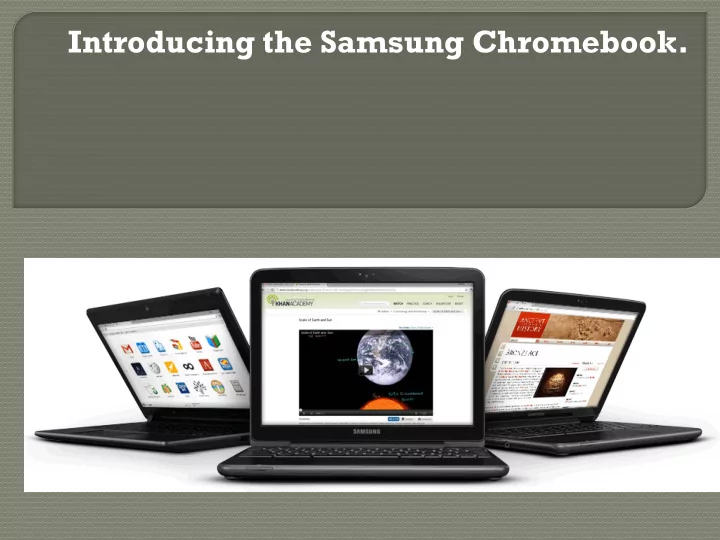
Introducing the Samsung Chromebook.
SLIDE 2 A Chromebook is a laptop
that runs a web browser.
computer is a web browser, and that’s where you run your applications (apps).
- Applications and files are
stored in the cloud and not on the Chromebook itself.
- Students can access their files
from any computer with Internet access.
SLIDE 3
Signing on the device
Open the lid Connect to a Wi-Fi network If necessary, click Enable Wi-Fi in the menu to enable Wi-Fi. If the command instead reads “Disable Wi-Fi,” your Wi-Fi is already enabled. Select an available Wi-Fi network. Chromebooks do not log in to our RBOE network. Instead you log on to the guest network with the password guestwifi.
SLIDE 4 Logging into your school Google Account.
It does matter who you log in to the Google as, you want to be sure you see your documents
- etc. Remember, when you save,
it is not to the Chromebook itself.
Logging onto the wireless connection. It does not matter who you log in to the wireless as,
that is why it is one generic password.
SLIDE 5
You won’t see the Google search box, you search the web right from the address bar.
SLIDE 6
Printing from the Chromebook
Do everyone a favor….don’t
SLIDE 7
saving your files installing anti-virus updating the operating system new software editions The Chromebook has your back!
SLIDE 8
Mission critical Apps are pre-loaded.
SLIDE 9
Visit the Chrome Web Store via a Chrome web browser
learn a language play a game create study aids
Share your favorites with Chris or Mark.
history math