How to Reduce Your Risk Online Jay Ferron CEHi, CISSP, CHFIi, - - PDF document

how to reduce your risk online
SMART_READER_LITE
LIVE PREVIEW

How to Reduce Your Risk Online Jay Ferron CEHi, CISSP, CHFIi, - - PDF document

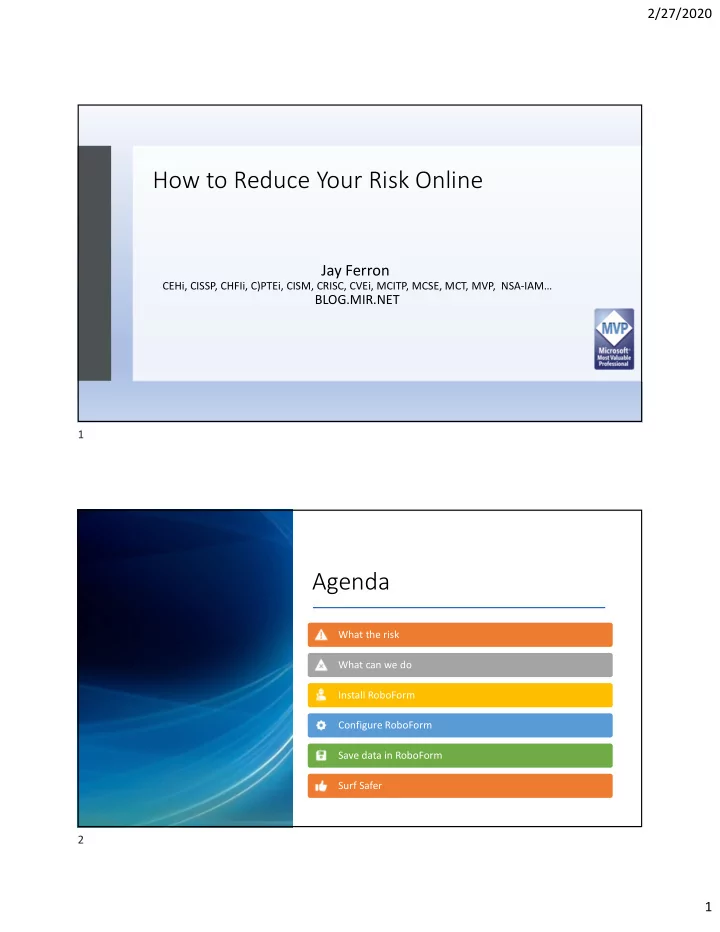
2/27/2020 How to Reduce Your Risk Online Jay Ferron CEHi, CISSP, CHFIi, C)PTEi, CISM, CRISC, CVEi, MCITP, MCSE, MCT, MVP, NSA-IAM BLOG.MIR.NET 1 Agenda What the risk What can we do Install RoboForm Configure RoboForm Save data in


slide-1
SLIDE 1

2/27/2020 1

How to Reduce Your Risk Online

Jay Ferron

CEHi, CISSP, CHFIi, C)PTEi, CISM, CRISC, CVEi, MCITP, MCSE, MCT, MVP, NSA-IAM…

BLOG.MIR.NET

Agenda

What the risk What can we do Install RoboForm Configure RoboForm Save data in RoboForm Surf Safer

1 2

slide-2
SLIDE 2

2/27/2020 2

What the risk

  • Do you have your computer or phone do any of

the following?

  • Remember your login?
  • Have plugins on your browser ?
  • Additional search toolbars ?
  • Save your password ?

Question

  • If your computer is stolen or set for repair
  • Then who has you logins ?
  • The person behind the keyboard
  • That means that anyone with physical access is you !
  • They have all your data
  • They can login as you
  • They can read your mail
  • Reset your password
  • Steal your Identity

3 4

slide-3
SLIDE 3

2/27/2020 3

What should we do

  • Get a password vault program.
  • Browse using an InPrivate browser
  • Backup your computer regularly
  • Think before you click
  • We will demo RoboForm for this session

5 6

slide-4
SLIDE 4

2/27/2020 4

7 8

slide-5
SLIDE 5

2/27/2020 5

9 10

slide-6
SLIDE 6

2/27/2020 6

11 12

slide-7
SLIDE 7

2/27/2020 7

13 14

slide-8
SLIDE 8

2/27/2020 8

15 16

slide-9
SLIDE 9

2/27/2020 9

17 18

slide-10
SLIDE 10

2/27/2020 10

19 20

slide-11
SLIDE 11

2/27/2020 11

21 22

slide-12
SLIDE 12

2/27/2020 12

23 24

slide-13
SLIDE 13

2/27/2020 13

Configure your browser

IE EDGE CHROME Firefox

Surf in Private mode

  • You can right click on icon and start browser in Private mode
  • This allow you to surf and the following benefits
  • When you close the browser all you done is flushed away
  • All cookies
  • All tracking info
  • You may have to tell your browser to allow RoboForm to be allow to be used

in a InPrivate mode

  • Private modes in Browser are called
  • I.E. - InPrivate Browsing
  • Edge - InPrivate Browsing
  • Chrome - Incognito mode
  • Firefox - New private window

25 26

slide-14
SLIDE 14

2/27/2020 14

Adding web sites to RoboForm

  • Surf to a site
  • Put in your existing user name and password
  • RoboForm will ask you if you want to save that
  • Say Yes and verify its is the name you want
  • Now go to the change password part of the site

Adding web sites to RoboForm: part 2

  • Change password using RoboForm’s password options
  • Generate password
  • Make it Hard to guess
  • RoboForm will now save it to
  • The same site name
  • Go to your hints for lost password and
  • Change them letting RoboForm save them again.

27 28

slide-15
SLIDE 15

2/27/2020 15

Adding your current web sites to RoboForm

  • Repeat for all your sites
  • At this time RoboForm has all your sites and you have the following
  • Site name
  • User Name
  • Password
  • New Hints for lost password
  • And dates that this happened.
  • Repeat till all are in RoboForm

Next steps

Now you can flush all data from browsers

  • Cookies
  • Other download information
  • And forget all passwords ,and data
  • Remove all Sites in favorites folder (RoboForm is doing that for you)
  • Now you can open an InPrivate browser
  • Click on RoboForm choose a site and have RoboForm login for you

Backup of the RoboForm password file is automatic to the RoboForm site, but only you have the password for the file. I can give my password file to anyone but unless that have my key it is worthless

29 30

slide-16
SLIDE 16

2/27/2020 16

Adding RoboForm to

  • ther devices
  • You can install to iPhone, Android

Phone, iPad, Tablets, and Mac and PC computers.

  • You only pay per account not the

number of devices you have.

  • When you add RoboForm to second , 3rd
  • r more do the following
  • Go to RoboForm site or App Store
  • Download RoboForm
  • Install
  • When you get to welcome to

RoboForm

  • Choose Login with Existing

Account

Adding RoboForm to

  • ther devices

Put in your user name Put in your Master Password RoboForm will install An email will be sent to the email you gave RoboForm when you installed it originally It will have a unique pin that you will need to put in each device that you join to you master RoboForm account Once that done any change on any RoboForm device will be synced to all RoboForm devices. 31 32

slide-17
SLIDE 17

2/27/2020 17

Demo of setting up browsers

I.E configuration

33 34

slide-18
SLIDE 18

2/27/2020 18

Open as InPrivate browser

Click on Gear and pick Internet options

35 36

slide-19
SLIDE 19

2/27/2020 19

Click on Privacy and Advanced

Choose to block third-party cookies

37 38

slide-20
SLIDE 20

2/27/2020 20

Click OK

Uncheck Disable toolbars and extensions

39 40

slide-21
SLIDE 21

2/27/2020 21

No check bock

  • n disable

toolbars then click ok

Close browser

41 42

slide-22
SLIDE 22

2/27/2020 22

Open browser (right click on I.E icon)

See RoboForm and log in

43 44

slide-23
SLIDE 23

2/27/2020 23

IE is now configured

Edge Browser

45 46

slide-24
SLIDE 24

2/27/2020 24

Click on the … choose Extensions Turn on RoboForm

47 48

slide-25
SLIDE 25

2/27/2020 25

You have Configured browser Now RoboForm is working

49 50

slide-26
SLIDE 26

2/27/2020 26

Choose your

  • ptions

Chrome settings

51 52

slide-27
SLIDE 27

2/27/2020 27

Right Click on Chrome icon and click New Incognito window

Click on dots

53 54

slide-28
SLIDE 28

2/27/2020 28

55 56

slide-29
SLIDE 29

2/27/2020 29

57 58

slide-30
SLIDE 30

2/27/2020 30

Turn off Both Click Clear Browser data

59 60

slide-31
SLIDE 31

2/27/2020 31

Click here Clear Data

61 62

slide-32
SLIDE 32

2/27/2020 32

Click extensions

Turn on RoboForm

63 64

slide-33
SLIDE 33

2/27/2020 33

65