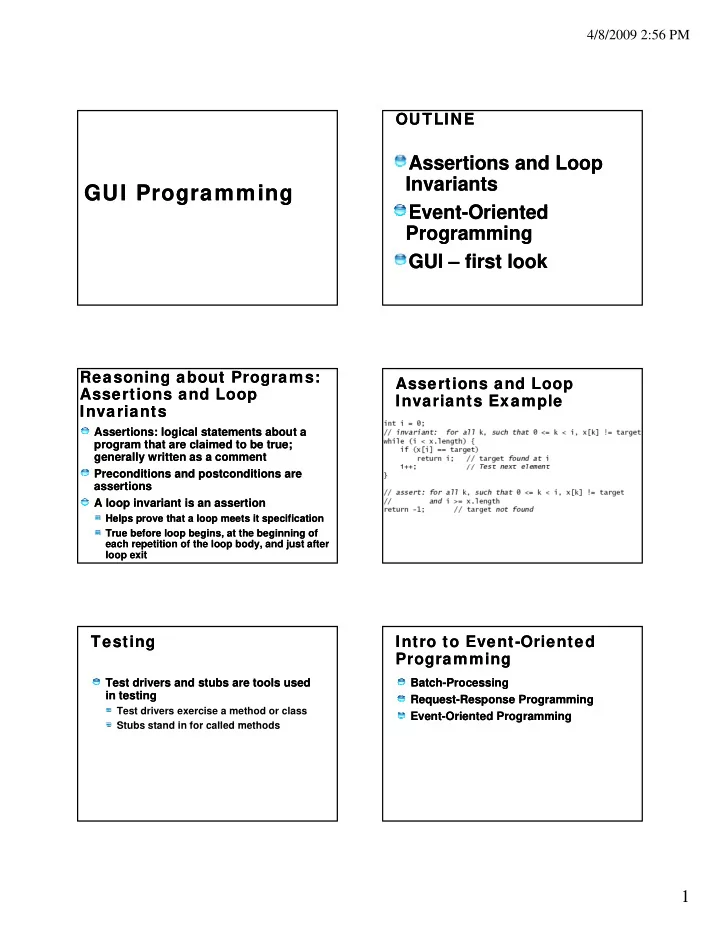
GUI Programming GUI Programming Event E Event-Oriented E t t O - - PDF document

gui programming gui programming
SMART_READER_LITE
LIVE PREVIEW

GUI Programming GUI Programming Event E Event-Oriented E t t O - - PDF document

4/8/2009 2:56 PM OUTLINE OUTLINE Assertions and Loop Assertions and Loop Invariants Invariants GUI Programming GUI Programming Event E Event-Oriented E t t O i O i Oriented t d t d Programming Programming GUI GUI first


slide-1
SLIDE 1

4/8/2009 2:56 PM

1

GUI Programming GUI Programming

OUTLINE OUTLINE

Assertions and Loop Assertions and Loop Invariants Invariants E t E t O i t d O i t d Event Event-Oriented Oriented Programming Programming GUI GUI – – first look first look

Reasoning about Programs: Reasoning about Programs: Assertions and Loop Assertions and Loop Invariants Invariants

Assertions: logical statements about a Assertions: logical statements about a program that are claimed to be true; program that are claimed to be true; generally written as a comment generally written as a comment Preconditions and Preconditions and postconditions postconditions are are assertions assertions A loop invariant is an assertion A loop invariant is an assertion

Helps prove that a loop meets it specification Helps prove that a loop meets it specification True before loop begins, at the beginning of True before loop begins, at the beginning of each repetition of the loop body, and just after each repetition of the loop body, and just after loop exit loop exit

Assertions and Loop Assertions and Loop Invariants Example Invariants Example Testing Testing

Test Test drivers and stubs are tools used drivers and stubs are tools used in testing in testing

Test drivers exercise a method or class Stubs stand in for called methods Stubs stand in for called methods

Intro to Event Intro to Event-

  • Oriented

Oriented Programming Programming

Batch Batch-

  • Processing

Processing Request Request-

  • Response Programming

Response Programming Event Event-

  • Oriented Programming

Oriented Programming

slide-2
SLIDE 2

4/8/2009 2:56 PM

2

GUI Programming Concepts GUI Programming Concepts

conventional conventional ( (request request-

  • response

response) ) programming programming: :

sequence of operations is determined by the program what you want to happen, happens when you y pp , pp y want it

event event-

  • oriented
  • riented programming:

programming:

sequence of operations is determined by the user’s interaction with the application’s interface anything that can happen, happens at any time

GUI GUI -

  • first look:

first look: Graphical Components Graphical Components

button button menus menus title title bar bar menu menu bar bar combo box combo box scroll scroll bars bars

Graphical Components Graphical Components – – more… more…

Button Button Label Label Text Text field field Check Check Box Box Radio Radio Button Button Combo Box Combo Box

GUI Programming GUI Programming Concepts in Java Concepts in Java

Java GUI ("Swing") has Java GUI ("Swing") has components components Windows GUI has Windows GUI has controls controls Unix GUI has Unix GUI has widgets widgets examples examples: labels buttons check : labels buttons check examples examples: labels, buttons, check : labels, buttons, check boxes, radio buttons, text input boxes, radio buttons, text input boxes, pull down lists boxes, pull down lists Java Swing components Java Swing components: : JLabel

JLabel, , JButton JButton, , JCheckBox JCheckBox, , JRadioButton JRadioButton, , JTextField JTextField, , JTextArea JTextArea, , JComboBox JComboBox

Java GUI history: the Java GUI history: the AWT AWT

AWT(JDK 1.0, 1.1): AWT(JDK 1.0, 1.1): Abstract Window Toolkit Abstract Window Toolkit package package: java.awt, : java.awt, java.awt.event java.awt.event heavyweight components using heavyweight components using native GUI system elements native GUI system elements used for applets until most used for applets until most browsers supported JRE 1.2 browsers supported JRE 1.2

AWT vs. AWT vs. Sw ing (1) Sw ing (1)

AWT: Abstract Windowing Toolkit AWT: Abstract Windowing Toolkit

import java.awt.* import java.awt.* AWT drawing uses "native peers" AWT drawing uses "native peers" --

  • - creating

creating an AWT button creates a native peer (Unix, an AWT button creates a native peer (Unix, Mac, Win32) button to put on screen, and Mac, Win32) button to put on screen, and then tries to keep the AWT button and the then tries to keep the AWT button and the then tries to keep the AWT button and the then tries to keep the AWT button and the peer in sync. peer in sync. Advantage Advantage: an AWT app has the "native" : an AWT app has the "native" appearance for buttons etc. since there are appearance for buttons etc. since there are in fact native buttons on screen. in fact native buttons on screen. Disadvantage Disadvantage: very hard to implement in a : very hard to implement in a reliable way reliable way --

  • - keeping peers consistent on

keeping peers consistent on all platforms. all platforms.

slide-3
SLIDE 3

4/8/2009 2:56 PM

3

AWT vs. AWT vs. Sw ing (2) Sw ing (2)

Swing Swing is a new widget toolkit is a new widget toolkit for Java (came with Java2) for Java (came with Java2)

import import javax.swing javax.swing.* .* Extends Extends AWT (provides a more AWT (provides a more sophisticated set of GUI components) sophisticated set of GUI components) p p ) p p ) Standard Standard dialog boxes, tooltips, … dialog boxes, tooltips, … Look Look-

  • and

and-

  • feel, skins

feel, skins Event Event listener listener Swing Swing inherits from inherits from AWT AWT AWT still used for events, layouts AWT still used for events, layouts

Sw ing Components in Sw ing Components in Java Java

advanced GUI support. e.g. drag advanced GUI support. e.g. drag-

  • and

and-

  • drop

drop package names: package names: javax.swing javax.swing, , p g p g j g j g, , javax.swing.event javax.swing.event components inherit from components inherit from JComponent JComponent components are added to a top components are added to a top-

  • level container:

level container: JFrame JFrame, , JDialog JDialog, ,

  • r
  • r JApplet

JApplet. .

Sources on the Internet: Sources on the Internet:

Application Programming Interface: Application Programming Interface: http://java.sun.com/javase/6/docs/api/ http://java.sun.com/javase/6/docs/api/ Swing API documentation Swing API documentation http://java.sun.com/javase/6/docs/techn http://java.sun.com/javase/6/docs/techn

  • tes/guides/swing/
  • tes/guides/swing/

Swing architecture Swing architecture http://java.sun.com/products/jfc/tsc/arti http://java.sun.com/products/jfc/tsc/arti cles/architecture/ cles/architecture/

running a Sw ing application running a Sw ing application

java java -

  • Dswing.aatext

Dswing.aatext=true =true MySwingClass MySwingClass

the option sets the system property "swing.aatext" to "true" to enable ti li i f JC t anti-aliasing for every JComponent

javaw javaw runs a GUI without the runs a GUI without the console console window window

Event Event-

  • driven Programming

driven Programming

Normal (control flow Normal (control flow-

  • based) programming

based) programming Approach Approach

Start at main() Start at main() Continue until end of program or exit() Continue until end of program or exit()

Event Event-

  • driven programming

driven programming Unable to predict time & occurrence of Unable to predict time & occurrence of event event Approach Approach

Start with main() Start with main() Build GUI Build GUI Await events (& perform associated Await events (& perform associated computation) computation)

Event Event-

  • driven Paradigm in

driven Paradigm in Java Java

During implementation During implementation

Implement Implement event listeners event listeners for each event for each event Usually at least one event listener class per Usually at least one event listener class per widget widget

At run time At run time

Register listener object with widget object Register listener object with widget object Java generates Java generates event object event object when events when events

  • ccur
  • ccur

Java then passes event object to event listener Java then passes event object to event listener

slide-4
SLIDE 4

4/8/2009 2:56 PM

4

Basic GUI Programming Basic GUI Programming Steps in Steps in Java Java

declare a container and declare a container and components components add components to one or more add components to one or more p containers using a layout manager containers using a layout manager register event listener(s) with the register event listener(s) with the components components create event listener method(s) create event listener method(s)

Basic GUI Programming Basic GUI Programming Concepts Concepts in in Java Java

Example: Example: JFrameDemoTM.java,

JFrameDemoTM.java, JFrameDemoTM2.java, JFrameDemo.java JFrameDemoTM2.java, JFrameDemo.java

container: container: a screen window/applet

a screen window/applet window/panel that groups and arranges GUI window/panel that groups and arranges GUI t components components

GUI component: GUI component: an object with visual

an object with visual representation representation

Swing containers: Swing containers: JFrame

JFrame, , JApplet JApplet, , JPanel JPanel

AWT containers: AWT containers: Frame, Applet, Panel

Frame, Applet, Panel

GUI Component API GUI Component API

Java: GUI component = class Java: GUI component = class Properties Properties

JB tt

Methods Methods Events Events

JButton

Using a GUI Component Using a GUI Component

1.

  • 1. Create it

Create it

Instantiate object: b = new JButton(“press me”);

2.

  • 2. Configure it

Configure it

P ti b t t “ ” Properties: b.text = “press me”; Methods: b.setText(“press me”);

3.

  • 3. Add it

Add it

panel.add(b);

4.

  • 4. Listen to it

Listen to it

Events: Listeners

JButton

Anatomy of an Application Anatomy of an Application GUI GUI

JPanel JPanel JFrame JFrame GUI GUI Internal structure Internal structure JFrame JFrame containers containers JButton JButton JLabel JLabel JPanel JPanel JButton JButton JLabel JLabel

Using a GUI Component Using a GUI Component (II) (II) 1.

  • 1. Create it

Create it

2.

  • 2. Configure it

Configure it

3.

  • 3. Add children (if container)

Add children (if container)

rder IS

  • rtant

3.

  • 3. Add children (if container)

Add children (if container)

4.

  • 4. Add to parent (if not

Add to parent (if not JFrame JFrame) )

5.

  • 5. Listen to it

Listen to it

the or impo

slide-5
SLIDE 5

4/8/2009 2:56 PM

5

Build from bottom up Build from bottom up

Create (order indifferent): Create (order indifferent):

Frame Panel Components JButton Listener Listener JLabel Components Listeners

Build: (aggregate Build: (aggregate bottom up bottom up) )

listeners into components components into panel panel into frame JPanel JFrame

Code Code

JFrame JFrame f = new f = new JFrame JFrame(“title”); (“title”); JPanel JPanel p = new p = new JPanel JPanel( ); ( ); JButton JButton b = new b = new JButton JButton(“press me”); (“press me”); p.add p.add(b); (b); // // add button to panel add button to panel f setContentPane f setContentPane(p); // add panel to frame (p); // add panel to frame f.setContentPane f.setContentPane(p); // add panel to frame (p); // add panel to frame f.setVisible f.setVisible (true); (true); press me

(trivial) Application Code (trivial) Application Code

import import javax.swing javax.swing.*; .*; class class hello { hello { public static void main(String[] public static void main(String[] args args){ ){ JFrame JFrame f = new f = new JFrame JFrame(“title”); (“title”); JPanel JPanel p = new p = new JPanel JPanel(); (); JButton JButton b = new b = new JButton JButton(“press me”); (“press me”); p.add p.add(b); (b); // add button to panel // add button to panel f.setContentPane f.setContentPane(p);// add panel to frame (p);// add panel to frame f.setVisible f.setVisible (true); (true); } } press me

Layout Managers Layout Managers

Automatically control Automatically control placement of components in a placement of components in a panel panel Why? Why?

Layout Manager Layout Manager Heuristics Heuristics

Left to right, Left to right, Top to bottom Top to bottom FlowLayout FlowLayout GridLayout GridLayout none, none, programmer programmer sets x,y,w,h sets x,y,w,h null null c n s e w BorderLayout BorderLayout One at a time One at a time CardLayout CardLayout GridBagLayout GridBagLayout JButton JButton

Combinations Combinations

JButton JButton JButton JButton JTextArea JTextArea

slide-6
SLIDE 6

4/8/2009 2:56 PM

6

Combinations Combinations

n JFrame JFrame JPanel: FlowLayout JPanel: FlowLayout JButton JButton JButton JButton JPanel: BorderLayout JPanel: BorderLayout c JTextArea JTextArea

Our code so far: null Our code so far: null layout layout

JFrame JFrame f = new f = new JFrame JFrame(“title”); (“title”); JPanel JPanel p = new p = new JPanel JPanel( ); ( ); JButton JButton b = new b = new JButton JButton(“press me”); (“press me”); b.setBounds b.setBounds(new Rectangle(10,10, 100,50)); (new Rectangle(10,10, 100,50)); p.setLayout p.setLayout(null); (null); // // x,y x,y layout layout p.add p.add(b); (b); f.setContentPane f.setContentPane(p); (p);

press me

Code: Flow Layout Code: Flow Layout

JFrame JFrame f = new f = new JFrame JFrame(“title”); (“title”); JPanel JPanel p = new p = new JPanel JPanel( ); ( ); FlowLayout FlowLayout L = new L = new FlowLayout FlowLayout( ); ( ); JButton JButton b1 = new b1 = new JButton JButton(“press me”); (“press me”); JButton JButton b2 = new b2 = new JButton JButton(“then me”); (“then me”); p.setLayout p.setLayout(L); (L); p.add p.add(b1); (b1); p.add p.add(b2); (b2); f.setContentPane f.setContentPane(p); (p); Set Set layout mgr before adding components layout mgr before adding components

press me then me

Using a GUI Component Using a GUI Component (Recap) (Recap) 1.

  • 1. Create it

Create it

2.

  • 2. Configure it

Configure it

3.

  • 3. Add children (if container)

Add children (if container)

rder IS

  • rtant

3.

  • 3. Add children (if container)

Add children (if container)

4.

  • 4. Add to parent (if not

Add to parent (if not JFrame JFrame) )

5.

  • 5. Listen to it

Listen to it

the or impo

Questions? Questions? Java GUI Components Java GUI Components Examples Examples

Examples Examples JFrame JTextfield Jlabel Panes Indicators Dialog boxes JFileChooser C l h Button JList JComboBox Menu Combo Color chooser JTable JTree

slide-7
SLIDE 7

4/8/2009 2:56 PM

7

JFrame JFrame JTextField and JLabel JTextField and JLabel Buttons Buttons

Toolbar Toolbar

JList and JComboBox JList and JComboBox Menu Menu Panels and Panes Panels and Panes

Tabbed Pane Split Pane Scroll Pane

slide-8
SLIDE 8

4/8/2009 2:56 PM

8

Various Indicators Various Indicators

Spinner Spinner Slider Slider Progress Progress Bar Bar

A Dialog Box A Dialog Box JFileChooser JFileChooser Color Chooser Color Chooser Jtable and JTree Jtable and JTree Text Fields Text Fields