SLIDE 1
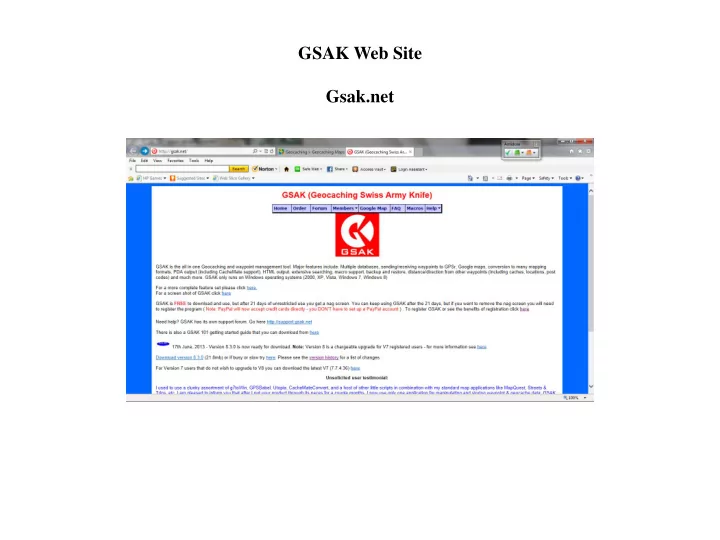
GSAK Web Site Gsak.net
SLIDE 2
Geocaching ID Hover cursor over “See the Forum Posts for This User”
Geocaching ID appears on bottom of the screen
SLIDE 3
Under Tools/Option – Insert caching ID
SLIDE 4
Under Tools/Options/Locations – Add Home location
SLIDE 5
Under the Search Option databases can be searched by cache name, owner name etc.
SLIDE 6
Polygons – Start with Tools/Polygon/Line drawing Tool
SLIDE 7
Polygons – Select the desired area by using the line drawing tool Copy resulting coords (CTRL-C)
SLIDE 8
Polygons – Paste coords from previous step and choose Polygon. To use this came polygon in the future, you can same this filter.
SLIDE 9
Pocket queries for a province/State choose state.
SLIDE 10
Pocket Queries – For a province/state with many caches, mane multiple queries with various date ranges.
SLIDE 11
Pocket Queries – It is always a good idea to turn on the query name option.
SLIDE 12
Puzzle caches – you can change the base coords to the solved coords by clicking on the little pencil. Comments can also be added to the Personal Cache Note field. Only you will see these.
SLIDE 13
Coords for a cache can be changed in GSAK by first right clicking on the desired cache, choosing the “Corredted Coordinates” option and entering the new coords. A yellow triangle will then appear for the cache that was changed.
SLIDE 14