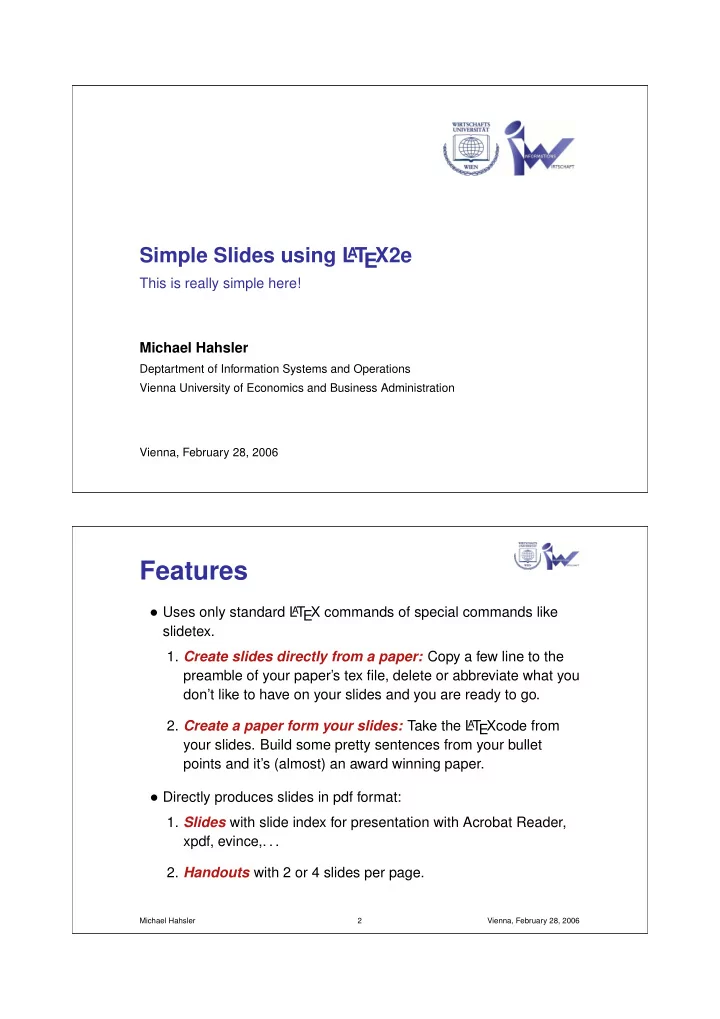
Features Uses only standard L A T EX commands of special commands - - PDF document

features
SMART_READER_LITE
LIVE PREVIEW

Features Uses only standard L A T EX commands of special commands - - PDF document

Simple Slides using L T EX2e A This is really simple here! Michael Hahsler Deptartment of Information Systems and Operations Vienna University of Economics and Business Administration Vienna, February 28, 2006 Features Uses only


slide-1
SLIDE 1

Simple Slides using L

A

T EX2e

This is really simple here! Michael Hahsler

Deptartment of Information Systems and Operations Vienna University of Economics and Business Administration Vienna, February 28, 2006

Features

  • Uses only standard L

A

T EX commands of special commands like slidetex.

  • 1. Create slides directly from a paper: Copy a few line to the

preamble of your paper’s tex file, delete or abbreviate what you don’t like to have on your slides and you are ready to go.

  • 2. Create a paper form your slides: Take the L

AT

EXcode from your slides. Build some pretty sentences from your bullet points and it’s (almost) an award winning paper.

  • Directly produces slides in pdf format:
  • 1. Slides with slide index for presentation with Acrobat Reader,

xpdf, evince,. . .

  • 2. Handouts with 2 or 4 slides per page.

Michael Hahsler 2 Vienna, February 28, 2006

slide-2
SLIDE 2

Getting started

  • 1. Make a copy of slides.tex, e.g,

mycopy.tex.

  • 2. Adapt the first line in the Makefile

accordingly.

  • 3. Edit mycopy.tex.
  • 4. Create slides with make or

pdflatex mycopy.tex.

  • 5. Create handouts with make 2 or make 4.

Michael Hahsler 3 Vienna, February 28, 2006

Starting a new slide

  • 1. A new slide starts with a section command

\section{A new Slide}

  • 2. You can use nearly all L

A

T EX-commands on your slides:

  • Enumerate, itemize, description
  • Mathematical Mode: e = mc2
  • Verbatim: \blabla
  • Font sizes: scriptsize, tiny, small, normalsize, large, Large,

LARGE, huge

  • Colors: Red, Blue, Green,
  • Emphasizing: \emph{Important} produces Important
  • tabulars, figures . . .

Michael Hahsler 4 Vienna, February 28, 2006

slide-3
SLIDE 3

Automatic spacing for lists

  • automatic spacing tries to use the space on the slides as best as

possible

  • automatic spacing tries to use the space on the slides as best as

possible

  • automatic spacing tries to use the space on the slides as best as

possible

Michael Hahsler 5 Vienna, February 28, 2006

Setting text next to a figure

0.00 0.02 0.04 0.06 0.08 0.10 200 400 600 800 Minimum support Number of frequent 1−itemsets Artif−1 NB model

My first figure.

  • To set text next to a figure

you can use the minipage environment. The Code looks like this:

\begin{minipage}[m]{.49\textwidth} \includegraphics... \end{minipage} % \begin{minipage}[m]{.49\textwidth} blablabla \end{minipage}

Michael Hahsler 6 Vienna, February 28, 2006

slide-4
SLIDE 4

Text that is longer than a page

The quick brown fox jumps over a lazy dog The quick brown fox jumps over a lazy dog The quick brown fox jumps over a lazy dog The quick brown fox jumps over a lazy dog The quick brown fox jumps over a lazy dog The quick brown fox jumps over a lazy dog The quick brown fox jumps over a lazy dog

Michael Hahsler 7 Vienna, February 28, 2006

The quick brown fox jumps over a lazy dog The quick brown fox jumps over a lazy dog The quick brown fox jumps over a lazy dog The quick brown fox jumps over a lazy dog The quick brown fox jumps over a lazy dog The quick brown fox jumps over a lazy dog The quick brown fox jumps over a lazy dog The quick brown fox jumps over a lazy dog The quick brown fox jumps over a lazy dog The quick brown fox jumps over a lazy dog The quick brown fox jumps over a lazy dog

Michael Hahsler 8 Vienna, February 28, 2006