(complete set of slides) Indirect vs. Direct pointing Absolute vs. - - PowerPoint PPT Presentation

complete set of slides indirect vs direct pointing
SMART_READER_LITE
LIVE PREVIEW

(complete set of slides) Indirect vs. Direct pointing Absolute vs. - - PowerPoint PPT Presentation

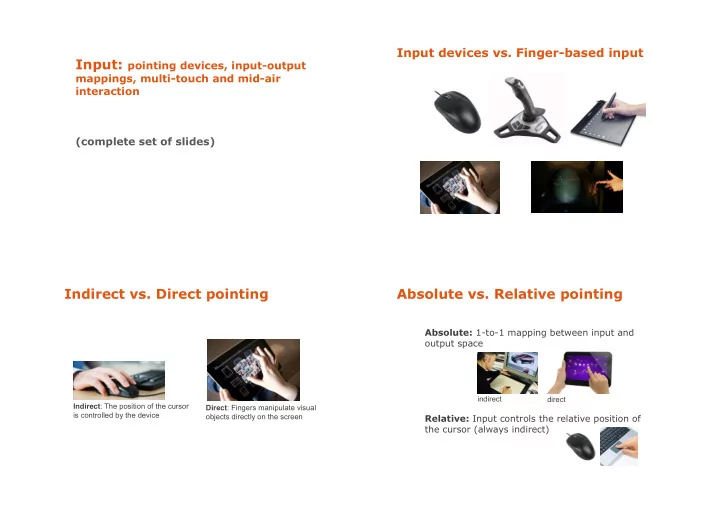
Input devices vs. Finger-based input Input: pointing devices, input-output mappings, multi-touch and mid-air interaction (complete set of slides) Indirect vs. Direct pointing Absolute vs. Relative pointing Absolute: 1-to-1 mapping between input


slide-1
SLIDE 1

Input: pointing devices, input-output

mappings, multi-touch and mid-air interaction (complete set of slides)

Input devices vs. Finger-based input

Indirect vs. Direct pointing

Indirect: The position of the cursor is controlled by the device Direct: Fingers manipulate visual

  • bjects directly on the screen

Absolute vs. Relative pointing

Absolute: 1-to-1 mapping between input and

  • utput space

Relative: Input controls the relative position of the cursor (always indirect)

indirect direct

slide-2
SLIDE 2

Hovering mode

Tracking the position of the pointing device (e.g., the pen) or the finger from distance Hover widgets http://www.youtube.com/watch?v=KRXfaZ8nqZM

Absolute pointing

Direct input

Hovering feedback is not indispensable as there is a clear mapping between pen/fingers and the screen Main drawback: occlusion problems

Indirect input

« Hovering » is indispensable: users must know the position of the cursor before starting drawing

Wacom Cintiq regular graphics tablet

Relative pointing

Common devices: mouse and touchpad « Clutching » instead of « hovering » mode

Lift the mouse or finger to « re-calibrate » movement Use of smaller input space to traverse a larger output space

How would you map the input space of the tablet to the output space of the wall?

Smarties: https://www.lri.fr/~chapuis/publications/CHI14-smartiestk.mp4

slide-3
SLIDE 3

Buxton’s 3-state model (1990)

  • A. Two-state model for mouse

Buxton’s 3-state model (1990)

  • B. Two-state model for a touch tablet

Buxton’s 3-state model (1990)

  • C. Three-state model for a gaphics tablet with stylus

Relative pointing: Mappings

Position control: maps human input to the position of the cursor (or object of interest)

Examples: mouse, touchpad

Rate (or velocity) control: maps human input to the velocity of the cursor (or object of interest)

Examples: joystick, trackpoint

Trackpoint

slide-4
SLIDE 4

Isotonic vs. Isometric devices

Isotonic (iso-tonic = equal tension/force): Absence of resistance, free movement

Mouse, pen, human arms, etc.

Isometric (iso-metric = equal measure): Absence of movement, resistance as we press

Isotonic vs. Isometric devices

Isotonic (iso-tonic = equal tension/force): Absence of resistance, free movement

Mouse, pen, human arms, etc.

Isometric (iso-metric = equal measure): Absence of movement, resistance as we press Elastic: Resistance increases with movement

Joystick, trackpoint

Elastic/Isometric devices

There is a neutral position As we apply force, an opposing force develops Self-calibration: I we free the device, the opposing force bring the device to its neutral position

General principles

Isotonic devices (e.g., mouse) most appropriate for position control Elastic/isometric devices (e.g., joystick) most appropriate for rate (velocity) control

slide-5
SLIDE 5

Mixed control (Casiez et al., 2007)

How can we increase the input space of a trackpad to reduce clutching: trackpad + trackpoint RubberEdge http://www.youtube.com/watch?v=kucTPG_zTik

Position control Velocity control

Mixed control

The wrist as a mixed-control device (Tsandilas et al. 2013)

position control around the neutral wrist position rate control near extemes angles

No need for clutching

Output resolution

Dots per Inch (DPI) For screens where dots are pixels, we use the term Pixels per Inch (PPI)

Input resolution (isotonic devices)

Input resolution often measured in counts per inch (CPI)

Also refered to as Dots per Inch (DPI)

A modern mouse: 400 to 10000 CPI

Detection of displacements between 64µm and 2.54µm (about the size of a bacterium)

slide-6
SLIDE 6

Input resolution (isotonic devices)

Input resolution often measured in counts per inch (CPI)

Also refered to as Dots per Inch (DPI)

A modern mouse: 400 to 10000 CPI

Detection of displacements between 64µm and 2.54µm (about the size of a bacterium)

« Useful » resolution: 200-400 CPI (Aceituno et al. 2013)

Maximum resolution that users can benefit from

Control-Display (CD) gain

CDgain = Vpointer / Vdevice Vpointer: velocity of cursor Vdevice : velocity of input device

Control-Display (CD) gain

CDgain = Vpointer / Vdevice Vpointer: velocity of cursor Vdevice : velocity of input device CDgain=1

When the mouse moves 1cm, the cursor also moves 1cm

CDgain< 1

The cursor moves slower than the mouse: Better precision

CDgain > 1

The cursor moves faster than the mouse: Faster, less clutching

Range of usable CD gains

from Casiez et al. (2008)

slide-7
SLIDE 7

Pointer acceleration

The CD gain is not constant but changes as a function of the speed of the device

The faster I move the device, the faster the cursor (acceleration) Slow movements cause the CD gain to decrease: better precision

Acceleration functions

Also known as transfer functions

from Casiez and Roussel (2011) Nancel et al. (2013) found that with a good acceleration function, users could be very accurate and fast acquiring targets on a large high-resolution display even when the available input space was very small

Laser pointing – RayCasting

Main strength: Natural, as the device or hand points

directly to the target

Drawback: Sensitive to hand tremor and tracking precision.

Depending on the distance of the user, small hand movement can cause large displacements, inappropriate for accurate pointing from distance

slide-8
SLIDE 8

Solutions

Relative Pointing + Clutching (Vogel & Balakrishan, 2005)

Solutions

Hybrid Control (Vogel & Balakrishan, 2005)

http://www.youtube.com/watch?v=j26JQxMhBog

Direct input

Strengths: The user interacts directly with the objects

as in the real world

Drawbacks: Lower accuracy due to occlusion,

parallax, limited input resolution of the human limbs

The parallax problem

Incorrect perception of where the target is

slide-9
SLIDE 9

Occlusion problems

The finger covers the object of interest. Here, the letter under the users finger grows and moves upwards to reduce the problem.

Examples from http://podlipensky.com/2011/01/mobile-usability-sliders/

Problematic design Better design

Occlusion problems

Sliding Widgets (Moshovich, 2009)

Replacing push buttons by sliding ones to reduce ambiguity due to

  • cclusion or parallax problems (crossing-based selection)

http://www.youtube.com/watch?v=Pw5nmLSYrvE

Hand occlusion Occlusion-Aware Interfaces

(Vogel & Balakrishan, 2010)

http://www.youtube.com/watch?v=j-b9q4ZjLHo

slide-10
SLIDE 10

Other clever solutions

PhantomPen (Lee et al, 2012)

http://www.youtube.com/watch?v=r62wxK3Rma4

Other clever solutions

Interaction with small touch devices (Baudisch and Chu, 2009) LucidTouch (Wigdor et al , 2007)

http://www.youtube.com/watch?v=qbMQ7urAvuc

Multi-touch

Apple magic trackpad iPad, iPhone, smartphones, tablets Vertical public displays Tabletops

The history of multitouch

For the long history of touch and multitouch, see Buxton’s overview page:

http://www.billbuxton.com/multitouchOverview.html

slide-11
SLIDE 11

Touch points & degrees of freedom

Degrees of freedom = the number of parameters that may vary independently Examples:

One touch point can control the X and Y position of an

  • bject (2 degrees of freedom)

Two touch points can control the X and Y position of an

  • bject, its rotation, and its scale (4 degrees of freedom)

Touch points & degrees of freedom

We can control more degrees of freedom

  • 1. By adding more touch points
  • 2. By sensing parameters other than position

Pressing force of a finger Moving speed or acceleration Size of contact point

  • 3. By adding new input modalities

e.g., tilting the device while touching

Detecting fingers

Capacitive touchscreens (e.g., tablets and

smartphones) do not differentiate between

different fingers: they only detect contact points Some vision-based systems (e.g., some tabletops) create a model of the whole hand, but their accuracy can be low

Detecting fingers

Capacitive touchscreens (e.g., tablets and

smartphones) do not differentiate between

different fingers: they only detect contact points Some vision-based systems (e.g., some tabletops) create a model of the whole hand, but their accuracy can be low How would it be useful to differentiate between fingers?

slide-12
SLIDE 12

Detection problems & feedback

Making detection visible to the user

Ripples (Microsoft Research, 2009)

http://www.youtube.com/watch?v=BXLsdhoRXF4

Detection problems & feedback

Making detection visible to the user

Ripples (Microsoft Research, 2009)

http://www.youtube.com/watch?v=BXLsdhoRXF4

Think about other technologies where detection can be problematic, e.g., motion sensing by Kinect

Multi-touch: Common gestures

from http://www.mobiletuxedo.com/touch-gesture-icons/

Multi-finger interaction for multi- user tabletops

Wu and Balakrishnan, 2003

http://www.dgp.toronto.edu/research/tabletop/tabletop640x480.mpg

slide-13
SLIDE 13

Gesture elicitation studies

Gesture elicitation (Wobbrock et al., 2009)

Asking target users to create their own gesture vocabulary Then, define gestures based on the identified common gesture patterns

Gesture elicitation studies

Morris et al. (2010) found that peope preferred gestures defined by larger groups of end-users than gestures defined by HCI researchers

HCI researchers proposed physically and conceptually more complex gestures than end-users

The approach has been used by other researchers for defining gestures for a wide variety of input modalities:

mid-air gestures, motion gestures, folding-paper gestures, etc.

Problem of « legacy » bias: Users are often biased by their previous exposure to commercial systems.

Beyond touch

Flexible displays Transformable displays (Ramakers et al., 2014)

http://www.raframakers.net/wiki/Main/Paddle

Programming for multitouch

There are many platform-dependent toolkits for capturing and handling touch events Example

The Android SDK (based on Java) provides listeners of simple multi-finger touch events (move, down, up) and common touch gestures (tap, double tap, long press, fling, scroll)
slide-14
SLIDE 14

Programming for cross-platform interaction

How do we communicate events between different devices and different platforms?

Programming for cross-platform interaction

Protocols for communicating generic events

Open Sound Control: http://opensoundcontrol.org/introduction-osc IVY: http://www.eei.cena.fr/products/ivy/

Protocol for communicating multitouch events

TUIO: http://www.tuio.org

Open Sound Control (OSC)

Initially developed for the communication between synthesizers, digital instruments, and musical software Widely used by the music and HCI communities Client/Server architecture, where the OSC server receives OSC messages from one or multiple OSC clients

  • The server and the clients can be in different devices/platforms

Implementation for many platforms and programming languages, e.g., Java: http://www.illposed.com/software/javaosc.html

TUIO

Based on OSC: Client/Server architecture where devices can send multitouch events to interested applications Support for a wide range of multitouch devices and platforms: http://www.tuio.org/?software