1 Agenda Session 10:20 a.m. 11:30 a.m. Year End Best Practices - - PDF document

1
SMART_READER_LITE
LIVE PREVIEW

1 Agenda Session 10:20 a.m. 11:30 a.m. Year End Best Practices - - PDF document

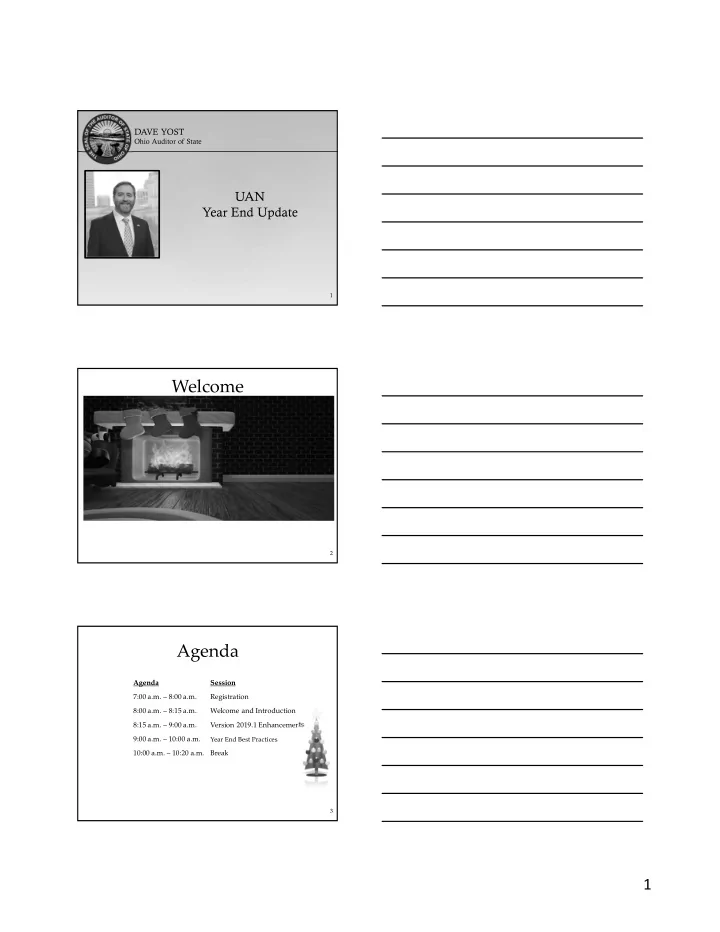
DAVE YOST Ohio Auditor of State 1 2 Agenda Session 7:00 a.m. 8:00 a.m. Registration 8:00 a.m. 8:15 a.m. Welcome and Introduction 8:15 a.m. 9:00 a.m. Version 2019.1 Enhancements 9:00 a.m. 10:00 a.m. Year End Best Practices 10:00


slide-1
SLIDE 1

1

1

DAVE YOST

Ohio Auditor of State

2 3

Agenda Session 7:00 a.m. – 8:00 a.m. Registration 8:00 a.m. – 8:15 a.m. Welcome and Introduction 8:15 a.m. – 9:00 a.m. Version 2019.1 Enhancements 9:00 a.m. – 10:00 a.m.

Year End Best Practices

10:00 a.m. – 10:20 a.m. Break

slide-2
SLIDE 2

2

4

Agenda Session 10:20 a.m. – 11:30 a.m. Year End Best Practices 11:30 a.m. – 12:45 p.m. Lunch 12:45 p.m. – 2:10 p.m. Year End Best Practices 2:10 p.m. – 2:30 p.m. Break 2:30 p.m. – 4:00 p.m. Year End Best Practices 4:00 p.m. – 4:30 p.m.

Questions for UAN Staff

5 6

slide-3
SLIDE 3

3

7 8

Regular Wages

Leave Payout Bonus Final Pay Retro Pay

9

slide-4
SLIDE 4

4

10 11 12

slide-5
SLIDE 5

5

13 14 15

slide-6
SLIDE 6

6

16 17 18

slide-7
SLIDE 7

7

19 20 21

slide-8
SLIDE 8

8

22 23 24

slide-9
SLIDE 9

9

25 26 27

slide-10
SLIDE 10

10

28 29 30

slide-11
SLIDE 11

11

31 32 33

slide-12
SLIDE 12

12

34 35 36

slide-13
SLIDE 13

13

37 38

Great What’s About it?

39

slide-14
SLIDE 14

14

40 41 42

slide-15
SLIDE 15

15

43

Ohio Checkbook:

Remember you need to authorize 2018 through UAN’s Profile Login if you want UAN to submit financial data on your behalf!

The 941 Federal Quarterly Tax Return for the first quarter of 2019 will be included in the next UAN version 2019.2

44

  • Ohio Income Tax Tables for 2019
  • The Ohio income tax withholding tables for 2019 have been

added in the 2019.1 Install The withholding rates are the same as those that became effective August 1, 2015.

  • Federal Income Tax Tables for 2019
  • AS SOON AS THE TAX TABLES BECOME AVAILABLE they

will be accessible for download from the UANLink website as a ‘software patch’.

  • The tax tables will also be included in the next UAN version

2019.2.

45

slide-16
SLIDE 16

16

46

  • Annual Financial Report is due to AOS

within 60 days of the end of the fiscal year!

The AFR submission must include the

‘Notes to the Annual Financial Report’

Each local government must publish a

notice in the local newspaper that the AFR is complete and is available in the

  • ffice of the fiscal officer.

47 48

slide-17
SLIDE 17

17

88 East Broad Street, 5th Floor Columbus, Ohio 43215

Phone: (800) 833­8261 Fax: (877) 727­0088 E­mail: UAN_Support@ohioauditor.gov

49

88 E. Broad St. Columbus, Ohio 43215 Phone: (800) 282­0370 Fax: (614) 466­4490 Email: ContactUs@OhioAuditor.gov

www.OhioAuditor.gov

slide-18
SLIDE 18

11/28/2018 1

DAVE YOST

Ohio Auditor of State

1

Presented by: Robert Walter, Trina Martin & Tony Pranger

2 3

RECIPE 1.Ingredients 2.Instructions 3.Understanding

  • f processes in

the instructions

slide-19
SLIDE 19

11/28/2018 2

4

Provides the list of year end requirements in a concise step­by­ step checklist Items require advance work to be completed

5

Provides in­depth information and detailed instructions So you understand and can complete each step

6 6

slide-20
SLIDE 20

11/28/2018 3

7 8 9

slide-21
SLIDE 21

11/28/2018 4

10 11

  • Last meeting date in 2018
  • Payments to be posted after meeting

before 12/31

  • (authority required as usual)
  • Payments to be posted at next meeting ­

verify carryover encumbrance

  • Last posted payday in 2018
  • December or 4th quarter withholding

payment date

12

  • First meeting date in 2019
  • Temporary appropriations already

adopted and entered

  • New year PO/BCs posted and ready
  • Verify encumbrance as required
  • First posted payday in 2019
  • Will I be paying 2018 withholdings

from 2019?

  • Employer share requires 2019

appropriations

slide-22
SLIDE 22

11/28/2018 5

13 14

  • Do not forget your December and 4th

quarter and ANNUAL tax reports!

  • Don’t forget your 4th quarter ODJFS

report!

  • Continue to work on the Best Practices

starred items

15

Going to January 8th

slide-23
SLIDE 23

11/28/2018 6

16

Example: December OPERS/OP&FPF Today is January 14, 2019, one business day after posting the last December pay period wages

17 18

Jumping forward to January 16, 2019!

slide-24
SLIDE 24

11/28/2018 7

19

Regulatory filers do NOT add ANY other Year End Documents

20 21

slide-25
SLIDE 25

11/28/2018 8

22

Year End Balance Certificate!

23

24

It is January 22, 2019

slide-26
SLIDE 26

11/28/2018 9

25

PUBLISH a notice in the newspaper!

AFTER Confirming AFR Submission is Successful

26 27

slide-27
SLIDE 27

11/28/2018 10

28 29

Verify UAN Resources Available match Amended Certificate Board adopts Permanent Appropriations before 4­1­19 Enter Permanent Appropriations Accounting – Maintenance – Appropriation Budgets

Access the portal: https://www.ohioauditor.gov/fiscalintegrity/default.html

  • r

https://ohioauditor.gov (look under local government) Questions or assistance email: fiscalintegrityact@ohioauditor.gov Janice D’Alessandro: (614) 466­2813 Andrea Tawney (614) 644­1762 Access the portal: https://www.ohioauditor.gov/fiscalintegrity/default.html

  • r

https://ohioauditor.gov (look under local government) Questions or assistance email: fiscalintegrityact@ohioauditor.gov Janice D’Alessandro: (614) 466­2813 Andrea Tawney (614) 644­1762

slide-28
SLIDE 28

11/28/2018 11

31

88 East Broad Street, 5th Floor Columbus, Ohio 43215

Phone: (800) 833­8261 Fax: (877) 727­0088 E­mail: UAN_Support@ohioauditor.gov

32

88 E. Broad St. Columbus, Ohio 43215 Phone: (800) 282­0370 Fax: (614) 466­4490 Email: ContactUs@OhioAuditor.gov

www.OhioAuditor.gov

33

slide-29
SLIDE 29

11/28/2018 12

https://www.123rf.com/ profile_icetray https://www.123rf.com/ profile_belchonock https://www.123rf.com/ profile_udra https://www.123rf.com/ profile_subbotina https://www.123rf.com/ profile_klenger https://www.123rf.com/ profile_romastudio https://www.123rf.com/ profile_photozlaja https://www.123rf.com/ profile_tinyb76 https://www.123rf.com/ profile_rusak https://www.123rf.com/ profile_photohomepage https://www.123rf.com/ profile_kdreams02 https://www.123rf.com/ profile_szefei https://www.123rf.com/ profile_dar1930 https://www.123rf.com/ profile_kreinick https://www.123rf.com/ profile_mehaniq https://www.123rf.com/ profile_tab1962 https://www.123rf.com/ profile_pashapixel https://www.123rf.com/ profile_belchonock https://www.123rf.com/ profile_trustieee https://www.123rf.com/ profile_vitalinar https://www.123rf.com/ profile_volff https://www.123rf.com/ profile_anjelagr

slide-30
SLIDE 30

Revised 11/2018 Page 1

2018 Year End Best Practices

OVERVIEW

This checklist is the recommended guide for closing the fiscal year for those who would like to follow a single path through the year end process. It is designed to be a concise step-by-step checklist to use in conjunction with the Year End Procedures booklet. Please refer to the Year End Procedures when greater detail on any particular step is needed. Please Note: The Year End Procedures booklet will be available after installing the year end update disc: From the Windows desktop, click UAN Tools  Version Documentation  2019.1 When using this guide, you MUST NOT skip around; you must complete steps in the exact order presented. Skipping back and forth through this checklist may result in having to repeat the same steps multiple times. Certain steps have been flagged with a . The star icon signals that you can take immediate action to gather outside information, prepare, or organize data before you have reached that step in the checklist. For details, read the year end procedures section referenced in each step with the star icon.

TEMPORARY APPROPRIATIONS Your governing board should adopt 2019 temporary appropriations by December 31, 2018 in order to authorize encumbrances and expenditures on and after January 1, 2019. Temporary appropriations should include all expenses you may incur throughout the first quarter of the year. INSTALL

Install 2019.1 before beginning the year end process.

OPEN TEMPORARY MODE (ANYTIME AFTER DECEMBER 1)

For detailed information, see Appendix 1 and the Step 3: Open Temporary Mode section of the year end procedures. Open Temp Mode (General  Maintenance Year End Open Temporary Mode) ฀ Year End Renaming form – optionally revise Withholding Names.

Renaming is only possible when opening Temporary Mode - you cannot change existing withholding names at any other time during the year. When ready, save the form (with or without

changes) and the application will process for 1-10 minutes. A message will open announcing UAN is in Temporary Mode. Click OK and UAN will close. ฀ Login to UAN and you will now have the option to choose work year 2018 or 2019. Reminder (from Year End Procedures Appendix 1): the rules that have governed post dates throughout 2018

still apply during year end:

 You can never backdate printed warrants in UAN; therefore, you cannot print warrants with a 2018

post date after the calendar date has passed December 31, 2018. However, remember that receipts and electronic payments may be backdated to reflect the actual calendar date that online (or phone) transactions were made, in order to be cleared on the correct bank reconciliation.

 You can forward date any payments up to thirty days beyond the calendar date within the work year.

Consequently, in order to post transactions in fiscal year 2019, you must log into work year 2019. The

slide-31
SLIDE 31

Revised 11/2018 Page 2

2018 Year End Best Practices

  • nly dating restriction specific to Temporary Mode is that 2019 transactions cannot be dated beyond

the Temporary Mode period (sixty days after December 31, 2018). In other words, in order to post transactions dated March 1, 2019 or later, you must first close fiscal year 2018. NEW YEAR ACCOUNTING PROCEDURES (AFTER OPENING TEMPORARY MODE)

For detailed information, see Appendix 4: New Year Accounting Procedures of the year end procedures. ฀ Login to work year 2019. ฀ Add new items you will need in the new year. The most common items are:

฀ Funds (Accounting  Maintenance  Funds)

฀ Cost Centers (Accounting  Maintenance  Cost Centers) ฀ Revenue Accounts (Accounting  Maintenance  Revenue Accounts) ฀ Appropriation Accounts (Accounting  Maintenance  Appropriation Accounts) ฀ Vendor / Payees (General  Maintenance  Vendors/Payees) ฀  Add Revenue Budgets. ฀ Add Revenue Budgets (Accounting  Maintenance  Revenue Budgets) ฀ Print the Revenue Status (Accounting  Reports & Statements  Revenue Reports) ฀ Confirm individual amounts were entered correctly and each fund matches total of the Taxes and Other Sources columns on the most recent Official Certificate of Estimated Resources. ฀  Add Appropriation Budgets (after passing appropriation legislation). ฀ Add Appropriation Budgets (Accounting  Maintenance  Appropriation Budgets) ฀ Print the Appropriation Status (Accounting  Reports & Statements Appropriation Reports) ฀ Confirm individual amounts were entered correctly and fund totals match your appropriation legislation. ฀ Add New Purchase Orders. ฀ Add Purchase Orders (Accounting  Transactions  Purchase Orders). If you tend to use similar purchase orders from year to year, consider using the Duplicate button. For instructions, click ‘How To Duplicate POs’ under the FAQs menu when the Purchase Orders area is open.

NEW YEAR PAYROLL PROCEDURES (AFTER OPENING TEMPORARY MODE)

For detailed information, see Appendix 5: New Year Payroll Procedures of the year end procedures. ฀ Login to work year 2019. ฀ Update payroll for the new year. The most common updates are: ฀ Add any new earnings/leaves or withholdings to the software list. ฀ Add earnings or leaves (Payroll  Maintenance  Earnings/Leave). ฀ Add withholdings (Payroll  Maintenance  Withholdings). ฀ Add any new earnings/leaves or withholdings to assign to individual employees.

฀ Add employee earnings (Payroll  Maintenance  Employees). ฀ Add employee leaves (Payroll  Maintenance  Employees). ฀ Add employee withholdings (Payroll  Maintenance Employees).

฀ Update Withholding Rates. ฀ Update rates in the main withholding list. (Payroll  Maintenance  Withholdings).

slide-32
SLIDE 32

Revised 11/2018 Page 3

2018 Year End Best Practices

฀ Update rates for withholdings assigned to employees (Payroll  Maintenance

Withholdings Editor).

฀ Update Withholding Skip Calendars. ฀ Add & Apply using the Skip Calendars Editor (Payroll  Maintenance  Skip Calendars Editor). Reminder: Only employee withholdings that are set to skip deductions under Payroll  Maintenance  Employees will be available to apply a skip calendar. ฀ Evaluate Leave Balances. ฀ If you need to adjust leave balances in the new year, pay particular attention to the date you are paying wages, the pay period of the wages, and the date the leave changes are effective pursuant to your policy and then adjust them at the proper time. Please note do not complete this step until all payrolls that will be posted with a 2018 date are complete, including any bonus or leave payouts. (Payroll  Utilities  Leave Balance Adjustment). Please Note: You are ready to begin posting accounting and payroll transactions for fiscal year 2019.

STEPS TO CLOSE FISCAL YEAR 2018 (WHEN YOU ARE READY)

Reminder: you must have 2018 closed before the calendar date of March 1, 2019. Otherwise, the application will lock you out of work year 2019 until 2018 is closed. ฀ Login to work year 2018. ฀ Complete all 2018 Transactions. ฀ Verify Carryover Withholdings. For detailed information, see Step 4H - Carryover Withholdings and Appendix 3 of the year end procedures. ฀ Print the Withholding Summary for 2018 (Payroll  Reports & Statements  Withholding Reports; make sure you do not change the report status from the default Unpaid). ฀ Confirm whether the list of withholdings should carry over to 2019 for payment. If a message

  • pens that reads ‘there is no data to report,’ it means there are no remaining unpaid withholdings

from wages posted in 2018. Note: when printing the unpaid withholding report as of 2018 it is proper for it to continue to list withholdings that were deducted from 2018 wages, but already paid to the withholding agencies in work year 2019 (if any).

฀ Post any withholdings that are due for payment before closing the year (Payroll  Transactions  Withholdings Payments). Reminder: if the calendar date is already on or after January 1, you

should post the warrant payments while logged into work year 2019 (i.e. you cannot backdate printed warrants).

฀ Clear any unpaid withholdings that you paid previously from Accounting instead of Payroll and/or

that you should not carry over into 2019. (Payroll  Utilities  Unpaid Withholding Clear). ฀ Close (or Reduce) Purchase Orders. For detailed information, see Step 4G - Carryover Purchase Orders of the year end procedures. ฀ Close purchase orders that should not be carried over into 2019 (Accounting  Utilities  Purchase Order Utility, using the Close Item button). Note: you cannot close purchase orders that you have already used in 2019 (i.e. carryover purchase orders), but you can reduce them. ฀ Reduce purchase orders that you intend to carry over to the amount needed after 2018 is closed (Accounting  Utilities  Purchase Order Utility, using the Adjust button).

slide-33
SLIDE 33

Revised 11/2018 Page 4

2018 Year End Best Practices

฀ Verify W-2/W-3 and 1099/1096 form information. For detailed information, see Appendix 2 & 3 of the year end procedures. Enter corrections before closing 2018. Edits to some of the following forms will not automatically update 2018 W-2 forms if done in work year 2019 and more time-consuming manual edits will be necessary. ฀ Verify Employees’ Name, Address and Social Security Number (Payroll  Maintenance  Employees). ฀ Verify Local Tax W-2 Abbreviations and School District Numbers (Payroll  Maintenance  Withholdings). ฀ Verify the Federal and State Tax IDs and the entity address (General  Maintenance  Entity Setup, Entity Information tab). ฀ Print the W-2 Report and confirm information (Payroll  Reports & Statements  Tax Reports- Federal). ฀ Print the Vendor/Payee 1099 & 1096 Report and confirm information. (General  Reports & Statements  Vendor/Payee Reports; to print vendor social security and tax ID numbers, checkmark the checkbox in the Options tab). ฀ Add and Print the W-2 & W-3 Forms when you are ready – or this step can be completed after advancing to the new year (Payroll  Reports & Statements  External Forms  W-2 & W-3 Forms and make sure the ‘Report Year’ drop-down menu is on 2018). ฀ Add and Print 1099 Misc and 1096 Forms when you are ready. Or this step can be completed after advancing to the new year (General  Reports & Statements  Year End 1099-Misc & 1096 Forms and make sure the ‘Report Year’ drop-down menu is on 2018). ฀ Work through the Year End Checklist form (General  Maintenance Year End  Year End Checklist). For detailed information, see ‘Step 4: Year End Checklist’ of the year end procedures. Note: a green checkmark icon will display on each tab when the minimum required fields are completed. ฀ Overview – skip this tab for now. ฀ 4A-Batch Transactions – you must post or delete all 2018-batch transactions before closing the year. ฀  4B-AFR Demographics & Debt – select a Submission Type and complete all entries applicable to the entity. ฀ 4C-Annual Financial Reports – select the AFR Filing Type that will be submitted. The red ‘Incomplete’ icon will display until you complete additional steps covered later in this guide. ฀ 4D-Entity & Fiscal Officer – enter your most current contact information. Verify the fiscal officer name and entity information. ฀  4E-Hardware & Mailing – enter hardware tag numbers, hardware address, and mailing address. ฀ 4F-Next Year FO & Details – select and enter newly elected fiscal officer contact information (when applicable) and answer the questions in the details section. ฀ 4G-Carryover Purchase Orders – verify the purchase orders that should carry over into 2019 (if any). Purchase orders carried over will reduce resources available for appropriation in 2019. Before closing fiscal year 2018, close purchase orders that should not carry over and reduce purchase orders with remaining balances that are in excess of the amount you need to carry over for 2019 payments (whether posted or to be posted). Wait until you are about to close 2018 to mark the checkbox. ฀ 4H-Carryover Withholdings – verify the total amount of withholdings that should carry

  • ver for payment in 2019 (if any). Carryover withholdings will reduce resources available

for appropriation in 2019. If there are withholdings listed that were already paid (or will be paid)

in work year 2019, it is proper for the software to continue to report them as unpaid withholdings as

  • f 2018. Wait until you are about to close 2018 to mark the acknowledgment checkbox.
slide-34
SLIDE 34

Revised 11/2018 Page 5

2018 Year End Best Practices

฀ Complete the December 31 Bank Reconciliation on or after the calendar date of December 31. (Accounting  Transactions  Bank Reconciliation) For detailed information, see Step 5: Bank Reconciliation of the year end procedures. ฀ Complete the AFR-Fund Utility (General  Reports & Statements  Year End  AFR-Fund Utility) ฀ Complete for either Regulatory or OCBOA AFR filing. For detailed information, see Step 4C - Annual Financial Reports of the year end procedures ฀  Complete manual input of required information (only of items applicable to the entity). For detailed information, see Appendix 2 of the year end procedures. ALL of the following menu items are located under General  Reports & Statements  Year End … ฀  Cash & Assets Not Recorded ฀  Cash Reconciliation ฀ Schedule of Debt Service ฀  Schedule of Outstanding Debt ฀ Print the relevant reports after you have entered the data applicable to the entity. Each of the four menu areas listed above includes a Print button for this purpose. ฀ Complete AFR-Component Units (General  Reports & Statements  Year End AFR-Component Units). It is very rare for this to be applicable to UAN clients, and when applicable, only for OCBOA filing. For detailed information, see ‘OPTION #1 For Step 4C OCBOA Reporting’ of the year end procedures. ฀ Print Regulatory or OCBOA AFR statements depending on your filing choice: For detailed information, see Appendix 2 of the year end procedures. ฀ AFR-Regulatory (General  Reports & Statements  Year End AFR-Regulatory Statements) ฀ Combining Statement – Governmental ฀ Combining Statement – Proprietary and Fiduciary ฀ Combined Statement – Governmental ฀ Combined Statement – Proprietary and Fiduciary ฀ Comparison of Budgeted and Actual Receipts ฀ Comparison of Disbursements and Encumbrances ฀ Reconciliation of Interfund Transactions ฀ AFR-OCBOA (General  Reports & Statements  Year End AFR-OCBOA Statements) ฀ Net Position ฀ Activities ฀ Governmental – Fund Balances ฀ Governmental – Changes ฀ Proprietary – Net Position ฀ Proprietary – Changes ฀ Proprietary – Cash Flow ฀ Fiduciary – Net Position ฀ Fiduciary – Changes ฀ Budgetary

slide-35
SLIDE 35

Revised 11/2018 Page 6

2018 Year End Best Practices

฀  Add-in files that you create outside of the UAN application using AFR-Notes & Documents (General  Reports & Statements  Year End  AFR-Notes & Documents, select Year 2018). Notes to the Annual Financial Statements are required. You can include other documents when audit requires

  • r requests them and/or other supporting documents that you choose to submit.

For detailed information, see Appendix 2 of the year end procedures. Important: You cannot submit separate files. You are required to add all external documents applicable to the entity into UAN in order for UAN to compress them into the AFR-AOS Backup - which is a single file created during the year end close that you choose to submit automatically by internet or on a disc. You are required to complete all steps prior to the final year end audit submission (AFR-AOS Backup) and UAN must receive it before the deadline set by the Auditor of State - financial penalties may be assessed for late filings. ฀ Close the fiscal year on or after January 1, 2019. For detailed information, see ‘Finish: Close The Year’ of the year end procedures. ฀ Open the Year End Checklist (General  Maintenance  Year End Year End Checklist). ฀ 4G-Carryover Purchase Orders – review again and when you are ready, checkmark to acknowledge that you understand the effect that any carryover purchase orders will have on the 2019 budget. ฀ 4H-Carryover Withholdings – review again and when you are ready, checkmark to acknowledge that you understand the effect that any carryover unpaid withholdings will have on the 2019 budget. ฀ Click the Finish (Close the Year) tab and it should display a green flag if all prior steps are complete. Note: if the flag is still red and the ‘Close 2018’ button is tinted gray, then you have not met the minimum technical requirements to close the year. Review the red ‘Incomplete’ tabs to address unfinished steps. ฀ Carefully read the Finish (Close the Year) page. When you are ready to certify the accuracy and completeness of the AFR submission and the entity’s responsibilities, checkmark the acknowledgment statement ( ‘I affirm …’). ฀ Click ‘Close 2018’ and follow the messages that guide you through the close and three backups: the 2018 Year End and 2019 Year Begin for the entity to retain and the third is in a special format for year end audit submission: AFR-AOS Backup. You have two options for the AFR-AOS Backup: ฀ Internet Submission: if you choose this, make sure you have an active internet connection so that it will automatically upload the AFR-AOS Backup. ฀ Postal Submission: if you choose this, use a blank disc and follow the message instructions to label the AFR-AOS Backup disc immediately and mail it to the address indicated. Note: After the AFR-AOS Backup is complete, you will receive a final message. Read the important information on the message and click OK. UAN will close automatically.

slide-36
SLIDE 36

Revised 11/2018 Page 7

2018 Year End Best Practices

STEPS AFTER CLOSING FISCAL YEAR 2018

฀ Login to UAN to confirm it is in 2019 (there should be no Work Year or Temporary Mode notice). ฀ Print Cash Summary by Fund (Accounting  Reports & Statements  Fund Reports). For detailed information, see ‘Finish: Close The Year’ of the year end procedures. ฀ Print the Cash Summary by Fund for December 2018 and for January 2019 to confirm the fund balances carried forward correctly. ฀ Add and print the Year End Balance Certificate to send to the county auditor (Budget  Transactions  Year End Balances Certificates. Note: the ‘Year’ drop-down menu should be 2019 with a gray subtitle: ‘Balances as of 12/31/2018’). For detailed information, see Appendix 6 of the year end procedures. ฀ Meeting Annual Reporting Requirements for the Auditor of State Each local government is required to submit their AFR to the Auditor of State within sixty (60) days of the end of the fiscal year. Meeting this requirement for UAN members occurs when the 2018 AFR internet upload (or disc) containing the end of year filing data of the government is received by UAN. Reminder: the final 2018 AFR-AOS Backup internet (or disc) submission must include all that is applicable for your entity: Hinkle System data entry for Demographics & Debt, other manually input reports and compressed add-in documents. Financial penalties may be assessed for late filings. ฀ Verify the AFR filing status (General  Maintenance  Year End  AFR-Filing Status). This will

  • pen the AOS eServices ‘Customer Log-in’ page where you can confirm the status on the Hinkle
  • System. For detailed steps on using AOS eServices for this purpose, see the ‘Finish: Close The Year’

section of the year end procedures. ฀ If submitted by internet, check the filing status 3 business days after uploading. ฀ If submitted by mail, check the filing status 5 business days after mailing. ฀ Publish a notice in the local newspaper that the Annual Financial Report is complete and available at the

  • ffice of the fiscal officer.

For detailed information, see ‘Finish: Close The Year’ of the year end procedures. ฀ Authorize UAN to submit 2018 annual financial information on your behalf to

OhioCheckbook.com (optional).

For details, see ‘Finish: Close The Year’ of the year end procedures. ฀ Print Year End Reports i.e. December 31, 2018 year-to-date reports. For detailed information, see Appendix 2 of the year end procedures. Reports commonly printed by UAN entities for year end purposes are in the following list. Reminder: In each report area, be sure to select 2018 from the Year drop-down menu. Depending on the report, the date range must be set to either the ‘Year’ button or ‘As of’ 12/31/2018. ฀ Appropriation Reports (Accounting  Reports & Statements  Appropriation Reports) ฀ Appropriation Ledger and the  Appropriation Status ฀ Bank Reconciliation Summary (Accounting  Reports & Statements  Bank Reconciliation Reports) ฀ Cash Journal (Accounting  Reports & Statements  Cash Reports) ฀ Fund Balance Adjustment Listing (Accounting  Reports & Statements Fund Balance Adjustment Reports) ฀ Fund Reports (Accounting  Reports & Statements Fund Reports) ฀ Cash Summary by Fund and the  Fund Status ฀ Interfund Advance Listing (Accounting  Reports & Statements Interfund Advance Reports) ฀ Interfund Transfer Listing (Accounting  Reports & Statements  Interfund Transfer Reports)

slide-37
SLIDE 37

Revised 11/2018 Page 8

2018 Year End Best Practices

฀ Investment Journal (Accounting  Reports & Statements  Investment Reports) ฀ Purchase Order Status (Accounting  Reports & Statements  Purchase Order Reports) Note: click the Filters tab and select ‘All’ from the Status drop-down menu. ฀ Receipt Listing (Accounting  Reports & Statements  Receipt Reports) ฀ Click the Sorting tab, then select ‘Deposit Ticket then Receipt Number’. ฀ Revenue Reports (Accounting  Reports & Statements  Revenue Reports) ฀ Revenue Ledger and the  Revenue Status ฀ Vendor/Payee Reports (General  Reports & Statements Vendor/Payee Reports) ฀ Vendor/Payee Payment Register and the  Vendor/Payee Receipt Register ฀ Wage Reports (Payroll  Reports & Statements  Wage Reports) ฀ Wage Withholding Detail and the  Wage Base Detail ฀ Withholding Reports (Payroll  Reports & Statements  Withholding Reports) ฀ Withholding Summary (the default setting is Unpaid) ฀ Withholding Summary (click the Filters tab and change the Status to Paid) ฀ Withholding Summary (click the Filters tab and change the Status to Cleared) ฀ Add and Print W-2 & W-3 Forms if you did not complete it in the earlier step (Payroll  Reports & Statements  External Forms  W-2 & W-3 Forms and change the ‘Report Year’ drop-down menu to 2018). For detailed information, see Appendix 3 of the year end procedures. ฀ Add and Print 1099 Misc and 1096 Forms if you did not complete it in the earlier step (General  Reports & Statements  Year End 1099-Misc & 1096 Forms and change the ‘Report Year’ drop-down menu to 2018). For detailed information, see Appendix 2 of the year end procedures. ฀ Add and Print 1095 and 1094 Forms only if applicable. Per the IRS, only Applicable Large Employers (ALEs) and Self-Insured Coverage (SIC) providers must file 1095 and 1094 forms (Payroll  Reports & Statements  External Forms  1095 & 1094 Forms and change the ‘Report Year’ drop-down menu to 2018). For detailed information, see Appendix 2 of the year end procedures.

AFTER RECEIVING THE AMENDED CERTIFICATE

Complete the following after you receive the 2019 Amended Certificate of Estimated Resources from the county

  • auditor. For detailed information, see Appendix 4 of the year end procedures.

฀ Verify the Revenue Budgets. ฀ Print Resources Available for Appropriation (Accounting  Reports & Statements  Budgetary Reports). ฀ Confirm the Estimated Revenue column for each fund matches total of the ‘Taxes’ and ‘Other Sources’ columns for each fund on the most recent 2019 Amended Certificate of Estimated Resources from the budget commission. Also, verify that the Total Estimated Resources on the report matches the Total Available for Appropriations on the most recent Amended Certificate of Estimated Resources. ฀ Print Comparison of Budget and Appropriated (Accounting  Reports & Statements  Budgetary Reports). ฀ Confirm the Final Appropriation amount for each fund equals the fund subtotals on the appropriation

  • legislation. The amount for each fund in the variance column should be a positive number or zero. It

should not be negative (if it is negative, please review Appendix 4 of the year end procedures for further explanation). Reminder: you are required to pass permanent appropriation legislation and input the amounts into UAN on

  • r before April 1. After passing legislation, enter permanent appropriations under (Accounting 

Maintenance Appropriation Budgets, Add – Permanent Appropriation). Review the appropriation section

  • f Appendix 4 of the year end procedures steps and reports for verification.