
SLIDE 1
TS EAMCET-2020
Conducted by
Jawaharlal Nehru Technological University Hyderabad
On behalf of
Telangana State Council of Higher Education
AWARENESS PROGRAMME
On
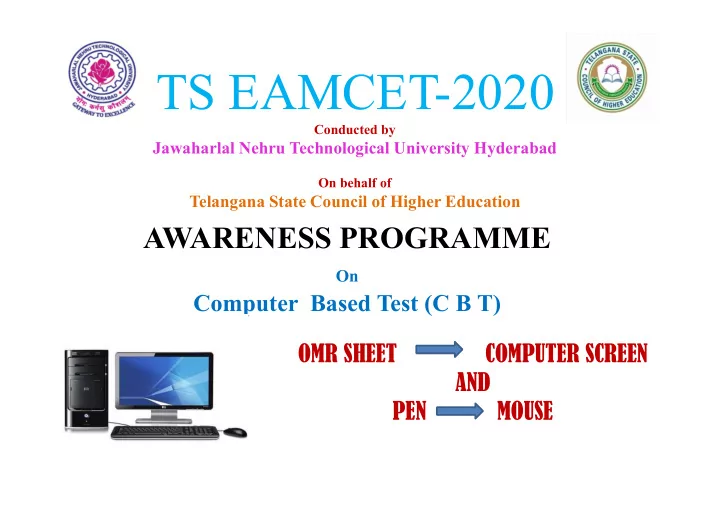
Computer Based Test (C B T) OMR SHEET COMPUTER SCREEN AND PEN MOUSE
TS EAMCET-2020 Conducted by Jawaharlal Nehru Technological - - PowerPoint PPT Presentation
TS EAMCET-2020 Conducted by Jawaharlal Nehru Technological University Hyderabad On behalf of Telangana State Council of Higher Education AWARENESS PROGRAMME On Computer Based Test (C B T) OMR SHEET COMPUTER SCREEN AND PEN
Conducted by
Jawaharlal Nehru Technological University Hyderabad
On behalf of
Telangana State Council of Higher Education
On
Computer Based Test (C B T) OMR SHEET COMPUTER SCREEN AND PEN MOUSE
Computer Based Test (CBT) is being conducted for the Third time by JNTUH
TS EAMCET–2020: Engineering Stream(E)
Will be intimated in due course of time TS EAMCET–2020: Agriculture & Medical Stream (AM) Will be intimated in due course of time
better way to conduct exams using Computers
approved testing center
becoming the standard format for most of the entrance tests.
for wrong bubbling is completely eliminated
corner of screen
answer 160 Questions
number of Questions answered / not answered / answered and marked for review/ not answered marked for review/not visited
scrolling the bar with mouse
OMR SHEET COMPUTER SCREEN AND PEN MOUSE
before starting the examination and also can go through the instructions on screen while answering the questions
in the TS EAMCET-2020 website.
Mock test link for CBT are available in TS EAMCET- 2020 website: https://eamcet.tsche.ac.in
clicking on Mock Test option.
TS EAMCE-2020 Online Application and Computer Based Test (CBT) are available in the website: https://eamcet.tsche.ac.in
1. Candidate should verify the Hall Ticket Number displayed on the allocated system and enter the password 2. Verify personal information along with photograph displayed on the computer system used for taking the CBT. If any mismatch in the data, immediately the candidate should report to the
3. Click on Check box “I have read and understood the instructions…..” after reading the instructions 4. Click on “I am ready to begin” button 5. Start answering the questions
commencement of the test on the date and time mentioned in the Hall Ticket
LATE BY A MINUTE after the commencement of the test and not allowed to leave the examination hall till the END of the examination (i.e.,12.00 Noon in forenoon session and 6.00 PM in afternoon session) under any circumstances
center and allowed after complying with all the rules of the Test
nodes allotted
displayed as shown below
Password as instructed by the Invigilator in the exam hall
The Instructions will be available in both English & Telugu (English & Urdu for Urdu
Test Specific Instructions
Test Specific Instructions contd.,
languages (English and Urdu languages if medium of test selected as Urdu in Online application).
and Chemistry are displayed in different Sections (Subjects)
would like to start the Test
displayed for answering or Click on the question number in the Question Palette in the right side of your screen to go to that numbered question directly
be displayed in “Question window”
Note that ONLY Questions for which answers are saved by clicking on “Save & Next” button or “Mark for Review and Next” button after answering will be considered for evaluation
by clicking on the radio button (small circle) beside each
button (small circle) of another option. If you want to remove the answer, click on Clear Response button
button and then go to the next question, otherwise your answer will not be saved
click on the Mark for Review & Next button. If an answered question is selected for Mark for Review, that answer will be considered in the evaluation
Note that ONLY Questions for which answers are saved by clicking
“Save & Next” button or “Mark for Review and Next” button after answering will be considered for evaluation
(180 Minutes). System will automatically submit your answers Post Test (after test closure time)
Section (Subject) Name, Number of Questions in a Section (Subject), Answered, Not Answered, Marked for Review, Answered and Marked for Review and Not Visited
Test will be successfully submitted with this confirmation
Zoom In or Zoom Out
question and options
Timer
begin”
available (Time Left) for you to complete the Test
to click on “Submit” button to end your Test
Sections (Subjects) Navigation
name, anytime within the duration of the Test
to the first question of the next Section (Subject)
Section (Subject) above the Question Palette
Question Palette
numbers in the selected Section (Subject) along with the status of each question using one
question is answered and Marked for Review, your answer for that question will be considered for evaluation
Question Window
and options in the Question Window
Question Window - Expanded View
hide the Question Palette in order to maximize the Question Window
Question Window)
down
Clear Response Button
clicking on the “Clear Response” button
Question Paper
along with options (Note: Candidate can’t answer any question in this view)
Click on “Close X” button to close the Question Paper view and enter the Test taking mode.
Instructions
button.
identify the exact location and route
they are LATE BY A MINUTE after the commencement of the test.
test commences and will not be allowed to leave the Examination Hall till the END of the Examination. Candidates may go to toilets before entering the exam halls
also in the Examination Hall, failing which the candidates will not be allowed to write the test
form” and “Booklet for Rough Work” in the Examination Hall. Otherwise their Results will be withheld.
(i) Black / Blue Ball Point Pen (ii) Filled in Online Application form (iii) Hall Ticket (iv) Community certificate for SC/ST candidate
Phones, Watches, any other electronic gadgets and loose sheets of paper into the Examination Hall is strictly prohibited and candidates are advised not to bring any one of the above. For rough work, a booklet will be provided in the examination hall.
will be taken against the Candidate as per the law.
for Rough Work provided in the examination hall.
examination, failing which his/her candidature will be rejected.
N O T E # Report at the Test center at least 2 hours before the commencement of the Exam. # For more details, read information and practice mock test available in the TS EAMCET-2020 website # Check your E-Mail and Mobile number given in the application for receiving
messages related to TS EAMCET-2020. # Download Hall Ticket in time and verify your Personal information and Test Center address. # Read instructions on Hall Ticket carefully and Follow all instructions without fail.