TMUG Trilogy Macintosh User Group since 2005 8 MAY 2017 Apple - - PowerPoint PPT Presentation

tmug
SMART_READER_LITE
LIVE PREVIEW

TMUG Trilogy Macintosh User Group since 2005 8 MAY 2017 Apple - - PowerPoint PPT Presentation

TMUG Trilogy Macintosh User Group since 2005 8 MAY 2017 Apple Logos through the years TMUG: 8 MAY 2017 AGENDA Welcome to new members Anyone get a new Apple "toy" since we last met? What's New in the Wonderful World of


slide-1
SLIDE 1

TMUG 8 MAY 2017

Trilogy Macintosh User Group since 2005
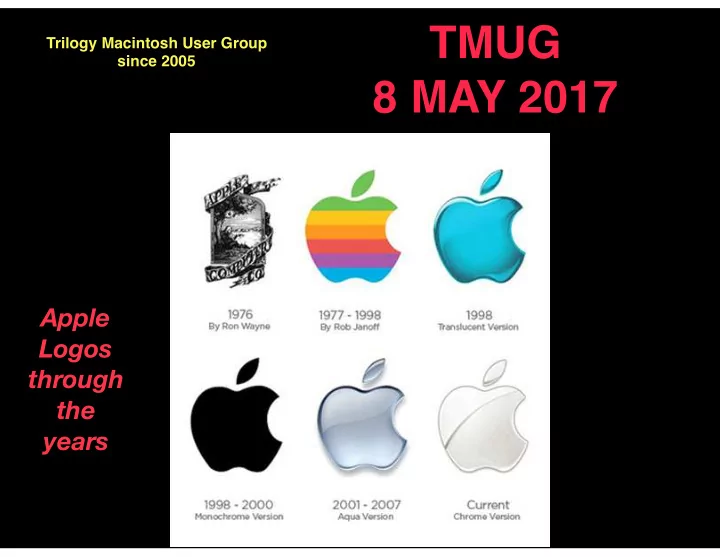
Apple Logos through the years

slide-2
SLIDE 2

AGENDA

  • Welcome to new members
  • Anyone get a new Apple "toy" since we last met?
  • What's New in the Wonderful World of Apple?
  • New products and some Tips & Tricks
  • Farewell… last formal TMUG presentation, but not the last
  • f TMUG!

TMUG: 8 MAY 2017

slide-3
SLIDE 3

APPLE

WHAT'S NEW IN THE WORLD OF APPLE

  • Apple announced that it will extend the warranty on the first-generation Apple

Watch if it breaks due to battery issues even if it's already older than two years.

  • Apple recently updated several of its Mac and iOS apps, making them available

for all Mac and iOS users for free.

  • iMovie, Numbers, Keynote, Pages, and GarageBand for both Mac and iOS

devices have been updated and are now listed in the Apple Store for free.

  • Previously, all of these apps were provided for free to customers who purchased

a new Mac or iOS device, but now that purchase is not required to get the

  • software. Many Apple customers were already likely eligible to download the

software at no cost if they had made a device purchase in the last few years.

slide-4
SLIDE 4

APPLE

WHAT'S NEW IN THE WORLD OF APPLE

  • Rumor mill guesses that there is more than a 50% chance that Apple will announce its

first home artificial intelligence (AI) product at their developers conference in June and start selling in the second half of the year

  • It will compete with Amazon’s Echo (“Alexa”) and is thought that it will have "excellent

acoustics performance" with one woofer and seven tweeters, and computing power similar to iPhone 6 or iPhone 6s.

  • Apple is rumored to be working on a money transfer service that would allow iPhone
  • wners to send money digitally to other iPhone owners
  • It is expected that Apple will announce this new service later this year.
slide-5
SLIDE 5

APPLE

WHAT'S NEW IN THE WORLD OF APPLE

  • Last week Apple announced plans to launch

dozens of new educational sessions next month in all 495 Apple stores ranging in topics from photo and video to music, coding, art and design and more.

  • The hands-on sessions, collectively called "Today

at Apple," will be led by highly-trained team members, and in select cities world-class artists, photographers and musicians, teaching sessions from basics and how-to lessons to professional- level programs.

  • In 100 of its biggest stores, like the San Francisco

flagship, Apple's "hardware" update means new screens and spaces for meetings and classes. The Genius Bar, now lined with trees, becomes the Genius Grove. And there's a more dimensional take on the Genius: new staffers specialized in music and photography called "Creative Pros."

slide-6
SLIDE 6

APPLE

WHAT'S NEW IN THE WORLD OF APPLE

  • Apple plans to create a $1 billion fund to invest in U.S. companies that do advanced

manufacturing

  • The new fund will support U.S. manufacturing and its first investment will be

announced in sometime in May.

  • Apple’s market capitalization on Friday hit $774.7 billion
  • As of noon today, Apple stocks were up by $4.47 in today’s trading!
slide-7
SLIDE 7

APPLE

WHAT'S NEW IN THE WORLD OF APPLE

  • Apple Watch sales nearly doubled year over year. Apple Watch is the best selling and

most loved smartwatch in the world

  • AirPods are selling fast with a 98% customer satisfaction rating based on a recent

survey

slide-8
SLIDE 8

TIPS & TRICKS

HOW TO CLEAN AND DISINFECT YOUR IPHONE

  • Make a cleaning kit:
  • Get 70 percent or higher rubbing alcohol, finely pointed q-tips, and toothpicks. You

should also grab a pack of microfiber cloths, as well as a can of compressed air, which is particularly good for blowing out dust from the inner-most parts of the phone. http://www.imore.com/how-clean-and-disinfect-your-iphone? utm_source=feedburner&utm_medium=email&utm_campaign=Feed%3A+TheIphoneBlog+ %28iMore%29

  • For complete How-To details for cleaning your iPhone, go to
slide-9
SLIDE 9

TIPS & TRICKS

SAFE TIP AGAINST OPENING MALWARE

  • If you receive an email with an attachment at all, do some due diligence to make

sure it's from a legitimate source.

  • Check the sender address to make sure it is from an address you recognize.
  • Click on the sender's name to view the email address it was sent from to make sure

it's not a spoofed email.

  • If you're still unsure, confirm with the sender by texting, calling or sending a

separate email asking if the attachment is legit.

Obviously a Fake Name Looks suspicious…

slide-10
SLIDE 10

TIPS & TRICKS

SAFE TIP AGAINST OPENING MALWARE

  • Another example of a phony message… check out the spelling

Expect to make USD250 - USD500 per Evaluation completed. Put U inf0 to sign up m.a.i.l:

  • 1. E.m.a.i.l:
  • 2. Full N.a.m.e:
  • 3. F.u.l.l A.d.d.r.e.s.s:

( City, State, Zip ):h.o.n.e. #:

  • 5. Current.Job:

Looks pretty suspicious to me….

slide-11
SLIDE 11

TIPS & TRICKS

SAFE TIP AGAINST SELLING ON CRAIG’S LIST OR OTHER RESALE SITES

Buyer’s Email #1: “Am interested in buying ______ and have a few questions” My Email Response #1: “I am selling this for a neighbor; please let me know what you would like to know. Buyer’s Email #2: “Email back with your real email address to discuss, am having hard time sending through this link” My Email Response #2: “Sorry, I cannot do that; you are doing just fine with this

  • site. I also do not share address or phone information until a firm commitment on

your part to purchase any item. If your cannot proceed with an honest discussion, I will ignore your queries.

  • If you sell items on Craig’s List or on similar sites, here are some cautionary tips to help

you from being scammed by a crook

  • The following examples are excerpts from “a potential buyer” that I sometimes see

in response to a posting of items of higher value

  • In this case, I had posted an item for sale on behalf of a neighbor; we had decided

to try to sell the item for $1200 (the item was only 18 months old and originally cost the owner $3000 new)

  • Within 8 hours of my posting on Craig's List I received a series of emails from a

“potential buyer” that read as follows:

Continued

slide-12
SLIDE 12

TIPS & TRICKS

SAFE TIP AGAINST SELLING ON CRAIG’S LIST OR OTHER RESALE SITES

Buyer’s Email #3: “My name is Justin, I hope it can be picked up in 2 days if we have an agreement? I can only pay through PayPal which I believe is secure. Please send me more pictures because I will not be able to see it myself due to work and my location but I have a hauler who will come for pickup once payment is confirmed. Let me know asap.” My Email Response #3: “I do not accept PayPal and I only sell to a buyer who appears in person; no hauler substitutes. Just don’t bother me with any more of your scams… you are not the first, but the routine is always the same. Now go find a real job!!! This is the end of the discussion!”

  • If you sell on Craig's List, beware of similar scams… don’t get sucked into giving any

information about yourself until you have a comfortable feeling about the buyer.

  • 98% of the buyers I work with are honest; you can often tell just by their written tone

and the types of questions they ask. I sell as many as 10-20 items a month on behalf

  • f Trilogy neighbors, and I have yet to fall for a scam… let’s hope I never will….
  • In the example above, from the first I had a inkling that this might not be a legitimate
  • ffer, but by the time the second email came in I was pretty sure that this was going

to be a potential scam and that I would limit my responses

  • If you have any questions or need help selling on Craig’s List or similar sites, I’d be

happy to help out.

slide-13
SLIDE 13

TIPS & TRICKS

GOOGLE DUO

  • Google Duo is a video chat mobile app available on the iPhone, iPad and Android
  • Similar to Apple’s FaceTime, but for iPhone users it real use is to contact Android users
  • Duo is based on phone numbers, allowing users to call someone from their contact

list

Free in the iOS App Store

slide-14
SLIDE 14

TIPS & TRICKS

GEMINI 2… REMOVE DUPLICATE PHOTOS & FILES

  • Go to https://macpaw.com/gemini to see a demo of Gemini 2 and get a free download

to try it out on your own

  • If you want to clean up your Mac, but are afraid about digging around in your files and

accidentally deleting something important, Gemini 2 has a lot to offer and makes the whole process very simple.

  • This app, by the same people who created CleanMyMac, automatically finds

duplicate files and wipes them away and recovers tons of space on your Mac. Note: If you delete something by mistake, Gemini moves duplicates to the Trash and lets you bring them back in a click. This gives you the option to create a “duplicate” folder and store the duplicates there until you are totally satisfied that you want to delete them from your Mac

$19.99 in the Mac’s App Store

slide-15
SLIDE 15

TIPS & TRICKS

DELETE ALL MAIL ON YOUR IPHONE

  • If you want to delete all your email on your

iPhone, select “All Inboxes” and then click

  • n “Edit;” you will then see an option at

the bottom of the screen that shows “Mark All;” that will let you delete all of your email with one push

slide-16
SLIDE 16

TIPS & TRICKS

IOS SAFARI’S READER MODE

  • If you want a more pleasant experience reading a

Web page on you iPhone or iPad that’s cluttered and chaotic with images and ads, Safari’s Reader Mode is terrific.

  • This option turns the Web page into something that

looks like an eBook, with a great interface …you’ll see a special icon next to the address, one that looks like a paragraph symbol. Tap on that icon, and you’ll pop into Reader Mode.

  • Once you’re in Reader Mode, it’s easy to customize

how the page looks to meet your reading

  • preferences. Just tap the Aa button on the top right
  • f the screen, and you’ll get a popup window. you

can adjust the color scheme and change the font used to display the text from the page.

slide-17
SLIDE 17

TIPS & TRICKS

IOS SAFARI’S: OPEN RECENT TABS

Just as a reminder, you can access recent tabs (recent Web sites) in Safari on your iOS devices by clicking on the Tab Switcher icon that looks like double pages NOTE: On the iPhone this icon is in the lower right corner, while on the iPad it is in the upper right corner

slide-18
SLIDE 18

TIPS & TRICKS

IOS SAFARI’S: OPEN RECENT TABS

Just as a reminder, you can access recent tabs (recent Web sites) in Safari on your iOS devices by clicking on the icon that looks like double pages

  • After clicking on the icon, you now see a list of recent Web sites you have visited

and can click on anyone of them to reopen NOTE: To delete any of these previous Web sites, just swipe them from right to left

slide-19
SLIDE 19

TIPS & TRICKS

IOS SAFARI’S: OPEN RECENTLY DELETED TABS

Just as a reminder, you can access recent tabs (recent Web sites) in Safari on your iOS devices by clicking on the icon that looks like double pages

  • But if you swiped one and then shortly later

decided that you really would like to revisit the deleted site, simply go into the Tab Switcher again, and tap and hold the plus (+) button.

  • You’ll get a list of recently closed tabs, and then

you can choose the one you want to bring back.

slide-20
SLIDE 20

TIPS & TRICKS

IOS SAFARI’S: MAKE THE MOST OF SHARE SHEET EXTENSIONS

  • Plenty of apps have something

plugged into the Share Sheet that works throughout the mobile

  • perating system.
  • You can do things like save a

web page to the Notes app, send the page in a text message or email, or many other options. Explore what the Share Extensions have to offer you, and make the most of them.

slide-21
SLIDE 21

TIPS & TRICKS

IOS SAFARI’S: 3D TOUCH QUICK ACTION

  • There are a few things you can do in Safari on the iPhone 6 or 7 that require 3D

Touch.

  • The most obvious is using Quick Actions to launch the app.
  • If you 3D Touch the Safari app icon, you can open a new regular or standard tab,
  • r you can show your bookmarks or Reading List.
slide-22
SLIDE 22

TIPS & TRICKS

IOS SAFARI’S: 3D TOUCH QUICK ACTION

  • You can also use 3D Touch to Peek into new pages.
  • When you come across a link that seems to be interesting, just press a little bit

harder and you’ll get a popup preview of that page.

  • If you want to go on to that page, all you have to do is press deeper again to
  • pen the page… It’s a great way to surf the Web, since you can save loading

time by taking a quick glance at a site before you commit to loading the full page.

slide-23
SLIDE 23

TIPS & TRICKS

IOS SAFARI’S: SHARE > SAVE PDF TO IBOOKS

  • For those times when you need an offline copy of a web page, you can turn it into a

PDF.

  • There are a couple of methods to do this. First, you can save the PDF to iBooks by

tapping Share > Save PDF to iBooks. This is all well and good, but it’s not

  • perfect. Once you save the PDF into iBooks, it’s a real challenge to share that file

with other apps.

slide-24
SLIDE 24

TIPS & TRICKS

IOS SAFARI’S: SHARE > SAVE PDF TO IBOOKS

  • With iOS 10, there’s another way to export your web page as a PDF.
  • At the bottom row of the Share sheet, you’ll now see a Print icon. If you tap that

button, you’ll get a preview of how the page will look when printed.

  • This is step one, but you could go ahead and print the page now if you wanted

to.

  • To move from this into a PDF, you need to either 3D Touch once for the floating

Peek view, then 3D Touch again to Pop into a full PDF view of the page.

  • If you don’t have 3D Touch, you can swipe outwards with two fingers (the

reverse of pinching to zoom), and you’ll jump into the same PDF preview.

  • From there, tap the Share button once again to see a list of apps that support

PDF import. You can also add the PDF to your Dropbox or iCloud Drive, if you have those enabled.

slide-25
SLIDE 25

TIPS & TRICKS

IOS SAFARI’S: FUN WITH LONG PRESSING BUTTONS

  • Apple really should have a manual for all of this stuff, but it doesn’t. If you play

around with long pressing buttons, you’ll find some new options in Safari’s bottom toolbar.

  • In fact, almost the entire bottom toolbar has some sort of long press option. The
  • nly odd man out here is the Share button, which doesn’t do anything when you

long press.

  • If you long press the Bookmark icon, though, you’ll get an option to quickly add

the current page as a bookmark, send it to the Reading List, or put it in your Shared Links (if enabled).

  • With the tab switcher, you can quickly create a new tab or close all of the

currently open tabs.

  • Finally, long pressing the back or forward buttons will give you a list of all of the

pages you can navigate forwards or backwards through.

slide-26
SLIDE 26

TIPS & TRICKS

IOS SAFARI’S: SEARCH THROUGH YOUR OWN TABS

  • Since Safari in iOS 10 lets you open as many tabs as you want, you might find

yourself losing open pages in the clutter.

  • This is especially true if you keep opening pages in new tabs, hoping you can

easily get back to one you need in the future. This ends up being pretty frustrating, but Cupertino has hidden a means for searching through those open tabs.

  • All you have to do is tap the tab switcher button and turn your iPhone into

landscape mode (be sure to turn off Portrait Lock in the Control Center, if you’ve enabled it.)

  • You’ll see a Search bar in the top left, where you can type in what you’re looking

for.

slide-27
SLIDE 27

TIPS & TRICKS

IOS SAFARI’S: FIND TEXT IN A PAGE

  • When you’re reading a long article in Safari, or looking up something in Wikipedia,

you might find yourself wishing you could search for text like you can with Command-F in Safari on your Mac.

  • Fortunately there are two ways to do this on your iOS devices:
  • The first is to tap in the address bar and type what you’re looking for. Beneath

your history and suggested websites, you’ll see an option for On This Page.

  • The second way to search the text of a page is to tap the Share button and

then select Find in Page from the bottom row.

  • In this example I was reading an article and wanted to search for the word

“burning” anywhere within the text of the site (I found it quickly using the first suggestion above)

slide-28
SLIDE 28

TIPS & TRICKS

HOW TO SET REMINDERS AND UPDATE TO-DO LISTS WITH SIRI

"Hey Siri, add paper towels to the shopping list" is one of those things that makes you feel like you're living in the future.

  • Siri was designed to help you get things done, and part of that job description is

creating and updating your Reminders.

  • If you need to be prodded to pick up milk on the way home, order that present in time

for the big party, or set up that lunch meeting before the end of the day, Siri's there to help.

  • How to create a time-based reminder with Siri
  • How to create a location-based reminder with Siri
  • How to create a Reminder in a specific List with Siri
  • How to use Siri to remember things from apps
slide-29
SLIDE 29

TIPS & TRICKS

HOW TO SET REMINDERS AND UPDATE TO-DO LISTS WITH SIRI

How to create a time-based reminder with Siri

  • One of the easiest things to do with Siri is have it set up a quick Reminder. Siri is so

quick, in fact, it's almost always faster to use Siri than to tap your way through the Reminders app. 1 Say "Hey, Siri"" or press and hold down the Home button to activate Siri. 2 Say aloud what you want to be reminded about, and when. For example: "Remind me to call Leanna at 9pm.” 3 Tap Remove to cancel the reminder.

slide-30
SLIDE 30

TIPS & TRICKS

HOW TO SET REMINDERS AND UPDATE TO-DO LISTS WITH SIRI

How to create a location-based reminder with Siri

  • Because your iOS device knows where you are, you can set up Reminders based on

location as well. 1 Say "Hey, Siri"" or press and hold down the Home button to activate Siri. 2 Say aloud what you want to be reminded about and where. For example: "Remind me to pick up fertilizer at Home Depot home" or "Remind me to feed the dog when I get home”. 3 Tap Remove to cancel the reminder.

Note: If you have a store, such as Home Depot (in Redmond) already listed in Contacts, Siri will know to remind you when you arrive at the Redmond store

slide-31
SLIDE 31

TIPS & TRICKS

HOW TO SET REMINDERS AND UPDATE TO-DO LISTS WITH SIRI

How to create a Reminder in a specific List with Siri

  • If you have multiple lists in Reminders, like a packing list, a party list, etc. you can tell

Siri to create a to-do item specifically for one of those lists. 1 Say "Hey, Siri" or press and hold down the Home button to activate Siri. 2 Say aloud what you want to be reminded about and in which List you want it to

  • go. For example: "Add milk to grocery shopping list.”

3 Tap Remove to cancel the Reminder.

The Reminder will then be placed in the List you specified.

slide-32
SLIDE 32

TIPS & TRICKS

HOW TO SET REMINDERS AND UPDATE TO-DO LISTS WITH SIRI

How to use Siri to remember things from apps

  • Siri can remind you of "this", where "this" is almost anything you're looking at when you

invoke Siri. 1 Get to the content you want to remember. 2 Say "Hey, Siri"" or press and hold down the Home button to activate Siri. 3 Say "Remind me of this"

NOTE: Siri will add it to Reminders with a link back to not only the app, but the specific content.

slide-33
SLIDE 33

Thanks to each and everyone of you who have supported TMUG for over 12 years… its been fun! Although this may be the last of our formal presentations, TMUG will remain alive, but just in a different format. I’ll be sharing announcements and all of the good Tips & Tricks that make our Apple toys fun and useful via emails, and I will do my best to respond to your questions in a timely manner

slide-34
SLIDE 34

If there is a need to have special working

  • r training sessions here at the Cascade Center,

we will work that out as the occasion arises and If you need technical support or some training at home, just drop me a line and we will set up a time

slide-35
SLIDE 35

A copy of this presentation will be available later today on our TMUG Web site at https://trilogymug.wordpress.com 8 May 2017