Maximizing the Meaning of Multimedia: Reader-friendly strategies - - PowerPoint PPT Presentation

maximizing the meaning of multimedia reader friendly
SMART_READER_LITE
LIVE PREVIEW

Maximizing the Meaning of Multimedia: Reader-friendly strategies - - PowerPoint PPT Presentation

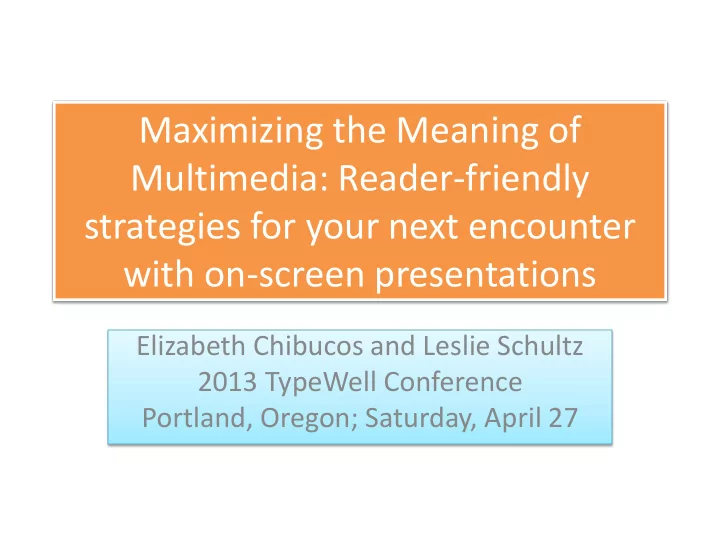
Maximizing the Meaning of Multimedia: Reader-friendly strategies for your next encounter with on-screen presentations Elizabeth Chibucos and Leslie Schultz 2013 TypeWell Conference Portland, Oregon; Saturday, April 27 Introduction


slide-1
SLIDE 1

Maximizing the Meaning of Multimedia: Reader-friendly strategies for your next encounter with on-screen presentations

Elizabeth Chibucos and Leslie Schultz 2013 TypeWell Conference Portland, Oregon; Saturday, April 27

slide-2
SLIDE 2

Introduction

  • Increasing popularity of presentation tools
  • PowerPoint and Prezi
  • Online degree programs and webinars
  • Presenter may not consider accessibility
slide-3
SLIDE 3

Workshop Format

  • Introduction
  • Hands-on practice (audio only)
  • Discussion of real-time transcribing

– Challenges – Best practices – Demonstration and practice with presentation examples

  • Effective notes
  • Considerations for remote transcribing
  • More hands-on practice
  • Q & A
slide-4
SLIDE 4

Hands-on Practice

  • Technical instructions: Posting a narrated

PowerPoint presentation to YouTube

  • Audio only:

– remote TypeWell – Presentation with low visibility

  • Slides will be displayed later
  • Client profile: has access to materials, student

with hearing loss

slide-5
SLIDE 5

Advantages of on-screen presentation tools for transcribers

  • Provide spelling of unfamiliar/specialized

vocabulary

  • Reinforce key concepts, highlight points of

emphasis

  • Increased accessibility for readers with

disabilities, especially those with hearing losses or learning disabilities

slide-6
SLIDE 6

Challenges for transcribers

  • Slide readability

– Font type, size – Background color – Overlapping elements, clutter

  • Reader fatigue, concern over missing information
  • Discussing on-screen content out of sequence
  • Rapid delivery of spoken material
  • Verbatim reading with parenthetical comments
  • Differing presentation styles
slide-7
SLIDE 7

Best practices for real-time transcribing

  • Check in with reader

– What do they identify as helpful? – Does one type of content take priority? – Are the slides or notes available in or out of the meeting?

  • Consider reader’s needs and talk to service

coordinator.

– Hearing loss, vision loss, learning or motor disability?

slide-8
SLIDE 8

Best practices for real-time transcribing

  • Unclear/illegible slides

– Equal access, not perfection – Possibly disregard on-screen content – Orient reader to the screen periodically but transcribe meaning-for-meaning

slide-9
SLIDE 9

Best practices for real-time transcribing

  • Unclear/illegible slides (cont’d.)

– If consistent problem, discuss with service coordinator

  • Share responsibility for access
  • Give opportunity for client to resolve issue internally
  • Perhaps additional accommodation is needed (i.e.,

note-taker, plain text of slides, previewing in advance)

slide-10
SLIDE 10

Best practices for real-time transcribing

  • Reader fatigue/overwhelm

– Consistency in reader orientations and formatting – Use appropriate detail:

  • Unclear: [Teacher reading: list on screen.]
  • Better: [Teacher reading from slide: “Systems of

Government,” bulleted list.]

  • Best: Possible systems of government include the following:

[bulleted list on screen]

  • 1. Anarchy
  • 2. Aristocracy
  • 3. Communism
  • 4. Corporatism
  • 5. Democracy . . .
slide-11
SLIDE 11

Best practices for real-time transcribing

  • Reader fatigue/overwhelm (cont’d.)

– Transcription displayed on screen with slides?

  • TypeWell Web Linking or Streamtext
  • Helps reader avoid switching focus between screens
  • Font on slides may be too small if not fullscreen

– Include on-screen content if time allows

  • Reader may fall behind taking notes

– Capture spoken/aural content first – Reverse colors in TypeWell to avoid reader eyestrain

slide-12
SLIDE 12

Demonstration One

slide-13
SLIDE 13

Best practices for real-time transcribing

  • On-screen material discussed out of sequence

– Are reader orientations adding or distracting? – How long is information displayed?

  • If nearing the end of a slide, transcribe spoken content

in case the slide advances without warning

– Reorient the reader as necessary

  • [Teacher skipping ahead: “ . . . However, it remains to

be seen whether the plaintiff . . . “] [Middle of passage

  • n screen]
slide-14
SLIDE 14

Demonstration Two

slide-15
SLIDE 15

Best practices for real-time transcribing

  • Rapid speech
  • Students often rush through prepared material
  • Verbatim reading: orient reader to text

periodically

  • Increase chunking
  • Fill in details after class for notes
slide-16
SLIDE 16

Best practices for real-time transcribing

  • Rapid speech (cont’d.)
  • If student presentations are planned in advance, review

considerations with instructor

  • Have presenters provide copies of verbatim readings
  • Request clarification if necessary
slide-17
SLIDE 17

Best practices for real-time transcribing

  • Inconsistent presentation styles

– Presenter’s influence on transcription style – Back-to-back presentations by different individuals

  • Maintain consistent pattern of reader orientations and

formatting

  • One or two verbatim phrases for orientation
  • Pre-program orientations into PAL
  • When teaming, opt for similar formatting
slide-18
SLIDE 18

Hands-on practice

  • Before beginning, create a saved file for later

review.

  • Liz Chibucos: “Bluegrass in Japan”

presentation

slide-19
SLIDE 19

Rough edited transcript notes

  • Review transcript file from sample

presentation: Bluegrass in Japan

  • Does the text reflect the presentation

content?

  • Are the slides necessary for studying?
  • Indicate when slides change and label with

titles for future reference

  • Any observations?
slide-20
SLIDE 20

Remote transcribing presentations

  • Extra attention to chunking
  • Take care when assuming material is displayed

visually

– Don’t rely on tone of voice

  • For challenging material, request slides in

advance

  • If IT support is available, consider screen-

sharing options (see resource handout)

slide-21
SLIDE 21

Hands-on practice

slide-22
SLIDE 22

Opportunity for Q&A

  • Open discussion
  • Please take handouts with you:

– Actions You Can Take to Successfully Transcribe On-Screen Presentations – Mental Checklist for Transcribing On-Screen Presentations – Resources for Transcribing and Practicing Presentations

  • Suggested YouTube channels