SLIDE 1
For Assistance Call 734-615-0100 [Prompt 1]
Hybrid Presentation Mode
(Podium PC or Document Camera)
Instructor uses Podium PC and or Document Camera to present, while also using the Podium PC to connect to remote students via Zoom. The remote students appear only on the podium monitor (visible only to the instructor). Students on campus do not see remote students; they only see the instructor’s presentation on the front screen.
→ This setup is beneficial to switch between podium PC and document camera on the podium Crestron
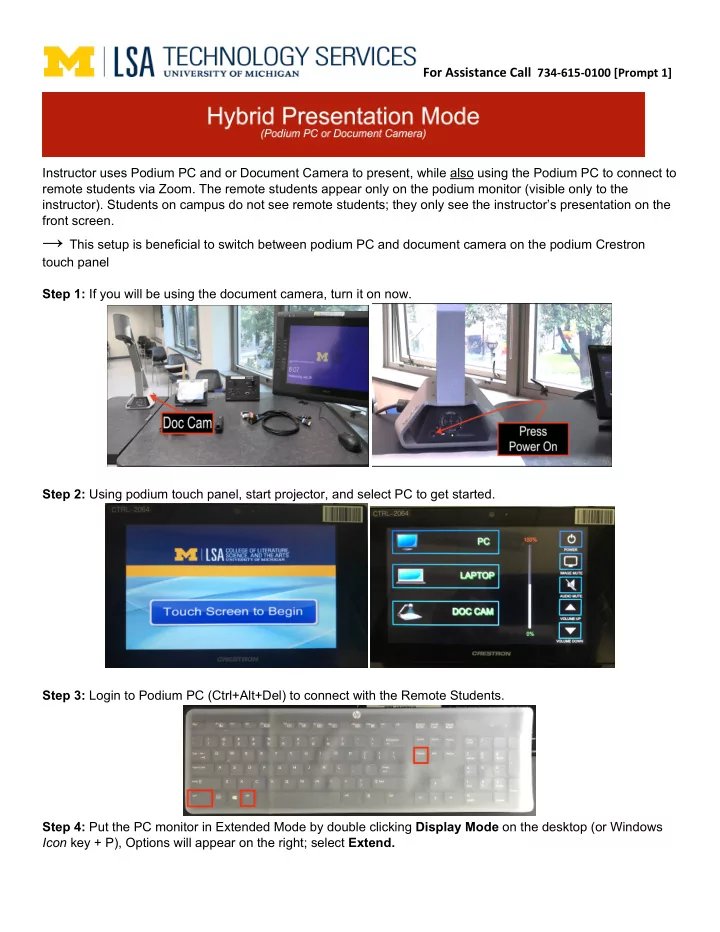
touch panel Step 1: If you will be using the document camera, turn it on now. Step 2: Using podium touch panel, start projector, and select PC to get started. Step 3: Login to Podium PC (Ctrl+Alt+Del) to connect with the Remote Students. Step 4: Put the PC monitor in Extended Mode by double clicking Display Mode on the desktop (or Windows Icon key + P), Options will appear on the right; select Extend.
SLIDE 2
Step 5: Log in to Canvas. Select course from Dashboard, start Zoom from “upcoming meetings” list or open class and start Zoom from the bottom of the page.
Updated: 8/17/20 2
SLIDE 3
Step 6: Select Open Zoom us. When prompted, Join with Video and/or Join with Computer Audio. Step 7: In Zoom, from the Video Up Arrow at the bottom of the Zoom Window (camera icon up arrow) Select a Camera, select Camera. (If you see a reversed LSA M Desktop or odd repeating screen, “Content” has been selected; you need to switch an select Camera (or type Alt + N)
Updated: 8/17/20 3
SLIDE 4
Step 8: In Zoom, from the Audio button (microphone icon, arrow up) Select a Microphone, select Digital Audio Interface (Content), Reopen Audio (microphone icon, arrow up) Select a Speaker, select Crestron (Intel(R) Display Audio). Step 9: In Zoom on the Podium PC, click the Share button (bottom center of Zoom screen) then select the “Advanced” tab. Then select Content from 2nd Camera: this will be the Document Camera. Then click the Share button.
Updated: 8/17/20 4
SLIDE 5
Step 10: Double-click anywhere on the screen to make the Zoom Shared window smaller (Restore Down). The Zoom screen will go from looking like this… ...to looking like this. (The green window border is exaggerated for emphasis). This green-bordered window shows you what is being shared to the remote participants through Zoom.
Updated: 8/17/20 5
SLIDE 6
Step 11: If you are using the PC to present, skip to the next step -Step 12. If you are using the document camera, select it on the Crestron touch panel to see your choice in the green-bordered window. From this point on, you can switch between the PC and document camera by just selecting your choice from the podium touch panel.
Updated: 8/17/20 6
SLIDE 7
Step 12: If you are using the PC to show anything other than PowerPoint, start the application and drag the window from the monitor to the right onto the projection screen. You will also see it appear in the green-bordered Zoom Sharing Window. The image now appears on the projector screen, and also in the Zoom Sharing Window
Updated: 8/17/20 7
SLIDE 8
Step 13: If you are using PowerPoint on the PC, start PowerPoint now. Click on one of the Present buttons to start your presentation. Step 14: Your presentation should now be on the projection screen, and you should see PowerPoint’s Presenter screen on the podium monitor. Click the Restore Down button to reduce the Presenter window, then grab the lower right corner to resize it.
Updated: 8/17/20 8
SLIDE 9
Step 15: The PowerPoint main/authoring window will still be on the monitor. Minimize it by clicking the Minimize button. Step 16: Arrange the windows to your preference. You should now be able to see the PowerPoint presenter window, Zoom’s green-bordered window of what you are sharing, and Zoom remote participants’ window.
Updated: 8/17/20 9
SLIDE 10 Step 18: Instructor speaks to students in the classroom and to the remote students through the lavalier
- microphone. It is important for the instructor to wear the lavalier microphone.
Instructors will need to repeat the questions and comments from the students in the room for remote students to hear. Students and the instructor hear the remote students through the speakers in the ceiling of the
- classroom. Everyone hears all audio in the classroom.
- To stop sharing your presentation: Click the red Stop Share button on the podium monitor, or type Alt + S
When class is over: Close All Programs on Podium PC, Log out of Podium Computer and click the power icon on the Crestron touch panel. NOTE: Lecture Capture (and automatic camera control) is scheduled separately and starts and ends automatically.
Updated: 8/17/20 10