Hacking Hands on with wireless LAN routers, packet capture and - - PowerPoint PPT Presentation

hacking
SMART_READER_LITE
LIVE PREVIEW

Hacking Hands on with wireless LAN routers, packet capture and - - PowerPoint PPT Presentation

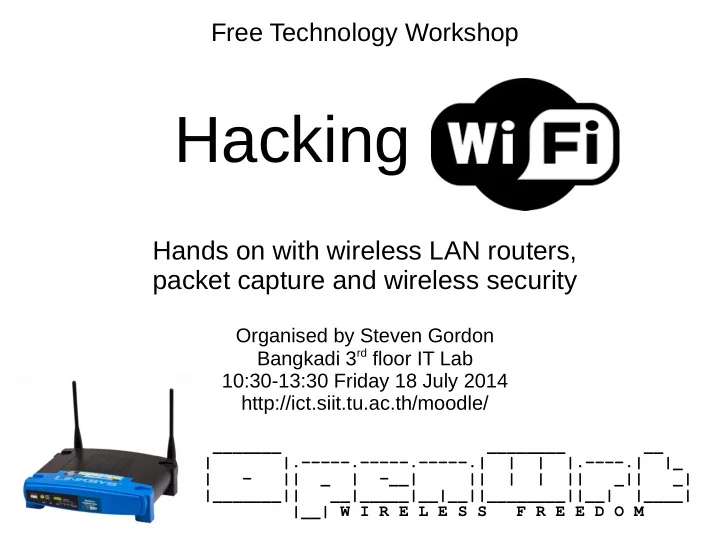
Free Technology Workshop Hacking Hands on with wireless LAN routers, packet capture and wireless security Organised by Steven Gordon Bangkadi 3 rd floor IT Lab 10:30-13:30 Friday 18 July 2014 http://ict.siit.tu.ac.th/moodle/ _______


slide-1
SLIDE 1

Free Technology Workshop

Hacking

Hands on with wireless LAN routers, packet capture and wireless security

Organised by Steven Gordon Bangkadi 3rd floor IT Lab 10:30-13:30 Friday 18 July 2014 http://ict.siit.tu.ac.th/moodle/

_______ ________ __ | |.-----.-----.-----.| | | |.----.| |_ | - || _ | -__| || | | || _|| _| |_______|| __|_____|__|__||________||__| |____| |__| W I R E L E S S F R E E D O M

slide-2
SLIDE 2

Aims

  • Understand what is a “wireless router”
  • See the internals (hardware)
  • Know about (open source) firmware
  • Understand what is a “wireless LAN”
  • Setup a wireless LAN
  • Aware of security features in wireless LANs
  • Capture wireless packets (“sniffing”)
  • Bypass security features in wireless LANs
slide-3
SLIDE 3

Sources

  • openwrt.org
  • wikipedia.org
  • and others
slide-4
SLIDE 4

Naming, Acronyms, etc.

  • AP - access point
  • BSSID - basic SSID

identifies AP

  • CTS - clear to send
  • ESSID - extended SSID

identifies network (also SSID)

  • LAN - local area network
  • MAC - medium access control (layer)

defines how to share channel with others

  • NAT - network address translation

allows private addressing in internal network

  • PHY - physical (layer)

defines data rate, channels, power, signals, ...

  • RTS - request to send
  • SSID - service set identifier
  • WAN - wide area network
  • WEP - wired equivalent privacy

insecure encryption

  • WLAN - wireless LAN

also WiFi, IEEE 802.11

  • WMM - wireless multimedia mode

priority for voice, video packets

  • WPA - WiFi protected access

secure encryption

  • WRT - wireless router
slide-5
SLIDE 5

Quick Reference

  • Router IP: 192.168.1.1
  • Router username: root
  • Router password: s11tnetw0rk
  • Router name and SSID: ICTRxx (xx=10, 11, ...)
  • iMac username: student
  • iMac password: student
  • Software: http://ict.siit.tu.ac.th/software/
  • Workshop: http://ict.siit.tu.ac.th/moodle/
slide-6
SLIDE 6

Wireless Routers

slide-7
SLIDE 7

Internet (WAN) port Power Reset Removable antennas LAN ports

slide-8
SLIDE 8

Wireless Router at Home

192.168.1.2 192.168.1.3 192.168.1.4 192.168.1.5 192.168.1.1 Modem telephone line to ISP 120.6.46.15 internal LAN with private IPs Internet connection with public IP

slide-9
SLIDE 9

Wireless All-in-one Router at Home

192.168.1.2 192.168.1.3 192.168.1.4 192.168.1.5 192.168.1.1 telephone line to ISP 120.6.46.15 internal LAN with private IPs Internet connection with public IP

slide-10
SLIDE 10

Wireless LAN AP at SIIT

SIIT internal network with private IPs Link to ISP

203.131.209.66

slide-11
SLIDE 11

Router

with firewall, NAT, web server, SSH server, DHCP server, ...

Ethernet switch Ethernet WAN port WLAN access point

Wireless Router

external network internal network

slide-12
SLIDE 12

Router

with firewall, NAT, web server, SSH server, DHCP server, ...

Ethernet switch ADSL Modem WLAN access point

Wireless Router with ADSL Modem

external network internal network

slide-13
SLIDE 13

Bridge Ethernet port WLAN interface

Wireless AP

internal network

slide-14
SLIDE 14

Router All-in-one AP

slide-15
SLIDE 15

Internet (WAN) port Power Reset Removable antennas LAN ports

slide-16
SLIDE 16

Linksys WRT54G(L)

  • CPU: Broadcom 200MHz
  • Flash: 4MB
  • RAM: 16MB
  • Wireless chip: Broadcom (integrated)
  • Wireless PHY: 11b, 11g
  • Wireless Tx Power: 63 mW
  • Antenna: 2 x 2.2dBi dipole
  • Wired ports: 5 x 10/100Mb/s

32-bit MIPS Non-volatile storage Volatile storage CPU + WiFi + Switch Up to 54 Mb/s Adjustable Removable RP-SMA 4 x LAN + 1 x WAN Since 2003, popular wireless router with Linux firmware supports 3rd party firmware

slide-17
SLIDE 17
slide-18
SLIDE 18

Broadcom CPU Flash Memory RAM

slide-19
SLIDE 19

Wireless LANs

slide-20
SLIDE 20

Wireless LANs

  • IEEE 802.11 (standards), WiFi (marketing)
  • Aim: Provide equivalent functionality to wired Ethernet
  • Advantages of wireless:

– No wires – Mobility

  • Disadvantages of wireless:

– More errors, varying delay: hard to achieve same

performance as wires

– Spectrum/frequencies available is limited: cannot just add

more wires

– Radio transmissions are broadcast: No “physical” security

slide-21
SLIDE 21

Wireless LANs: Broadcast Radio

A B C D

  • Transmit signal at center frequency f, with bandwidth BW
  • Devices with receives tuned to frequency f will receive the signal (if it has strong

enough power)

  • “Strong enough power”: depends on transmit power, receiver characteristics,

antennas, frequency, obstructions

  • Assume maximum distance some signal can be transmitted is range

transmission range

slide-22
SLIDE 22

Wireless LANs: Broadcast Radio

  • Everyone within range of transmitter receives the

signal

  • If two (or more) signals received at same time, then

neither can be understood

– Interference, a “collision” occurs

  • IEEE 802.11 MAC protocol aims to ensure only one

device transmits at a time

– Good: No (or few) collisions – Bad: Each device must wait for other devices before it can

send

  • Shared medium: divide the data rate by number of devices

wanting to share

slide-23
SLIDE 23

IEEE 802.11 Wireless LANs

  • Access Point (AP): acts as a bridge between

wireless segment (WiFi) and wired segment (Ethernet)

  • Client: wireless communications to AP

AP C1 C2 C3 Wired network

slide-24
SLIDE 24

IEEE 802.11 Wireless LANs

  • Physical (PHY) Layer:

– Defines how to send wireless signals between devices – Data rate, frequency, bandwidth, power, modulation, ... – Different standards: 802.11a, 802.11b, 802.11g, ...

  • Medium Access Control (MAC) Layer:

– Defines how to efficiently send data between devices

while sharing the medium

– Common across different PHY standards

slide-25
SLIDE 25

Wireless LAN PHY Characteristics

www.microwavejournal.com

slide-26
SLIDE 26

Channels in 2.4 GHz Band

  • 2.4 GHz ISM Band: 2.400 - 2.485 GHz
  • Channel Bandwidth: ~20 MHz
  • 11n, 11ac use larger bandwidth for higher data

rate

slide-27
SLIDE 27

5 GHz band allows for more non-overlapping channels and has less interference

slide-28
SLIDE 28

Wireless LANs: Key Points

  • Data Rate

– Speed at which data sent between 2 devices – Varies according to PHY and distance

  • Throughput:

– MAC Overheads, e.g. headers, ACKs: 20-40%

  • 54 Mb/s - 25% overhead = 4 Mb/s

– Waiting for others: divide by number of users

  • 10 users associated with AP: 4 Mb/s per user
slide-29
SLIDE 29

Wireless LANs: Key Points

  • Frequency Bands:

– 2.4 GHz: supported by all devices; crowded – 5 GHz: not all APs, clients support; shorter range; less interference

  • Channels:

– Important when many nearby APs – 2 APs, 20 clients split amongst the APs – APs use same channel: 2 Mb/s per user – APs use non-overlapping channels: 4 Mb/s per user – 2.4 GHz band: channels 1, 6 and 11 (and 14) – 5 GHz band: 8 non-overlapping channels

slide-30
SLIDE 30

Wireless LANs: Key Points

  • Security:

– None: no authentication or encryption – WEP: shared secret key, flawed – WPA: shared secret key (client and AP) – WPA Enterprise: authentication performed between

client and separate server, encryption between client and AP

slide-31
SLIDE 31

Wireless Router Firmware

slide-32
SLIDE 32

WRT54GL Flash Memory

Kernel Root data Root file system 256K 501K 1739K 64K 1536K 4096KB = 4MB Bootloader NVRAM

  • Bootloader: loads firmware image into RAM, reads parameters from

NVRAM

  • Firmware image:

– Linux Kernel – Root file system, e.g. permanent applications and libraries – Root data, e.g. config files, installed applications

  • NVRAM: configurable parameters only used by bootloader

How to see this info? cat /proc/mtd and/or dmesg

slide-33
SLIDE 33

Wireless Router Firmware - Normal Operation

  • When router boots, bootloader loads firmware

(kernel + root + data) into RAM and executes kernel

  • Permanent changes can be written to “root data” on

Flash

– Edit configuration files – Install new applications

  • Non-permanent changes can be written to

temporary file system in RAM

– Log files

slide-34
SLIDE 34

Wireless Router Firmware - Flashing New Firmware

  • Bootloader can be used to write a new firmware

image

– Replace kernel + root file system

  • Two common options:

– Existing firmware image has option to replace itself – Bootloader includes simple application (TFTP) to allow

transfer of firmware image to device upon boot

  • Next time the device boots, bootloader loads the

new kernel + root file system

slide-35
SLIDE 35

Wireless Router Firmware

  • All wireless routers come with manufacturer provided

firmware

– Based on Linux and other embedded OS

  • 3rd party firmware projects, usually Linux-based

– OpenWRT: configurable with latest developments, free, open

source software

– DD-WRT: based on OpenWRT, ready-to-use, includes

proprietary components

– Tomato: ready-to-use, includes proprietary components – and others

slide-36
SLIDE 36

OpenWRT

  • Open source Linux distribution for embedded

network devices

  • Base packages provided as downloadable firmware

image for many different devices

  • Package manager (opkg) allows additional

packages to be installed

  • Different versions:

– 14.07 Barrier Breaker – 12.09 Attitude Adjustment – 10.03 Backfire – 8.09 Kamikaze

slide-37
SLIDE 37

Challenges with OpenWRT (and

  • ther 3rd party firmware)
  • Only work for selected wireless routers, primarily

those that use Linux-based manufacturer firmware

  • Delay between release of new router and firmware

image release

  • Without open source drivers (or binary drivers

provided by chip manufacturers) router features may not work

– E.g. 802.11ac drivers are not yet common

  • Performance with open source drivers may be

worse (or better!) then manufacturer drivers

slide-38
SLIDE 38

Mac OSX Command Line

slide-39
SLIDE 39

Mac OSX File Sharing

  • File Sharing

– System Preferences → Sharing – File Sharing: On

  • Connect to another iMac:

– Finder → Shared → iMac_xx

  • Public Shared Directory:

– Yours: /Users/student/Public – Theirs: /Volumes/student's Public Folder

  • Create 20 MB random file in Terminal:

$ dd if=/dev/urandom of=rand.bin bs=20m count=1

slide-40
SLIDE 40

Mac OSX Commands

  • Time a command on Terminal:

$ cd /Volumes/students' Public Folder $ time cp rand.bin ~/ real 0m8.804s ...

  • View interfaces (en0 Ethernet, en1 WiFi):

$ ifconfig en1

  • Change MAC address:

$ sudo ifconfig en1 ether aa:bb:cc:11:22:33

slide-41
SLIDE 41

Mac OSX Software Installs

  • http://ict.siit.tu.ac.th/software/osx/
  • XQuartz (needed by Wireshark)
  • Wireshark
slide-42
SLIDE 42

Mac OSX Packet Capture

  • Link to airport:

(only needed once)

sudo ln -s /System/Library/PrivateFrameworks/Apple80211.fr amework/Versions/Current/Resources/airport /usr/local/bin/airport

  • Search for active channels:

$ sudo airport en1 -s

  • Start capture on channel 6:

$ sudo airport en1 sniff 6

(Ctrl-C to quit)

  • View the .cap file with tcpdump or Wireshark
slide-43
SLIDE 43

Example Wireless Networks

slide-44
SLIDE 44

Setup the Wireless Router

  • Explore OpenWRT web interface

– View Stats: Status → Realtime Graphs → ... – Config Wifi: Network → Wifi → Edit → ... – Install software: System → Software →... – Edit firewall: Network → Firewall → ...

slide-45
SLIDE 45

Measure Performance

  • Compare delay across Ethernet vs WiFi

– imac1: ping 192.168.1.1 – imac2: ping 192.168.1.1

  • Measure throughput across WiFi

– Setup File Sharing on iMacs – imac1: Create 20MB random file in Public directory

$ dd if=/dev/urandom of=rand.bin bs=20m count=1

– imac2: Copy file from imac1 shared directory to home

$ time cp /Volumes/students' Public Folder/rand.bin ~/

imac2 imac1

slide-46
SLIDE 46

Intercept Other Peoples Data

  • iMac1: Start packet capture
  • iMac2: Access website (via SIIT internet)
  • iMac1: Stop packet capture and view .cap file in

Wireshark

– Filter by 'http' and/or 'ip==10.10.x.y'

wsiit AP imac2 imac1

slide-47
SLIDE 47

Use Wireless Router as Client

  • In OpenWRT web interface:

– Network → Wifi → Scan

  • Join Network
  • Default parameters (wwan, …)
  • Save and Apply
  • Now use iMac to access SIIT internet via router

wsiit AP

slide-48
SLIDE 48

Setup a Rogue AP and Redirect HTTPS Login Web Pages to Unencrypted HTTP Logins

?