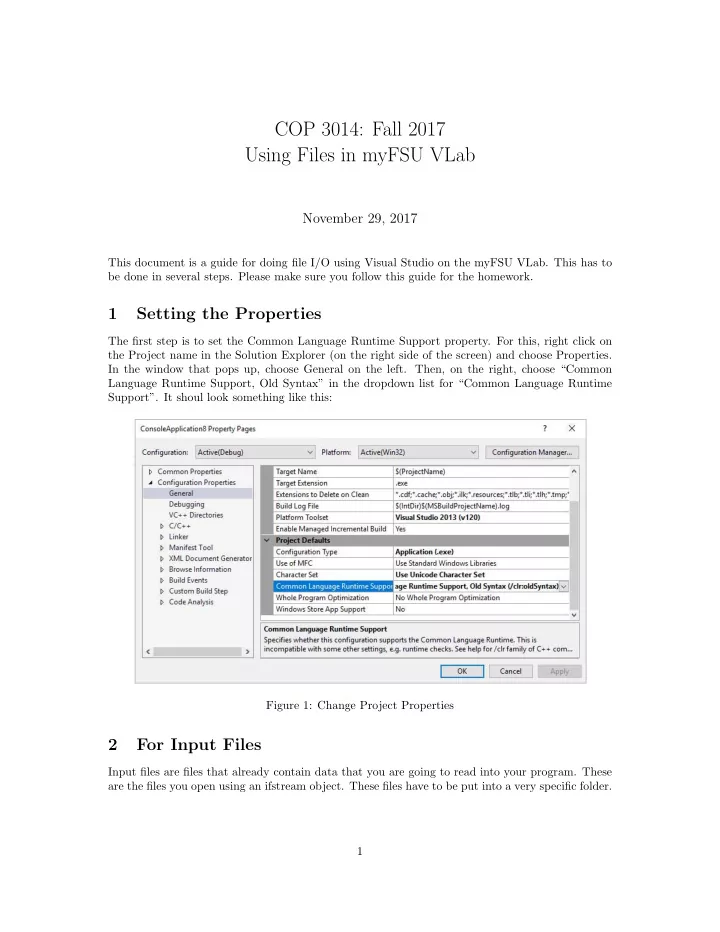
SLIDE 1
Go to File ->New ->File. In the window that pops up, chose “Text File” and click Open. This will
- pen a blank Text File and Visual Studio will give it its own name, usually “TextFilex.txt”.
Figure 2: Open a New Text File The blank file will be open in your project main window. Copy-paste the contents of the input file (what we’ve given you into this blank file. You would have to go through the clipboard. Once you have pasted/typed in the file and the input file looks like it is supposed to, go to File ->Save <Filename>As. In the window that pops up, change the name of the file to the required name (the
- ne you will be using in the program). Then, double click on the folder with the same name as the
- project. In the example below, the project was called ConsoleApplication9, so we open the folder
- ConsoleApplication9. The correct folder should contain a folder called Debug, any other text files
we have already created, and NOTHING ELSE, when the File Type is “Text Files (.txt)”. Click
- n “Save”. Your input file is ready for use.