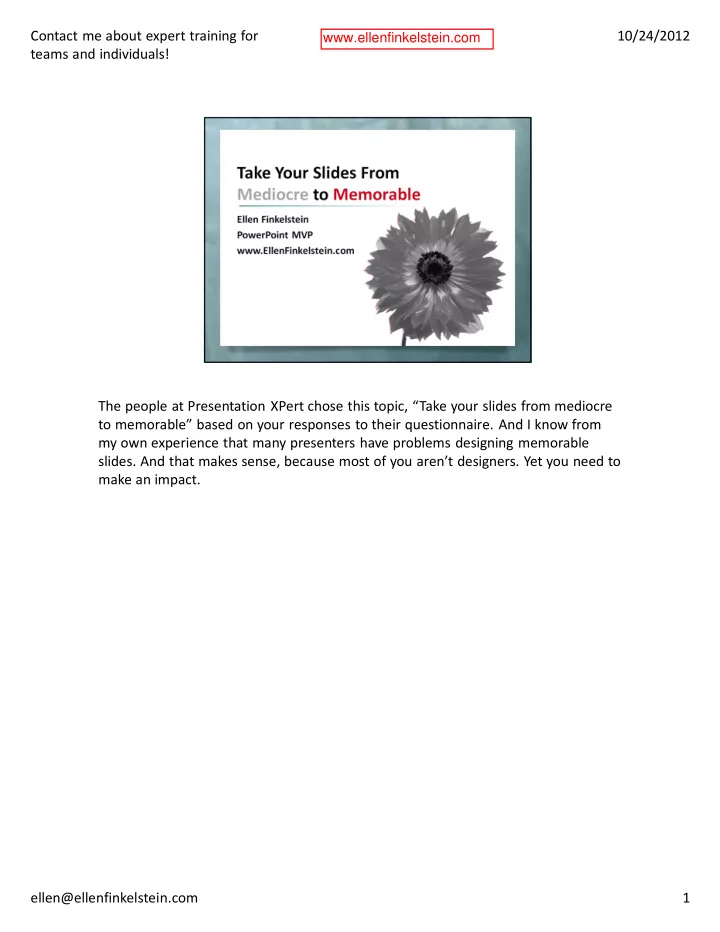
SLIDE 1 The people at Presentation XPert chose this topic, “Take your slides from mediocre to memorable” based on your responses to their questionnaire. And I know from my own experience that many presenters have problems designing memorable
- slides. And that makes sense, because most of you aren’t designers. Yet you need to
make an impact. 1 10/24/2012 ellen@ellenfinkelstein.com Contact me about expert training for teams and individuals!
www.ellenfinkelstein.com
SLIDE 2
You want to transform Death by PowerPoint to Life by PowerPoint. 2 10/24/2012 ellen@ellenfinkelstein.com Contact me about expert training for teams and individuals!
SLIDE 3 I’ll start with the basic principles, based on a great deal of research about how people learn and take in information. Once you have this, you’ll have a guideline that you can use for every slide. Next will be specific techniques to make it easy:
- A quick design upgrade – the easiest makeover you’ve ever seen. I call it the 4
slide layouts that always look good. These layouts will simplify your slides so your audience can understand them. You’ll use these layouts mostly for slides with images on them.
- 2 tips for finishing touches that make your slides look more professional.
Finally, we’ll do some makeovers of presentations some of you submitted. You’ll see for yourself how it’s possible to take boring, text-heavy, or complex slides and make them clear and compelling. 3 10/24/2012 ellen@ellenfinkelstein.com Contact me about expert training for teams and individuals!
SLIDE 4
Many people like you do presentations day in and day out. 4 10/24/2012 ellen@ellenfinkelstein.com Contact me about expert training for teams and individuals!
SLIDE 5
But most of you aren’t designers and don’t have the chance to hire a designer. 5 10/24/2012 ellen@ellenfinkelstein.com Contact me about expert training for teams and individuals!
SLIDE 6
Are you ready to learn simple techniques to communicate more effectively? 6 10/24/2012 ellen@ellenfinkelstein.com Contact me about expert training for teams and individuals!
SLIDE 7
What’s the problem with mediocre slides? You won’t achieve your goals, whether selling, persuading or training. 7 10/24/2012 ellen@ellenfinkelstein.com Contact me about expert training for teams and individuals!
SLIDE 8
You might make your audience hate you 8 10/24/2012 ellen@ellenfinkelstein.com Contact me about expert training for teams and individuals!
SLIDE 9
On a more serious note, poor communication can be dangerous 9 10/24/2012 ellen@ellenfinkelstein.com Contact me about expert training for teams and individuals!
SLIDE 10
This slide was sent to people who didn’t attend the meeting.
10 10/24/2012 ellen@ellenfinkelstein.com Contact me about expert training for teams and individuals!
SLIDE 11
People will think you’re a poor communicator – it’s bad for your career. Presenting is an important career skill. 11 10/24/2012 ellen@ellenfinkelstein.com Contact me about expert training for teams and individuals!
SLIDE 12
You have an important message to convey, so do it well 12 10/24/2012 ellen@ellenfinkelstein.com Contact me about expert training for teams and individuals!
SLIDE 13
To figure out how to end Death by PowerPoint, we need to start by understanding what’s wrong with so many presentations these days. Then, we can learn how to make them right. 13 10/24/2012 ellen@ellenfinkelstein.com Contact me about expert training for teams and individuals!
SLIDE 14
In order to solve these problems, you need to design for understanding, remembering, and persuasion. 14 10/24/2012 ellen@ellenfinkelstein.com Contact me about expert training for teams and individuals!
SLIDE 15
There are 3 major problems with many slides. When you put all your text on the slide, people read it. If you’re talking while they’re reading, their mind is divided. It’s inefficient and uncomfortable for your audience. The solution is simple: Don’t put what you say on the slide! A heading is OK, but for the rest, let people simply listen to you. 15 10/24/2012 ellen@ellenfinkelstein.com Contact me about expert training for teams and individuals!
SLIDE 16
Contact me about expert training for teams and individuals! 10/24/2012 ellen@ellenfinkelstein.com www.EllenFinkelstein.com 16
SLIDE 17
You have 3 types of memory. The first could be called sense memory. It can take in a huge amount of content, but then goes on to the next input, so it doesn’t last. What does last goes into short-term memory. As the name implies, this is also short term, a few minutes or so. But short-term memory can only handle a few items at a time. When too much enters short-term memory, most is filtered out. What does go through the funnel goes on to long-term memory, where we can remember large amounts of material for a long time. When you put too much on a slide, short-term memory is overwhelmed and less is remembered.
Needle concept from Cliff Atkinson, Beyond Bullet Points
17 10/24/2012 ellen@ellenfinkelstein.com Contact me about expert training for teams and individuals!
SLIDE 18 This is the principle that people remember pictures more than words. The part of the brain that is devoted to visual input is much larger than the part for auditory
- input. When the presentation is over, people will remember the pictures more than
the words. People also remember stories and a large part of that is because stories help us visualize a situation. Stories also provide an emotional connection, which is important for persuasion. 18 10/24/2012 ellen@ellenfinkelstein.com Contact me about expert training for teams and individuals!
SLIDE 19
Contact me about expert training for teams and individuals! 10/24/2012 ellen@ellenfinkelstein.com www.EllenFinkelstein.com 19
SLIDE 20
Contact me about expert training for teams and individuals! 10/24/2012 ellen@ellenfinkelstein.com www.EllenFinkelstein.com 20
SLIDE 21
Nobody loves slide after slide of bulleted text. How many of you have sat through presentations of bullet after bullet after bullet? Face it, no matter how fascinating the topic and skilled the presenter, bullets look boring. From long experience, people associate bulleted text with boring presentations, so when you use them, you start out at a disadvantage. That doesn’t mean you can never include a short list of items, but keep the bullets for actual lists, such as agenda items. Even an agenda can be shown visually, as a timeline or diagram.
Researchers at the University of NSW found that the brain cannot process written and spoken information well at the same time. Also, Richard E. Mayer found that narration with graphics was more effective than graphics with text.
10/24/2012 ellen@ellenfinkelstein.com Contact me about expert training for teams and individuals!
SLIDE 22
22
I call it Tell ‘n’ Show. Your title tells your point with a sentence or caption. The rest of your slide shows the point with an image, diagram, or graph. Just like the picture book; the text tells the story and the picture shows it.
10/24/2012 ellen@ellenfinkelstein.com Contact me about expert training for teams and individuals!
SLIDE 23
Put one point on a slide, so you may need to expand one slide to four. 23 10/24/2012 ellen@ellenfinkelstein.com Contact me about expert training for teams and individuals!
SLIDE 24
In my full-day version of this concept, I go into each type of visual in detail, including how to create and format diagrams, charts, and images for striking and professional results. 24 10/24/2012 ellen@ellenfinkelstein.com Contact me about expert training for teams and individuals!
SLIDE 25
Contact me about expert training for teams and individuals! 10/24/2012 ellen@ellenfinkelstein.com www.EllenFinkelstein.com 25
SLIDE 26
Let’s go through a very simple makeover so you can see the difference. Here’s a slide that covers an obscure and somewhat difficult topic. 10/24/2012 ellen@ellenfinkelstein.com Contact me about expert training for teams and individuals!
SLIDE 27
Instead, I could divide it up into 4 slides. The principle is to put one point on a slide. If you want, use an overview slide before and/or after. Be silent for a moment to let the audience read, then start talking.
10/24/2012 ellen@ellenfinkelstein.com Contact me about expert training for teams and individuals!
SLIDE 28
10/24/2012 ellen@ellenfinkelstein.com Contact me about expert training for teams and individuals!
SLIDE 29
10/24/2012 ellen@ellenfinkelstein.com Contact me about expert training for teams and individuals!
SLIDE 30
10/24/2012 ellen@ellenfinkelstein.com Contact me about expert training for teams and individuals!
SLIDE 31
Shortcuts are like bridges that help you over obstacles. Like most of the content in this webinar, these are taken from my newest e-book, Slide Design for Non- Designers, which goes into much more detail. 31 10/24/2012 ellen@ellenfinkelstein.com Contact me about expert training for teams and individuals!
SLIDE 32
Here’s what might be your original slide, with a centered image. You see this all the time but it’s very forgettable. 32 10/24/2012 ellen@ellenfinkelstein.com Contact me about expert training for teams and individuals!
SLIDE 33
Vertical image on half the slide. If the original image isn’t vertical, you can crop it. Cropping often makes the image more powerful. 33 10/24/2012 ellen@ellenfinkelstein.com Contact me about expert training for teams and individuals!
SLIDE 34
Full slide image. 34 10/24/2012 ellen@ellenfinkelstein.com Contact me about expert training for teams and individuals!
SLIDE 35
If the text doesn’t show up well on the image, make the text placeholder semi- transparent. 35 10/24/2012 ellen@ellenfinkelstein.com Contact me about expert training for teams and individuals!
SLIDE 36
Title and image on the rest of the slide. I used this for my Tell ‘n’ ShowSM slide. Again, you may need to crop the image. 36 10/24/2012 ellen@ellenfinkelstein.com Contact me about expert training for teams and individuals!
SLIDE 37
Text at upper-left, image with no background at lower-right. I could have put the previous image at the lower right, but this technique works best with an image that has no background. It creates a diagonal line between two opposing centers of attention that the eye follows. 37 10/24/2012 ellen@ellenfinkelstein.com Contact me about expert training for teams and individuals!
SLIDE 38 Here’s a similar concept with the image at the top and the text at the bottom.
How to crop an image To crop an image, double-click the image to select it and display the Format tab. Click the Crop button in the Size group. Drag the crop handles inward. (In 2003, select the image. The Picture toolbar should appear. Click the Crop button and drag the crop handles inward.) How to resize an image Select it and drag inward or outward from one of the corner handles. Never use a side handle, because that distorts the image. Don’t enlarge a photo too much; it will become grainy. How to make a placeholder semi-transparent: Right-click the placeholder and choose Format Shape. Go to the Fill section or category. Then drag the Transparency slider to about 50%. (You may want to make minor adjustments later.) To set the color of the fill, use the Color drop-down list. Click OK or Close to close the dialog box. How to remove a solid-color background (usually white) To remove the background, select the image. Go to Picture Tools Format tab, Adjust group, click the Color drop-down list, and choose Set Transparent Color. Click the
- background. (In 2003, the Set Transparent Color button is on the Picture toolbar.) In
38 10/24/2012 ellen@ellenfinkelstein.com Contact me about expert training for teams and individuals!
SLIDE 39
my book, Slide Design for Non-Designers, I give the steps for removing a complex background in PowerPoint 2010. Contact me about expert training for teams and individuals! 10/24/2012 ellen@ellenfinkelstein.com www.EllenFinkelstein.com 38
SLIDE 40
Contact me about expert training for teams and individuals! 10/24/2012 ellen@ellenfinkelstein.com www.EllenFinkelstein.com 39
SLIDE 41
Use a keyline to add a professional touch.
40 10/24/2012 ellen@ellenfinkelstein.com Contact me about expert training for teams and individuals!
SLIDE 42
Use a keyline; this one fades to 100% transparency at both ends. It’s really a rectangle.
41 10/24/2012 ellen@ellenfinkelstein.com Contact me about expert training for teams and individuals!
SLIDE 43
Contact me about expert training for teams and individuals! 10/24/2012 ellen@ellenfinkelstein.com www.EllenFinkelstein.com 42
SLIDE 44
Use a bellyband. This rectangle fades to 100% transparency on the right.
To create a transparency gradient from left to right in PowerPoint 2007 and 2010: Insert a shape, such as a rectangle Right-click the shape and choose Format Shape. Click the Line Color category and choose No Line. Click the Fill category and choose Gradient Fill. Change the angle in the Angle text box to 0°. Under the Gradient Stops section, in 2007, click the down arrow and choose Stop 2. Click Remove. In 2010, drag the middle marker off the gradient line to remove it. This gives you Stop 1 at a position of 0% and Stop 2 at a position of 100% Choose Stop 1. Click the Color drop-down and choose the color you want. By default, the Transparency value is 0%. Choose Stop 2. Click the Color drop-down and choose the same color. Drag the Transparency slider to the desired value, such as 85% or 100% (completely transparent). To vary where the shape becomes transparent, you can adjust Stop 2’s position. For a keyline that is transparent at both ends, use 3 stops, with the 1st and 3rd set at 100% transparency. To create a transparency gradient from left to right in PowerPoint 2003: Insert a rectangle. Double-click it to open the Format AutoShape dialog box. In the Line section, choose No Line from the Color drop-down list. 43 10/24/2012 ellen@ellenfinkelstein.com Contact me about expert training for teams and individuals!
SLIDE 45 In the Fill section, choose Fill Effects from the Color drop-down list. On the Gradient tab, choose One Color and choose a color. Set the From transparency to 100% and the To transparency to 0%. Set the shading style to vertical and pick the variant with the darker shade on the
- left. You may have to experiment with these settings to get the results you want in
your situation. Click OK twice. Contact me about expert training for teams and individuals! 10/24/2012 ellen@ellenfinkelstein.com www.EllenFinkelstein.com 43
SLIDE 46
http://www.ellenfinkelstein.com/estore/slide-design-for-non-designers.html
44 10/24/2012 ellen@ellenfinkelstein.com Contact me about expert training for teams and individuals!
SLIDE 47
45 10/24/2012 ellen@ellenfinkelstein.com Contact me about expert training for teams and individuals!
SLIDE 48
46 10/24/2012 ellen@ellenfinkelstein.com Contact me about expert training for teams and individuals!
SLIDE 49
47 10/24/2012 ellen@ellenfinkelstein.com Contact me about expert training for teams and individuals!
SLIDE 50
http://ellenhelps.me/px
Contact me about expert training for teams and individuals! 10/24/2012 ellen@ellenfinkelstein.com www.EllenFinkelstein.com 48
SLIDE 51
http://ellenhelps.me/px
49 10/24/2012 ellen@ellenfinkelstein.com Contact me about expert training for teams and individuals!