AWTUI - Declarations import java.awt.* ; import java.awt.event.* ; - - PowerPoint PPT Presentation

awtui declarations
SMART_READER_LITE
LIVE PREVIEW

AWTUI - Declarations import java.awt.* ; import java.awt.event.* ; - - PowerPoint PPT Presentation

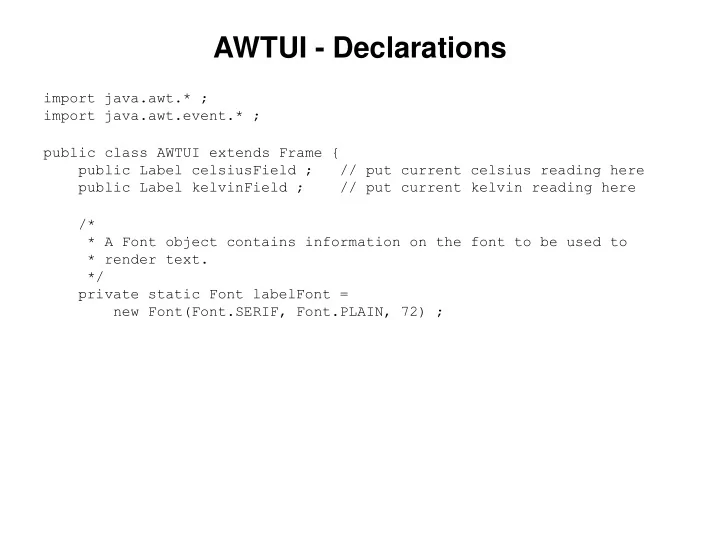
AWTUI - Declarations import java.awt.* ; import java.awt.event.* ; public class AWTUI extends Frame { public Label celsiusField ; // put current celsius reading here public Label kelvinField ; // put current kelvin reading here /* * A


slide-1
SLIDE 1

AWTUI - Declarations

import java.awt.* ; import java.awt.event.* ; public class AWTUI extends Frame { public Label celsiusField ; // put current celsius reading here public Label kelvinField ; // put current kelvin reading here /* * A Font object contains information on the font to be used to * render text. */ private static Font labelFont = new Font(Font.SERIF, Font.PLAIN, 72) ;

slide-2
SLIDE 2

AWTUI - Constructor(1)

/* * Create and populate the AWTUI JFrame with panels and labels to * show the temperatures. */ public AWTUI() { super("Weather Station") ; /* * WeatherStation frame is a grid of 1 row by an indefinite * number of columns. */ setLayout(new GridLayout(1,0)) ;

slide-3
SLIDE 3

AWTUI - Constructor (2)

/* * There are two panels, one each for Kelvin and Celsius, added to the * frame. Each Panel is a 2 row by 1 column grid, with the temperature * name in the first row and the temperature itself in the second row. */ /* * Set up Kelvin display. */ Panel panel = new Panel(new GridLayout(2,1)) ; add(panel) ; Label label = new Label(“Kelvin”); label.setAlignment(Label.CENTER) ; label.setFont(labelFont) ; panel.add(label) ; Label label = new Label(“”); label.setAlignment(Label.CENTER) ; label.setFont(labelFont) ; panel.add(label) ; kelvinField = label; /* * Set up Celsius display. – (same as above, not shown in this slide) */

Duplicated Code aka “Cut & Paste Programming” Extract into private method. CODE SMELL !

slide-4
SLIDE 4

AWTUI - Private Utility Method

/* * Create a Label with the initial value <title>, place it in * the specified <panel>, and return a reference to the Label * in case the caller wants to remember it. */ private Label setLabel(String title, Panel panel) { Label label = new Label(title) ; label.setAlignment(Label.CENTER) ; label.setFont(labelFont) ; panel.add(label) ; return label ; } }

slide-5
SLIDE 5

AWTUI - Constructor (2a) – after refactoring

/* * There are two panels, one each for Kelvin and Celsius, added to the * frame. Each Panel is a 2 row by 1 column grid, with the temperature * name in the first row and the temperature itself in the second row. */ /* * Set up Kelvin display. */ Panel panel = new Panel(new GridLayout(2,1)) ; add(panel) ; setLabel(" Kelvin ", panel) ; kelvinField = setLabel("", panel) ; /* * Set up Celsius display. */ panel = new Panel(new GridLayout(2,1)) ; add(panel) ; setLabel(" Celsius ", panel) ; celsiusField = setLabel("", panel) ;

slide-6
SLIDE 6

AWTUI – Design Principle: DRY

In the Constructor setLabel(" Kelvin ", panel) ; kelvinField = setLabel("", panel) ; . . . setLabel(" Celsius ", panel) ; celsiusField = setLabel("", panel) ; Private Method

/* * Create a Label with the initial value <title>, place it in * the specified <panel>, and return a reference to the Label * in case the caller wants to remember it. */ private Label setLabel(String title, Panel panel) { Label label = new Label(title) ; label.setAlignment(Label.CENTER) ; label.setFont(labelFont) ; panel.add(label) ; return label ; }

Code that would be duplicated

slide-7
SLIDE 7

AWTUI - Constructor(3)

/* * Set up the window's default close operation and pack its elements. */ addWindowListener( new WindowAdapter() { public void windowClosing(WindowEvent windowEvent){ System.exit(0); } }); /* * Pack the components in this frame and make the frame visible. */ pack() ; setVisible(true) ; }