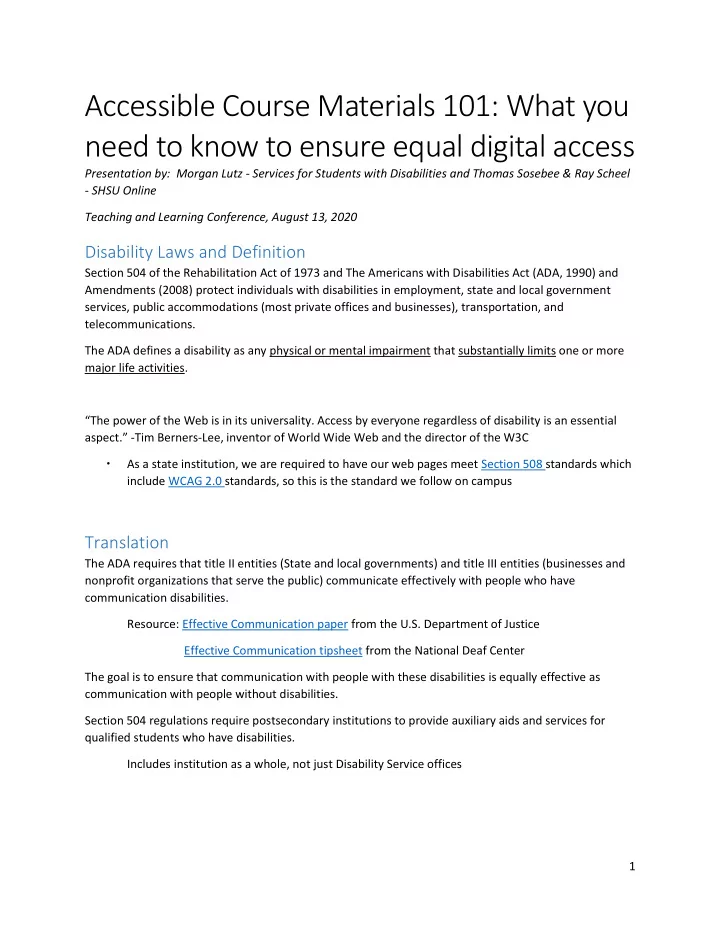
Accessible Course Materials 101: What you need to know to ensure - - PDF document

accessible course materials 101 what you need to know to
SMART_READER_LITE
LIVE PREVIEW

Accessible Course Materials 101: What you need to know to ensure - - PDF document

Accessible Course Materials 101: What you need to know to ensure equal digital access Presentation by: Morgan Lutz - Services for Students with Disabilities and Thomas Sosebee & Ray Scheel - SHSU Online Teaching and Learning Conference,


slide-1
SLIDE 1

1

Accessible Course Materials 101: What you need to know to ensure equal digital access

Presentation by: Morgan Lutz - Services for Students with Disabilities and Thomas Sosebee & Ray Scheel

  • SHSU Online

Teaching and Learning Conference, August 13, 2020

Disability Laws and Definition

Section 504 of the Rehabilitation Act of 1973 and The Americans with Disabilities Act (ADA, 1990) and Amendments (2008) protect individuals with disabilities in employment, state and local government services, public accommodations (most private offices and businesses), transportation, and telecommunications. The ADA defines a disability as any physical or mental impairment that substantially limits one or more major life activities. “The power of the Web is in its universality. Access by everyone regardless of disability is an essential aspect.” -Tim Berners-Lee, inventor of World Wide Web and the director of the W3C  As a state institution, we are required to have our web pages meet Section 508 standards which include WCAG 2.0 standards, so this is the standard we follow on campus

Translation

The ADA requires that title II entities (State and local governments) and title III entities (businesses and nonprofit organizations that serve the public) communicate effectively with people who have communication disabilities. Resource: Effective Communication paper from the U.S. Department of Justice Effective Communication tipsheet from the National Deaf Center The goal is to ensure that communication with people with these disabilities is equally effective as communication with people without disabilities. Section 504 regulations require postsecondary institutions to provide auxiliary aids and services for qualified students who have disabilities. Includes institution as a whole, not just Disability Service offices

slide-2
SLIDE 2

2

Universal Design Basics

Universal Design (UD) is a concept from architecture that promotes the accessible design of physical spaces. UD can be defined as the design of products and environments that can be used and experienced by people of all ages and abilities, to the greatest extent possible, without adaptation (Center for Accessible Housing, 1995). UD has many applications in higher education as it relates to accessibility and promoting proactive design for inclusion in the learning environment. In other words, how can instructors design classes that are readily accessible to the most diverse array of needs without the need for accommodation? https://www.washington.edu/doit/programs/accesscollege/faculty-room/universal-design

Universal Design Application

Two domains for accessible course materials:  Audio/Visual digital media  Text accessibility

Auditory Disabilities

  • Deafness or hearing difficulties

WCAG 2.O Guidelines

  • 1. Closed Captions (on videos we create or own).
  • 2. Transcripts (for all videos we use).
  • 3. Transcripts for all audio content used in the course.
  • 4. Instructions do not expect users to rely solely on their hearing in order to understand or

complete any task.

  • 5. A text description is provided for any sound used to indicate something (a correct answer, a

completed task, etc.).

Vision Disabilities

  • Blindness
  • Color blindness
slide-3
SLIDE 3

3

  • Low vision (that cannot be fully corrected by glasses)
  • Macular degeneration
  • Diabetes
  • Cataracts
  • Glaucoma

Blind/Low Vision Resources: Perkins School for the Blind eLearning

Cognitive Disabilities

 Reading, linguistic, and verbal comprehension (beware of non-literal text: sarcasm, satire, metaphor, slang, etc.)  Attention  Memory  Executive Functioning or Problem-solving  Math comprehension  Auditory or Visual processing/comprehension

Screen Readers

WCAG 2.0 Guidelines

  • 1. On web pages, use HTML to format tables, lists, columns, headings, etc.
  • 2. Major changes to a web page or its documents must be predictable.
  • 3. Users should be able to navigate and interact with every page element using ONLY a keyboard.
  • 4. ALL attached documents (Word, PDF, PowerPoint, Excel, etc.) must be formatted for

accessibility. Resource: Make your PowerPoint presentations accessible to people with disabilities

  • 5. Helpful Hint: Include an accessible Word document with all PowerPoints (for Kurzweil users).
  • 6. Transcripts for all videos, even ones with no sound. (descriptive, deaf/blind transcripts).

Accessible Text Documents

 The majority of course content (written specifically for the course, such as instructions, explanations, introductions, overviews, etc.) should be built as HTML course content pages.

slide-4
SLIDE 4

4  When you start adding content as attachments, you introduce accessibility challenges and/or downloading/viewing challenges for students.  Hint: Scanned PDFs are NEVER accessible.  There is technology available that can create a great scan of a document that seems to pass basic accessibility tests—you can search for certain words, you can copy and paste the text, and it may even pass Adobe Acrobat’s accessibility test—but these scanned PDFs still cannot be read by a screen reader.

Accessible Word Documents

Headings

 Follow the original or desired format and hierarchy that is already outlined in the

  • document. (The titles of main sections would be inserted as a Heading 1, sub-section

titles might use Heading 2, titles within those sub-sections might use a Heading 3, etc.)

Spacing

 Enter to add extra space between lines is read as “blank”

Numbered or Bulleted Lists

 Always use the Word tools to insert numbered or bulleted lists. Never just type in the numbers or insert symbols to create lists on your own.

Tables

 Be aware of the format and purpose of tables in your Word documents. A screen reader will read each cell of a table just like it does all other lines: from left to right, top to

  • bottom. Keep this in mind as you analyze whether or not a table is accessible.

Other considerations: Images, No text boxes, and Hyperlinks

Captions and Transcripts

Video captions must meet FCC Standards

 Auto-captioning will rarely meet effective communication standards  Captions need to be accurate, synchronous, complete from beginning to end, and have proper placement  Numerous Resources Available  National Association for the Deaf - Described and Captioned Media Program, PBS, NBC Learn, American Council of the Blind – The Audio Description Project, Films on Demand, National Library Service for the blind and physically handicapped

slide-5
SLIDE 5

5  For YouTube and other streaming/hosting sites: Supply the link to the video and Amara shows it in a window and puts its own captions over it. There are paid services from them, but adding captions to a video is free.  NGL – Subject Librarians can assist in finding pre-captioned media available through the library.

Video transcripts are for the deaf—but also for others:

  • Blind students can’t see what is happening on the screen. They need a description of all

educational content they can’t see.

  • Transcripts benefit students with learning disabilities. Sometimes it’s easier to read a transcript

than to watch a video.

  • Transcripts also benefit international students and ESL students.

Alternative (alt) text (for images)

WCAG 2.0 Guidelines

  • 1. ALL images must have alt text.
  • 2. If an image is described in detail in text surrounding the image, no alt text is necessary.
  • 3. Text, rather than an image of text, is used to convey information.
  • 4. If long alt text is necessary (to describe a table, infographic, or detailed image), then it should be

provided as a link to an accessible document containing the information.)

  • 5. Images in online tests or quizzes MUST contain alt text, but if it would give away the answer or

make the test null and void, then generic alt test is sufficient (alt=“quiz image”).

  • 6. Decorative images (that serve no educational, informational purpose) do not need descriptive

alt text, but they MUST contain empty alt text.

  • Course banners are considered “decorative.”

Application for alt text

  • 1. Ask yourself: What is someone going to miss out on learning if they can’t see this image?

Describe all educational content that you SEE.

  • 2. Alt text should be short, no more than a few sentence.
  • 3. If a longer description is necessary, use short alt text to state the title of the image and then

provide longer alt text in the format of a Word document (or written on the page below the image).

  • 4. The “title” and “description” are for different purposes (and do not have to match).
slide-6
SLIDE 6

6

  • Title text appears when the mouse hovers over the image. It has nothing to do with ADA
  • requirements. Unless necessary for clarity, the title text can be eliminated.
  • Description text is what screen readers will read. It must be clear and concise.

Example in HTML:

<img src="/content/enforced/67532 Online.Reference.FDEX101/Course%20Files/Images/importantpic.png" alt=“A small boy feeding a large dog" title=“Boy feeding dog“>

Hyperlinks

WCAG 2.0 Guidelines

  • 1. The navigation order of links is logical and intuitive.
  • 2. Links that are repeated throughout a website should be presented in the same relative order

each time they appear in the website. (Links that appear repeatedly throughout a website should have an identical or at least consistent title or identification every time they appear.)

  • 3. Link text (or the link text along with any preceding text) clearly tells users the link’s destination.
  • 4. Identical links have identical titles, and links that lead to different places have different titles.
  • 5. Links should have appropriate color contrast.
  • 6. If color alone is used to identify a link, there should be another method of visual highlighting

that appears (e.g., underlining, bold text, larger text, etc.) when a mouse hovers over the link or keyboard focuses on it.

  • Recommended: all links are underlined (unless there are a large number of links in a

small block of text).

Application for Hyperlinks

  • 1. Don’t use the word “link” in your title.
  • 2. Avoid saying “click” or “click here.”
  • 3. Clearly describe the location the link leads to:
  • Website title
  • Document title
  • Article title
  • Content page/Activity/Quiz title [Always use the full, official page title.]
slide-7
SLIDE 7

7

  • Keep links short and concise. Only link the appropriate words/phrase, not the entire

sentence.

  • If it appears in a sentence, work the link title seamlessly into the sentence.

SSD Process for Formal Accommodations

To request SSD services, a student must:  Submit current documentation of his/her impairment that is consistent with the SSD General Documentation Guidelines  Schedule and participate in a disability intake appointment with an Accommodation Counselor  Once approved for services, request accommodation forms from SSD for each semester  Submit Classroom Accommodation Forms to instructors  Accommodation decisions are made on a case-by-case basis, as supported by the student’s documented, educational needs.

Accommodations

For deaf or hard of hearing students registered with SSD:  Staff notifies both SHSU Online and course instructor to review online course materials  If captions are determined to be necessary, content is captioned and transcribed by 3Play Media  This can include, but is not limited to audio overlays to PowerPoint Presentations, podcasts, videos with audio feedback For students with visual disabilities registered with SSD:  Staff reaches out to course instructor to access materials (maybe obtain access as a TA in Blackboard) to review and format materials  Deference is given to students’ preference for formatting, so what is accessible for one student (large font) may not work for another student (extra spacing between questions) For students with other print related disabilities registered with SSD:  Accommodations may include text-to-speech software for test taking or reading of textbooks  Online instructors may be notified that software is not compatible with lockdown browsers, so arrangements with SSD can be made

slide-8
SLIDE 8

8

Alternative Formats

Ally automatically generates these “Alternative Formats” for all your course files, and makes them available for download. Versions available – Tagged PDF, HTML, ePub, Electronic braille, and Audio

Additional Resources –

Choose Wisely: EPUB vs PDF for students with print disabilities Nine minute video investigating the difference in user experience for students with print disabilities when accessing a library book in both EPUB and PDF format, looking at support requirements for screen reader users and those who require visual adjustments. Access Text Network EPUB webinar series Eight hours of videos covering many different aspects of EPUB accessibility, especially relevant to US universities.

Ally Indicators

Ally integrates with your LMS, and provides feedback within your course. You will find the Ally indicators next to files or content (i.e., gas gauges). Click the indicator to view your accessibility feedback. Follow along step-by-step to improve your

  • riginal file.

References

 Kumar, K. L., & Wideman, M. (2014). Accessible by design: Applying UDL principles in a first year undergraduate course. Canadian Journal of Higher Education, 44(1), 125–147. Retrieved from https://ezproxy.shsu.edu/login?url=http://search.ebscohost.com/login.aspx?direct=true&db=eri c&AN=EJ1028772&site=eds-live&scope=site  McGuire, J. M., Scott, S. S., & Shaw, S. F. (2006). Universal design and its applications in educational environments. Remedial & Special Education, 27(3), 166. https://doi.org/10.1177/07419325060270030501  Meyer, A., & Rose, D. H. (2000). Universal design for individual differences. Educational Leadership, (3), 39. Retrieved from https://ezproxy.shsu.edu/login?url=http://search.ebscohost.com/login.aspx?direct=true&db=ed sbl&AN=RN087337728&site=eds-live&scope=site  Presentation adapted, in part from BYU-Idaho Disability Services Accessibility presentation with permission.

slide-9
SLIDE 9

9

Additional Resources:

  • Wed AIM Accessibility Information basics for web accessibility.
  • Teaching in Higher Ed: Reach Everyone, Teach Everyone podcast
  • Podcast transcript available.
  • Delivering High-Quality Instruction Online in Response to COVID –19 Faculty Playbook
  • Explore Access: Tools for Promoting Disability Access and Inclusion Designing an

Accessible Online Course

  • 20 Tips for Teaching an Accessible Online Course
  • One-page accessibility resources, or “cheatsheets” assist in creating accessible content.