A Computer Vision Tangible User Interface for Mixed Reality - - PowerPoint PPT Presentation

a computer vision tangible user interface for mixed
SMART_READER_LITE
LIVE PREVIEW

A Computer Vision Tangible User Interface for Mixed Reality - - PowerPoint PPT Presentation

A Computer Vision Tangible User Interface for Mixed Reality Billiards Brian Hammond Pace University December 10, 2007 Introduction HCI is study of how humans interact with computers The mouse and keyboard limits richness of


slide-1
SLIDE 1

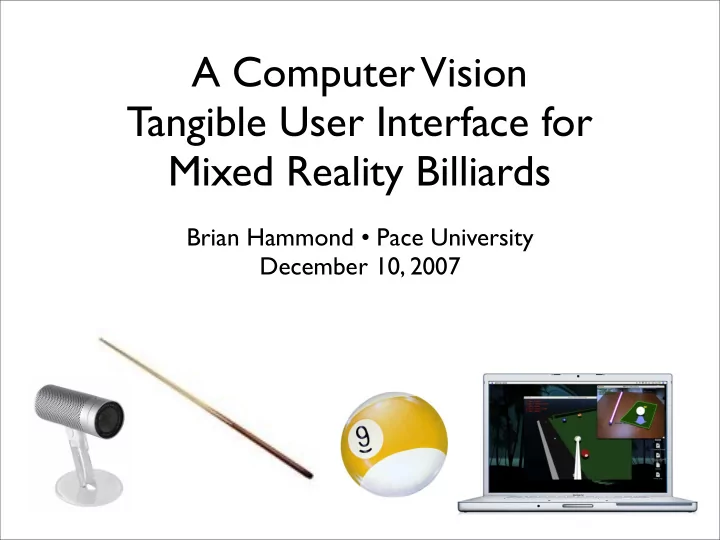
A Computer Vision Tangible User Interface for Mixed Reality Billiards

Brian Hammond • Pace University December 10, 2007
slide-2
SLIDE 2

Introduction

  • HCI is study of how humans interact with

computers

  • The mouse and keyboard limits richness of

interactions

  • Our goal is to help define techniques to

improve this situation using Computer Vision as input sensor

  • We will create a Tangible User

Interface to billiards to explore issues

slide-3
SLIDE 3

Background

slide-4
SLIDE 4

What is a TUI?

  • User interface elements are physical objects,

called tokens

  • Many ways to sense a user-token interactions
  • electromagnetic, haptics, RFID... each have

their limitations

  • We choose CV for sensing mechanism
slide-5
SLIDE 5

Why Billiards?

  • Familiar game(s) to many people
  • Known interaction patterns
  • Simple tokens
  • Unnatural to play a virtual billiards game

without using real cue stick (e.g. with mouse)

slide-6
SLIDE 6

What is Mixed Reality?

  • A mixed reality system spans Milgram’s

continuum of physical reality, augmented reality (AR), augmented virtuality (AV), and virtual reality (VR)

  • Our system mixes physical reality with VR
  • Physical cue stick associated with

VR cue stick

slide-7
SLIDE 7

What is Computer Vision?

  • A branch of AI whose goal is to understand the

content of digital images in order to make decisions

  • Why CV then?
  • Inexpensive (~ $50 for webcam)
  • Non-invasive (watch user-token

interactions) leads to more natural interface; just use tokens as normally would

slide-8
SLIDE 8

Why CV is difficult ...

  • Camera imperfections → poor image quality

→ inaccurate model of the world

  • Easy to fool humans with optical illusions;

same for automated processes

  • Computationally expensive (image data)
  • CV-based systems make tradeoffs in design

to produce a working system

slide-9
SLIDE 9

Image Processing vs Understanding

  • Image processing is mechanical means to query
  • r alter contents of digital images
  • Image understanding tries to find features or
  • bjects in images in order to make decisions

from their state, spatial relationships, etc.

  • Image processing aids understanding
  • Understanding of images is context sensitive
slide-10
SLIDE 10

Digital Images

  • 2D array of numbers representing light

intensity; usually 8-bits per picture element

  • r pixel or 256 discrete intensity levels
  • Color images generally use 3 channels per

pixel; color encoded as per some colorspace e.g. RGB, HSV, CIELab, etc.

  • Image processing manipulates numbers
slide-11
SLIDE 11

DV Camera Woes

  • Camera manufacturing is a tradeoff between cost

and quality... leads to image imperfections

  • Geometric distortion, blooming, noise,

chromatic aberrations, quantization, low resolution, low acquisition rate, etc.

  • Fight with camera calibration, temporal

averaging, weighted moving averages, manual focus/exposure

slide-12
SLIDE 12

Photo from Nikon D50

slide-13
SLIDE 13

Image from Apple iSight

slide-14
SLIDE 14

Common CV Methods

  • Stereo vision -- use 2 cameras, find

disparities, infer depth from triangulation

  • we don’t use stereo for cost, simplicity,

and challenge of using just a single camera

  • Tracking -- follow moving object (e.g. cue

stick) in sequence of images

  • we don’t use due to fast moving objects,
  • cclusions, search window explosion, etc.
slide-15
SLIDE 15

Scene Layout

slide-16
SLIDE 16

Tokens

  • Tokens are physical UI elements
  • Unadorned billiards cue stick
  • Standard billiards cue ball
  • Patch of cloth/felt like billiards table

surface

  • Other scene elements
  • light source, IEEE 1394 DV camera, human!
  • reference object, “planar object”
slide-17
SLIDE 17

Related Work

Graspable User Interfaces Ph.D Tangible Bits VideoPlace metaDESK Paper Mâché Touch-Space Crayons

TUI CV-based input

Visual Touchpad mulTetris PlayAnywhere

MR-based Billiards

HapStick Stochasticks Automatic Pool Trainer

slide-18
SLIDE 18

Architecture

Client-server using TCP/IP for IPC

slide-19
SLIDE 19

Server Process

slide-20
SLIDE 20

Server Tasks

  • image acquisition
  • feature detection and extraction
  • cue stick pose estimation
  • shot detection and analysis
  • client notifications (pose changes, shots)
slide-21
SLIDE 21
slide-22
SLIDE 22

Feature Detection & Extraction

  • We define a feature as any shape or image object
  • f interest (edge, region of a certain color, etc.)
  • Feature detection attempts to determine if

feature is present in image

  • Feature extraction derives information from

features

  • Lots of research on these based, mostly based on

invariant properties of objects

slide-23
SLIDE 23

Features (cont’d)

  • We use color and shape to detect

features in acquired digital images

  • Color is invariant? No, but read on...
  • We then extract information using image

processing techniques

  • General strategy: reduce complexity

repeatedly (abstract more and more)

slide-24
SLIDE 24

Common Feature Detection Methods

slide-25
SLIDE 25

Thresholding

  • Convert color image to grayscale; pick

threshold intensity; values above become white; rest black

slide-26
SLIDE 26

Contours

  • Contour = Blob = Connected Components
  • Regions of like intensity in binary image
  • Connected to neighbors (4-way or 8-way)
  • Nested contours
  • Attributes: area, perimiter,

circularity, etc.

slide-27
SLIDE 27

Morphological Operators

  • Alter the shape of contours
  • Erosion, dilation operators most common
  • Remove noise, fill holes
slide-28
SLIDE 28

Color Representation

  • Colors can be represented in many forms
  • Most common is RGB (or BGR)
  • We use HSV (hue, saturation, value)
  • Hue = color; saturation = vibrancy; value =

brightness

  • Images acquired in BGR; we convert to HSV

and perform image processing in HSV space

  • Colors matched using flexible color

matching

slide-29
SLIDE 29

FCMs

  • Find pixels in source

image where color matches a FCM; dest. image contains white where a match

  • Then use morphological
  • perators on dest. as well

as contour analysis to detect features

slide-30
SLIDE 30

Convex Hulls & Defects

  • Convex hull fits rubber band around shape
  • Convex shape means line through any pair of

vertices does not cross edge of shape

  • Defect is where this does not hold
  • Can detect defects and exploit them for

feature detection

slide-31
SLIDE 31

Cue Stick Pose

  • h: vertical offset from plane of desk
  • θ: pitch relative to plane of desk
  • ψ: yaw (relative to image space “up” dir.)
  • distw: dist. between cue stick and cue ball
  • a, b: expected spin-inducing parameters
slide-32
SLIDE 32

Features → Tokens

Feature Helps find.. Detection is.. Description cloth cue stick, ball, shadow automatic container Tr h manual

top point of ref object

Br h manual

bottom point of ref object

St h manual shadow of Tr cue tip distw automatic tip of cue stick shaft θ, ψ automatic cue stick shaft shadow θ automatic shadow of shaft Sc shadow automatic shadow of tip of stick planar object h automatic

edges used to find parallel lines

parallel lines h automatic

find vanishing line of plane of desk

slide-33
SLIDE 33

Planar Object Detection

  • Acquired image → grayscale → thresholded

at intensity 192/255 (assume bright!)

  • Find contours; approximate polygon with

each

  • Find contours that has 4 sides at 90°±5°

(rectangle); take largest by area as object

  • 2 pair of opp. sides used for finding vanishing

line of plane of desk

slide-34
SLIDE 34

Cloth Detection

  • Use FCM setup to find green hue with

arbitrary saturation and value

  • Remove small contours by erosion operator
  • Take largest by area as cloth
slide-35
SLIDE 35

Cue Ball Detection

  • Cue ball sits atop cloth
  • Found nested contours in previous step
  • Remove small child contours of cloth
  • Take most circular (metric: area/radius) using

minimal enclosing circle to find radius

slide-36
SLIDE 36

Cue Stick Detection

  • Detect stick and its shadow
  • Find shadow from using FCM with arbitrary

hue and saturation but low value (i.e. dark areas match = shadow)

  • Restrict search region to bounding

rectangle of cloth contour

  • Find convex hull of cloth contour; find

defects and their deepest points

slide-37
SLIDE 37
slide-38
SLIDE 38

Cue Stick Detection (cont’d)

  • Draw thick lines (stroke) along contour

perimeter

  • Encloses shadow and stick contours
  • Fill in “holes” of cue ball and shadow; left

with cue stick as largest child contour of cloth contour

  • Have detected Sc, cue tip, shaft, and

shadow features

slide-39
SLIDE 39
slide-40
SLIDE 40

Estimation of h

  • Adaptation of technique of “3D Trajectories

from a Single Viewpoint using Shadows” by Ian D. Reid and A. North.

  • Recover lost sense of depth
  • Since we have a top-down view,

depth=height

  • Requires use of planar object & reference
  • bject of user’s choice of known height that

sits atop desk (parallel lines, Tr, Br, St)

  • Also uses features cue tip, Sc
slide-41
SLIDE 41

Estimation of h

slide-42
SLIDE 42

diagram adapted from Reid paper for our TUI setup

slide-43
SLIDE 43

diagram adapted from Reid paper for our TUI setup

slide-44
SLIDE 44

Lines Required for Estimation of h

Line Description l1

through reference object shadow (Tr-Br)

l2

through Sc parallel to l1; hence l2 intersects l1 on vanishing line

l3

through Tr and Sc

l4

through cue tip and Tr

l5

through Br and intersection of l3 and l4; intersection of l5 and l1 is projection of cue tip on plane (Pb)

l6

through Tr and intersection of l5 and vanishing line

l7

through cue tip and intersection of l5 and vanishing line

l8

through Tr and Br

l9

through Pb and cue tip

slide-45
SLIDE 45

Estimation of h

  • Find vanishing line of plane using reference
  • bject and vanishing points from the planar
  • bject’s edges
  • Derive several lines (9 in total) as per

previous diagram

  • Use scalar cross ratio of 4 points along each
  • f two lines that meet at a vertical vanishing

point v

slide-46
SLIDE 46

Scalar Cross Ratio

adapted to our scene: thus,

slide-47
SLIDE 47

Screenshot of Estimation of h

slide-48
SLIDE 48

Estimation of distw

  • Used to determine when collision occurs
  • Know radius in world units a priori, Rw
  • Detect circle for cue ball, C, in image space

with Cr radius (pixels)

  • Thus know units/pixel = Rw/Cr
  • Since top-down view points on plane of desk

in FOV are at ≈ depth from camera; thus accuracy using this simple method is good

slide-49
SLIDE 49

Estimation of distw

  • Cue tip at image space point T
  • Find intersection of line shaft

with C at point P

  • We know units/pixel and pixels

|P-T|. Thus, distw = (Rw/Cr) |P-T|

slide-50
SLIDE 50

Estimation of Pitch

M and Ms are arbitrary points along the cue stick shaft and its shadow, respectively.

slide-51
SLIDE 51

Estimation of Pitch

  • Take shaft unit vector but in opposite

direction as shaft’

  • We make the observation that the pitch

angle is equal to the angle between the image of the shaft and its shadow when the light source is near the cue ball

  • Thus, we use the inner product to find the

angle as θ = cos^-1(shaft’ • shadow)

slide-52
SLIDE 52

Estimation of Yaw

  • At real billiards table, player can orbit cue

ball from any side of table; we restrict user to one general area with 90° orbit range [-45°,45°]

  • How does user shoot from other sides of

the table then? By using notion of current side

slide-53
SLIDE 53

Estimation of Yaw: Current Side

slide-54
SLIDE 54

Estimation of Yaw

  • Change current side by pressing key (for

now) on keyboard

  • Yaw determined from angle between image

space “up” vector and shaft

  • Apply ad hoc notion that yaw is negative

when shaft points down and to the left in image space; client simulation thus applies relative yaw.

slide-55
SLIDE 55

Estimation of Yaw

ψ > 0 ψ < 0

slide-56
SLIDE 56

Estimation of Spin- inducing Parameters

  • a, b from cue stick pose
  • Striking the ball off center induces spin
  • Left-right spin collectively called english
  • Topspin is called follow
  • Backspin is called draw
slide-57
SLIDE 57

Estimation of Spin- inducing Parameters

  • Ball space defined by coordinate frame i,j,k

centered at ball center; a is horiz offset; b vertical; both stored as percentage of Rw

  • Find a from intersection of shaft with C at

point P as a = (Px - Cx)/Cr

  • Find b from h and Rw as b = (h-Rw)/Rw
slide-58
SLIDE 58

Estimation of Spin- inducing Parameters

slide-59
SLIDE 59

Shot Detection

  • A shot occurs when the user moves the

cue stick such that it collides with the cue ball

  • We want to see this happen (distw=0)
  • Very unlikely due to low sample/acquisition

rate and motion blur -- thus must infer that shot occurred (note: past tense)

slide-60
SLIDE 60

Shot Detection

  • Distance History is graph of distw over time
  • Update distance history with measurements
  • Watch for zero-crossings in distance history
  • Backup to most recent local maximum
  • Find distance over time interval as cue stick

velocity during shot (assume constant velocity)

  • Notify clients of shot at given velocity
slide-61
SLIDE 61

Example Distance History

(practice strokes) (shooting) (most recent local max)

distw ↑ time →

(hit ball)

slide-62
SLIDE 62

Client Process

slide-63
SLIDE 63

Client Tasks

  • Receive updates to cue stick pose from server
  • Orient virtual cue stick given pose
  • Receive shot notifications from server
  • Derive forces of motion to model shots
  • Physically model rigid billiard balls robustly and

accurately including spin effects

  • Provide framework for game logic based on

detected physics events

slide-64
SLIDE 64

Extended Client Tasks

  • Position virtual camera
  • Allow for training exercises using predefined

ball layouts

  • Render 3D graphical view of simulation
slide-65
SLIDE 65

Rigid Body Dynamics

  • Deformations neglected; distance between

points on body held constant

  • Each body has local reference frame and has

a linear and angular component which can change over time (forces such as gravity)

  • We use Newton library for numerical

integration implementation of dynamics modeling

slide-66
SLIDE 66
slide-67
SLIDE 67

Simulation States

  • Shot setup
  • Shooting
  • Physical Simulation
slide-68
SLIDE 68

Shot Setup State

  • No billiard balls in motion
  • Pose updates from server
  • Orient cue stick in simulation to match
slide-69
SLIDE 69

Shooting State

  • Begins upon reception of shot notification

from server

  • Force derived from most recent pose and

server-derived distance-over-time period measurements

slide-70
SLIDE 70

Physical Simulation State

  • Active when some balls are in motion
  • Newton updated often to simulate state of

rigid bodies (i.e. balls)

  • Physics events fired by Newton and

translated to game events (“4-ball was pocketed in top-left corner pocket”)

slide-71
SLIDE 71

Orienting Virtual Cue Stick

  • Central axis of model is -X with origin at

half the length of the stick model

  • Set position of stick local reference frame in

world at cue ball

  • Translate along local Z axis by distw along

local Y by b and local X by a

  • Orient the stick in its local frame using θ

and ψ transformations

slide-72
SLIDE 72

Shot Dynamics

  • Leverage work of “An Event-Based Pool Physics

Simulator” by Leckie, Greenspan

  • Derive force imparted to cue ball from velocity of

cue stick, cue stick mass, a, b, θ, and ψ

  • Assume contact time is neglible and hence set

instantaneous change in velocity on ball

  • Also derive angular velocity
  • See paper for derivations of force, angular velocity
slide-73
SLIDE 73

Game Logic

  • Translate physics events to logical events
  • Demo has only simply “pocket all balls in

least number of shots” game

  • We plan on implementing 8-ball, 9-ball, etc.

based on the framework

slide-74
SLIDE 74

Training

  • Ghost ball technique

useful and standard visualization -- directly implemented in client

slide-75
SLIDE 75

Conclusions

  • One particular TUI is an experiment
  • N >> 1 CV-based TUIs may lead to generality,

different classes of applications, best practices

  • System works end to end, albeit not overly

accurately -- we can blame hardware for this somewhat

  • CV-based TUIs using commodity hardware NOT

recommended for precision-based interactions

slide-76
SLIDE 76

Live Demo

  • Questions?
slide-77
SLIDE 77

Fun Facts

  • I read 100+ papers on HCI, TUI, CV, physics, etc. found in the ACM Digital

Library (wonderful!), CiteCeer, Google Scholar, and CiteULike.

  • I read 3 textbooks on CV and related topics
  • Tried 10+ different techniques for CV-based TUI including sphere-dipoles

(active markers), template matching, Hough transforms for finding edges of cue stick, full 3D reconstruction using camera calibration, etc.

  • 5K loc for server (C++); 4K loc for client (C++, Objective-C)
  • I used Intel OpenCV (CV), Newton Dynamics (client physics), OGRE

(3D rendering), Google SketchUp (content creation), Ruby (export script), Scons (server builds), Apple XCode (client builds)

  • Thesis written using LaTeX2e and Vim
  • Diagrams were created using Google SketchUp, ChocoFlop, and

OmniGroup’s OmniGraffle

  • This presentation was created using Apple Keynote