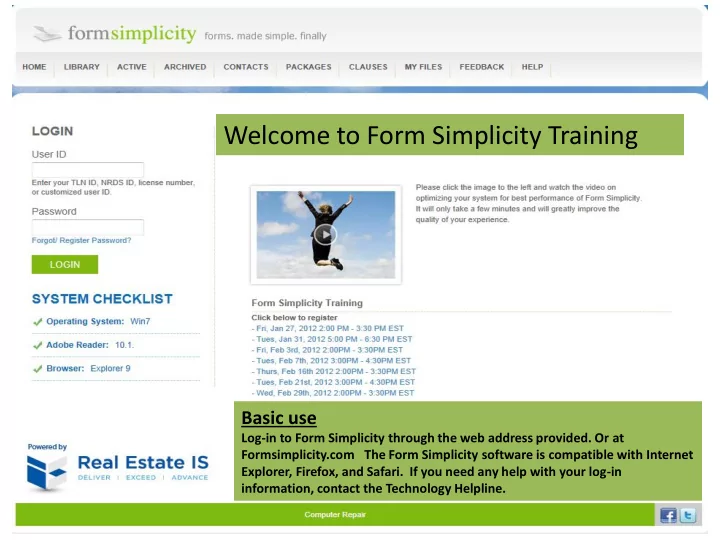
SLIDE 1 Welcome to Form Simplicity Training
Basic use
Log-in to Form Simplicity through the web address provided. Or at Formsimplicity.com The Form Simplicity software is compatible with Internet Explorer, Firefox, and Safari. If you need any help with your log-in information, contact the Technology Helpline.
SLIDE 2 Login and System Check List
- Login Same as NRDS for MLS
- System Requirements
– Operating System requirement – Adobe Reader Version – Browser Version
- All Green Checks? – Good to Go!
SLIDE 3 Type in your ID and Password 1 2 3 Notice the system checklist
SLIDE 4 The Home Page
- Version of Form Simplicity you currently have
- Tool Bar
- Quick Access links
SLIDE 5 Let’s start by going into the Forms Library
SLIDE 6 Meeting 3 Business Needs
– Print, Fill and Go
– Create transactions and automate content
– Long term storage of all documentation
SLIDE 7 ‘PRINT AND GO’ Start on Home Screen Click “LIBRARY or START A FORM” Check the box next to form/s Click the Select Command drop down Print button – you can print all pages, or just a select few. How fast was that??
SLIDE 8 Automation
- Create transactions from pre loaded packages
(brokerage)
- Adding Forms to transaction
- Uploading documents to transaction
- Difference between files and forms
SLIDE 9 Home (Go to home screen) Note… Pretend I’m your agent. You, as the broker, have already gone in and created a Purchase Offer package for me to use. All I have to do now is … Open ‘Packages’ Check ‘Purchase Package’ Click ‘CREATE TRANSACTION FROM SELECTED ‘PACKAGE’ Name it – ‘Speedy Ln’ – SAVE
‘AUTOMATION’ 1 2 3
SLIDE 10 And here’s the transaction that I created from my “Broker Package” complete with forms, files and pre- filled info such as the brokerage name. From this point I can import MLS info, (If applicable) fill out the content tab, then either fax or email the forms and files to my client (If Applicable) – Open ‘Select Command’ drop down menu. It’s that simple.
SLIDE 11 Starting a Transaction
Content History Tasks
SLIDE 12 Type your MLS Listing ID # (RE12345) Click ‘IMPORT MLS’ Verify the correct listing appears and click ‘SELECT’ WOW!! All of the listing information is automatically filled in! **Instructor: Scroll down to Seller Name** Synchronization: Changes made on the forms are reflected on the Content page and vice versa. Oops!! I just noticed that I spelled the seller’s name incorrectly. Let me correct that: Change Seller Name to: Sallie P. Seller Click ‘SAVE CHANGES’ Now I have to go into each form and change the Seller’s name. No! I don’t! I can change it here or on any
- f the forms in my transaction and it
changes it on everything!
You Can fill in the data on the content sheet!
Change Name
CONTENT TAB (If APPLICABLE) From this tab you can manually type in information or IMPORT FROM ALMOST ANY MLS !! Let me show you how!
1 2 3 5 6 7
SLIDE 13 From the history tab you can view the entire history of a “Transaction” From the History Tab you can also access the e-sign session statues. Click on the option that you want for the e-sign
the statues of a session. You can also copy a session and if the session has not been signed by anyone you can cancel the session.
HISTORY TAB
SLIDE 14 Customizing Your Packages
- Create your personal packages
–Why you would want them –What to put in them –Ways to access your transactions and packages
SLIDE 15 Click ‘PACKAGES’ Create ‘NEW FORM PACKAGE’: Name it- Listing Click on the name to open Add forms – ‘ADD FORMS TO FORM PACKAGE’ This brings up our Blank Form Library underneath our Package. The Library can include State forms Local Board forms and Brokerage forms There are a number of ways to find forms: Sort Search I’m going to use the SEARCH to find my Listing Agreement (Type: Listing) SELECT: Listing Agreement (1st form) Click ‘ADD TO FORM PACKAGE’ Now I want the Seller’s Disclosure form, so I’ll use SORT to reverse the alphabetical
SELECT: Seller’s Disclosure Click ‘ADD TO FORM PACKAGE’ But wait! We can add all types of FILES in this section too: Pics, docs, property flyers, spreadsheets, PDFs…
CREATING A NEW FORMS PACKAGE 1 2 3 4 5 6 7
SLIDE 16 And in this case, I’ve created a spreadsheet I use for my Listing
- Checklist. Let’s upload that FILE:
Click ‘UPLOAD FILE’ Click ‘CHOOSE FILE’ and find the file on your computer I want the “Listing Checklist” You can enter in a description of the file if you wish Click ‘UPLOAD’ That’s it! Now our Listing Checklist is in
Now that we have our forms and files in
- ur Package, let’s PRE-FILL some of the
data: Open “LISTING FORM” type ‘Brokerage Name’ Fill in any info that will not change on that form. Click Save & Close Click HOME Now I’m going to show you how fast & professional this program will make you look!! Our Transactions screen is revolutionary and has already been copied by others in the marketplace. Let me show you how to create a new Transaction from the Package we just created….
Any QUESTIONS?
1 2 3 4
SLIDE 17 Click on ‘PACKAGES’ Check the circle next to “LISTING” Click on “CREATE TRANSACTION FROM SELECTED PACKAGE” Name it: Simple St Click “Save”….......AND LOOK!!! All
- f your Forms & Files are there!!
Now OPEN: “Listing Form” Your pre-Filled info is there TYPE in your seller’s name: Sally Seller Save & Close
CREATING A NEW TRANSACTION FROM OUR FORMS PACKAGE 1 2 3 4 5 6
SLIDE 18 Click Back to ‘Simple St’ Tab OPEN: Listing Form SHOW: Synchronization (name) Info from Package transferred over MLS Auto-pop We just discovered this is a short sale, which means we need to add an Addendum. Click on ‘ADD FORM TO TRANSACTION’ Choose the “Short Sale Addendum” Pick the “Simple St.” transaction and click ‘SAVE’ SHOW by opening new form: Info auto- popped just by adding it to the Transaction ‘SAVE AND CLOSE’ Remember, we can also add files to our
- transaction. In this case, we want to upload
a property photo. Click ‘UPLOAD FILE’ Simple Street PIC UPLOAD Now we have not only forms, but also files and pictures we can access any time, from any computer with an internet connection.
Any QUESTIONS?
1
Open Form 2
3 4 5 6
SLIDE 19 What you can do now
- Keep all forms, correspondence, files etc. in
- ne tidy place
- Fax files and forms to interested parties
- Email forms and files to interested parties
- eSigning Documents
- Broker Submittal process
SLIDE 20 Pick the forms and files you would like to send to your client On the “SELECT COMMAND” drop- down menu, click ‘EMAIL” If they are already entered as a contact, click on the ‘+’ symbol and select their e-mail address If they are not a contact, simply type in their e-mail address and click “EMAIL” Notice that if they are not a contact a screen will automatically pop up asking you if you would like to add them as a new contact! Wow! Fax: (If Applicable) Faxes with a fax-back coversheet Same as with e-mail: if they are a contact, click on the ‘+’ symbol and select their fax #, if they are not, the system will prompt you to add them Click “FAX” and you’re done! Cancel Back to ‘ACTIVE’ Transactions
Any QUESTIONS?
SENDING TO CLIENT Email: 1 1 2 3 4 5 6 7 8 10
SLIDE 21 If your Broker has activated the ‘Broker Submittals’ tab, you can directly submit your transactions to your Broker for approval within Form Simplicity.
- 1. Click on ‘Active Transactions’
- 2. Click on the name of the
transaction you would like to submit
- 3. Click on the tab labeled
‘Broker Submittals’
- 4. Click ‘CREATE SUBMITTAL’
- 5. Name the submittal (if no
name entered will default to the name of the transaction), and choose the appropriate submittal type from the drop‐down list (i.e. Listing, Purchase, etc.)
- 6. Click on create of the
submittal you have just created
Submitting Transactions using ‘Broker Submittals’ 1 Select Transaction 2 3 4 5 6
SLIDE 22
- 7. Review the checklist created by your
Broker
- 8. Add the appropriate files from your
transaction by clicking on the ‘ADD FILE’ button. Hint: the files you upload should correspond to the checklist items
- 9. Check off the items on the checklist
that you are submitting
- 10. Enter the Due Date specified by your
Broker (i.e. Listing Date, Closing Date, etc.)
- 11. You can send a message to your
Broker by typing in the ‘MOST RECENT MESSAGES’ box and clicking ‘ADD MESSAGE’
- 12. When your submittal is complete,
click ‘SUBMIT TO BROKER’
- 13. Your transaction has now been sent
to your Broker for approval Hint: you can check the status of your submittal by clicking on the ‘BROKER SUBMITTALS’ tab within your transaction at any time Hint: you can re‐submit your transaction if necessary by following the same procedure as listed above BROKER SUBMITTAL CONT.
Any QUESTIONS?
Review Checklist from the broker 7 8 10 11 9 12
SLIDE 23 Options
–Add regularly used clauses your brokerage uses
–Access your files anywhere
SLIDE 24 Personally-written clauses as well as brokerage written clauses can all be accessed here. Click ‘CLAUSES’ tab Click ‘ADD NEW CLAUSE’ Name it and type or paste your content here. Click ‘SAVE’ You can also ‘EDIT’, ‘PREVIEW’, or ‘DELETE’ previously written clauses from this page
CREATE CLAUSES 1 2 3
SLIDE 25 “My Files” section is a place for you to store your “Personal Files.” They can be accessed at anytime from any computer with internet access. Click on “Upload a File.” Browse your computer to locate the file. Then click “Upload.” This will add the file. You can use the “Select Command” drop down to email, fax, delete and download the files.
MY FILES
Any QUESTIONS?
1 2 3 4
SLIDE 26 Completing your Transaction
–Where to find it again –How to re-activate –Edit button
SLIDE 27 Once the transaction has gone to closing, I can store my transaction paperwork with just a couple click Click ‘ACTIVE’ Find the transaction Click ‘EDIT’ Click ‘Archive’, then ‘Update’ That’s it! - Go Back to HOME I bet you’re asking – Wow! How do I create packages and make my forms process run so smooth? Well, I’m going to take you step- by-step and show you how.
Any QUESTIONS?
‘ARCHIVING’ 1 2 3 5
SLIDE 28
Help!!
SLIDE 29 There are lots of help options available to you! Most pages contain “Help Bubbles” pertaining to specific tasks and functions. Just click
- n the bubble to receive hints
and instructions for that section. The ‘HELP’ page contains an information-packed tutorial video The ‘HELP’ page also contains links to the Technology
- Helpline. You can contact them
via phone, live chat, or e-mail There is also a listing of additional upcoming Form Simplicity training webinars. Just click on the link to register FEEDBACK We want to hear from you!! Sales Info (Broker upgrades, faxing, etc.) Feature Request Report a bug/ issue Or just tell us how much you love using Form Simplicity!
HELP
SLIDE 30
Thank You!
SLIDE 31 Thank you for Attending Today’s Training
This