Manual Online Reporting Purpose: This guide will provide - - PDF document

manual online reporting
SMART_READER_LITE
LIVE PREVIEW

Manual Online Reporting Purpose: This guide will provide - - PDF document

Manual Online Reporting Purpose: This guide will provide step-by-step instructions on how to utilize the Manual Online Reporting system to electronically file your Texas unclaimed property report. Manual Online Reporting system 1. Visit


slide-1
SLIDE 1

1

Manual Online Reporting

Purpose:

This guide will provide step-by-step instructions on how to utilize the Manual Online Reporting system to electronically file your Texas unclaimed property report.

Manual Online Reporting system

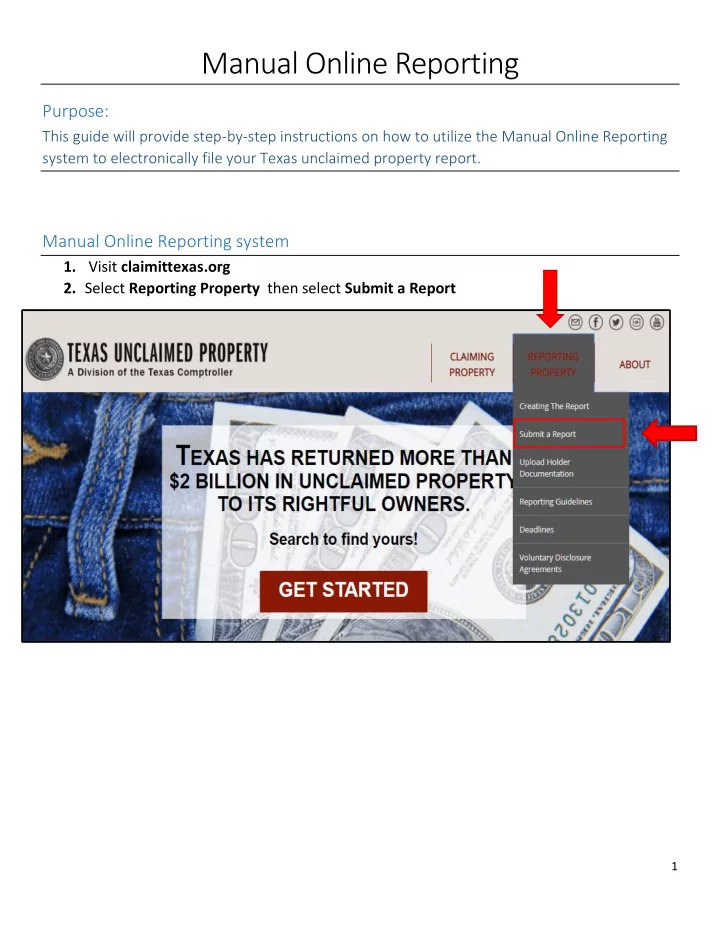
  • 1. Visit claimittexas.org
  • 2. Select Reporting Property then select Submit a Report
slide-2
SLIDE 2

2

  • 3. Select Enter a Manual Report

Registering for Manual Online Reporting system

  • 1. Under REGISTER; Enter an email address and click Register
slide-3
SLIDE 3

3

  • 2. You will be provided a SECRET KEY. First, select Print Key and save your secret key.

Next, select Continue

TIP: Copy and Paste your secret key somewhere on your computer

  • 3. Enter the Email that you registered with and your Secret Key that was assigned
slide-4
SLIDE 4

4

Entering Holder Information

  • 1. Once you are logged in, enter your Holder Information (your business’ information)
  • a. All fields with an asterisk (*) are required
  • b. Enter the name of the person who is creating the report as the Report Contact

Name

slide-5
SLIDE 5

5

  • c. Enter the email address for the person who will be processing the report

payment as the Report Contact Email

slide-6
SLIDE 6

6

  • d. Select the most current report year from the drop down menu for the Report

Year

  • e. Once your Holder information is entered completely, select Save
slide-7
SLIDE 7

7

Creating a Record

  • 1. Select Create a Record
  • 2. Select Add New Owner to Record
slide-8
SLIDE 8

8

  • a. Enter the Owner Information

All fields with an asterisk (*) is required

slide-9
SLIDE 9

9

Note: If the SSN/Tax ID is UNKNOWN select the checkbox that is available below the SSN/Tax ID field.

slide-10
SLIDE 10

10

  • b. Once all the available information and required fields are entered, select Save
  • 3. Select Go To Properties
slide-11
SLIDE 11

11

  • a. Select Add New Property
  • b. Select the Property Type from the drop down menu
slide-12
SLIDE 12

12

  • c. Enter all the available information and required fields then select Save

All fields with an asterisk (*) is required

slide-13
SLIDE 13

13

  • d. Select Go To Main

*Repeat steps 1-3 to create additional records. Throughout the report, there will be an option to edit owners, properties and holder information.

slide-14
SLIDE 14

14

Submitting your Report

  • 1. Select Final Review
slide-15
SLIDE 15

15

  • 2. Select Download NAUPA File and expand your records for review.
slide-16
SLIDE 16

16

  • 3. Review each record and select each of the boxes to confirm that the summary records

are correct.

  • 4. Once you have selected each box, select Submit
slide-17
SLIDE 17

17

  • 5. If you have already downloaded the NAUPA file, select Continue with Submission
  • 6. Select Print Summary then select Done

This is your final step. Within an hour, you will receive your confirmation email.