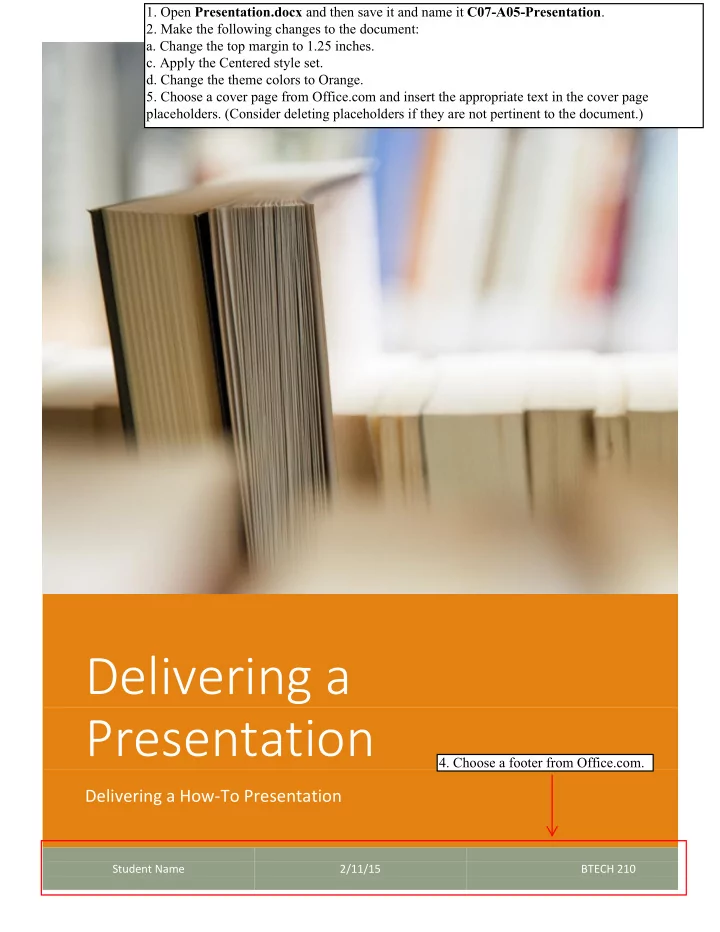
SLIDE 2 Delivering a Presentation 1
DELIVERING PRESENTATIONS
Delivering a How-To Presentation
Knowing how to give a how-to, or process, presentation is one of the most useful things you can learn about
- speaking. Giving clear directions is important not only in the classroom but also in the world of work. Many
people’s jobs involve giving this type of presentation, for example, to train new employees or to demonstrate a product to potential buyers. When you create a set of directions for others to follow, think through the process carefully. Make certain the steps you provide are complete, accurate, and in the proper sequence.
Choose a Suitable Topic
The topic you choose for your how-to presentation should be one you are familiar with or can learn about
- easily. Also keep in mind your listeners’ interests. Try to select a process that will appeal to the audience.
Processes you might explain include the following: Getting a driver’s license Cooking a favorite food Working as a volunteer Finding an internship Applying for financial aid
Develop Well-Organized Directions
Begin by arranging the major steps of the process in logical order. Then give the details needed to complete each step. Be sure to specify the materials needed and carefully explain the tasks involved. Follow these guidelines: Use transitional words such as first, second, and next to help readers keep track of the steps of the
- process. Using transitional words also will help you keep your place in the presentation.
Before you move from one step to the next step, be sure your listeners have understood what you have described. If they look confused, review what you have said or ask if they need clarification. Use visual aids in your presentation so you can demonstrate the process while you describe it. Doing so will make your presentation more interesting to listeners and also may help calm your nerves. To ensure audience members will be able to see what you are doing, use large photographs and diagrams or an oversized model.
- 2b. Apply the Title style to the title in the document,
the Heading 1 style to the subtitle, and the Heading 2 style to the three headings in the document.
- 3. Additional headers, footers, and cover pages are available
from Office.com. Click the INSERT tab, click the Header button, click the More Headers from Office.com option, and then choose a header from the side menu.